Note
Access to this page requires authorization. You can try signing in or changing directories.
Access to this page requires authorization. You can try changing directories.
Note
This content refers to the new Foundry portal, which supports only Foundry projects and provides streamlined access to models, agents, and tools. To confirm that you're using new Foundry, make sure the version toggle in the portal banner is in the on position. 
The text PII playground in Azure AI Foundry lets you detect and redact personally identifiable information (PII) from raw text interactively, without writing code. You can submit sample text, configure detection and redaction options, and review detected entities before integrating the feature into your application.
-
Important
Text PII API (2026-05-15-preview) is licensed to you as part of your Azure subscription and is subject to terms applicable to "Previews" in the Microsoft Product Terms and the Microsoft Products and Services Data Protection Addendum (DPA), as well as the Supplemental Terms of Use for Microsoft Azure Previews.
Prerequisites
Tip
- If you already have an Azure Language in Foundry Tools or multi-service resource—whether used on its own or through Language Studio—you can continue to use those existing Language resources within the Microsoft Foundry portal.
- For more information, see Connect services in the Microsoft Foundry portal.
- Consider using a Foundry resource for the best experience. You can also follow these instructions with a Language resource.
- Azure subscription. If you don't have one, you can create one for free.
- Requisite permissions. Make sure the person establishing the account and project is assigned as the Foundry Account Owner role at the subscription level. Alternatively, having either the Contributor or Cognitive Services Contributor role at the subscription scope also meets this requirement. For more information, see Role based access control (RBAC).
- Foundry resource. Create a Foundry resource or see Configure a Foundry resource. Alternatively, you can use a Language resource.
- A Foundry project. For more information, see Create a Foundry project.
Role-based access control (RBAC) requirements
Assign the correct roles to your user principal and project managed identity to access the text PII playground. Microsoft recommends using Microsoft Entra ID authentication, which enforces role-based restrictions. Key-based authentication grants full access without role checks and should be avoided in production environments.
Important
The Foundry RBAC roles were recently renamed. Foundry User, Foundry Owner, Foundry Account Owner, and Foundry Project Manager were previously named Azure AI User, Azure AI Owner, Azure AI Account Owner, and Azure AI Project Manager. You might still see the previous names in some places while the rename rolls out. The role IDs and core permissions are unchanged.
Assign the minimum required roles to both your user principal and project managed identity so they can access Foundry features.
Verify current assignments using Check access for a user to a single Azure resource.
Navigate to the playground
The active project appears in the upper-left corner. To create a new project:
Open the project drop-down menu.
Enter a project name or select an existing one.
Select Create project.
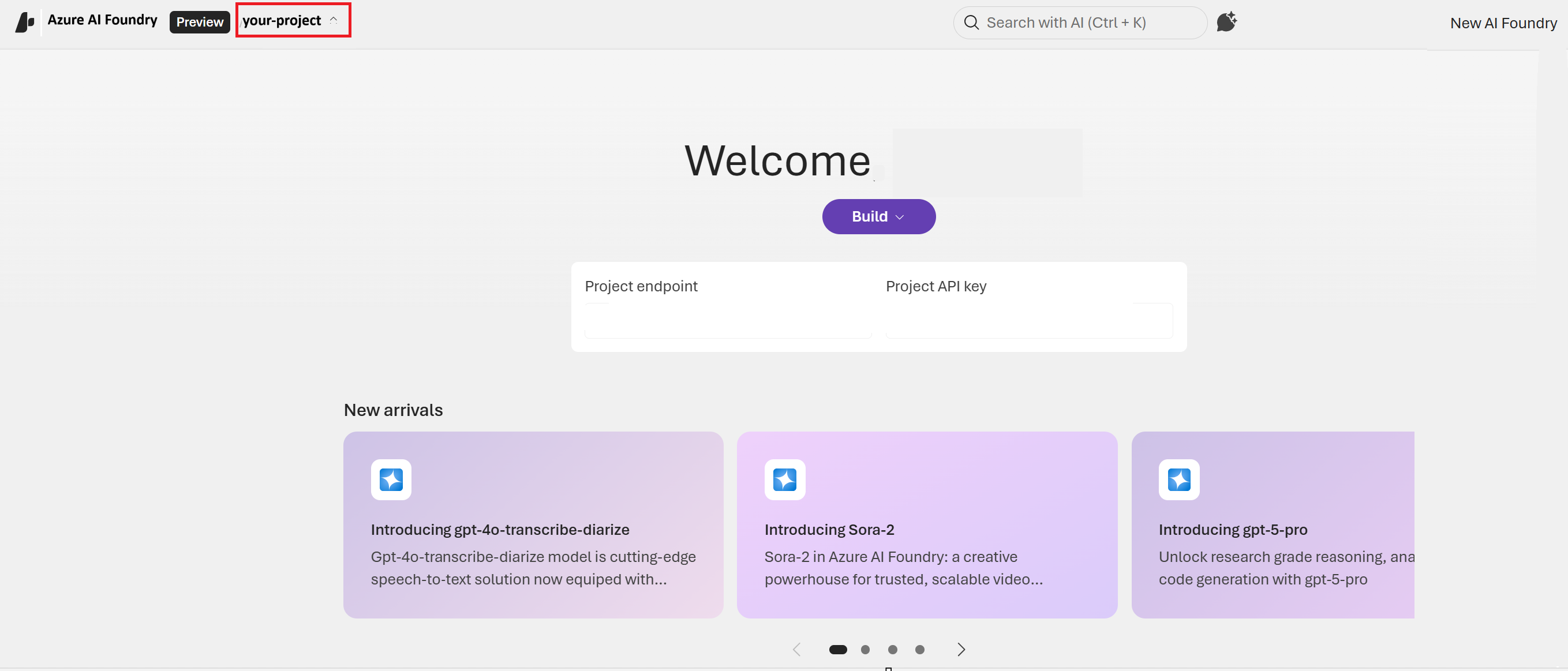
There are two ways to access the text PII interface:
Select the Discover tab from the upper-right navigation bar:
- In the search bar, enter Azure and press Enter.
- Select Azure-Language-Text-PII redaction from the results.
- Select Open in Playground.
Select the Build tab from the upper-right navigation bar:
- From the left navigation bar, select Models.
- Select the AI services tab.
- Select Azure-Language-Text-PII redaction to go directly to the playground.
Extract PII from text
The Azure-Language-Text-PII redaction model identifies and redacts personally identifiable information in text. The playground provides configuration options to customize detection and redaction preferences, and detailed output to review detected entities and confidence scores.
On the Playground tab, select Azure Language—Text PII redaction from the drop-down menu.
Select the sample text, use the paperclip icon to upload your text, or enter your own text.
In the Configure pane, set the following options:
Option Description API version Select the API version that you prefer to use. Model version Select the model version that you prefer to use. Language Select the language in which your source text is written. Select types to include Select the PII types you want to redact. Value to exclude Specify values you want to exclude from detection. For example, to redact email addresses but exclude a specific ___domain, enter that ___domain as an excluded value. Synonyms Provide alternative names for specific entity types. For example, if you enter "Microsoft" as an excluded value, you can also specify synonyms such as MSFTandMicrosoft Corporation.Policy type Choose the type of redaction policy to apply (character mask, entity mask, or no mask). Select Detect. Detected entities are highlighted in the text, and you can review the accompanying details in formatted text or as a JSON response.
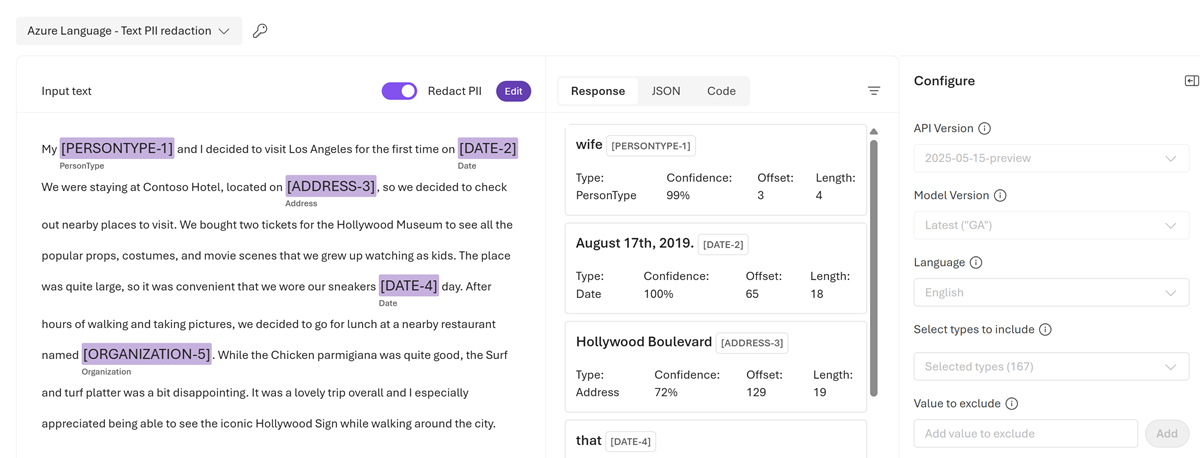
Field Description Type The detected entity type. Confidence The model's level of certainty regarding whether it correctly identified an entity type. Offset The number of characters from the beginning of the text to the entity. Length The character length of the entity.
Verify that the detected entities match the PII in your input text. Use the Edit button to modify Configure parameters and rerun detection as needed.
Open in Visual Studio Code 🆕
After validating your scenario in the playground, select Open in VS Code to carry your current configuration directly into a development environment—no manual setup required.
- Configure your scenario in the playground:
- Select your API version and model version.
- Enter and test your sample input.
- Adjust options such as entity types, redaction policy, and excluded values.
- Select Open in VS Code.
- Visual Studio Code opens with a preconfigured code sample that reflects your playground configuration, including your API version, model, and redaction settings.
Tip
Use the playground to compare outputs across API versions—for example, preview versus GA—before exporting your configuration to code.
Next steps
After opening in Visual Studio Code:
- Add your authentication credentials.
- Replace the sample input with your production data.
- Run and validate the request.
- Integrate the code into your application workflow.