Note
Access to this page requires authorization. You can try signing in or changing directories.
Access to this page requires authorization. You can try changing directories.
In this tutorial, you deploy a multi-agent travel-planner app to Azure App Service, instrument it with OpenTelemetry and the OpenTelemetry generative AI semantic conventions, and then use the AI (preview) blade in App Service plus the Agents (preview) view in Application Insights to monitor per-agent metrics.
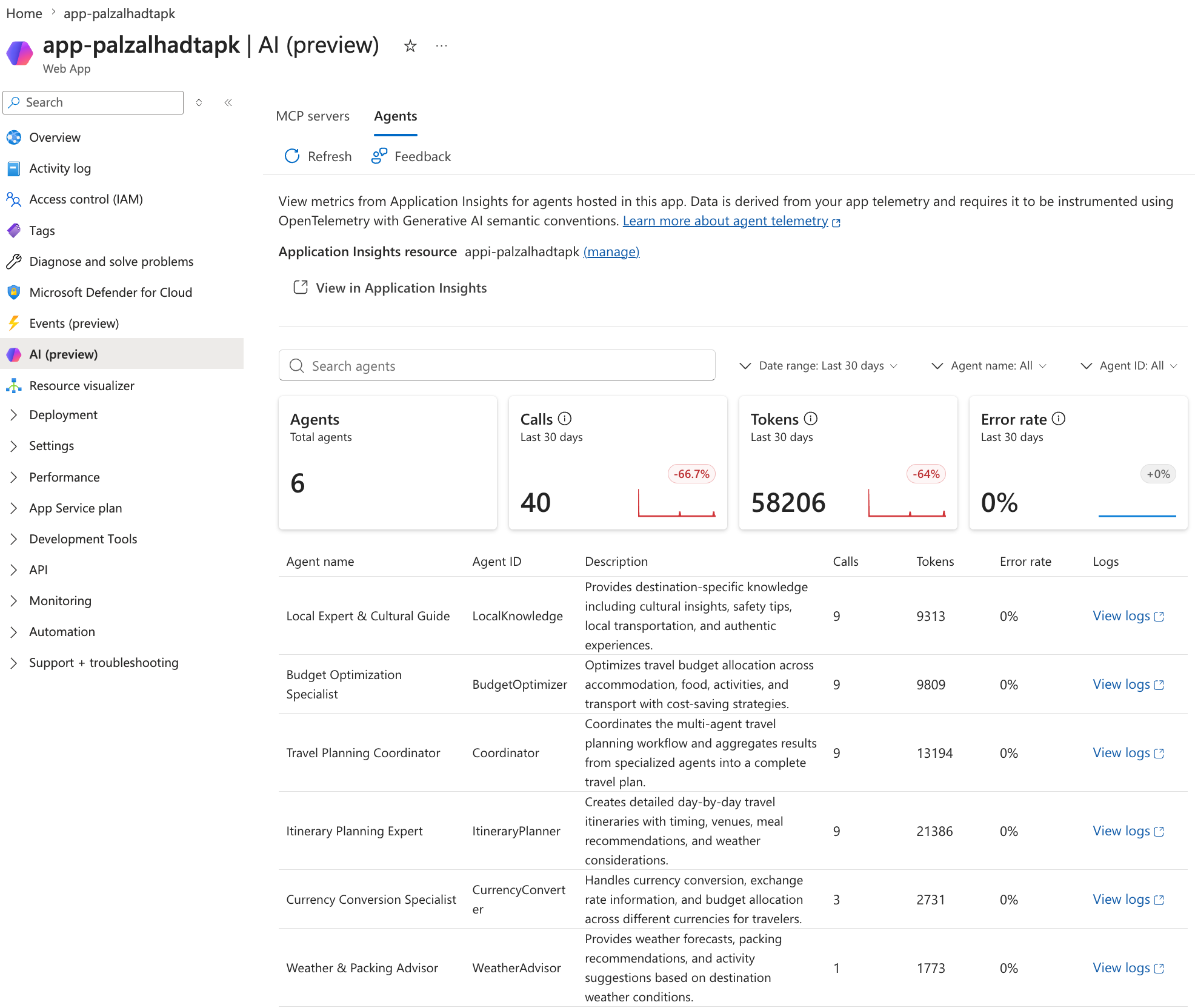
The sample is built with Microsoft Agent Framework and uses Azure OpenAI as the model backend. A Coordinator agent delegates to five specialist agents (weather, currency, budget, local knowledge, and itinerary). After you deploy and exercise the app, the per-agent telemetry rolls up automatically in the portal:
In this tutorial, you learn how to:
- Deploy a multi-agent ASP.NET Core app along with an Application Insights resource and an Azure OpenAI deployment.
- Wire up the Azure Monitor OpenTelemetry distro in your app.
- Enable the OpenTelemetry GenAI semantic conventions on Microsoft Agent Framework so per-agent attributes are emitted.
- View per-agent metrics in the App Service AI (preview) → Agents tab.
- Drill into the Agents (preview) view in Application Insights for tool calls, token consumption, and traces.
- Troubleshoot common reasons the Agents tab is empty.
Prerequisites
- An Azure subscription with permissions to create App Service, Application Insights, and Azure OpenAI resources. Create an account for free.
- Quota for the
gpt-4omodel in your chosen Azure region. See Azure OpenAI quotas and limits. - The .NET 9 SDK.
- The Azure Developer CLI (azd) version 1.10 or later.
- (Optional) The Azure CLI for inspecting resources.
1. Get the sample
git clone https://github.com/Azure-Samples/multi-agent-travel-planner-dotnet.git
cd multi-agent-travel-planner-dotnet
The repository is laid out so the OpenTelemetry wiring and the agent definitions are easy to find:
.
├── azure.yaml                        # azd config (App Service host)
├── infra/                            # Bicep: App Service plan, Web App, App Insights, Azure OpenAI
└── src/MultiAgentTravelPlanner/
    ├── Program.cs                    # OpenTelemetry distro + agent registration
    ├── Agents/AgentCatalog.cs        # Coordinator + 5 specialist agents
    ├── Tools/TravelTools.cs          # Function tools the agents call
    └── wwwroot/index.html            # Minimal chat UI
2. Deploy with azd
azd auth login
azd up
azd up prompts for an environment name, an Azure subscription, and a region. It then provisions:
- A Linux App Service plan (P0v3) and a .NET 9 web app with a system-assigned managed identity.
- A Log Analytics workspace and a workspace-based Application Insights resource. The connection string is set on the web app as
APPLICATIONINSIGHTS_CONNECTION_STRING. - An Azure OpenAI account with a
gpt-4odeployment. The web app's managed identity is granted Cognitive Services OpenAI User on the account so the app can call the model without keys.
When deployment finishes, azd prints the web app URL. Open it and send 3–5 messages so there's telemetry to look at. For example:
Plan a 4-day trip to Lisbon in July for two people on a midrange budget. Include weather and currency notes.
3. Look at the OpenTelemetry wiring
The sample wires three things to make the Agents tab work:
a. Wrap each agent with UseOpenTelemetry.
Microsoft Agent Framework emits gen_ai.* spans only when you wrap an agent with the OpenTelemetryAgent delegating wrapper. The easiest way is through AsBuilder().UseOpenTelemetry(sourceName). See Agents/AgentCatalog.cs:
private static AIAgent WithTelemetry(AIAgent agent) =>
    agent.AsBuilder()
        .UseOpenTelemetry(TelemetrySourceName, otel => otel.EnableSensitiveData = true)
        .Build();

AIAgent weather = WithTelemetry(chat.AsAIAgent(
    instructions: "...",
    name: "WeatherAdvisor",
    description: "...",
    tools: [AIFunctionFactory.Create(tools.GetWeatherForecast)]));
The agent's name ends up in the gen_ai.agent.name attribute and is exactly what the Agents tab groups on. EnableSensitiveData = true opts in to including message content in spans (off by default — set to false in production, or control it with the OTEL_INSTRUMENTATION_GENAI_CAPTURE_MESSAGE_CONTENT environment variable).
b. Send everything to Application Insights with the Azure Monitor distro and subscribe to the agent activity source.
builder.Services.AddOpenTelemetry()
    .UseAzureMonitor()
    .ConfigureResource(r => r.AddService(serviceName: "multi-agent-travel-planner"))
    .WithTracing(t => t
        .AddSource(AgentCatalog.TelemetrySourceName)
        .AddSource("Microsoft.Extensions.AI*")
        .AddSource("OpenAI*")
        .AddSource("Experimental.OpenAI*")
        .AddSource("Azure.AI.OpenAI*"))
    .WithMetrics(m => m
        .AddMeter(AgentCatalog.TelemetrySourceName)
        .AddMeter("Microsoft.Extensions.AI*")
        .AddMeter("OpenAI*"));
UseAzureMonitor() automatically reads APPLICATIONINSIGHTS_CONNECTION_STRING from configuration and wires traces, logs, and metrics to Application Insights. The AddSource and AddMeter calls register the activity sources and meters that Microsoft Agent Framework and the underlying OpenAI SDK emit on.
That's it. Each agent's name and ID are emitted on every span as gen_ai.agent.name / gen_ai.agent.id, token usage flows through gen_ai.usage.input_tokens and gen_ai.usage.output_tokens, and tool invocations and model calls show up as execute_tool and chat-completion child spans.
Important
The Bicep template in this sample sets ApplicationInsightsAgent_EXTENSION_VERSION=disabled on the web app. This disables the App Service codeless attach for .NET so that the in-process Azure Monitor OpenTelemetry distro isn't competing for the same activity sources. If you instrument your app in code, always disable the codeless agent.
4. View per-agent metrics in App Service
- In the Azure portal, open your web app.
- In the left navigation, select AI (preview).
- Select the Agents tab.
You should see one row per registered agent (Coordinator, WeatherAdvisor, CurrencyConverter, BudgetOptimizer, LocalKnowledge, ItineraryPlanner) with calls, tokens, and error rate over the selected date range. Use the search box, agent-name, and agent-ID filters to narrow the list. Select View logs on any row to open Application Insights with a query scoped to that agent.
5. Drill into Application Insights
Select View in Application Insights at the top of the Agents tab. The Agents (preview) view opens in the Application Insights resource that's connected to your web app:
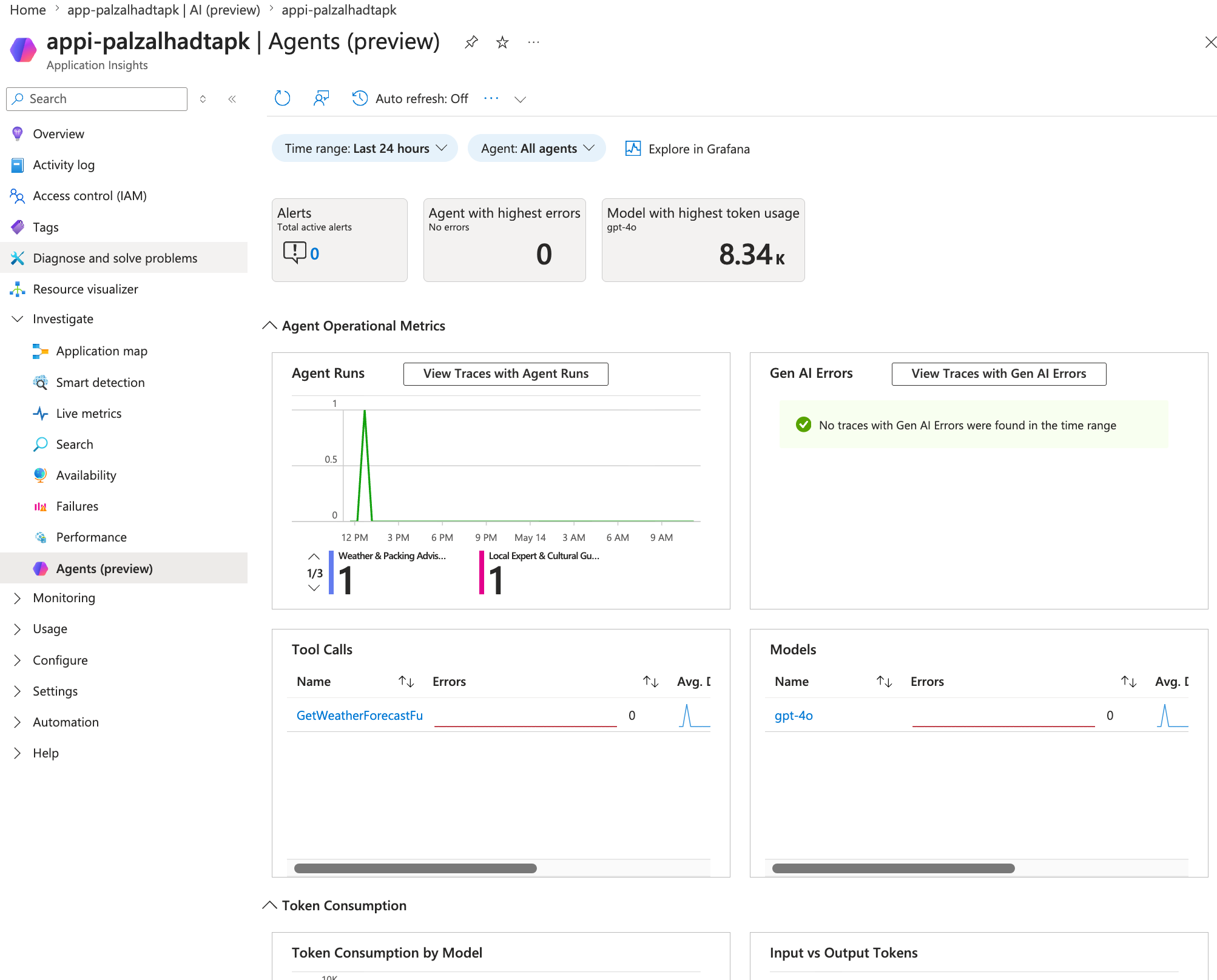
From here you can:
- Compare agent runs over time and see which agent has the highest error rate.
- See per-tool call counts and average durations.
- Break down token consumption by model and by input vs. output.
- Use View Traces with Agent Runs or View Traces with Gen AI Errors to jump to the underlying distributed traces.
For more information about this view, see Agents (preview) in Application Insights.
6. Troubleshoot
If the Agents tab is empty or incomplete, check the following.
No agents listed at all.
- Confirm the web app's Application Insights resource is connected. Open the web app's Application Insights blade (under Settings) and verify the connection.
- Confirm
APPLICATIONINSIGHTS_CONNECTION_STRINGis present as an App Service application setting. Theazdtemplate sets it automatically; if you adapted the Bicep, double-check. - In the app, confirm you call
.UseAzureMonitor()and.AddSource("Microsoft.Agents.AI")(and theMicrosoft.Extensions.AIsources). If either is missing, agent spans won't be exported.
Agents appear but tokens or calls are zero.
Make sure each agent is wrapped with
UseOpenTelemetryon its builder:AIAgent agent = chat.AsAIAgent(...) .AsBuilder() .UseOpenTelemetry("MyAgentSource", o => o.EnableSensitiveData = true) .Build();And that the same source name is registered in the OpenTelemetry pipeline with
.WithTracing(t => t.AddSource("MyAgentSource")).The Agents tab relies on
gen_ai.usage.input_tokensandgen_ai.usage.output_tokensattributes. Verify by running this query in Logs:dependencies | where timestamp > ago(1h) | where customDimensions has "gen_ai.agent.name" | project timestamp, name, customDimensions | take 20You should see
gen_ai.agent.name,gen_ai.agent.id, andgen_ai.usage.*keys incustomDimensions.
Errors say AuthenticationFailed against Azure OpenAI.
- The web app's system-assigned managed identity needs the Cognitive Services OpenAI User role on the Azure OpenAI account. The Bicep in
infra/modules/roles.bicepassigns it. If you deployed elsewhere, assign the role manually.
Sampling is dropping data.
- The Azure Monitor OpenTelemetry distro applies adaptive sampling by default. If you're testing with low volume and rows are missing, set
o.SamplingRatio = 1.0finUseAzureMonitorfor the duration of your test.
7. Clean up resources
azd down --purge
This deletes the resource group, the App Service, the Application Insights resource, and the Azure OpenAI account (including soft-deleted Azure OpenAI accounts, which is why --purge is recommended).