Note
Access to this page requires authorization. You can try signing in or changing directories.
Access to this page requires authorization. You can try changing directories.
Applies to: Hyperconverged deployments of Azure Local
This article describes how to download the operating system (OS) software from the Azure portal to deploy an Azure Local instance.
The first step in deploying Azure Local is to download the OS from the Azure portal. The software download includes a free 60-day trial.
If you purchase Integrated System or Premier solution hardware from the Azure Local Catalog through a Microsoft hardware partner or original equipment manufacturer (OEM), the Azure Stack HCI OS is typically preinstalled. In this case, use the preinstalled OS or the latest OEM golden image instead of downloading an image from the Azure portal. You can then skip this step and continue to Register your machines and assign permissions for Azure Local deployment.
Prerequisites
Before you download the software from the Azure portal, ensure you meet the following prerequisites if your OEM doesn't provide an image or if you're deploying in a lab environment:
| Prerequisite | Instructions |
|---|---|
| Azure tenant | If you don’t already have an Azure tenant, create one. Before creating a new tenant, confirm that your organization doesn’t already have one to avoid unmanaged (shadow) tenants and potential governance or licensing issues. You can create an Azure tenant by signing in with your Microsoft personal, work, or school account and obtaining a free PowerBI license. The user who creates the tenant is assigned the Global Administrator role. If your organization already has an Azure tenant, consult your IT department to determine whether Azure Local should be deployed in the existing tenant or in a new tenant to meet governance and licensing requirements. To create a new tenant, see Create a new tenant. |
| Azure account | If you don’t already have an Azure account, first create an account. |
| Azure subscription | You can use a new or existing subscription of any type: - Free account with Azure credits for students - Visual Studio subscribers or - Pay-as-you-go subscription with credit card or - Azure Subscription obtained through an Enterprise Agreement (EA) or - Azure Subscription obtained through the Cloud Solution Provider (CSP) program or - Other eligible Azure Subscription types containing Azure (Extended) Credits. |
| RBAC permissions | At a minimum, you need Reader access at the subscription level. Additional RBAC requirements are specified throughout the resource provider registration and deployment guidance. |
| Resource provider registration | Before downloading, register the Azure Stack HCI resource provider (Microsoft.AzureStackHCI) to access the OS image download. For instructions on registering via Azure PowerShell in the Azure portal, see Register required resource providers in the Azure prerequisites section. For general information about Azure resource provider registration, see Register resource provider. |
Key considerations
- English is the only supported deployment language.
- Ensure that you have the required permissions and that the necessary resource providers are registered. Otherwise, the option to download the Azure Stack HCI OS might not be available.
- OEM providers for Integrated and Premier solutions typically provide custom images. When deploying or redeploying, use the latest OEM image provided by your hardware vendor to ensure that the required drivers and configurations are included for supportability and best practices. For more information, see Obtain OEM golden images.
Download the software from the Azure portal
Follow these steps to download the software:
If not already signed in, sign in to Azure portal with your Azure account credentials.
In the Azure portal search bar at the top, enter Azure Local. As you type, the portal starts suggesting related resources and services based on your input. Select Azure Local under the Services category.
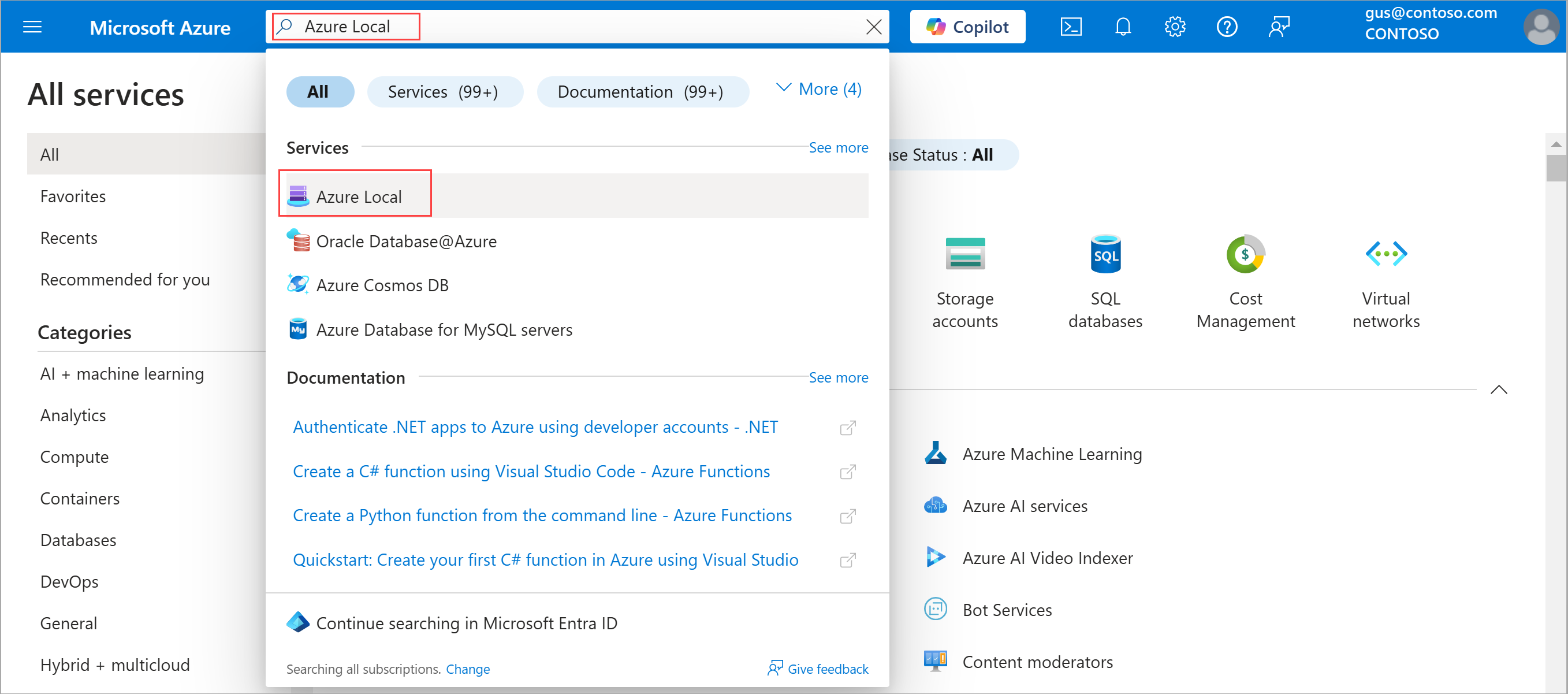
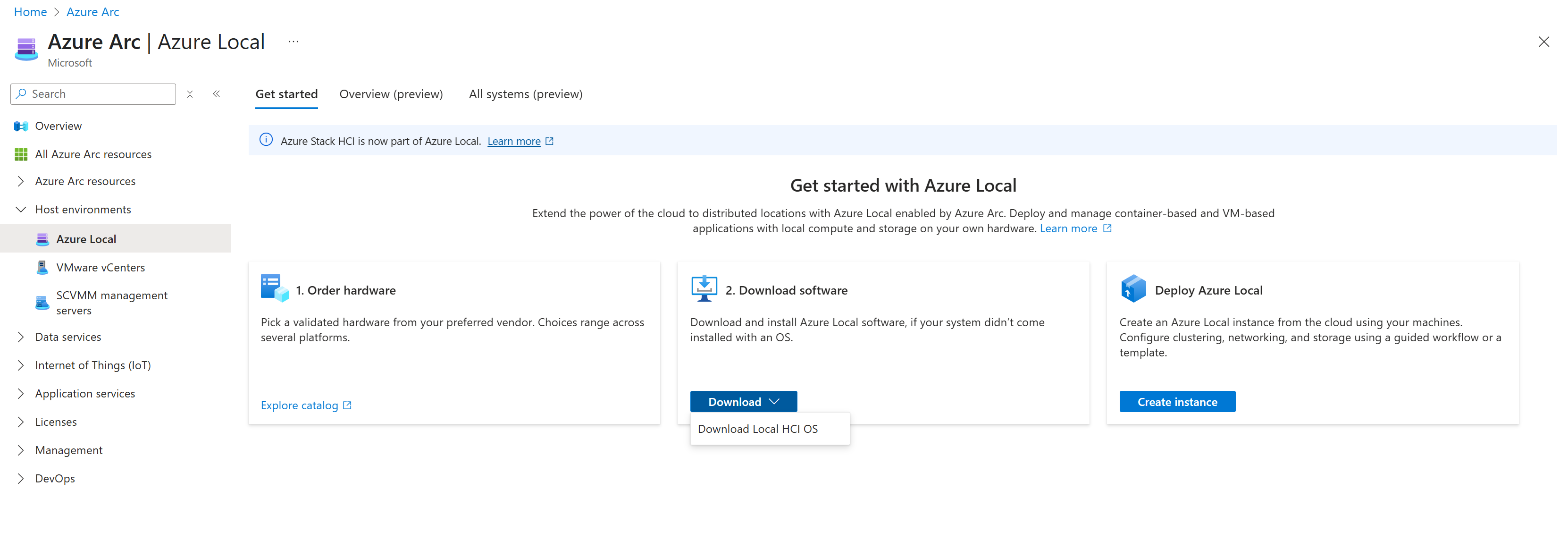
After you select Azure Local, you're directed to the Azure Local Get started page, with the Get started tab selected by default.
On the Get started tab, under the Download software tile, select Download. Skip this step if your Azure Local instance came installed with the OS.
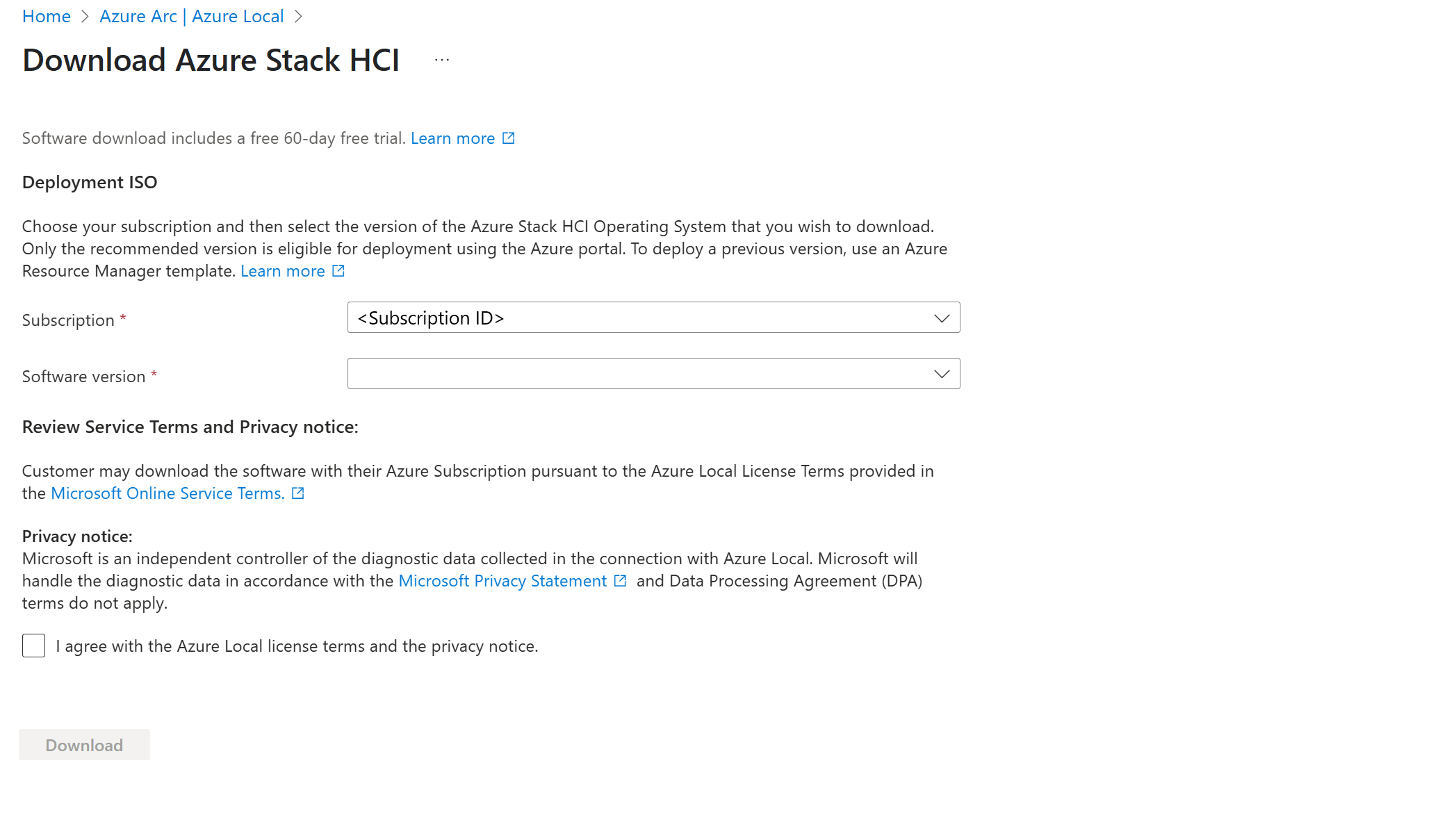
On the Download Azure Stack HCI page, do the following:
- Select the subscription in which you intend to deploy Azure Local. Ensure that the selected subscription has the Microsoft Azure Stack HCI resource provider registered and which you have Reader access at a minimum.
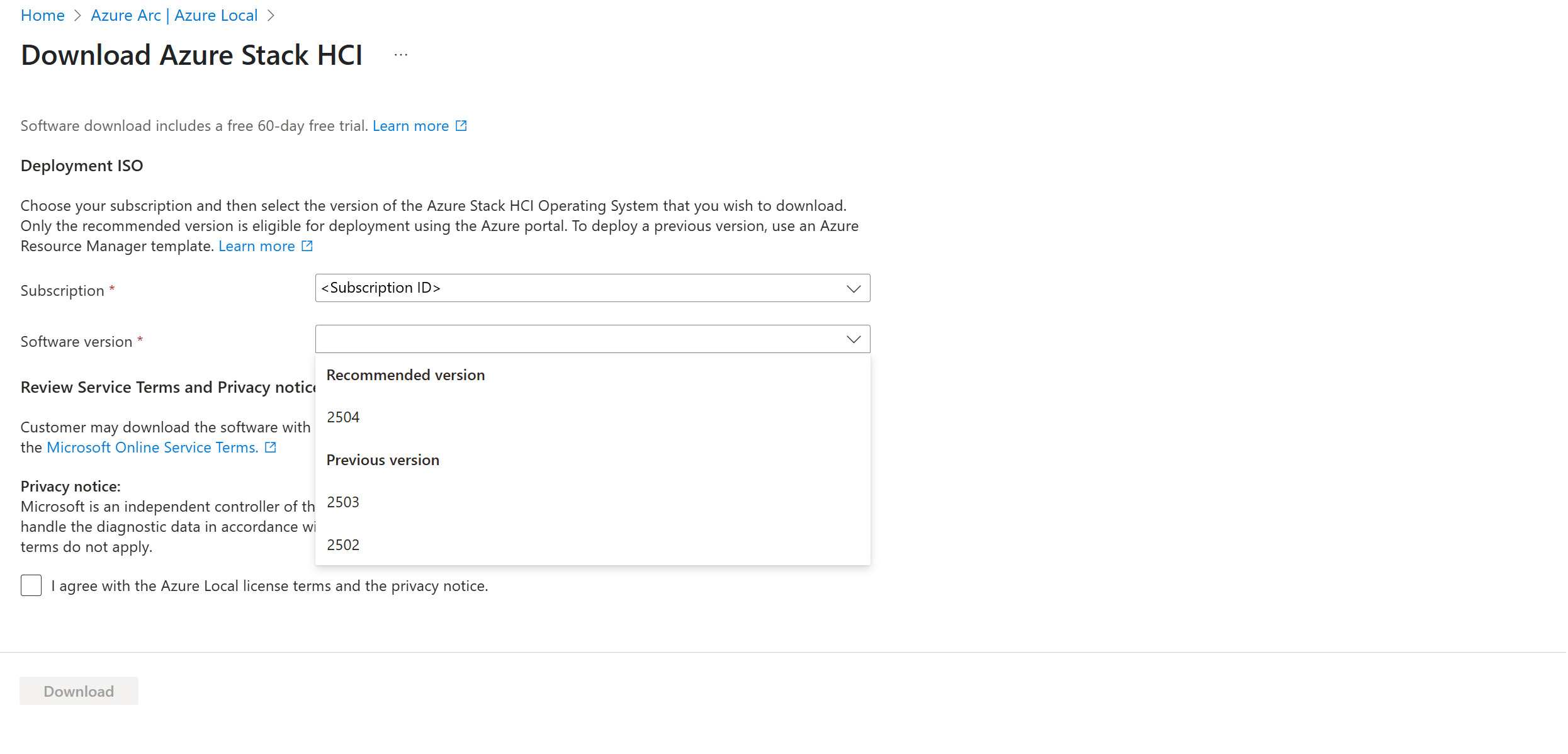
Select your desired version. Only the recommended version is eligible for deployment using Azure portal. To deploy a previous version, use an Azure Resource Manager template.
Select I agree with Azure Local license terms and privacy notice and then select Download.
Note
This action begins the download. Use the downloaded ISO file to install the software on each machine that you want to cluster.
Obtain OEM golden images
| OEM | Download ___location |
|---|---|
| DELL EMC | Download ___location. |
| HPE | Contact your HPE support channel or OEM representative. |
| Lenovo | Contact your Lenovo support channel or OEM representative. |