Note
Access to this page requires authorization. You can try signing in or changing directories.
Access to this page requires authorization. You can try changing directories.
Applies to: Hyperconverged deployments of Azure Local
After you deploy Azure Local virtual machines (VMs) enabled by Azure Arc, you need to add or delete resources like data disks and network interfaces. This article describes how to manage these VM resources for an Azure Local VM running on your Azure Local instance.
Add or delete resources using the Azure portal. To add a data disk, use the Azure CLI.
Prerequisites
- Access to a deployed and registered Azure Local instance with one or more running Azure Local VMs. For more information, see Create an Azure Local VM enabled by Azure Arc.
Add a data disk
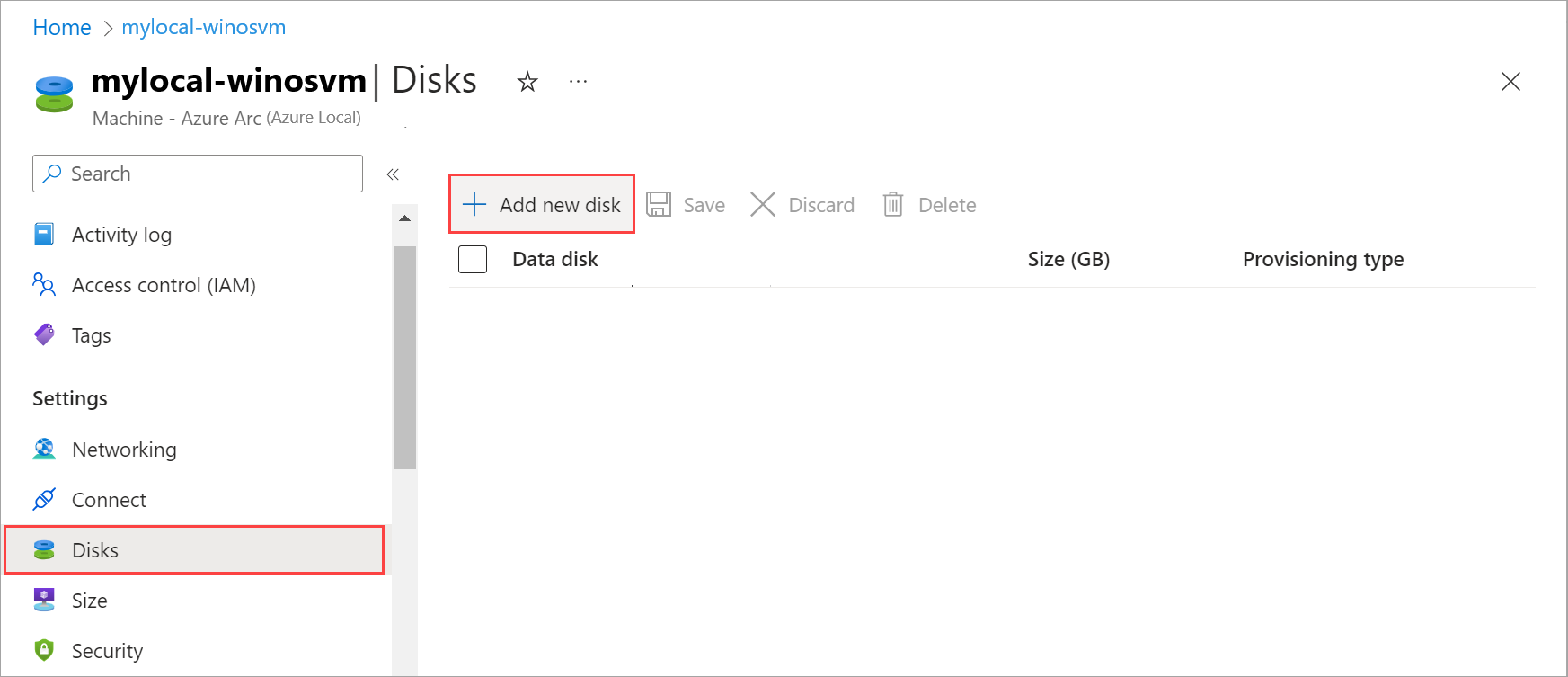
After you create a VM, you might want to add a data disk to it.
To add a data disk, you first create a disk and then attach it to the VM. Run the following commands in the Azure CLI on the computer that you're using to connect to Azure Local.
Create a data disk (dynamic) on a specified storage path:
az stack-hci-vm disk create --resource-group $resource_group --name $diskName --custom-___location $customLocationID --___location $___location --size-gb 1 --dynamic true --storage-path-id $storagePathidAttach the disk to the VM:
az stack-hci-vm disk attach --resource-group $resource_group --vm-name $vmName --disks $diskName --yes

Expand a data disk
You can expand an existing data disk to your desired size by using Azure CLI. The behavior of the expand operation depends on the disk format (VHDX or VHD):
VHDX data disks: You don't need to take the VM offline to expand the disk. You can also expand the disk to the same size as the original disk.
VHD data disks: You must take the VM offline before you expand the disk. The new size must be greater than the original disk size. You can only increase the disk size.
Note
- This feature is available only in Azure Local version 2504 and later.
- The maximum size you can expand the disk to depends on the storage capacity of the cluster. Hyper-V also imposes a maximum size of 2 TB for VHD disks and 64 TB for VHDX disks.
To expand the size of your data disk using Azure CLI, run the following command:
az stack-hci-vm disk update --name $name --resource-group $resource_group --size-gb $size_in_gb
Here's a sample output that indicates successful expansion of the data disk:
{
 "endTime": "2025-03-17T17:55:49.3271204Z",
 "error": {},
 "extendedLocation": null,
 "id": "/providers/Microsoft.AzureStackHCI/locations/EASTUS2EUAP/operationStatuses/00000000-0000-0000-0000-000000000000*0000000000000000000000000000000000000000000000000000000000000000",
 "___location": null,
 "name": "00000000-0000-0000-0000-000000000000*0000000000000000000000000000000000000000000000000000000000000000",
 "properties": null,
 "resourceId": "/subscriptions/00000000-0000-0000-0000-000000000000/resourceGroups/resourceGroupName/providers/Microsoft.AzureStackHCI/virtualHardDisks/dataDiskName",
 "startTime": "2025-03-17T17:55:25.8868586Z",
 "status": "Succeeded",
 "systemData": null,
 "tags": null,
 "type": null
}
Identify a data disk
You can identify a data disk attached to your an Azure Local VM by checking its property called Unique ID.
The Unique Id of a data disk is the SCSI disk identifier found inside the guest VM. It doesn't match the disk identifier if the disk is attached to an IDE controller, for example, Gen 1 VM OS disk.
Follow these steps to identify a data disk inside the guest VM:
Run PowerShell as an administrator.
To get the unique ID of the data disk, run the following command:
Get-Disk | Select-Object UniqueIdNote the UniqueId value for the data disk you want to identify. Compare the
UniqueIdthat you have noted to theUniqueIdfield of the disk resource to accurately map which disk is the Azure representation disk.
Delete a data disk
Follow these steps in the Azure portal for your Azure Local instance:
Go to Azure Local resource, and then go to Virtual machines.
In the list of VMs, select and go to the VM whose data disk you want to delete.
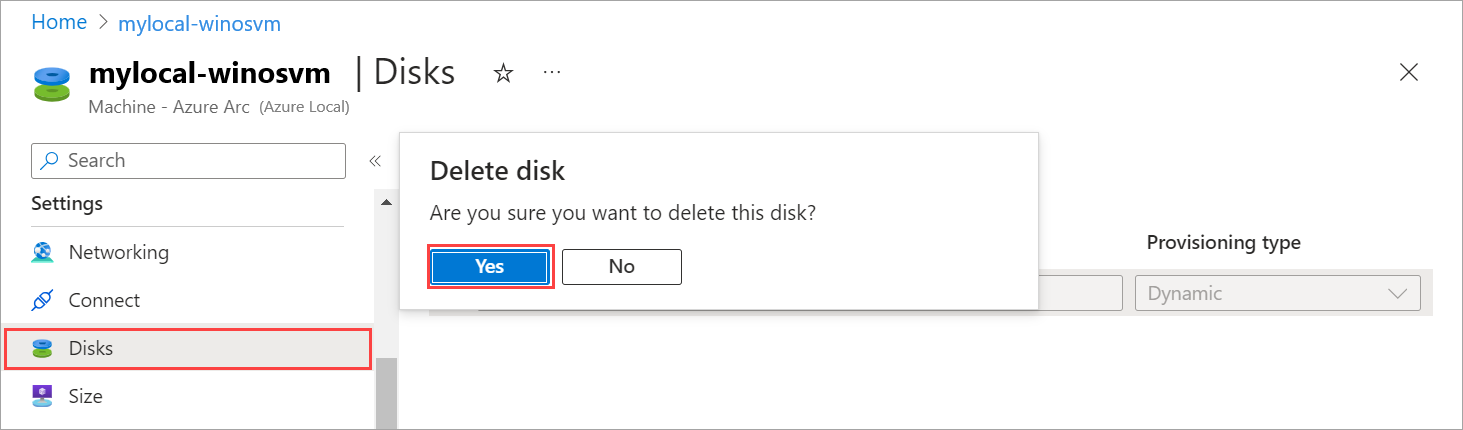
Go to Disks and select the data disk that you want to delete. On the command bar, select Delete.
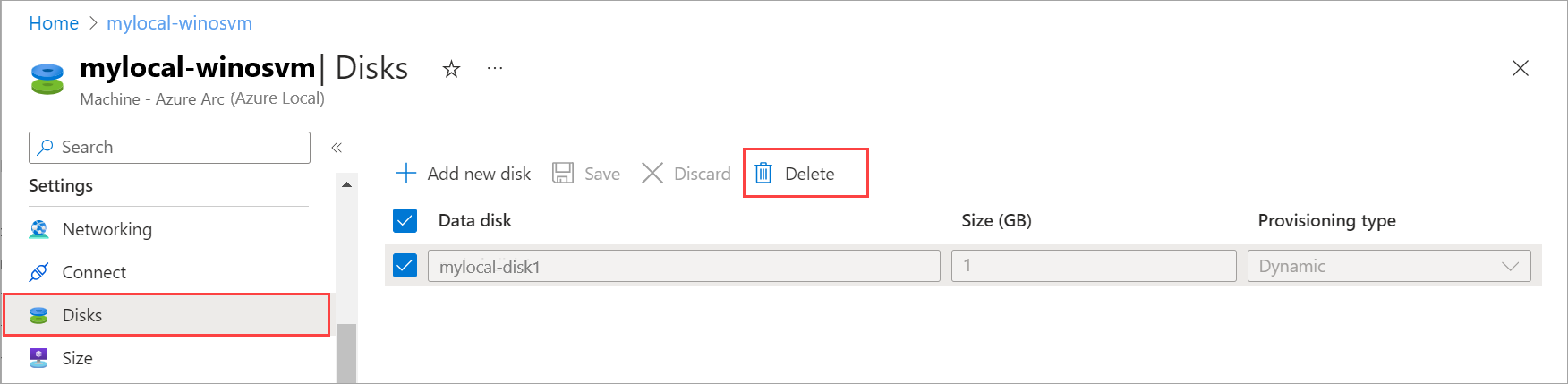
In the confirmation dialog, select Yes to continue.
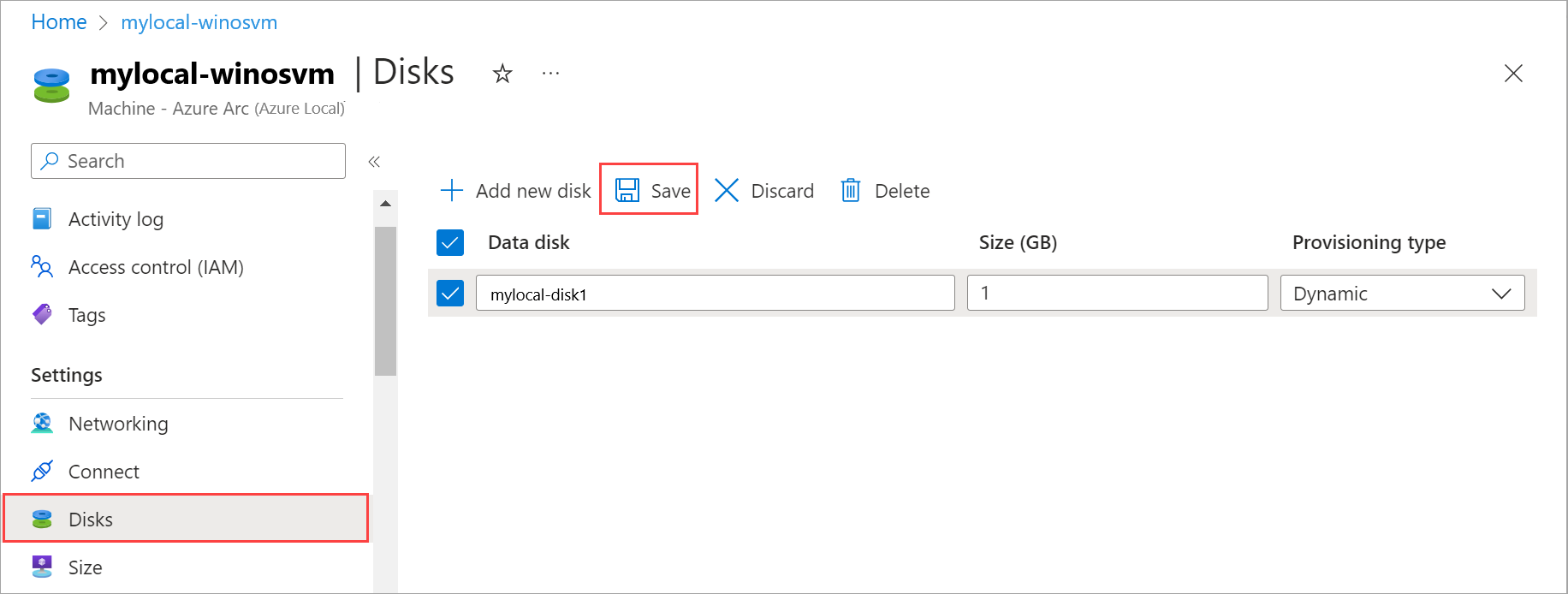
Select Save to save the changes.
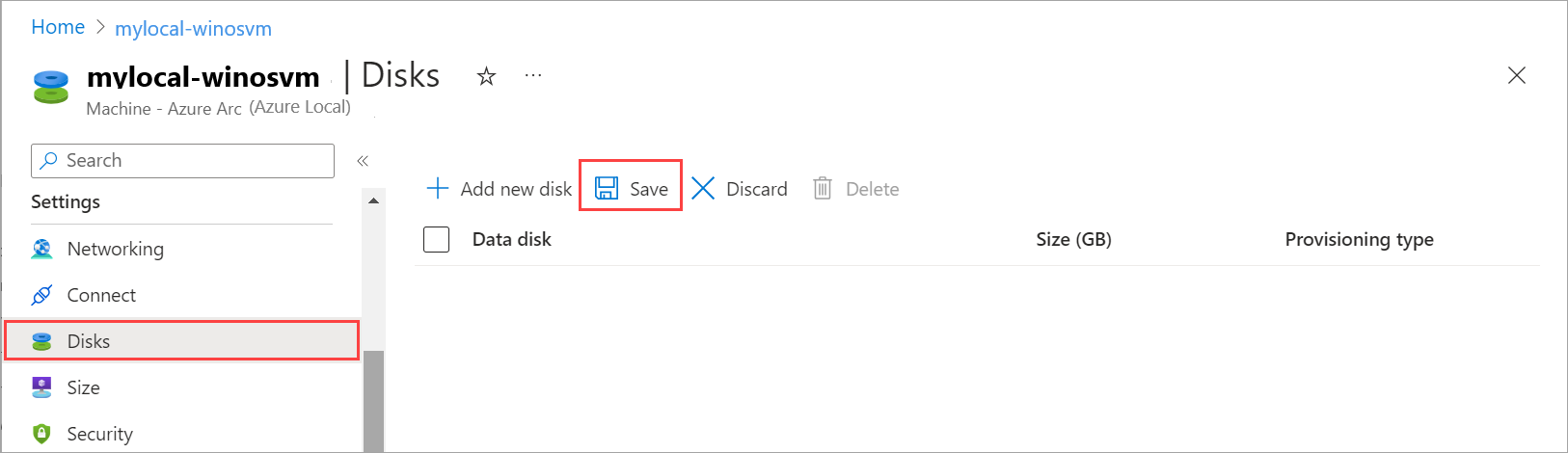
You get a notification that the job for disk deletion started. After the disk is deleted, the list refreshes to display the remaining data disks.
Add a network interface
Note
After you add the network interface, sign in to the virtual machine and configure the desired static IP address.
Follow these steps in the Azure portal for your Azure Local instance:
Go to your Azure Local resource, and then go to Virtual machines.
In the list of VMs, select and go to the VM to which you want to add a network interface.
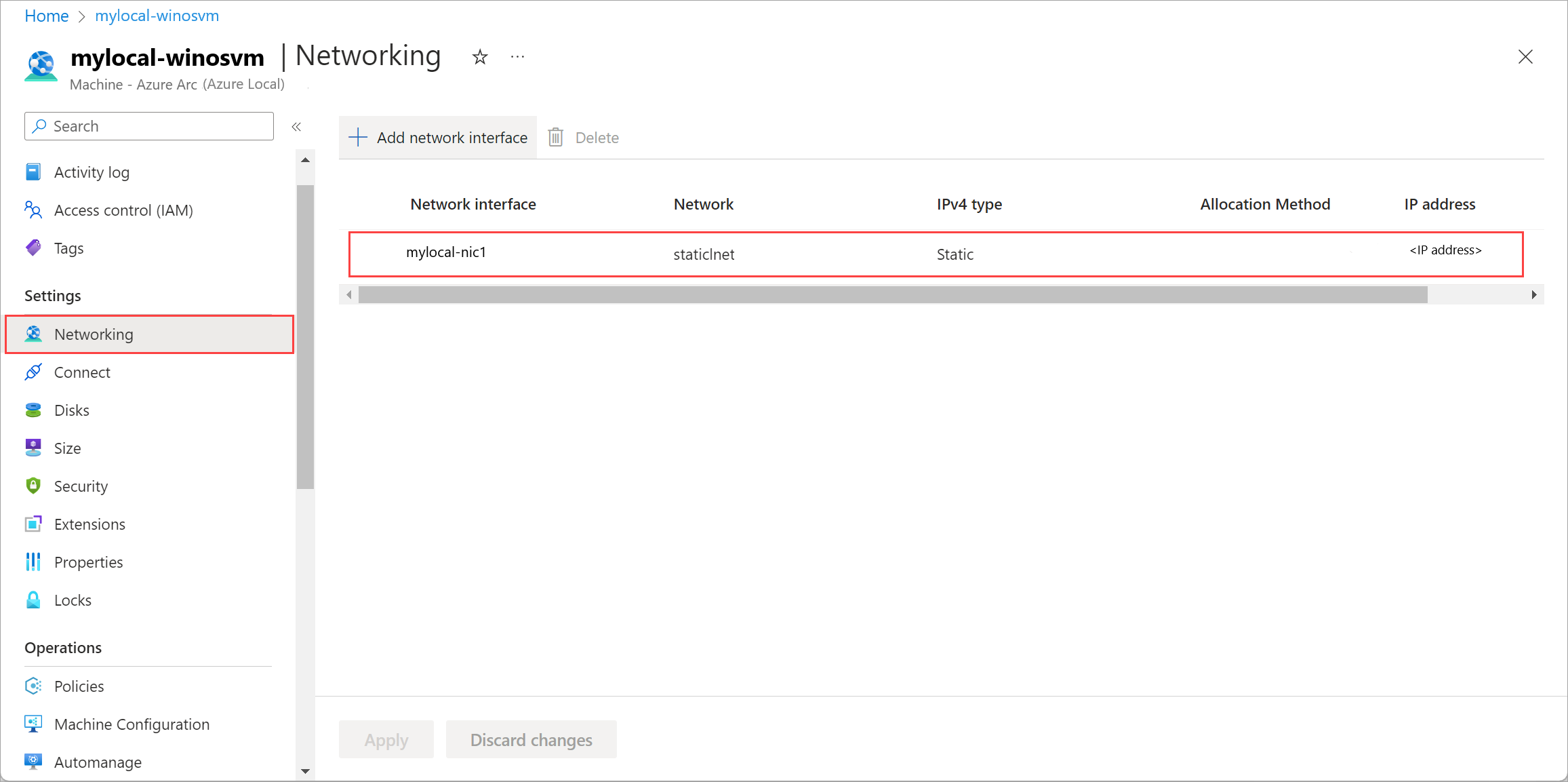
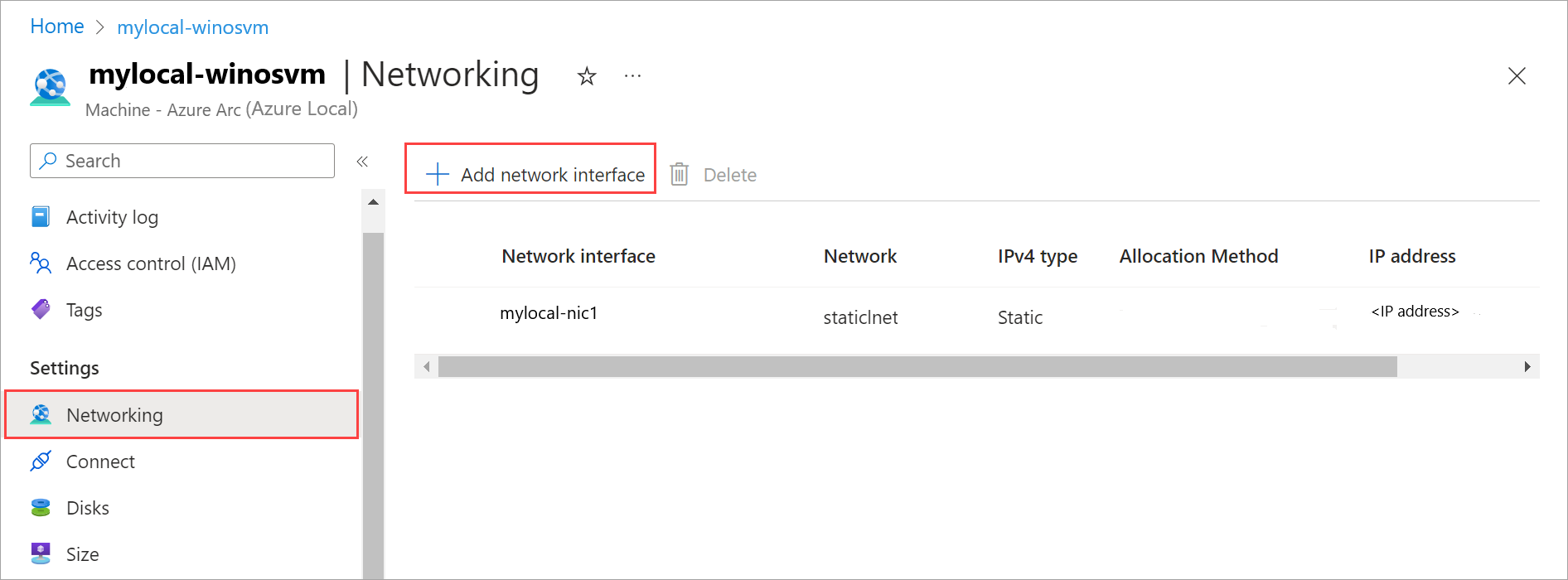
Go to Networking. On the command bar, select + Add network interface.
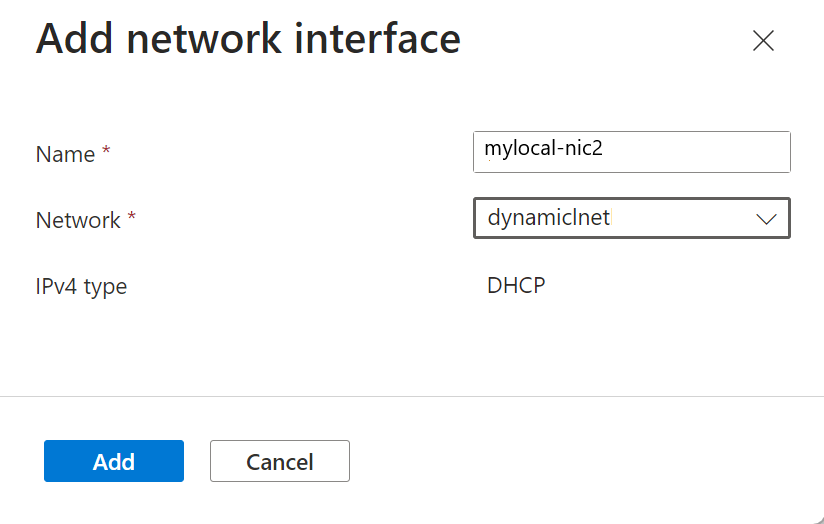
On the Add network interface pane, enter the following parameters, and then select Add:
- For Name, specify a friendly name for the network interface.
- In the Network dropdown list, select a logical network to associate with this network interface.
- For IPv4 type, select DHCP or Static.
Select Apply to apply the changes.
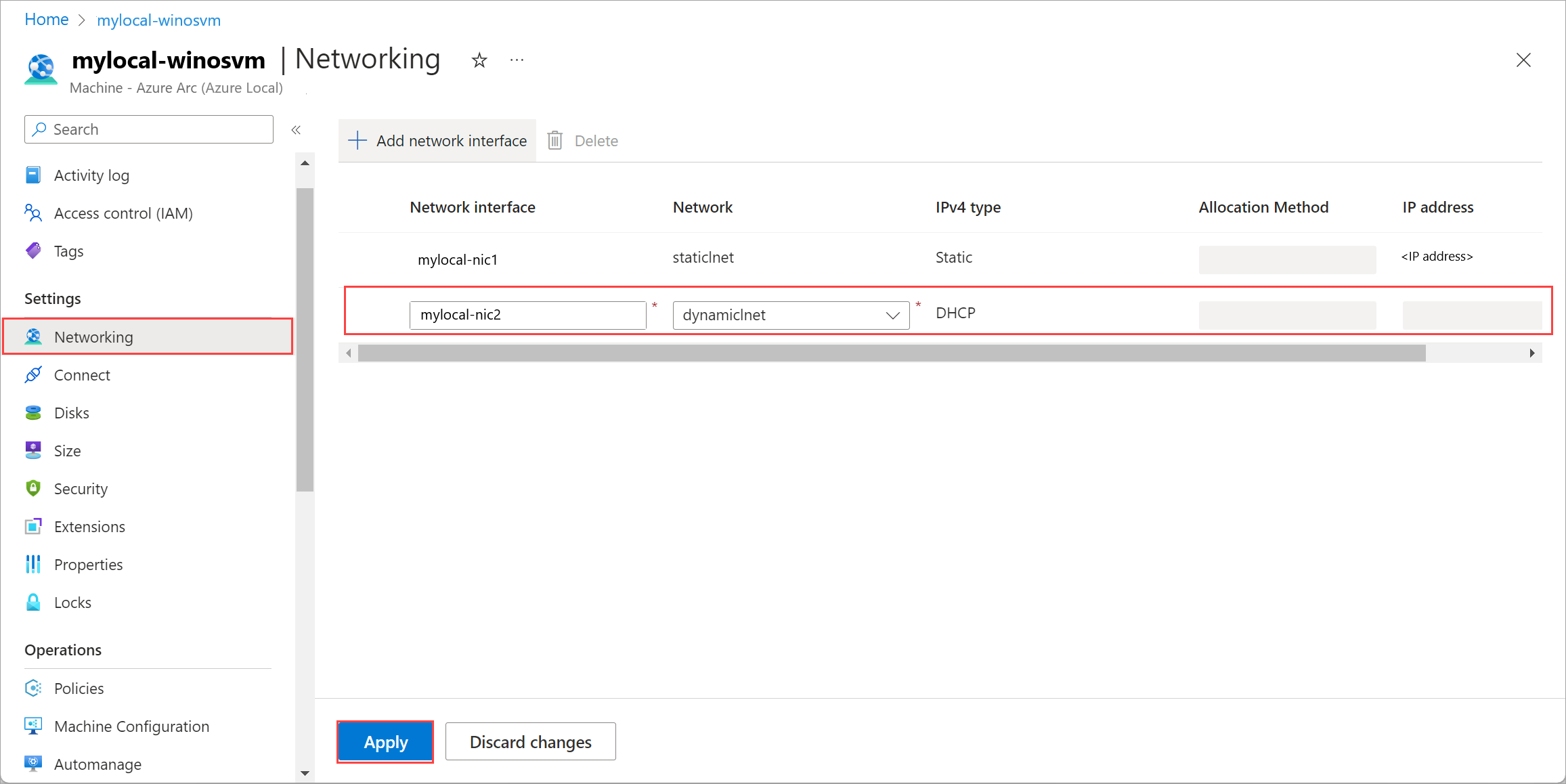
You get a notification that the job for network interface creation started. After the network interface is created, it's attached to the Azure Local VM.
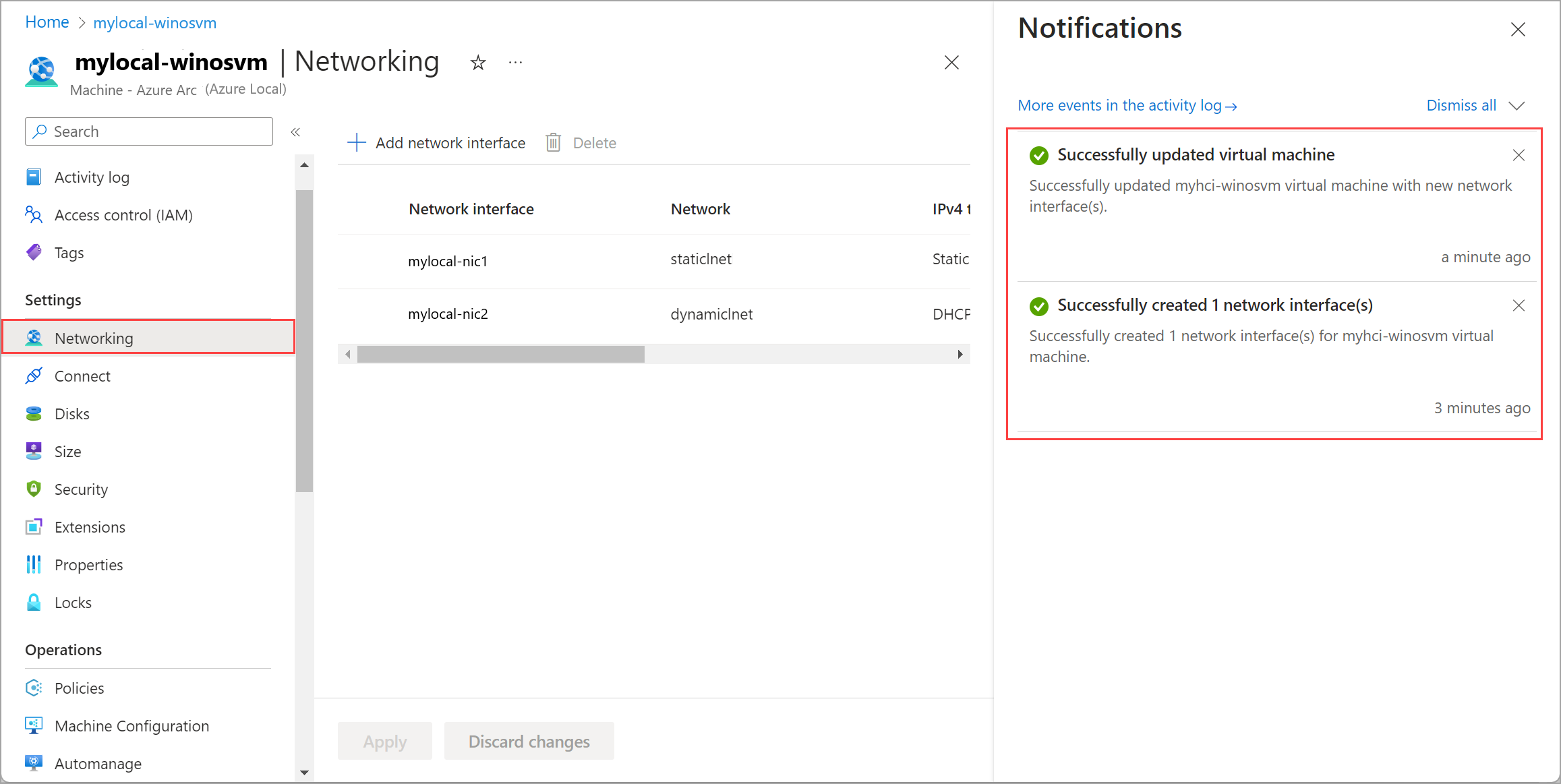
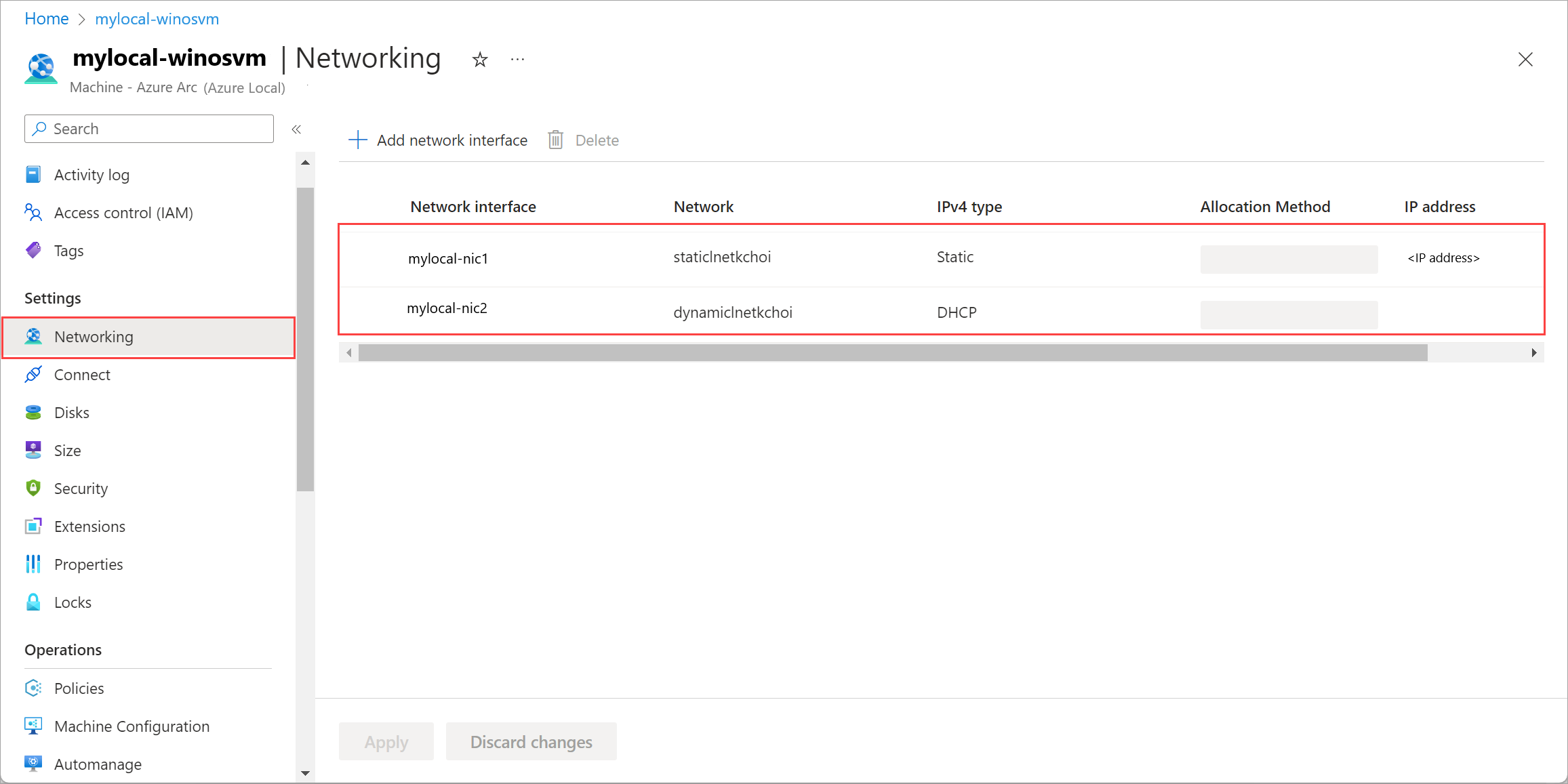
The list of network interfaces is updated with the newly added network interface.
Delete a network interface
Follow these steps in the Azure portal for your Azure Local instance.
Go to your Azure Local resource, and then go to Virtual machines.
In the list of VMs, select and go to the VM whose network interface you want to delete.
Go to Networking and select the network interface that you want to delete. On the command bar, select Delete.
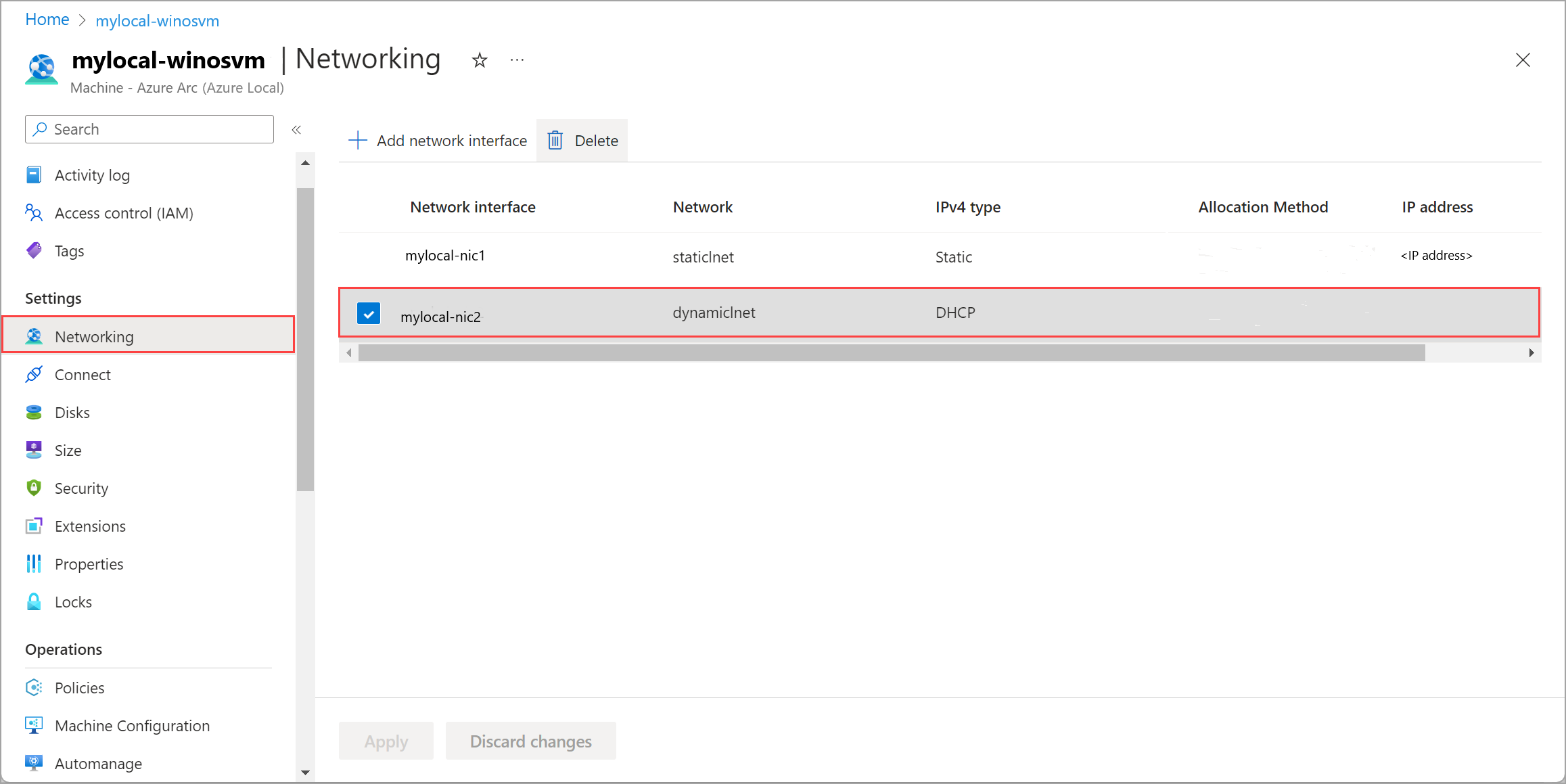
In the confirmation dialog, select Yes to continue.
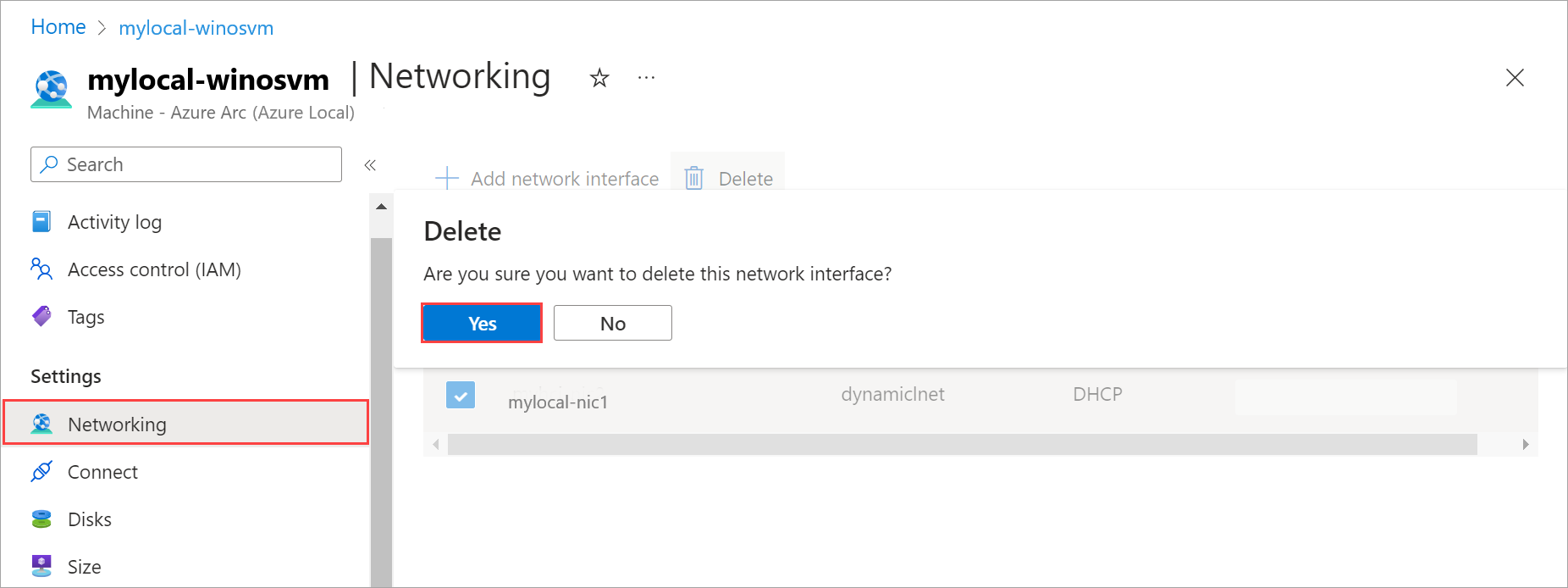
Select Apply to apply the changes. The network interface is dissociated from the Azure Local VM.
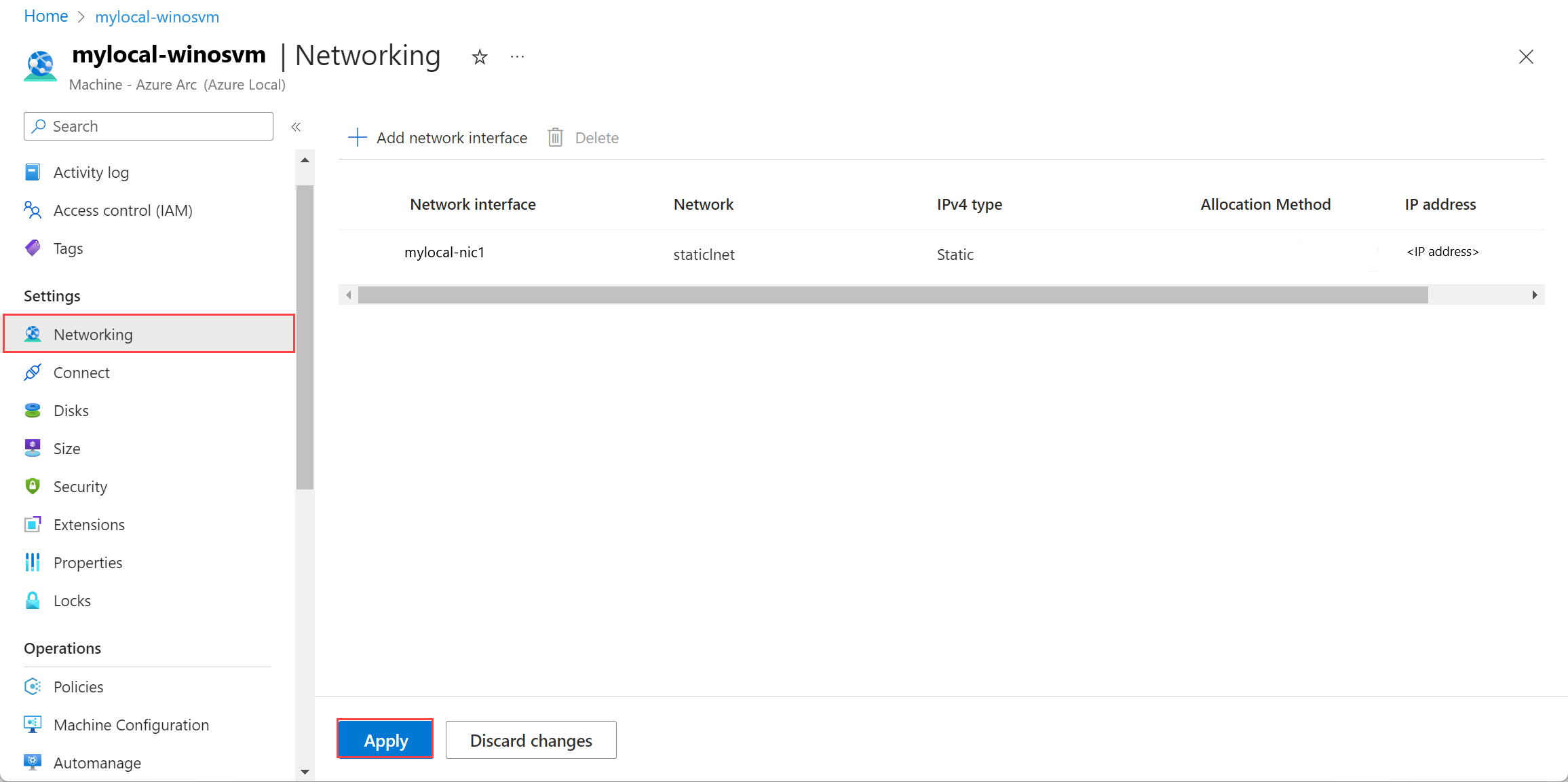
The list of network interfaces is updated with the deleted network interface.