Note
Access to this page requires authorization. You can try signing in or changing directories.
Access to this page requires authorization. You can try changing directories.
Use the client installer to install the Azure Monitor Agent on Windows client devices and send monitoring data to your Log Analytics workspace.
Both the Azure Monitor Agent extension and the installer install the same underlying agent and use data collection rules (DCRs) to configure data collection.
This article explains how to install the Azure Monitor Agent on Windows client devices by using the client installer, and how to associate DCRs to your Windows client devices.
Note
This article provides specific guidance for installing the Azure Monitor Agent on Windows client devices, subject to limitations. For standard installation and management guidance for the agent, see the agent extension management guidance.
Comparison with the virtual machine extension
Here's a comparison between using the client installer and using the virtual machine (VM) extension for the Azure Monitor Agent:
| Functional component | Method for VMs or servers via the extension | Method for clients via the installer |
|---|---|---|
| Agent installation method | VM extension | Client installer |
| Agent installed | Azure Monitor Agent | Azure Monitor Agent |
| Authentication | Managed identity | Microsoft Entra device token |
| Central configuration | DCRs | DCRs |
| Associating config rules to agents | DCRs associate directly to individual VM resources | DCRs associate to a monitored object, which maps to all devices in the Microsoft Entra tenant |
| Data upload to Log Analytics | Log Analytics endpoints | Log Analytics endpoints |
| Feature support | All documented features | Features dependent on the Azure Monitor Agent extension that don't require more extensions (includes support for Microsoft Sentinel Windows Event filtering) |
| Networking options | Proxy support, private link support | Proxy support only |
Supported device types
| Device type | Supported? | Installation method | Additional information |
|---|---|---|---|
| Windows 11, 10 desktops, workstations | Yes | Client installer | Installs the agent by using a Windows MSI installer. |
| Windows 11, 10 laptops | Yes | Client installer | Installs the agent by using a Windows MSI installer (the installation works on laptops, but the agent isn't yet optimized for battery, network consumption, or hibernation). |
| VMs, scale sets | No | VM extension | Installs the agent by using the Azure extension framework. |
| On-premises servers | No | VM extension (with Azure Arc agent) | Installs the agent by using the Azure extension framework, provided for on-premises by installing the Azure Arc agent. |
Important
The Azure Monitor doesn't support hibernation. If the agent computer hibernates, you may lose monitoring data. This will typically result in an error message similar to the following.
Failed to post health report to https://global.handler.control.monitor.azure.com on first round of tries. No fallback will be attempted. Error: {"error":{"code":"TokenExpired","message":"IDX10223: Lifetime validation failed. The token is expired. ValidTo (UTC): '12/27/2024 4:41:52 PM', Current time (UTC): '12/30/2024 3:00:16 PM'."}}
Prerequisites
The machine must be running Windows client OS version 10 RS4 or later.
To download the installer, the machine should have C++ Redistributable version 2015) or later installed.
The machine must be ___domain-joined to a Microsoft Entra tenant (joined or hybrid joined machines). When the machine is ___domain-joined, the agent can fetch Microsoft Entra device tokens to authenticate and fetch DCRs from Azure.
Check to see if you need tenant admin permissions on the Microsoft Entra tenant.
The device must have access to the following HTTPS endpoints:
•
global.handler.control.monitor.azure.com•
<virtual-machine-region-name>.handler.control.monitor.azure.com
Example:westus.handler.control.azure.com•
<log-analytics-workspace-id>.ods.opinsights.azure.com
Example:12345a01-b1cd-1234-e1f2-1234567g8h99.ods.opinsights.azure.comIf you use private links on the agent, you must also add the data collection endpoints.
A DCR that you want to associate with the devices. If it doesn't exist already, create a data collection rule. Don't associate the rule to any resources yet.
Before you use any PowerShell cmdlet, ensure that the cmdlet-related PowerShell module is installed and imported.
Limitations
The data collection rules you create for Windows client machines can only target the entire Microsoft Entra tenant scope. That is, a data collection rule you associate to a monitored object applies to all Windows client machines on which you install Azure Monitor Agent using this client installer within the tenant. Granular targeting using data collection rules is not supported for Windows client devices.
Azure Monitor Agent doesn't support monitoring of Windows machines connected via Azure private links.
The agent installed using the Windows client installer is designed mainly for Windows desktops or workstations that are always connected. Although you can install Azure Monitor Agent on laptops using the installer, the agent isn't optimized for battery consumption and network limitations on a laptop.
Azure Monitor Metrics is not supported as a destination for Windows client devices.
Install the agent
Download the agent Windows MSI installer.
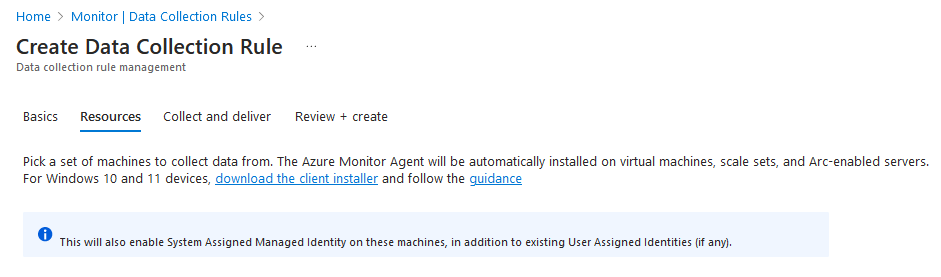
You can also download it in the Azure portal. In the portal menu, go to Monitor > Data Collection Rules > Create as shown in the following screenshot:
Open an elevated admin Command Prompt window and change directory to the ___location where you downloaded the installer.
To install with the default settings, run the following command:
msiexec /i AzureMonitorAgentClientSetup.msi /qnTo install with custom file paths, network proxy settings, or on a nonpublic cloud, use the following command. Use the values from the next table.
msiexec /i AzureMonitorAgentClientSetup.msi /qn DATASTOREDIR="C:\example\folder"Parameter Description INSTALLDIRDirectory path where the agent binaries are installed. DATASTOREDIRDirectory path where the agent stores its operational logs and data. PROXYUSEMust be set to trueto use a proxy.PROXYADDRESSSet to the proxy address including the port number, in the format Address:Port.PROXYUSEmust be set totruefor this parameter to be correctly applied.PROXYUSEAUTHSet to trueif a proxy requires authentication.PROXYUSERNAMESet to the proxy username. PROXYUSEandPROXYUSEAUTHmust be set totrue.PROXYPASSWORDSet to the proxy password. PROXYUSEandPROXYUSEAUTHmust be set totrue.CLOUDENVSet to the cloud name: Azure Commercial,Azure China,Azure US Gov,Azure USNat, orAzure USSec.Verify successful installation:
- Open Control Panel > Programs and Features. Ensure that Azure Monitor Agent appears in the list of programs.
- Open Services and confirm that Azure Monitor Agent appears and Status is Running.
Go to the next section to create a monitored object to associate with DCRs to start the agent.
Note
If you install the agent by using the client installer, currently, you can't update local agent settings after the agent is installed. To update these settings, uninstall and then reinstall the Azure Monitor Agent.
Create and associate a monitored object
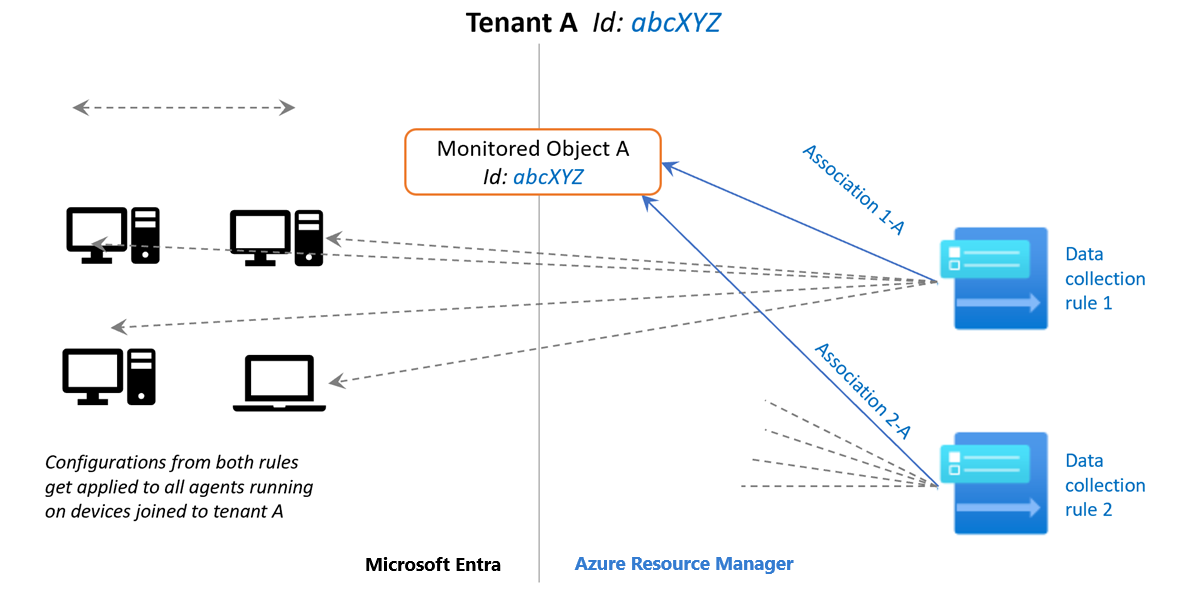
Next, create a monitored object, which represents the Microsoft Entra tenant within Azure Resource Manager. DCRs are then associated with the Azure Resource Manager entity. Azure associates a monitored object to all Windows client machines in the same Microsoft Entra tenant.
Currently, the scope of this association is limited to the Microsoft Entra tenant. Configuration that's applied to the Microsoft Entra tenant is applied to all devices that are part of the tenant and running the agent that installed via the client installer. Agents installed via the VM extension aren't in the scope and aren't affected.
The following image demonstrates how the monitored object association works:
Then, continue in the next section to create and associate DCRs to a monitored object by using REST APIs or Azure PowerShell commands.
Permissions required
Important
Because a monitored object is a tenant-level resource, the scope of permissions is greater than the scope of the permissions required for a subscription. An Azure tenant admin might be required to perform this step.
Complete the steps to elevate a Microsoft Entra tenant admin as Azure Tenant Admin to give the Microsoft Entra admin Owner permissions at the root scope.
This scope of permissions is required for all methods described in the following section.
Step 1: Assign the Monitored Objects Contributor role to the operator
This step grants permissions to create and link a monitored object to a user or group.
After this step is complete, reauthenticate your session and reacquire your bearer token (REST) or re-run Connect-AzAccount (PowerShell) / az login (CLI).
Note
A dedicated Azure CLI command isn't currently available for this operation. The following example calls the underlying Azure Resource Manager REST API directly by using az rest.
# Set variables
principalId="<PrincipalId>"
roleAssignmentGuid="$(uuidgen)"

# Assign the Monitored Objects Contributor role
az rest \
  --method put \
  --uri "https://management.azure.com/providers/microsoft.insights/providers/microsoft.authorization/roleassignments/$roleAssignmentGuid?api-version=2021-04-01-preview" \
  --body "{
    \"properties\": {
      \"roleDefinitionId\": \"/providers/Microsoft.Authorization/roleDefinitions/56be40e24db14ccf93c37e44c597135b\",
      \"principalId\": \"$principalId\"
    }
  }"
| Parameter | Description |
|---|---|
| principalId | The Object Id of the user or group to assign the role to. |
| roleAssignmentGuid | Any valid GUID. Generated automatically with uuidgen. |
After this step is complete, re-run az login.
Step 2: Create a monitored object
This step creates the monitored object for the Microsoft Entra tenant scope. It represents client devices signed in with that Microsoft Entra tenant identity.
Note
A dedicated Azure CLI command isn't currently available for this operation. The following example calls the underlying Azure Resource Manager REST API directly by using az rest.
# Set variables
tenantId="<TenantId>"
azureRegion="<AzureRegion>"

# Create the monitored object
az rest \
  --method put \
  --uri "https://management.azure.com/providers/Microsoft.Insights/monitoredObjects/$tenantId?api-version=2021-09-01-preview" \
  --body "{
    \"properties\": {
      \"___location\": \"$azureRegion\"
    }
  }"
| Parameter | Description |
|---|---|
| tenandId | The Microsoft Entra tenant ID. |
| azureRegion | The Azure region where the monitored object is stored. Must be the same region as the DCR. |
Step 3: Associate the DCR to the monitored object
This step associates the DCR to the monitored object by creating a data collection rule association (DCRA).
Note
To associate multiple DCRs to the same monitored object, use a unique associationName for each association.
Note
A dedicated Azure CLI command isn't currently available for this operation. The following example calls the underlying Azure Resource Manager REST API directly by using az rest.
# Set variables
tenantId="<TenantId>"
subscriptionId="<SubscriptionId>"
resourceGroupName="<ResourceGroupName>"
dcrName="<DcrName>"
associationName="<AssociationName>"

# Build the monitored object resource ID
monitoredObjectId="/providers/Microsoft.Insights/monitoredObjects/$tenantId"

# Build the DCR resource ID
dcrId="/subscriptions/$subscriptionId/resourceGroups/$resourceGroupName/providers/Microsoft.Insights/dataCollectionRules/$dcrName"

# Associate the DCR to the monitored object
az rest \
  --method put \
  --uri "https://management.azure.com$monitoredObjectId/providers/microsoft.insights/datacollectionruleassociations/$associationName?api-version=2021-09-01-preview" \
  --body "{
    \"properties\": {
      \"dataCollectionRuleId\": \"$dcrId\"
    }
  }"
List associations to the monitored object
Use this step to verify the associations or view all DCRs linked to the monitored object.
Note
A dedicated Azure CLI command isn't currently available for this operation. The following example calls the underlying Azure Resource Manager REST API directly by using az rest.
# Set variables
tenantId="<TenantId>"

# List all associations for the monitored object
az rest \
  --method get \
  --uri "https://management.azure.com/providers/Microsoft.Insights/monitoredObjects/$tenantId/providers/microsoft.insights/datacollectionruleassociations?api-version=2021-09-01-preview"
Complete script
The following scripts combine all four steps into a single runnable script.
Note
A dedicated Azure CLI command isn't currently available for this operation. The following example calls the underlying Azure Resource Manager REST API directly by using az rest.
# Set variables
tenantId="<TenantId>"
subscriptionId="<SubscriptionId>"
resourceGroupName="<ResourceGroupName>"
dcrName="<DcrName>"
associationName="<AssociationName>"
azureRegion="<AzureRegion>"

# Get the current user's Object ID
principalId=$(az ad signed-in-user show --query id --output tsv)

# Generate a new GUID for the role assignment
roleAssignmentGuid=$(uuidgen)

# --- Step 1: Assign the Monitored Objects Contributor role ---
az rest \
  --method put \
  --uri "https://management.azure.com/providers/microsoft.insights/providers/microsoft.authorization/roleassignments/$roleAssignmentGuid?api-version=2021-04-01-preview" \
  --body "{
    \"properties\": {
      \"roleDefinitionId\": \"/providers/Microsoft.Authorization/roleDefinitions/56be40e24db14ccf93c37e44c597135b\",
      \"principalId\": \"$principalId\"
    }
  }"

# --- Step 2: Create the monitored object ---
az rest \
  --method put \
  --uri "https://management.azure.com/providers/Microsoft.Insights/monitoredObjects/$tenantId?api-version=2021-09-01-preview" \
  --body "{
    \"properties\": {
      \"___location\": \"$azureRegion\"
    }
  }"

# Build the monitored object resource ID
monitoredObjectId="/providers/Microsoft.Insights/monitoredObjects/$tenantId"

# Build the DCR resource ID
dcrId="/subscriptions/$subscriptionId/resourceGroups/$resourceGroupName/providers/Microsoft.Insights/dataCollectionRules/$dcrName"

# --- Step 3: Associate the DCR to the monitored object ---
az rest \
  --method put \
  --uri "https://management.azure.com$monitoredObjectId/providers/microsoft.insights/datacollectionruleassociations/$associationName?api-version=2021-09-01-preview" \
  --body "{
    \"properties\": {
      \"dataCollectionRuleId\": \"$dcrId\"
    }
  }"

# --- Step 4: List all associations ---
az rest \
  --method get \
  --uri "https://management.azure.com$monitoredObjectId/providers/microsoft.insights/datacollectionruleassociations?api-version=2021-09-01-preview"
Disassociate the DCR from the monitored object
The following removes a specific DCR association from the monitored object.
Note
A dedicated Azure CLI command isn't currently available for this operation. The following example calls the underlying Azure Resource Manager REST API directly by using az rest.
# Set variables
tenantId="<TenantId>"
associationName="<AssociationName>"

# Build the monitored object resource ID
monitoredObjectId="/providers/Microsoft.Insights/monitoredObjects/$tenantId"

# Disassociate the DCR from the monitored object
az rest \
  --method delete \
  --uri "https://management.azure.com$monitoredObjectId/providers/microsoft.insights/datacollectionruleassociations/$associationName?api-version=2021-09-01-preview"
Disassociate all DCRs and delete the monitored object
To fully clean up, you can remove all DCR associations and then delete the monitored object itself.
Note
A dedicated Azure CLI command isn't currently available for this operation. The following example calls the underlying Azure Resource Manager REST API directly by using az rest.
# Set variables
tenantId="<TenantId>"

# Build the monitored object resource ID
monitoredObjectId="/providers/Microsoft.Insights/monitoredObjects/$tenantId"

# Get all associations for the monitored object
associations=$(az rest \
  --method get \
  --uri "https://management.azure.com$monitoredObjectId/providers/microsoft.insights/datacollectionruleassociations?api-version=2021-09-01-preview" \
  --query "value[].id" \
  --output tsv)

# Disassociate all DCRs from the monitored object
for associationId in $associations; do
  az rest \
    --method delete \
    --uri "https://management.azure.com$associationId?api-version=2021-09-01-preview"
done

# Delete the monitored object
az rest \
  --method delete \
  --uri "https://management.azure.com$monitoredObjectId?api-version=2021-09-01-preview"
Verify successful setup
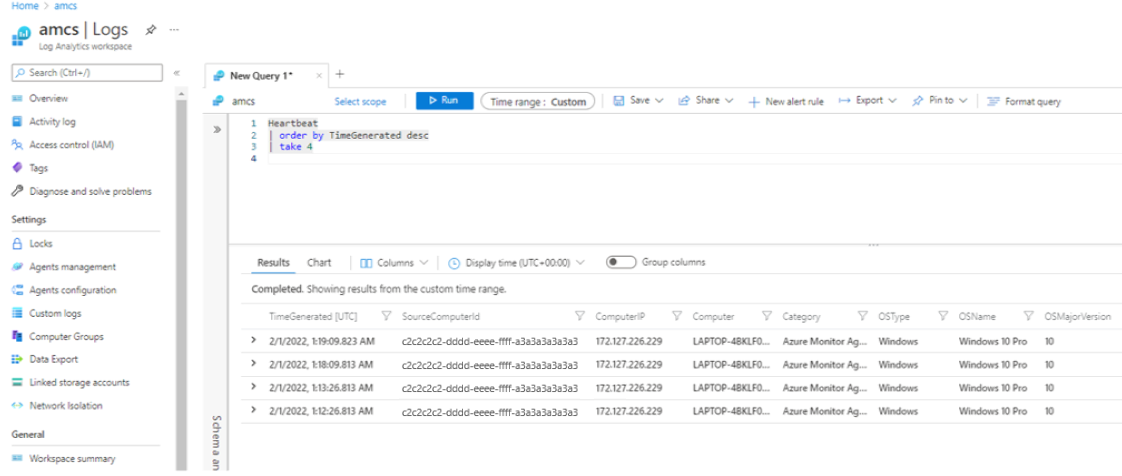
In the Log Analytics workspace that you specified as a destination in the DCRs, check the Heartbeat table and other tables you configured in the rules.
The SourceComputerId, Computer, and ComputerIP columns should all reflect the client device information respectively, and the Category column should say Azure Monitor Agent.
Manage the agent
The next sections show you how to manage the agent:
- Check the agent version
- Uninstall the agent
- Update the agent
Check the agent version
- Open Control Panel > Programs and Features.
- In the list of programs, select Azure Monitor Agent.
- Check the value for Version.
You also can check the agent version in Settings.
Uninstall the agent
- Open Control Panel > Programs and Features.
- In the list of programs, select Azure Monitor Agent.
- In the menu bar, select Uninstall.
You also can uninstall the agent in Settings.
If you have problems when you uninstall the agent, see Troubleshoot.
Update the agent
To update the version, install the new version you want to update to.
Troubleshoot
View agent diagnostic logs
Rerun the installation with logging turned on and specify the log file name
Msiexec /I AzureMonitorAgentClientSetup.msi /L*V <log file name>.Runtime logs are collected automatically either at the default ___location C:\Resources\Azure Monitor Agent\ or at the file path specified during installation.
If you can't locate the path, the exact ___location is indicated on the registry as
AMADataRootDirPathonHKEY_LOCAL_MACHINE\SOFTWARE\Microsoft\AzureMonitorAgent.The ServiceLogs folder contains log from the Azure Monitor Agent Windows service, which launches and manages Azure Monitor Agent processes.
AzureMonitorAgent.MonitoringDataStorecontains data and logs from Azure Monitor Agent processes.
Resolve install and uninstall issues
The following sections describe how to resolve installation and uninstallation issues.
Missing DLL
Error message: "There's a problem with this Windows Installer package. A DLL required for this installer to complete couldn't be run..."
Resolution: Ensure that you installed C++ Redistributable (>2015) before you installed the Azure Monitor Agent. Install the relevant redistributable file, and then try installation again.
Not Microsoft Entra joined
Error message: "Tenant and device IDs retrieval failed"
Resolution: Run the command dsregcmd /status. The expected output is AzureAdJoined : YES in the Device State section and DeviceAuthStatus : SUCCESS in the Device Details section. If this output doesn't appear, join the device with a Microsoft Entra tenant and try installation again.
Silent install from the command prompt fails
Make sure that you start the installer by using the Run as administrator option. Silent install can be initiated only at an administrator command prompt.
Uninstallation fails because the uninstaller can't stop the service
- If there's an option to try uninstallation again, try it again.
- If retrying from the uninstaller doesn't work, cancel the uninstall and stop the Azure Monitor Agent service at Services > Desktop Applications.
- Retry the uninstall.
Force uninstall manually when the uninstaller doesn't work
- Stop the Azure Monitor Agent service. Then try uninstalling again. If it fails, proceed with the following steps.
- Delete the Azure Monitor Agent service by running
sc delete AzureMonitorAgentat an administrator command prompt. - Download a targeted tool and uninstall the Azure Monitor Agent.
- Delete Azure Monitor Agent binaries. By default, the agent binaries are stored in Program Files\Azure Monitor Agent.
- Delete Azure Monitor Agent data and logs. By default, the agent data and logs are stored in C:\Resources\Azure Monitor Agent.
- Open Registry. Check
HKEY_LOCAL_MACHINE\SOFTWARE\Microsoft\Azure Monitor Agent. If it exists, delete the key.
Post-installation and operational issues
After the agent is installed successfully (that is, you see the agent service running, but you don't see the data you expect), follow standard troubleshooting steps listed for a Windows VM and a Windows Arc-enabled server respectively.
FAQs
Get answers to common questions.
Is Azure Arc required for Microsoft Entra joined machines?
No. Microsoft Entra joined (or Microsoft Entra hybrid joined) machines running Windows 11 or 10 (client OS) don't require Azure Arc to be installed. Instead, you can use the Windows MSI installer for the Azure Monitor Agent.
Questions and feedback
Take this quick survey or share your feedback or questions about the client installer.