Note
Access to this page requires authorization. You can try signing in or changing directories.
Access to this page requires authorization. You can try changing directories.
Issues help teams manage and resolve operational problems by providing a centralized way to track them over time. This article helps you get started with Azure Monitor issues. It shows how to create, manage, and work with issues.
Prerequisites
- Read the Azure Monitor issues overview.
- Learn about the Azure Copilot observability agent.
- Learn about the responsible use of Azure Monitor investigations.
- Ensure the subscription containing the investigated resource is associated with an Azure Monitor Workspace (AMW).
- Ensure you have either the Contributor, Monitoring Contributor, or Issue Contributor role on the AMW you're investigating. For more information about role management, see Assign Azure roles using the Azure portal.
Associate an AMW in the Azure portal
Note
You need to perform this setup once for each subscription you want to investigate. A user with the Contributor role on the subscription should perform this setup.
To create issues and run observability agent investigations, associate a subscription with an Azure Monitor Workspace:
- If the alert's target resource subscription isn't already linked to an AMW, you see a message indicating that an Azure Monitor Workspace is required. The Select an Azure Monitor workspace screen appears.
- Select an existing Azure Monitor Workspace or create a new one as needed.
- After you confirm your selection, the Issue page reloads. The observability agent automatically starts an investigation.
Associate an AMW through REST API
You can create, update, view, and delete an AMW association to a subscription by using the following REST API commands.
Create or update an association
PUT https://management.azure.com/subscriptions/<subscription_id>/providers/microsoft.monitor/settings/default?api-version=2025-06-03-preview
Host: management.azure.com
Content-Type: application/json
Authorization: Bearer <bearerToken>

{
  "properties": {
    "defaultAzureMonitorWorkspace": "<amw_id>"
  }
}
View an association
GET https://management.azure.com/subscriptions/<subscription_id>/providers/microsoft.monitor/settings/default?api-version=2025-06-03-preview
Host: management.azure.com
Authorization: Bearer <bearerToken>
Delete an association
DELETE https://management.azure.com/subscriptions/<subscription_id>/providers/microsoft.monitor/settings/default?api-version=2025-06-03-preview
Host: management.azure.com
Authorization: Bearer <bearerToken>
Create issues
Create an issue when you want to persist the results of an investigation. Each issue is saved in an Azure Monitor Workspace (AMW).
After the Azure Copilot observability agent completes an investigation, select Create issue to create an issue that tracks the operational problem.
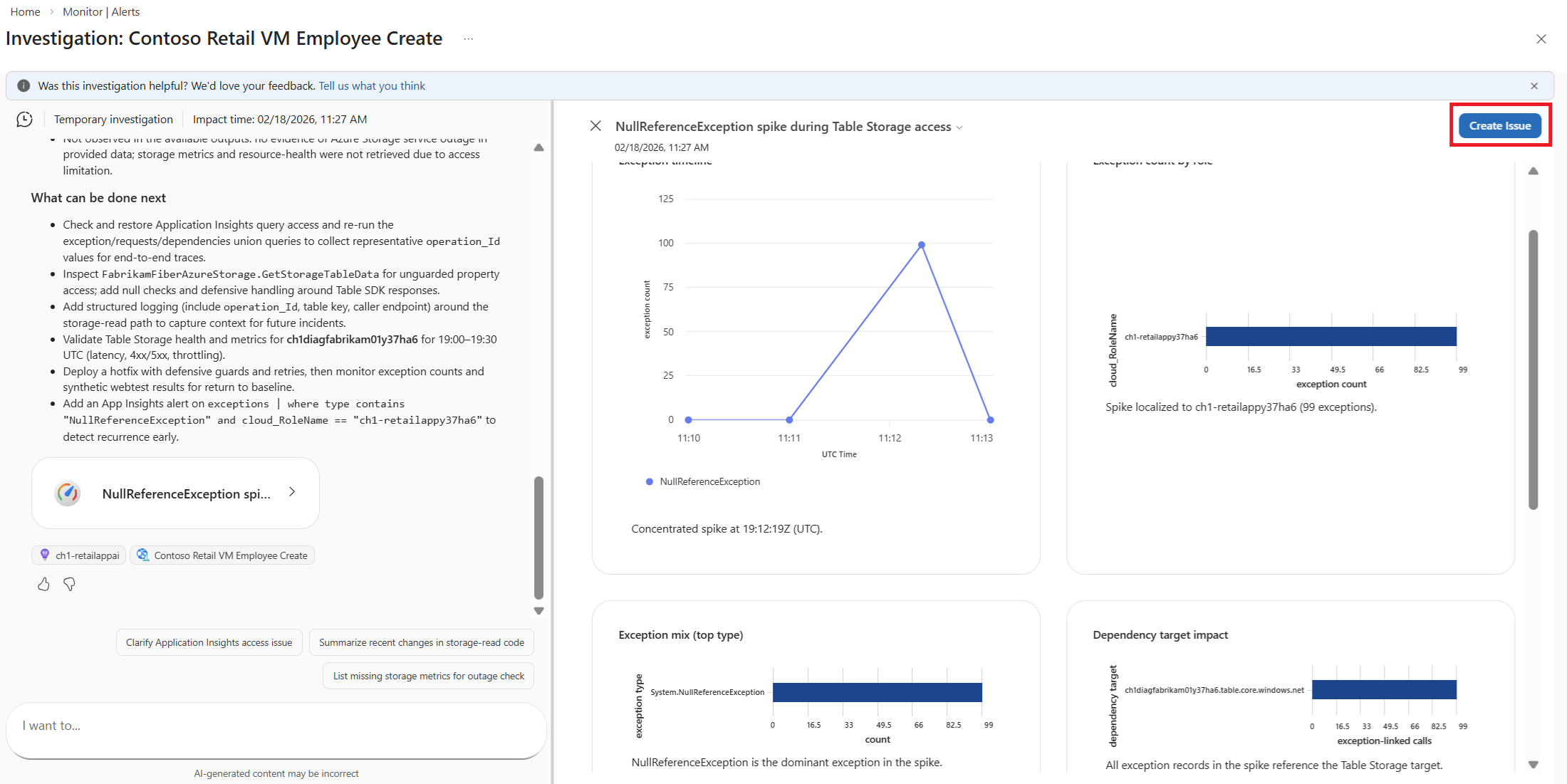
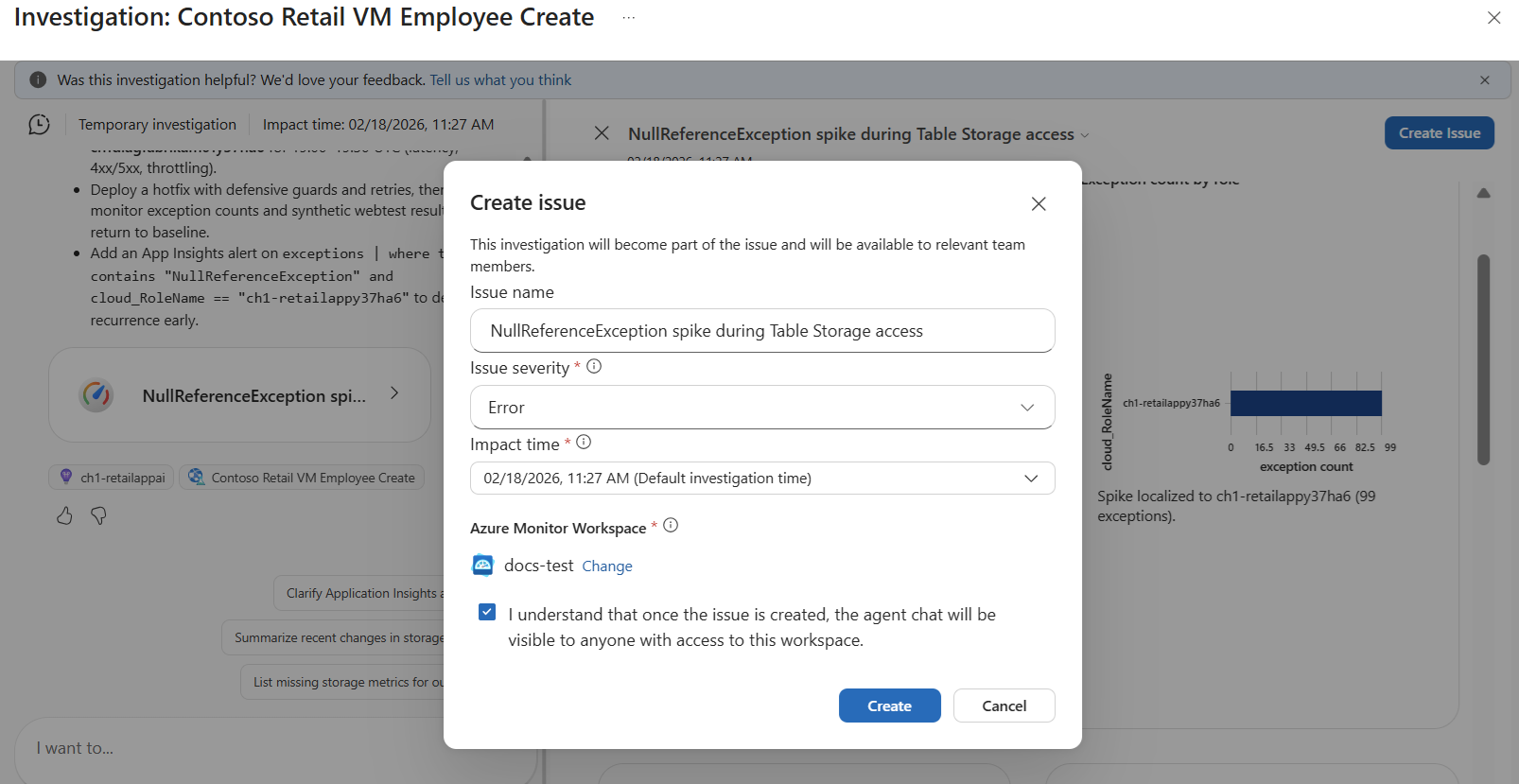
In the Create issue box:
- Keep or replace the Issue name.
- Select or keep the Issue severity.
- Select or keep the Impact time.
- Optionally, change the Azure Monitor Workspace name where the issue data gets stored. If you have more than one workspace associated with the subscription, select the workspace that you want to use for this issue.
- Select the I understand box, and then select Create.
After you create the issue, it appears on the Issues (preview) page. From there, you can open the issue details page to update issue parameters, interact with the Azure Copilot observability agent, and share a link to the issue, as described in the following sections.
You can also access issues directly from an Azure Monitor Workspace, which shows the issues stored in that specific workspace.
Change the parameters of an issue
Change the parameters of an issue by using the dropdown lists on the Overview tab of the issue page.
- Severity - Set the severity of an issue to Critical, Error, Warning, Informational, or Verbose.
- Status - Set the status of an issue to New, In Progress, Mitigated, Resolved, Closed, Canceled, or On-Hold.
- Impact time - Change the impact time of the issue. Changing the impact time automatically initiates a new observability agent investigation by using the updated time.
Share a link to the issue
Select Copy link to share a link to the issue. The link to the issue is copied to your clipboard. Make sure that recipients have permissions to view the issue.
View the issue background
The issue background provides information about the alerts associated with the issue. Select Issue background.
The Investigation tab
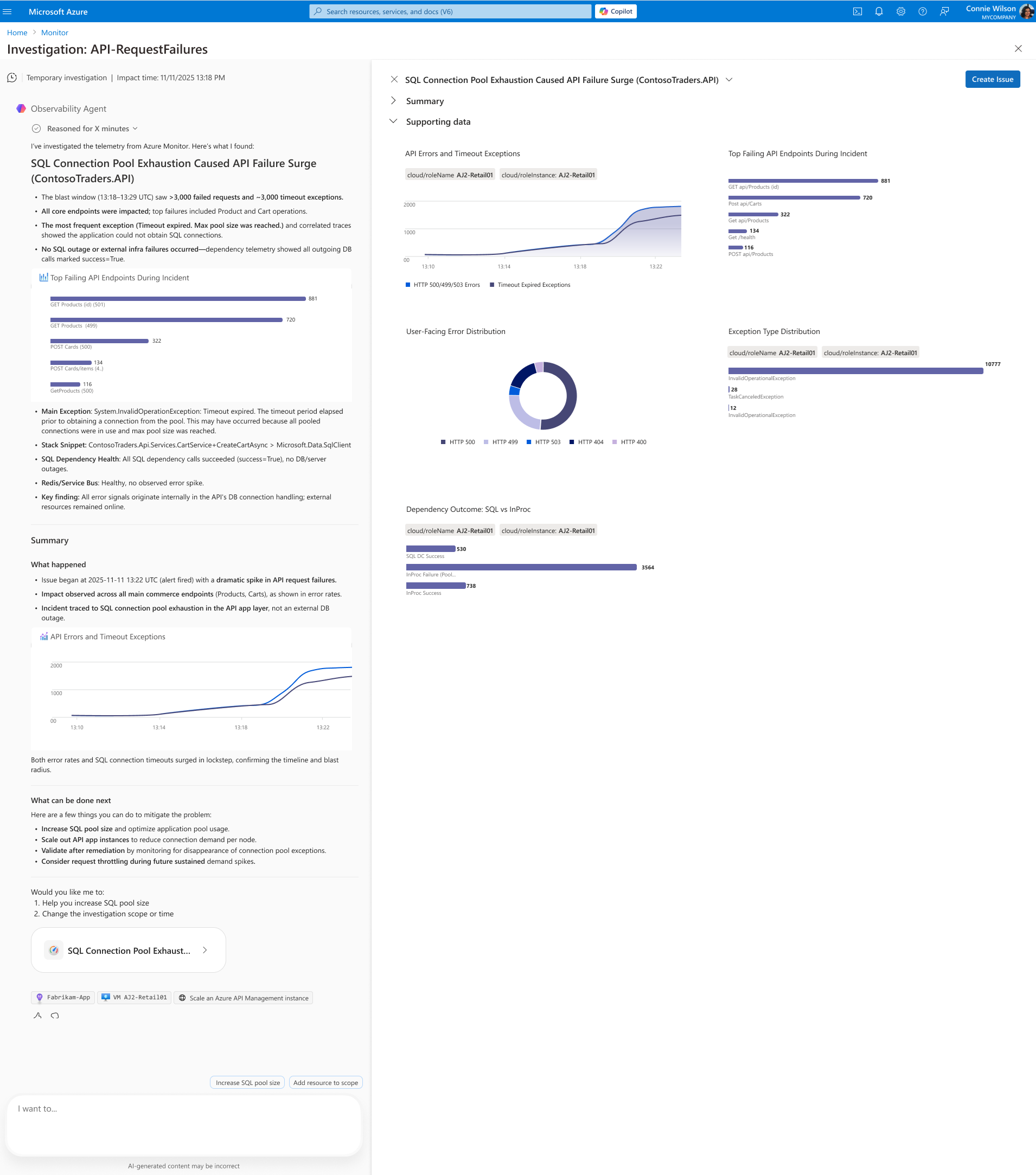
An issue can include one or more investigations. The Investigation tab contains the Azure Copilot observability agent, which presents the investigation associated with the issue. The agent highlights what was observed, the suspected cause, and suggested next steps related to the issue.
You can continue interacting with the observability agent from this tab to further explore the problem. For more information about the observability agent, see Azure Copilot observability agent overview.
View the resources and alerts included in an issue
Select the Resources or Alerts tab to see the resources and alerts associated with the issue.