Note
Access to this page requires authorization. You can try signing in or changing directories.
Access to this page requires authorization. You can try changing directories.
This article describes the overall setup process for Azure Monitor pipeline and provides details for the initial common setup to prepare your Arc-enabled Kubernetes cluster for the pipeline.
Complete setup flow
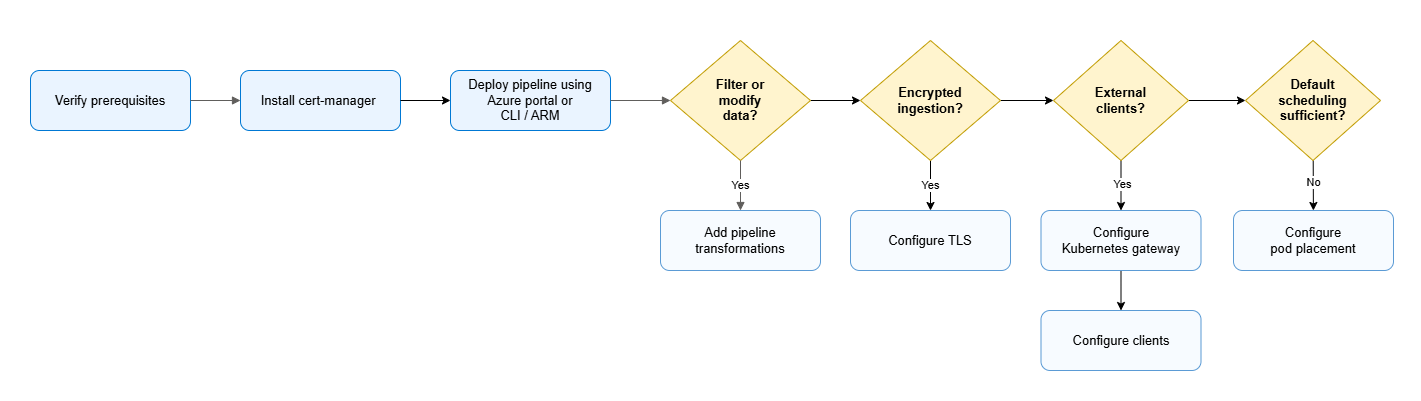
Complete deployment of an Azure Monitor pipeline includes the following steps:
- Verify the prerequisites.
- Install cert-manager on your Arc-enabled Kubernetes cluster.
- Complete deployment of the pipeline by using either of the following methods:
- If you need to filter, aggregate, or reshape incoming data:
- If client data sources are outside the cluster:
- Expose the pipeline through a gateway. See Azure Monitor pipeline - Gateway for Kubernetes deployment.
- Configure your external clients to connect to the right gateway IP and port. See Configure a Kubernetes gateway for Azure Monitor pipeline.
- If you need encrypted ingestion:
- Configure TLS. Start with Azure Monitor pipeline TLS configuration.
- If default pod placement behavior doesn't meet your performance, isolation, or compliance needs:
- Configure pod placement for the pipeline.
Prerequisites
- Azure subscription with the following resource providers registered. See Azure resource providers and types.
Microsoft.InsightsMicrosoft.Monitor
- Arc-enabled Kubernetes cluster in your environment with an external IP address. To connect a cluster to Azure Arc, see Connect an existing Kubernetes cluster to Azure Arc.
- Custom locations enabled on the Arc-enabled Kubernetes cluster. See Create and manage custom locations on Azure Arc-enabled Kubernetes.
- Log Analytics workspace to receive logs from the pipeline. To create a workspace, see Create a Log Analytics workspace in the Azure portal.
- (Optional) A custom table in the Log Analytics workspace if you don't want to use the default
SyslogorCommonSecurityLogtables for Syslog data. To create a custom table, see Create a custom log table in Azure Monitor. The workspace must be onboarded to Microsoft Sentinel for theCommonSecurityLogtable to be available.
- (Optional) A custom table in the Log Analytics workspace if you don't want to use the default
Choose a configuration method
Select the approach that fits your needs:
| Method | When to use | Key features |
|---|---|---|
| Azure portal | * Getting started * Simple configurations * Quick deployment |
* Guided UI experience * Automatic component creation * Built-in validation |
| CLI/ARM templates | * Advanced scenarios * Automation needed * Custom requirements |
* Full configuration control * Buffering to persistent volume * Custom tables * Infrastructure as code |
Tip
New to Azure Monitor pipeline? Start with the portal. You can always switch to CLI/ARM templates later for advanced features.
Verify the configuration
After you complete the configuration by using your chosen method, use the following steps to verify that the pipeline is running correctly in your environment.
Verify pipeline components running in the cluster
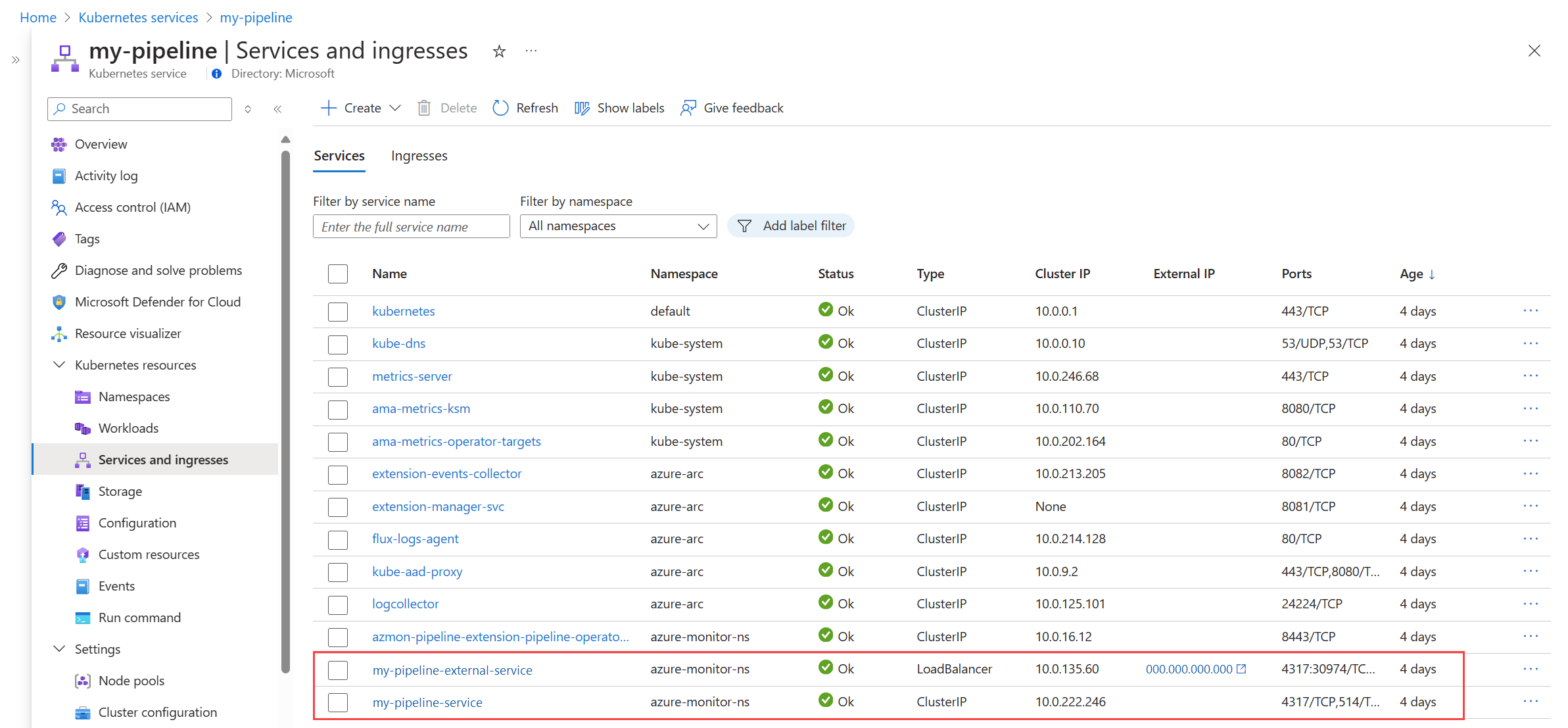
In the Azure portal, go to the Kubernetes services menu and select your Azure Arc-enabled Kubernetes cluster. Select Services and ingresses and make sure that you see the following services:
- <pipeline name>-external-service
- <pipeline name>-service
Verify heartbeat
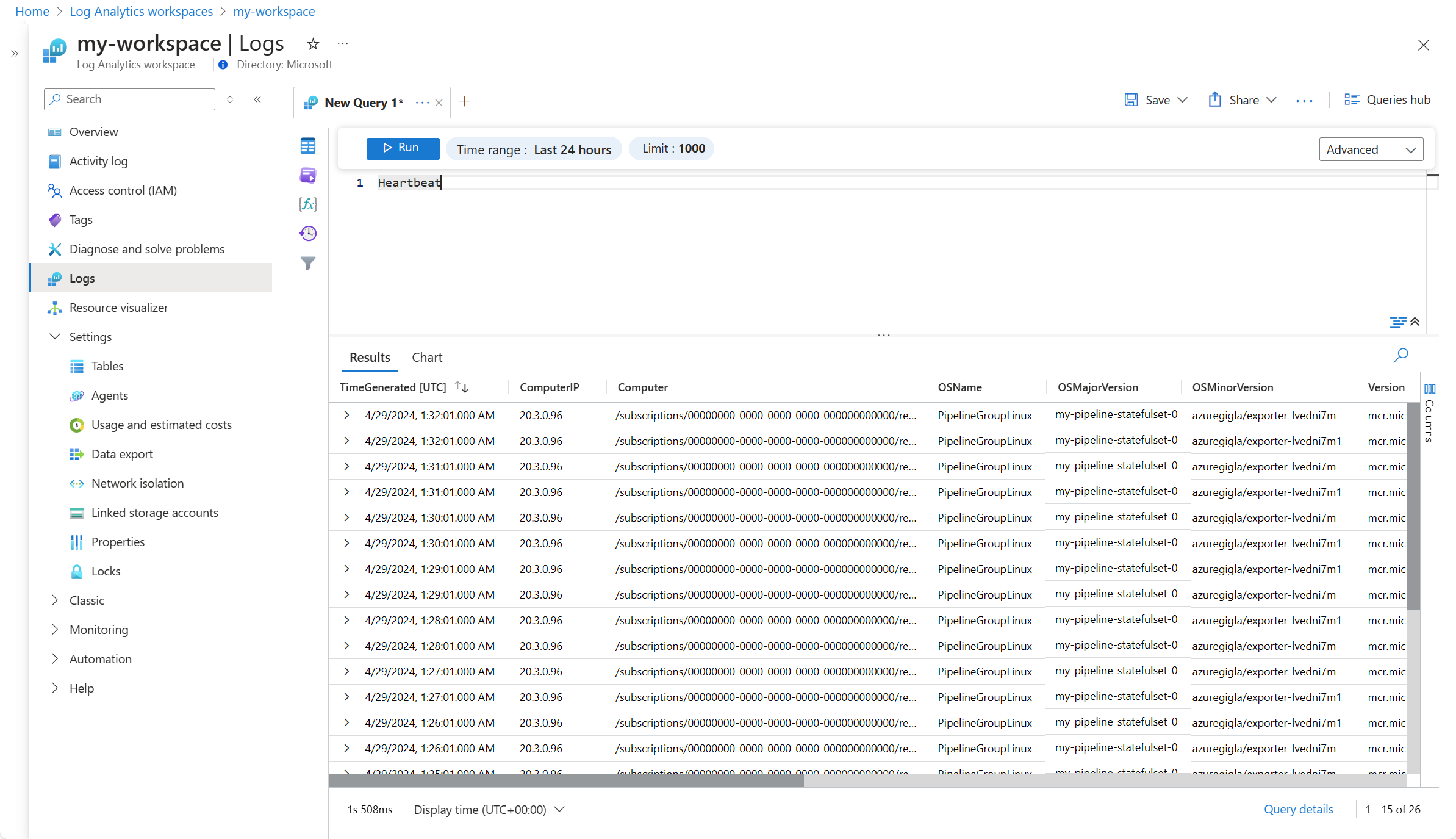
Each pipeline that you configure in your pipeline instance sends a heartbeat record to the Heartbeat table in your Log Analytics workspace every minute. The contents of the OSMajorVersion column should match the name of your pipeline instance. If the pipeline instance has multiple workspaces, the first configured workspace is used.
To retrieve the heartbeat records, use a log query as shown in the following example:
Configure private link
Configure Azure Private Link to connect to Azure Monitor using a private endpoint. See Configure private link for Azure Monitor for details on creating an Azure Monitor Private link scope and connecting it to a Log Analytics workspace.
When you use private link with Azure Monitor pipeline, keep in mind the following key points about the architecture:
- Pipeline instances run inside an Azure Arc-enabled Kubernetes cluster.
- The cluster connects to an Azure virtual network that hosts a private endpoint.
- Disable public network access on the data collection endpoint (DCE). The pipeline exports telemetry privately to Azure Monitor by using:
- Azure Monitor Private Link Scope (AMPLS)
- A private endpoint in the customer-managed virtual network
Note
Clients can still send telemetry to the pipeline's public, internal, or load-balancer endpoint. Private Link only secures the connection from the cluster to Azure Monitor.
Create virtual network and subnet for the private endpoint
Create the private endpoint in a customer-managed Azure virtual network that the Kubernetes cluster can reach.
Configure private DNS zones
Link the private DNS zones to the Azure virtual network that hosts the private endpoint, not necessarily the Kubernetes cluster itself. Make sure each of the zones exists and is linked to the virtual network.
Note
Kubernetes clusters (including Azure Arc-enabled clusters) must be able to resolve these names through the virtual network DNS configuration.
After configuration:
- Pipeline pods resolve Azure Monitor endpoints to private IP addresses.
- Telemetry flows into Log Analytics.
- The DCE blocks public network access.
For Azure Arc-enabled Kubernetes clusters, validate that:
- DNS resolution works from inside cluster pods.
- Network routing allows traffic to the Azure private endpoint.
Troubleshooting
Operator pod in CrashLoopBackOff - Certificate Manager extension Not Found
If you see the operator pod continuously restarting with CrashLoopBackOff status as in the following example:
kubectl get pods -n mon
NAME                                                              READY   STATUS             RESTARTS       AGE
edge-pipeline-pipeline-operator-controller-manager-6f847d4njwcn   1/2     CrashLoopBackOff   11 (24s ago)   31m
Check the logs by using the following command:
kubectl logs <operator-pod-name> -n mon
You might see an error similar to the following message:
AttemptTlsBootstrap returned an error:  failed to apply resource: the server could not find the requested resource (patch clusterissuers.meta.k8s.io arc-amp-selfsigned-cluster-issuer)
Please ensure Azure Arc Cert Manager Extension is installed on the cluster.
panic: failed to apply resource: the server could not find the requested resource (patch clusterissuers.meta.k8s.io arc-amp-selfsigned-cluster-issuer)
Cause: The pipeline operator depends on the Azure Arc Certificate Manager extension, which provides the certificate infrastructure (ClusterIssuer resources). The operator can't start without it.
Solution: Install the Certificate Manager extension first to start the pipeline operator successfully. For installation instructions, see Install cert-manager for Arc-enabled Kubernetes.
Verify the Certificate Manager extension is installed:
az k8s-extension list --cluster-name <cluster-name> --resource-group <resource-group> --cluster-type connectedClusters --query "[?extensionType=='microsoft.certmanagement'].{Name:name, State:provisioningState}" -o table
The extension should show a Succeeded provisioning state.
Related articles
- Continue with Configure Azure Monitor pipeline using the Azure portal or Configure Azure Monitor pipeline using CLI or ARM templates.
- Expose the pipeline to external clients by using Azure Monitor pipeline - Gateway for Kubernetes deployment.
- Configure client connections in Configure a Kubernetes gateway for Azure Monitor pipeline.
- Modify data before it's sent to the cloud by using pipeline transformations.