Note
Access to this page requires authorization. You can try signing in or changing directories.
Access to this page requires authorization. You can try changing directories.
What this feature does
This preview capability helps you convert plain-language prompts into Azure Cosmos DB SQL queries.
Important
This capability is currently available in preview. After installing the VS Code extension, switch to the Pre-Release Version by selecting "Switch to Pre-Release Version" in VS Code.

Prerequisites
- Visual Studio Code 1.103 or later.
- Azure Cosmos DB extension (Pre-Release version).
- GitHub Copilot and GitHub Copilot Chat available in Visual Studio Code.
- Access to an Azure Cosmos DB for NoSQL account, or a local emulator setup.
For preview setup and validation assets, see the preview repository: cosmosdb-vscode-ai-assistant-preview.
Generate a query from natural language
- Open your Azure Cosmos DB container in the query editor.
- Open the AI generation flow in the query editor.
- Enter a prompt that describes the result shape, filters, and sorting.
- Insert the generated query into the editor.
- Run the query and validate results.
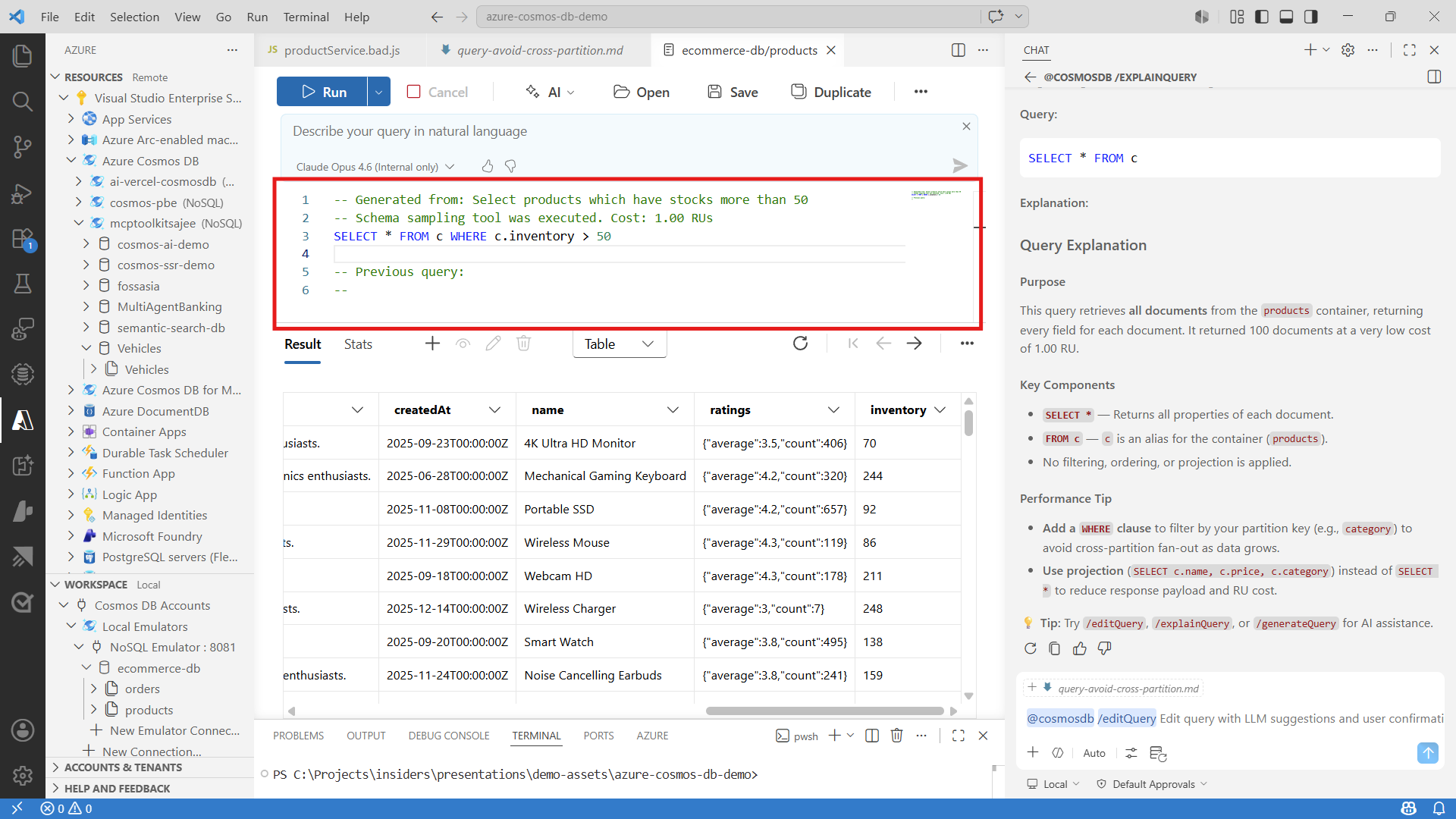
Example prompts:
Find active orders from the last 30 days sorted by newest first.
Return top 20 users with the highest loyaltyPoints.
Show products where inventoryCount is less than 10.
Refine generated output
If the first query is close but not exact, refine with a follow-up prompt such as:
Keep the filters, return only id and status, and add ORDER BY c._ts DESC.
Best results come from prompts that include:
- Expected fields.
- Exact filter criteria.
- Sort and pagination requirements.
Validate correctness and performance
- Confirm field names and value types against your container schema.
- Verify partition key assumptions for large containers.
- Check query results in table, JSON, or tree view.
- Re-run with narrower filters if RU consumption is high during iteration.
Known limitations and preview guidance
- Generated queries can require manual refinement for complex schemas.
- Schema sampling and query history can influence follow-up suggestions.
- Keep preview test datasets non-sensitive.
- Validate AI assistant usage with your organization policy before testing production-like data.
Troubleshooting
- If generation fails, confirm container context is selected in the query editor.
- If results do not match intent, rewrite the prompt with explicit fields and filters.
- If query output is empty, test with
SELECT TOP 10 * FROM cto inspect available data.