Note
Access to this page requires authorization. You can try signing in or changing directories.
Access to this page requires authorization. You can try changing directories.
Publish a Foundry Hosted agent as an autopilot in Microsoft Agent 365 so an admin can approve it and make it available in Microsoft 365 surfaces such as Microsoft Teams.
For an overview of how Foundry integrates with A365, supported agent types, data collection, and data residency, see Microsoft Agent 365 integration with Foundry.
Important
This flow uses Hosted agents, which are currently in preview. Review Hosted agents in Foundry Agent Service (preview) before you start.
Prerequisites
Microsoft Agent 365 is generally available. This how-to uses Hosted agents, which are currently in preview.
Licensing:
- Microsoft 365 licensing that supports Microsoft Agent 365. Agent 365 works best with Microsoft E5, and at least one user in your organization must have a qualifying Microsoft Agent 365 license such as Microsoft 365 Copilot.
- A Microsoft 365 license assigned to the users who create, approve, or use the agent.
Azure permissions:
An Azure subscription where you can create resources.
Owner at the subscription or resource group scope. The
azdworkflow creates Azure resources and assigns required roles automatically; Owner provides the permissions needed for both.Foundry User or Foundry Project Manager at the Foundry project scope to create and deploy agents.
Important
The Foundry RBAC roles were recently renamed. Foundry User, Foundry Owner, Foundry Account Owner, and Foundry Project Manager were previously named Azure AI User, Azure AI Owner, Azure AI Account Owner, and Azure AI Project Manager. You might still see the previous names in some places while the rename rolls out. The role IDs and core permissions are unchanged by the rename.
For the full permission matrix, see Hosted agent permissions reference.
Owner or Contributor at the resource group scope to create and configure the Azure Bot Service resource. Foundry-scoped roles (Foundry User, Foundry Project Manager, and similar) don't include
Microsoft.BotService/*permissions.
Microsoft 365 admin permissions:
- AI Administrator or Global Administrator in the Microsoft 365 admin center to approve pending agent requests.
Tenant and service setup:
Use a region that supports Hosted agents. For the current supported regions, see Hosted agents in Foundry Agent Service (preview).
If the
Microsoft.BotServiceresource provider isn't already registered in your subscription, register it:az provider register --namespace Microsoft.BotService
Local tools:
What the sample creates
The sample provisions the Azure infrastructure required by the current template and publishes a Hosted agent end-to-end. Specifically:
- Creates or updates the Azure resources required by the sample template, including a Foundry account and project, model deployment, hosted agent and agent version, Azure Container Registry, Azure Bot Service resource, and Application Insights with a Log Analytics workspace.
- Creates an agent version and configures endpoint traffic to always route to that version.
- Submits an autopilot request that creates an agent blueprint in the Microsoft 365 admin center for admin approval.
Run the code sample
Follow the steps in the FoundryA365 sample README on GitHub. Follow the sample README for the complete, authoritative command sequence. After the sample completes, return here to verify the deployment and complete the admin approval flow.
Provision and deploy
Note
Depending on your tenant settings, you might need to sign in with more Azure CLI scopes before provisioning (for example, for Foundry, Microsoft Graph, and Azure Resource Manager). If azd auth login returns an authorization error, see the sample README for the required sign-in commands and scopes.
The sample provisions Azure resources, builds and pushes a container, and deploys the agent. Here is the high-level command flow (see the README for the complete, authoritative sequence):
az login
azd auth login
azd provision
azd env get-values
Verify deployment before approval
Verify the following before you open the Microsoft 365 admin center:
- Run
azd env get-valuesand save the output. Note especially the bot app ID and messaging endpoint — you need these values in the Developer verification steps. - Confirm the
azddeployment completes successfully with no failed resources. - Confirm the sample completed the publishing step and submitted the autopilot request.
When the sample completes successfully, you have a published agent application and an agent blueprint ready for approval in the Microsoft 365 admin center. After an admin approves the request, the agent appears in the Agent 365 registry.
Validate the deployment
Admin approval
A Microsoft 365 admin must approve the agent blueprint before it's available in Teams.
- Sign in to the Microsoft 365 admin center and locate the pending agent blueprint request.
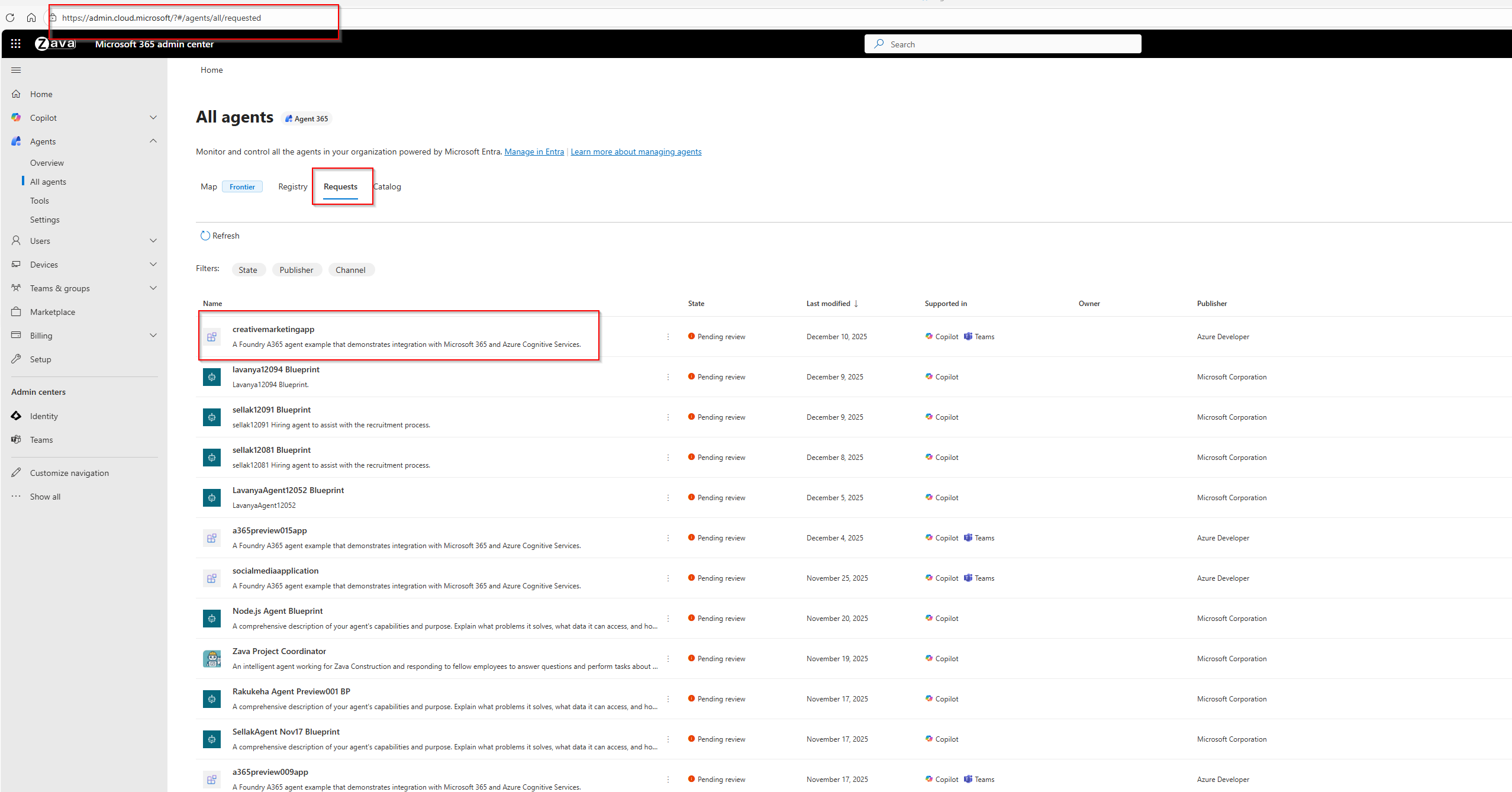
- Approve the request. After approval, verify your agent appears in the Agent 365 agent registry.


Developer verification
After an admin approves the request, complete these verification steps.
- In the Teams Developer Portal, find your approved agent blueprint and confirm its configuration.
- Select the agent blueprint from the list.
- Verify the messaging endpoint and app ID match the values from
azd env get-values. - Save any required fields and publish the update if prompted.
- In Microsoft Teams, verify that you can find the agent and create an instance:
- Go to Apps.
- Go to Agents for your team.
- Find your agent and create an instance.

Troubleshooting
| Issue | Cause | Resolution |
|---|---|---|
azd provision fails before resource creation starts |
Missing permissions | Confirm you have Owner at the subscription or resource group scope (needed for azd to create resources and assign roles), and Foundry User or Foundry Project Manager at the Foundry project scope. |
| Publishing to Teams or Microsoft 365 fails with a Bot Service authorization error | Foundry roles don't include Bot Service permissions | Confirm the identity running the publish step has Owner or Contributor at the resource group scope. Foundry-scoped roles (Foundry User, Foundry Project Manager) don't include Microsoft.BotService/* permissions. For details, see Azure Bot Service setup. |
azd provision fails with a region or hosted-agent availability message |
Wrong region | Create all resources for this sample in a region that Hosted agents are supported in. |
azd provision or azd auth login prompts for more sign-in or consent steps |
Additional scopes required | Run the exact sign-in commands from the sample README and grant any required Foundry, Microsoft Graph, or Azure Resource Manager scopes before rerunning the workflow. |
| Container build or push fails | Docker isn't running | Start Docker, and then run azd provision --verbose again. |
| You can't find the agent to approve | Approval step not completed or you don't have the required tenant permissions | Verify tenant admin permissions and confirm the deployment completed successfully. |
| You can't find your blueprint in the Teams Developer Portal list | The list might not show every blueprint | Verify the approval completed successfully, rerun azd env get-values to recover the sample output, and follow the current sample guidance for locating the approved blueprint. |
Next steps
After publishing, you can update your agent by deploying a new agent version and repeating the azd workflow. To monitor agent activity and set up observability, see Grant Agent 365 observability permissions.