Note
Access to this page requires authorization. You can try signing in or changing directories.
Access to this page requires authorization. You can try changing directories.
Azure Policy provides built-in policy definitions that help you govern the deployment of AI models in Microsoft Foundry portal. You can use these policies to control what models your developers can deploy in the Foundry portal.
Note
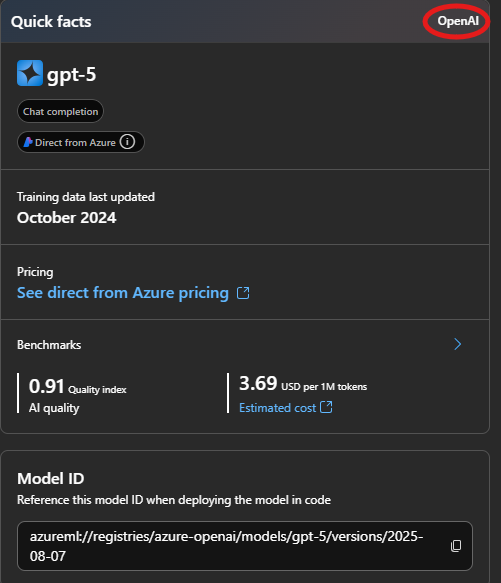
To deploy and use model router while this policy is assigned, include Microsoft in the list of allowed publishers, because Microsoft is the publisher of model router. Also include the publisher name of each supported model that you deploy for routing, as listed on the model's card in the model catalog. For example, to route to Claude models, which you deploy separately, also include Anthropic. If the list of allowed publishers doesn't include these names, the policy blocks the model router deployment.
Prerequisites
An Azure account with an active subscription. If you don't have one, create a free Azure account. Your Azure account lets you access the Foundry portal.
Permissions to create and assign policies. To create and assign policies, you must be an Owner or Resource Policy Contributor at the Azure subscription or resource group level.
Familiarity with Azure Policy. To learn more, see What is Azure Policy?.
Microsoft Foundry provides two built-in Azure Policy definitions to help you govern which models can be deployed in your organization:
| Policy | Purpose | Status |
|---|---|---|
| Foundry model deployments should only use approved models | Restrict deployments to a specific list of models or publishers that your organization has explicitly approved. | Generally available |
| Foundry model deployments should meet eligibility requirements | Restrict deployments based on model attributes such as source (Direct from Azure) and lifecycle status (Preview). | Preview |
Both policies are evaluated at deployment time. Models are not hidden from the catalog — instead, the Deploy action is disabled with a clear reason when a policy blocks the deployment. You can assign one or both policies depending on your governance needs.
Note
These policies also govern the underlying models that model router selects from. Model router only routes requests to models that satisfy your assigned policies, so the same approval and eligibility rules apply whether you deploy a model directly or use model router to pick one per request.
How these policies work together
The two policies are complementary and address different governance questions:
- Approved models answers "Is this exact model on my organization's allow-list?" — based on model identity.
- Eligibility requirements answers "Does this model meet my organization's standards for source and maturity?" — based on model attributes.
If both policies are assigned and a model is non-compliant with both, the Deploy experience shows the highest-priority reason first (approval, then eligibility), so users get one clear, actionable message.
Foundry model deployments should only use approved models
Use this policy to restrict deployments to a specific list of models or publishers that your organization has explicitly approved.
Note
This policy was previously named Cognitive Services Deployments should only use approved Registry Models. The policy definition ID is unchanged, so existing assignments continue to work without any action.
Assign the approved-models policy
Use Azure CLI to find the built-in policy definition and assign it at a scope.
Sign in and select the subscription you want to work in:
az login
az account set --subscription "<subscription-id>"
Find the policy definition ID for the built-in definition:
az policy definition list \
   --query "[?displayName=='Foundry model deployments should only use approved models'].{name:name, id:id}" \
   --output table
Expected result: a row that includes the policy
id.Create a parameters file (example):
{
   "effect": {
      "value": "Deny"
   },
   "allowedPublishers": {
      "value": ["OpenAI"]
   },
   "allowedAssetIds": {
      "value": [
         "azureml://registries/azure-openai/models/gpt-35-turbo/versions/3"
      ]
   }
}
Expected result: a JSON file that matches your approved publisher names and model IDs.
Important
The parameter names in this example must match the policy definition you assign. If they differ in your tenant, update the JSON keys to match the policy definition parameters.
Assign the policy at a scope (example: subscription scope):
az policy assignment create \
   --name "allow-only-approved-models" \
   --display-name "Allow only approved models" \
   --scope "/subscriptions/<subscription-id>" \
   --policy "<policy-definition-id>" \
   --params @params.json
Expected result: the command returns a JSON payload that includes the assignment
id.
Reference:
Foundry model deployments must meet eligibility requirements (preview)
Important
This policy is in preview. Preview features are made available for use, testing, and feedback purposes. Don't use them for production workloads. For more information, see Supplemental Terms of Use for Microsoft Azure Previews.
Use this policy to restrict deployments based on model attributes rather than specific model identity. This is useful when you want to enforce broader organizational standards — for example, "no preview models in production" or "only Microsoft-direct models" — without maintaining an explicit allow-list.
The policy currently supports the following attributes:
| Parameter | Type | Default | Behavior when true |
|---|---|---|---|
onlyAllowDirectFromAzure |
Boolean | false |
Denies deployment of models that are not Direct from Azure. |
denyPreviewModels |
Boolean | false |
Denies deployment of models whose lifecycle status is Preview. |
Both parameters default to false, so an unconfigured assignment imposes no restrictions. Enable the toggles that match your organization's posture.
Assign the eligibility policy
Sign in and select the subscription you want to work in:
az login
az account set --subscription "<subscription-id>"
Find the policy definition ID:
az policy definition list \
   --query "[?displayName=='Foundry model deployments must meet eligibility requirements'].{name:name, id:id}" \
   --output table
Create a parameters file (example — block Preview models, allow any source):
{
   "effect": {
      "value": "Deny"
   },
   "onlyAllowDirectFromAzure": {
      "value": false
   },
   "denyPreviewModels": {
      "value": true
   }
}
Assign the policy:
az policy assignment create \
   --name "foundry-model-eligibility" \
   --display-name "Foundry model eligibility" \
   --scope "/subscriptions/<subscription-id>" \
   --policy "<policy-definition-id>" \
   --params @params.json
What developers see when a deployment is blocked
When a developer attempts to deploy a model that is blocked by either policy, the Deploy action is disabled and a message explains why. The model itself remains visible in the catalog so the developer understands what was attempted.
| Scenario | What the developer sees |
|---|---|
| Model is approved and eligible | Deploy enabled. |
| Model is not on the approved list | Deploy disabled — message indicates the model is not approved by the organization, with a pointer to contact the subscription or Foundry administrator. |
Model is approved but does not meet eligibility (for example, a Preview model when denyPreviewModels is on) |
Deploy disabled — message indicates the model does not meet the organization's eligibility requirements (source or lifecycle status), with a pointer to contact the administrator. |
| Multiple policies block the deployment | Deploy disabled — the highest-priority reason is shown (approval, then eligibility). |
Each message includes the policy name and assignment ID so administrators can quickly identify which policy is enforcing the restriction.
Monitor compliance
To monitor compliance with the policy, follow these steps:
From the Azure portal, select Policy from the left side of the page. You can also search for Policy in the search bar at the top of the page.
From the left side of the Azure Policy Dashboard, select Compliance. Each policy assignment is listed with the compliance status. To view more details, select the policy assignment.
Update the policy assignment
To update an existing policy assignment with new models, follow these steps:
- From the Azure portal, select Policy from the left side of the page. You can also search for Policy in the search bar at the top of the page.
- From the left side of the Azure Policy Dashboard, select Assignments and find the existing policy assignment. Select the ellipsis (...) next to the assignment and select Edit assignment.
- From the Parameters tab, update Allowed Asset Ids and Allowed Models Publishers with the new approved model IDs and publisher names.
- From the Review + Save tab, select Save to update the policy assignment.
Best practices
- Granular scoping: Assign policies at the appropriate scope to balance control and flexibility. For example, apply at the subscription level to control all resources in the subscription, or apply at the resource group level to control resources in a specific group.
- Policy naming: Use a consistent naming convention for policy assignments to make it easier to identify the purpose of the policy. Include information such as the purpose and scope in the name.
- Tags: Use tags to categorize and manage your policies. For example, tag policies by environment (dev, test, prod) or by department.
- Documentation: Keep records of policy assignments and configurations for auditing purposes. Document any changes made to the policy over time.
- Regular reviews: Periodically review policy assignments to ensure they align with your organization's requirements.
- Testing: Test policies in a nonproduction environment before applying them to production resources.
- Communication: Make sure developers are aware of the policies in place and understand the implications for their work.
Verify policy effectiveness
After you assign the policy, verify that it works as expected:
Wait at least 15 minutes for the policy assignment to take effect. New assignments don't apply instantly.
Attempt to deploy a model that isn't on the allowed list. If the policy uses the Deny effect, the deployment fails with a policy violation error.
Confirm that deploying an approved model still succeeds.
Check the Compliance dashboard in Azure Policy to verify that the policy evaluates resources correctly. Noncompliant resources appear within one compliance evaluation cycle (typically up to 24 hours).
Troubleshoot policy assignment failures
| Symptom | Cause | Resolution |
|---|---|---|
| Policy assignment fails with a permissions error | Your account lacks the Owner or Resource Policy Contributor role at the target scope. | Assign the required role and retry. See Prerequisites. |
| Policy doesn't block noncompliant deployments | The policy assignment hasn't propagated yet, or the effect is set to Audit instead of Deny. | Wait at least 15 minutes, then retry. Verify that the Effect parameter is set to Deny. |
| Approved model is blocked unexpectedly | The model asset ID or publisher name in the policy parameters doesn't match the model exactly. | Compare the parameter values against the model card in the model catalog. Asset IDs and publisher names are case-sensitive. |
| Compliance dashboard shows no data | Compliance evaluation hasn't completed yet. Azure Policy evaluates new assignments within 24 hours. | Wait for the next evaluation cycle or trigger an on-demand evaluation scan. |
| Parameter name mismatch error during assignment | The JSON parameter keys don't match the policy definition. | Run az policy definition show --name "<definition-id>" to retrieve the exact parameter names from the definition. Use allowedPublishers and allowedAssetIds. |