Note
Access to this page requires authorization. You can try signing in or changing directories.
Access to this page requires authorization. You can try changing directories.
Applies to: ✔️ Front Door Standard ✔️ Front Door Premium
Azure Front Door Standard and Premium offer two mechanisms for controlling TLS policy. You can use either a predefined policy or a custom policy based on your own needs. If you use Azure Front Door (classic) or Microsoft CDN (classic), you continue to use the minimum TLS 1.2 version.
Azure Front Door offers several predefined TLS policies. You can configure your Azure Front Door with any of these policies to get the appropriate level of security. The Microsoft Security team configures these predefined policies based on best practices and recommendations. Use the newest TLS policies to ensure the best TLS security.
If you need to configure a TLS policy for your own business and security requirements, use a custom TLS policy. By using a custom TLS policy, you have complete control over the minimum TLS protocol version to support, and the supported cipher suites.
In this article, you learn how to configure TLS policy on a Front Door custom ___domain.
Prerequisites
- A Front Door. For more information, see Quickstart: Create a Front Door using the Azure portal.
- A custom ___domain. If you don't have a custom ___domain, you must first purchase one from a ___domain provider. For more information, see Buy a custom ___domain name.
- If you're using Azure to host your DNS domains, you must delegate the ___domain provider's ___domain name system (DNS) to an Azure DNS. For more information, see Delegate a ___domain to Azure DNS. Otherwise, if you're using a ___domain provider to handle your DNS ___domain, see Create a CNAME DNS record.
Configure TLS policy
Go to your Azure Front Door profile that you want to configure the TLS policy for.
Under Settings, select Domains. Then select + Add to add a new ___domain.
On Add a ___domain, follow the instructions in Configure a custom ___domain on Azure Front Door and Configure HTTPS on an Azure Front Door custom ___domain to configure the ___domain.
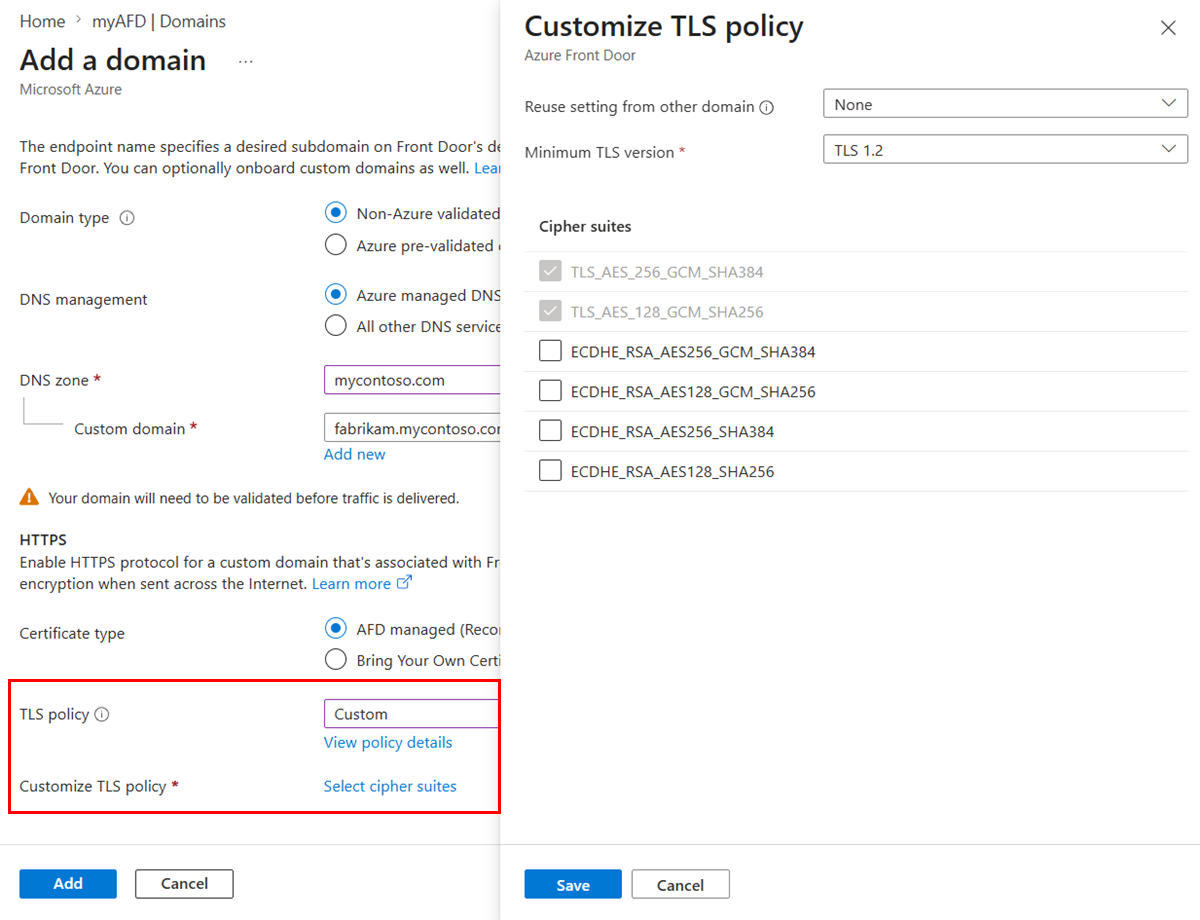
For TLS policy, select the predefined policy from the dropdown list or Custom to customize the cipher suites per your needs.

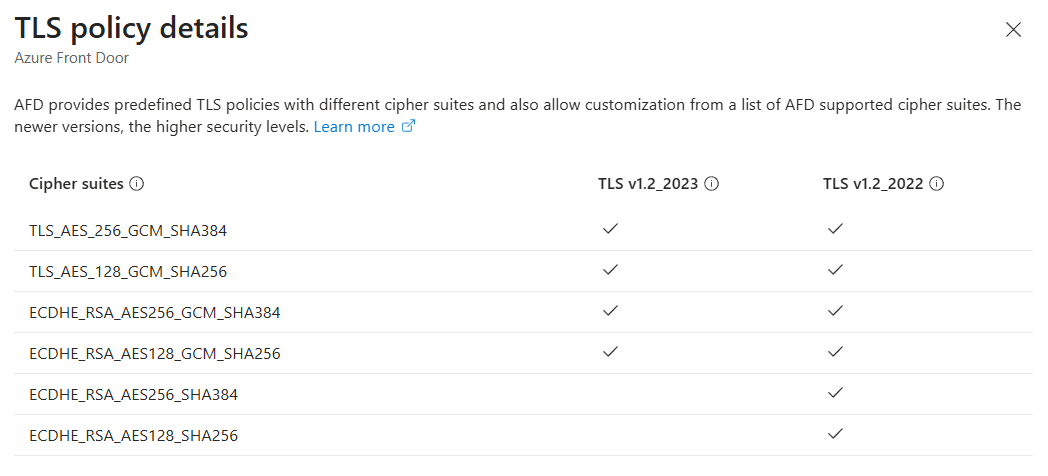
Select View policy details to see the supported cipher suites.
When you select Custom, you can choose the minimum TLS version and the corresponding cipher suites by selecting Select cipher suites.
Note
To reuse the custom TLS policy setting from other domains in the portal, select the ___domain in Reuse setting from other ___domain.
After you customize the TLS policy, select Add to add the ___domain.

Verify TLS policy configurations
View the supported cipher suite of your ___domain by using www.ssllabs.com/ssltest or use the sslscan tool.