Note
Access to this page requires authorization. You can try signing in or changing directories.
Access to this page requires authorization. You can try changing directories.
This article explains how to create or edit a policy within your Azure Device Registry namespace to manage an issuing CA that is signed by an external root CA.
Use this workflow if your organization maintains a private Public Key Infrastructure (PKI) and requires all IoT devices to chain up to a common trusted root. When a device requests a certificate via Device Registry, the platform returns a full certificate chain consisting of:
The device certificate: Unique to the specific IoT device.
The Microsoft issuing CA (ICA): The CA managed by Device Registry that signs the device request.
The external root CA: Your organization’s trusted root, which has signed the Microsoft ICA.
Any service that trusts your corporate root CA automatically trusts the certificates issued to your IoT devices by Azure.
Tip
If you do not possess an external root CA but would like to test this flow, see the additional instructions below to get started with a self-signed root CA and private key using OpenSSL.
Important
Azure IoT Hub with Azure Device Registry integration and Microsoft-backed X.509 certificate management is in public preview and isn't recommended for production workloads. For more information, see FAQ: What is new in IoT Hub?.
In Device Registry certificate management, a credential is the namespace-level root CA resource, and a policy is the issuing CA policy that signs device certificates.
Prerequisites
Before you begin, make sure you have the required setup and permissions so you can create, activate, and edit an external CA policy without deployment delays.
- An active Azure subscription. If you don't have one, create a free account.
- An existing Device Registry namespace. For setup steps, see Deploy Azure IoT Hub with ADR integration.
- A configured credential in the Device Registry namespace. For setup steps, see Configure a credential in Azure Device Registry.
- Permissions to manage policies in the Device Registry namespace, such as the Azure Device Registry Credentials Contributor role.
- CA signing authority: Access to an external PKI (or a managed CA) to perform a one-time signing operation. You will need to sign a Microsoft-generated CSR using your root CA's private key to create the Intermediate CA (ICA) certificate.
Requirements for your external root CA
To use an external root CA, your root CA must meet the following requirements:
| Property | Requirements |
|---|---|
| Key type and cryptography | The CA key type must be ECC (P-256, P-384, P-521) with OID 1.2.840.10045.2.1. Explicit EC parameters are rejected, only named curve encoding (OID) is allowed. RSA is rejected. |
| Signature | Signature algorithm must be SHA-256 or higher with ECDSA (ecdsa-with-SHA256, SHA384, or SHA512). SHA-1 is rejected. |
| Path length | Path length for your root CA must be set to 1. |
| Subject | The subject on the signed certificate must match the subject from the original CSR (case-insensitive with whitespace normalization) |
| Extensions | BasicConstraints must be present, marked critical, with CA:TRUE. KeyUsage must include DigitalSignature, KeyCertSign, and CrlSign. If the EKU extension is present, it must include ClientAuth (OID 1.3.6.1.5.5.7.3.2). If EKU is absent entirely, that's acceptable (unconstrained CA per RFC 5280). Subject Key Identifier (SKI) must be present. X.509 Version must be Version 3. |
| Validity period | Certificate must not be expired. Certificate NotBefore must not be in the future. Must have at least 365 days of remaining validity. |
Create a policy
Choose the workflow that matches how you operate your environment.
Create and activate an external CA policy
Create a policy that uses your external CA, and then activate it after you upload the signed certificate chain from your PKI.
Sign in to the Azure portal.
Open your Azure Device Registry namespace.
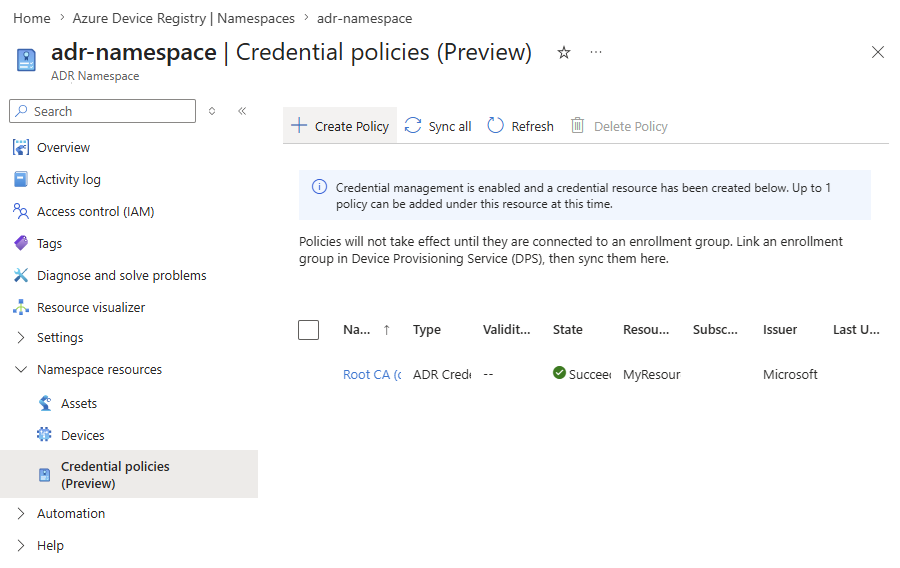
In the sidebar menu, under Namespace resources, select Credential policies.
Select Create Policy.
In the Basics tab, complete the fields as follows:
Property Value Name Enter a unique name for your policy. The name must be between 3 and 50 alphanumeric characters and can include hyphens ( '-').Validity period (days) Enter the number of days the issued certificates are valid. Select a Root CA for certificates in this policy Select Use an external root CA. 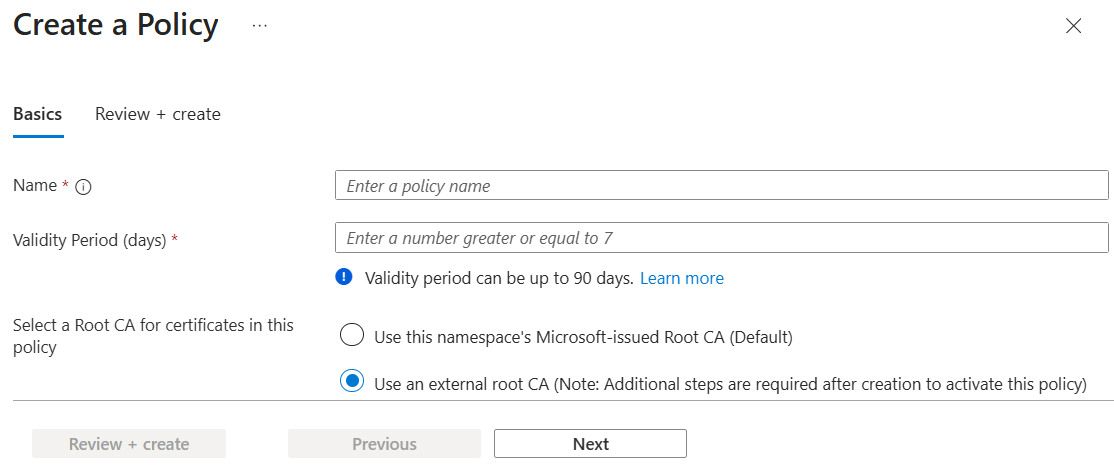
Select Next, then Review + create.
Refresh the Policies list if needed. Select the policy and confirm the policy status is Pending Activation.
Select the Pending Activation link, then select Download certificate signing request (CSR) file.
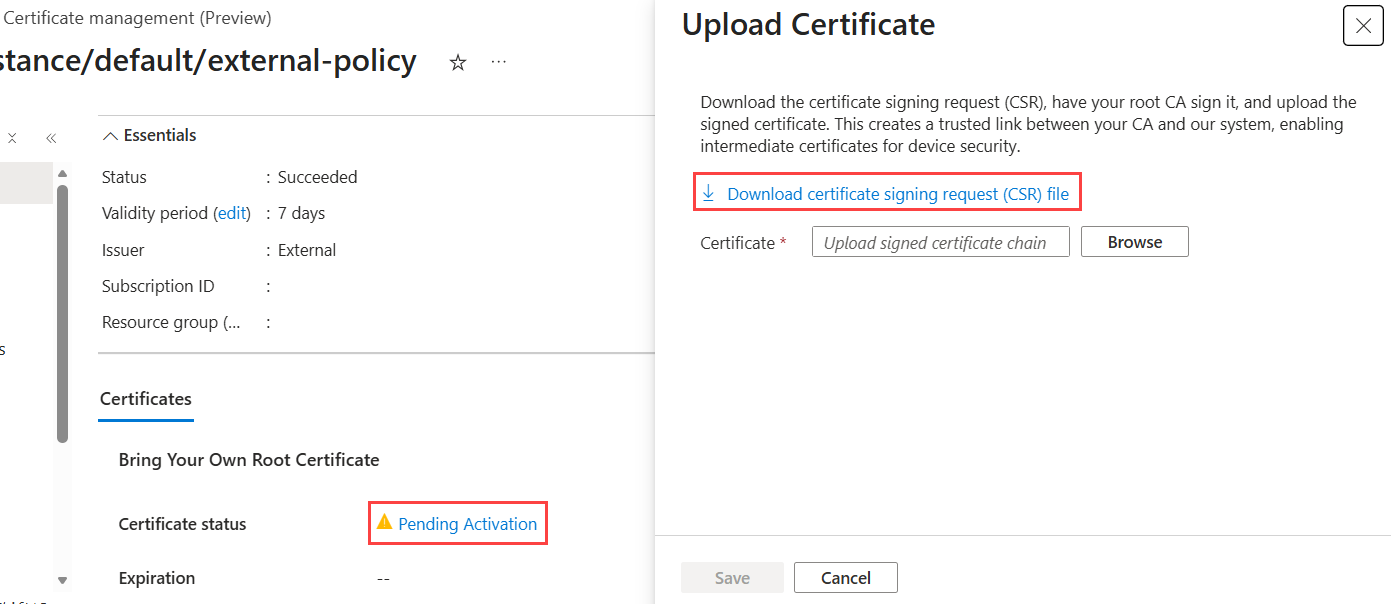
Sign the CSR by using your external CA and prepare the signed chain file. The signed certificate's subject must exactly match the subject of the original CSR.
If you do not possess an external root CA, you can use this resource to create one, see Create a self-signed root CA and private key using OpenSSL and PowerShell.
In the policy details, upload the signed certificate chain.
Activate the policy.
Refresh the policy details and verify the policy status is active.
Edit policy validity period
Update the validity period for an existing external CA policy when certificate lifetime requirements change.
In the sidebar menu of your Device Registry namespace, under Namespace resources, select Credential policies.
Select the policy that you want to edit.
On the Overview page, select edit next to Validity period.
Change the Validity period value.
Select Save.
Synchronize the credential
Synchronize your new or updated policy.
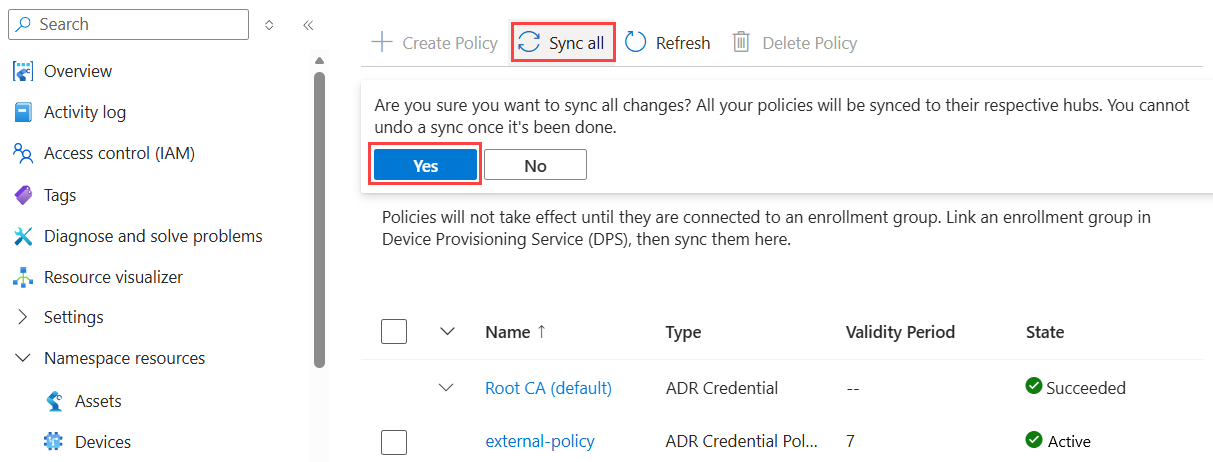
In the sidebar menu of your Device Registry namespace, under Namespace resources, select Credential policies.
Select Sync all, and then Yes.