Note
Access to this page requires authorization. You can try signing in or changing directories.
Access to this page requires authorization. You can try changing directories.
In Azure IoT Operations, the connector for server-sent events (SSE) enables access to data from SSE endpoints exposed by HTTP services.
An asset in Azure IoT Operations is a logical entity that you create to represent a physical asset or device. An Azure IoT Operations asset can have custom properties, data points, streams, and events that describe its behavior and characteristics. An asset is associated with one or more devices. Azure IoT Operations stores asset definitions in the Azure Device Registry.
A device in Azure IoT Operations is a logical entity that defines the connections to physical assets or devices. Without a device, data can't flow from a physical device or asset to the MQTT broker. When you configure a device and asset, a connection is established to the physical asset or device and data point values, events, and streams arrive in Azure IoT Operations instance. A device has one or more inbound endpoints. Azure IoT Operations stores device definitions in the Azure Device Registry.
The following table summarizes the features the connector for SSE supports:
| Feature | Supported | Notes |
|---|---|---|
| Username/password authentication | Yes | Basic HTTP authentication |
| X.509 user certificates (mTLS) | Yes | Certificates for client authentication and authorization |
| Anonymous access | Yes | For testing purposes |
| Southbound certificate trust list | Yes | For secure TLS connections to the SSE endpoint |
| OpenTelemetry integration | Yes | |
| Automatic retries | Yes | Reports failed status for nonretryable errors |
| WASM data transformation | No | |
| Schema generation | Yes | Registers inferred schema with the schema registry |
For each configured dataset, the connector for SSE:
- Samples SSE events from the specified SSE endpoint.
- Generates a message schema for each dataset based on the data it receives, and registers it with the schema registry in Azure Device Registry.
- Forwards the event data to the specified destination.
This article explains how to use the connector for SSE to perform tasks such as:
- Define the devices that connect SSE sources to your Azure IoT Operations instance.
- Add assets, and define the events to enable the data flow from the SSE source to the MQTT broker or broker state store.
Prerequisites
- An instance of Azure IoT Operations deployed in a Kubernetes cluster. For more information, see Deploy Azure IoT Operations.
The Azure CLI version 2.62.0 or newer installed on your development machine. Use
az --versionto check your version andaz upgradeto update if necessary. For more information, see Install the Azure CLI.The Azure IoT Operations extension for the Azure CLI. Use the following command to add the extension or update it to the latest version:
az extension add --upgrade --name azure-iot-ops
To sign in to the operations experience web UI, you need a Microsoft Entra ID account with at least contributor permissions for the resource group that contains your Kubernetes - Azure Arc instance. You can't sign in with a Microsoft account (MSA). For more information, see Troubleshoot access to the operations experience web UI.
Your IT administrator must configure the connector for SSE template for your Azure IoT Operations instance in the Azure portal.
You need any credentials required to access the SSE source. If the SSE source requires authentication, you need to create a Kubernetes secret that contains the username and password for the SSE source.
Have the event identification ready for each SSE source event you want to receive.
SSE connector template instance
Before an OT user can create a device that uses the connector for SSE, an IT administrator must add an SSE connector template instance to your Azure IoT Operations instance. To learn more, see Create and manage connector template instances.
Configure a certificate trust list for the connector
Each connector has its own trust list: the set of certificates the connector uses to validate the TLS certificate that a southbound endpoint presents when the connector establishes a secure connection to it. Add a certificate to the trust list when the southbound endpoint uses a TLS certificate that's signed by a private or enterprise certificate authority (CA), or a self-signed certificate that the connector doesn't already trust. Client certificates that the connector presents to the southbound endpoint for mutual TLS are configured separately as part of the device's user authentication.
Note
For the connector for OPC UA, the trust list also handles OPC UA application-instance certificates. To learn more, see Understand the OPC UA certificates infrastructure.
You can add a certificate to a connector's trust list in two ways:
Operations experience. In the operations experience web UI, you can either upload a certificate file directly or pick an existing secret from Azure Key Vault. The operations experience adds the certificate to Azure Key Vault as a secret (if needed), creates the synced secret resource on the cluster, and wires it into the connector's trust list for you. To learn more, see Manage certificates for external communications.
Azure CLI. The Azure CLI flow assumes the certificate is already stored as a secret in Azure Key Vault. You use
az iot ops secretsync secret setto create a synced secret on the cluster that references the Key Vault secret, and thenaz iot ops connector template updateto add a reference to the synced secret in the connector template's trust list. To learn more, see Add and use certificates. To learn how to add a certificate to Azure Key Vault, see Add certificates as secrets to Azure Key Vault.
The operations experience and the Azure CLI flows partially overlap. The operations experience can both upload a new certificate to Azure Key Vault and sync it to the cluster in one experience. The Azure CLI flow assumes the certificate is already in Azure Key Vault and only handles the sync and trust-list wiring.
Create a device
To configure the connector for SSE, first create a device that defines the connection to the SSE source. The device includes the URL of the SSE source and any credentials you need to access the SSE source:
In the operations experience web UI, select Devices in the left navigation pane. Then select Create new.
Enter a name for your device, such as
sse-connector. To add the endpoint for the connector for SSE, select New on the Microsoft.SSEHttp tile.Add the details of the endpoint for the connector for SSE including any authentication credentials:
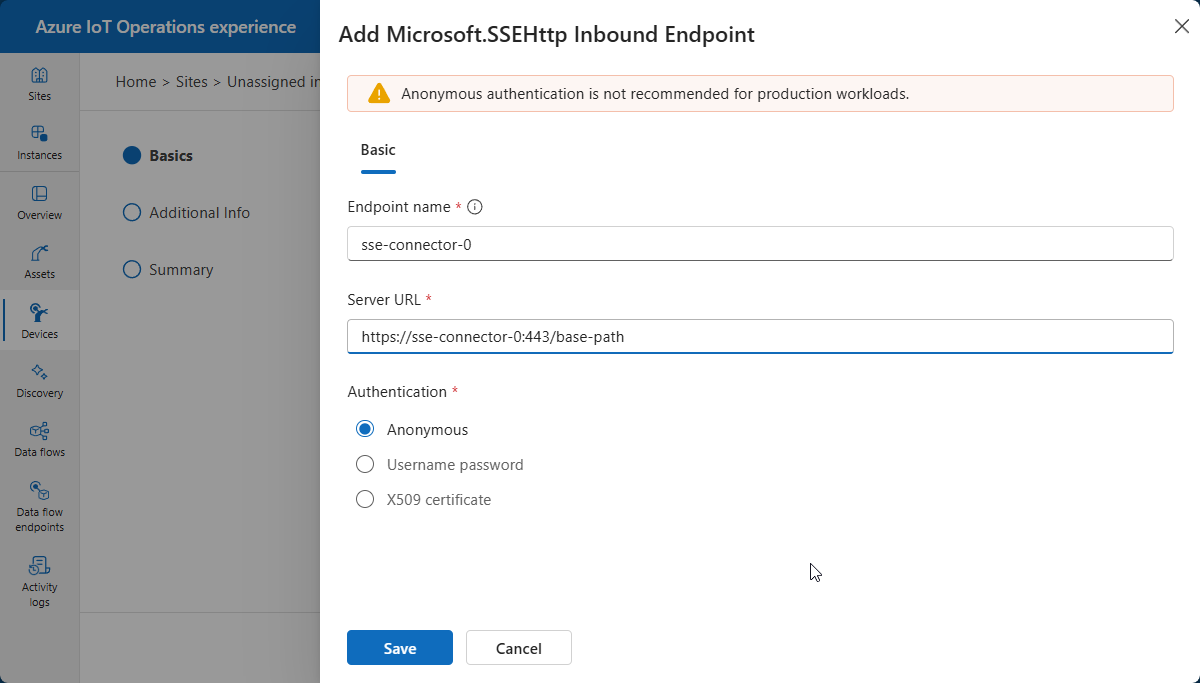
Select Apply to save the endpoint.
On the Device details page, select Next to continue.
On the Add custom property page, add any other properties you want to associate with the device. For example, you might add a property to indicate the manufacturer of the camera. Then select Next to continue.
On the Summary page, review the details of the device and select Create to create the asset.
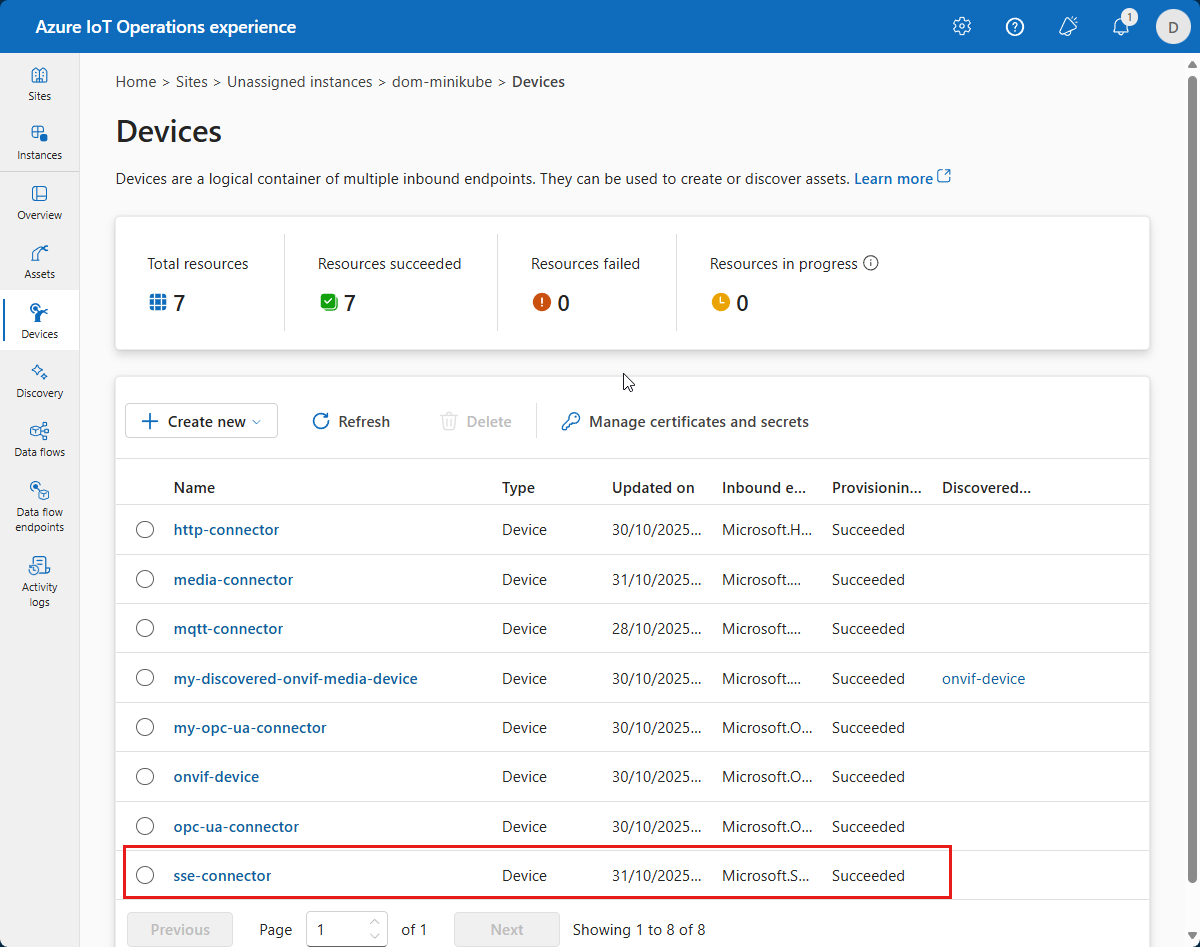
After the device is created, you can view it in the Devices list:
Configure a device to use a username and password
The previous example uses the Anonymous authentication mode. This mode doesn't require a username or password.
To use the Username password authentication mode, complete the following steps:
In the operations experience, when you add the inbound endpoint and choose the Username password authentication mode, select Add reference to add the secret references for the username and password. The operations experience offers two options:
- Create a new secret: uploads the value to Azure Key Vault and synchronizes it to the cluster as a synced secret.
- Add from Azure Key Vault: synchronizes an existing Key Vault secret to the cluster.
The operations experience saves both the username and password references in a single synced secret resource on the cluster, and you give that synced secret a name.
To learn more, see Add and use secrets.
Configure a device to use an X.509 certificate
In the operations experience, when you add the inbound endpoint and choose the X509 certificate authentication mode, select Add reference to add the secret reference for the client certificate and private key. The operations experience offers two options:
- Create a new secret: uploads the certificate and private key files to Azure Key Vault and synchronizes them to the cluster as a synced secret.
- Add from Azure Key Vault: synchronizes existing Key Vault secrets to the cluster.
The operations experience saves the certificate and key references in a single synced secret resource on the cluster, and you give that synced secret a name.
To learn more, see Sync a client certificate and private key for mutual TLS.
Create an asset
To define an asset that publishes events from the SSE endpoint, follow these steps:
In the operations experience web UI, select Assets in the left navigation pane. Then select Create asset.
Select the inbound endpoint for the connector for SSE that you created in the previous section.
Enter a name for your asset, such as
my-sse-source.Add any custom properties you want to associate with the asset. For example, you might add a property to indicate the manufacturer of the camera. Select Next to continue.
A dataset defines where the connector sends the data it collects from a collection of data points. An SSE asset can have multiple datasets. To create a dataset:
Select Create dataset.
Enter the details for the dataset such as its name, data source, and destination. For SSE assets, the data source is the path on the SSE endpoint. The destination is either an MQTT topic or a broker state store key.
Select Create and next to create the dataset.
Tip
Use the Manage default settings option to configure default dataset settings.
An event group defines where the connector sends the data it receives from a collection of events. An SSE asset can have multiple event groups. To create an event group:
Select Create event group.
Enter a name for the event group and the destination MQTT topic.
Select Create and next to create the event group and go to the events page.
Select Add event to add an event to the group. For example:
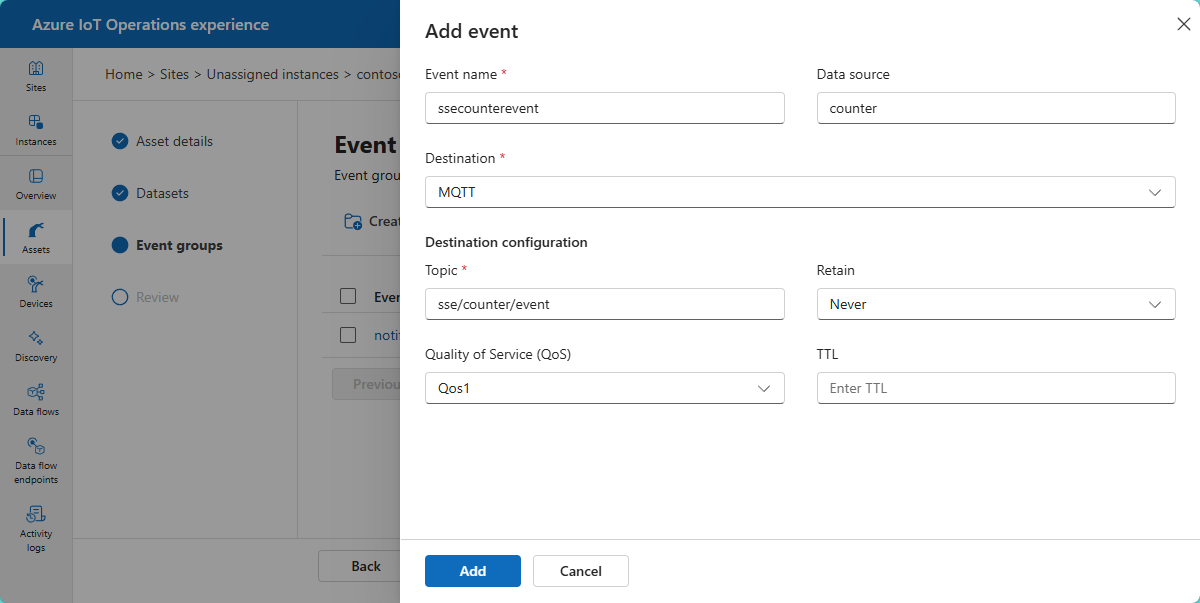
Add details for each event including the SSE event identification as the data source and the MQTT topic to publish to as the destination. Select Next to continue.
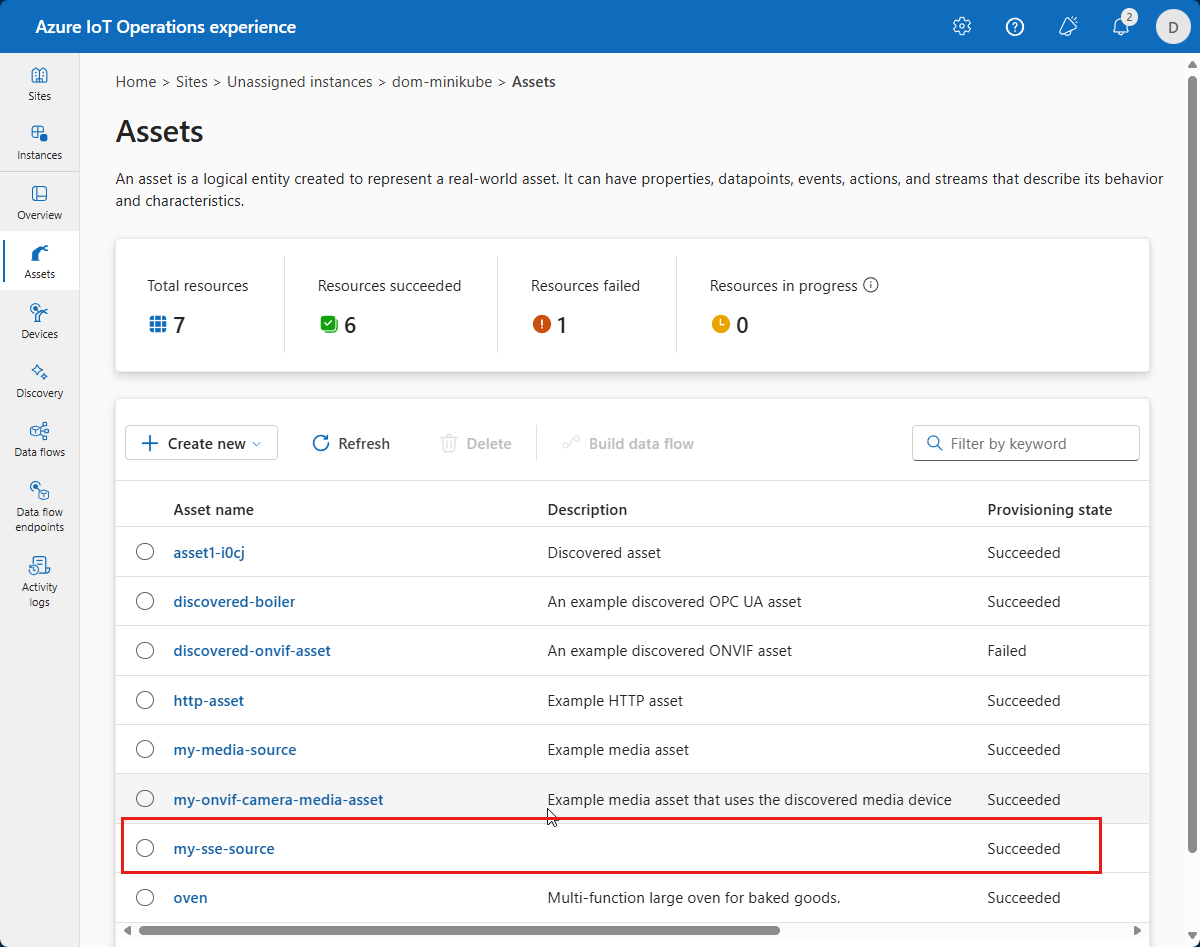
On the Review page, review the details of the asset and select Create to create the asset. After a few minutes, the asset is listed on the Assets page: