Note
Access to this page requires authorization. You can try signing in or changing directories.
Access to this page requires authorization. You can try changing directories.
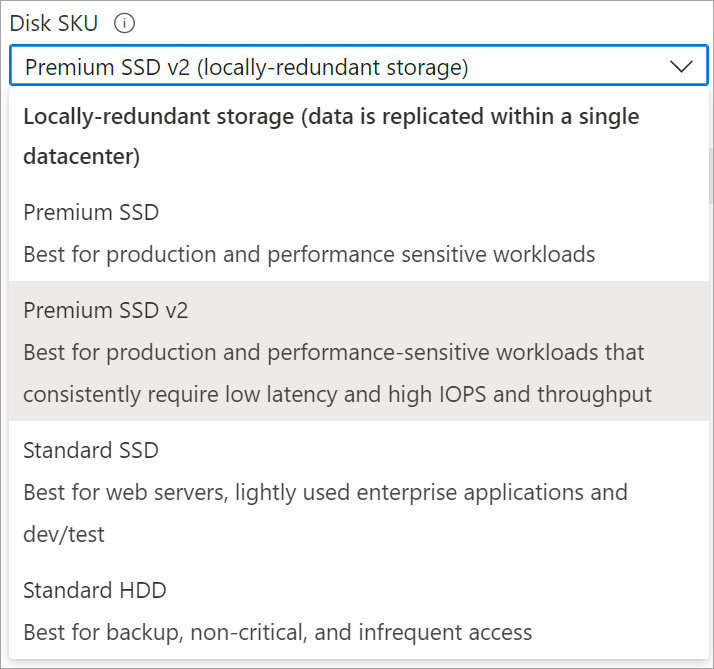
Azure Premium SSD v2 is designed for IO-intense enterprise workloads that require sub-millisecond disk latencies and high IOPS and throughput at a low cost. Premium SSD v2 is suited for a broad range of workloads such as SQL server, Oracle, MariaDB, SAP, Cassandra, Mongo DB, big data/analytics, gaming, on virtual machines or stateful containers. For conceptual information on Premium SSD v2, see Premium SSD v2.
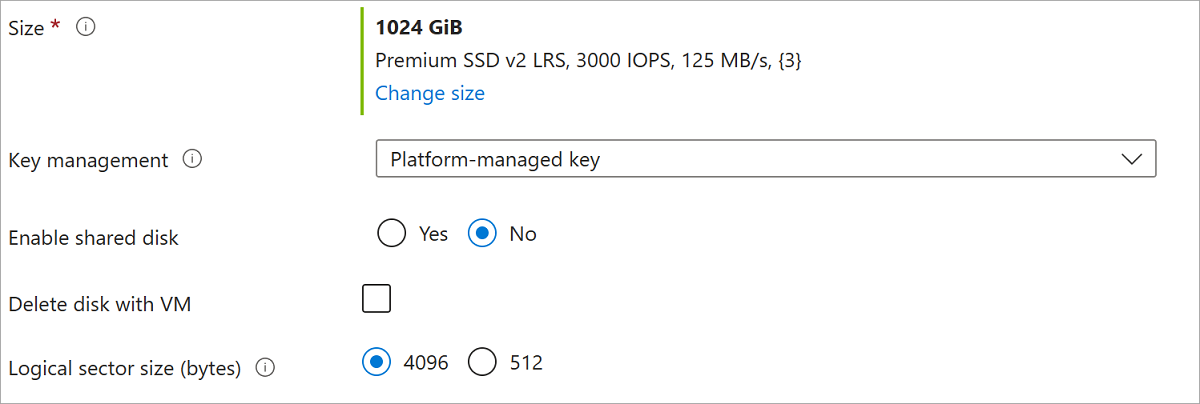
Premium SSD v2 disks support a 4k physical sector size by default, but can be configured to use a 512E sector size as well. While most applications are compatible with 4k sector sizes, some require 512 byte sector sizes. Oracle Database, for example, requires release 12.2 or later in order to support 4k native disks.
This article covers deploying a zonal Premium SSD v2, which is generally what you should use. However, if you need to deploy a nonzonal Premium SSD v2, see Deploy a nonzonal Premium SSD v2.
Limitations
- Premium SSD v2 disks can't be used as an OS disk or with Azure Compute Gallery.
- Premium SSD v2 doesn't support host caching.
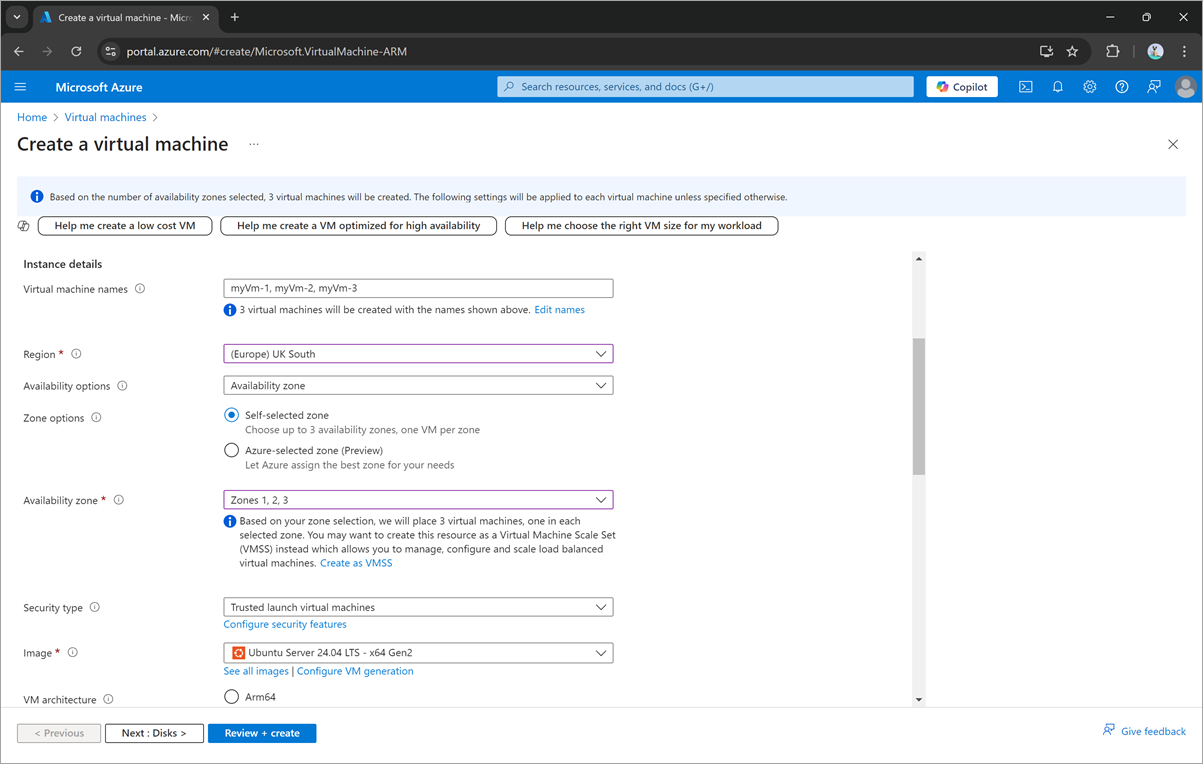
- In most regions that support availability zones, you can only attach Premium SSD v2 disks to zonal VMs. When you create a new VM, specify the availability zone you want before adding Premium SSD v2 disks to your configuration.
- In a subset of regions that support availability zones, you can attach nonzonal Premium SSD v2 disks to nonzonal VMs, which have extra limitations.
Regional availability
Currently only available in the following regions:
| Three Availability Zones |
|---|
| Austria East Australia East Brazil South Canada Central Central India China North 3 East Asia North Europe, West Europe France Central Germany West Central Indonesia Central Israel Central Italy North Japan East, Japan West Korea Central Malaysia West Mexico Central New Zealand North Norway East Poland Central South African North Southeast Asia Spain Central Sweden Central Switzerland North UAE North UK South Central US, East US, East US 2, North Central US, South Central US, West Central US, West US 2, West US 3 US Gov Virginia |
To learn when support for particular regions was added, see either Azure Updates or What's new for Azure Disk Storage.
Prerequisites
- Install either the latest Azure CLI or the latest Azure PowerShell module.
Determine region availability programmatically
Since not every region and zone support Premium SSD v2 disks, you can use the Azure CLI or PowerShell to determine region and zone supportability.
To determine the regions and zones that support Premium SSD v2 disks, replace yourSubscriptionId with your subscription, and then run the az vm list-skus command:
az login

subscriptionId="<yourSubscriptionId>"

az account set --subscription $subscriptionId

az vm list-skus --resource-type disks --query "[?name=='PremiumV2_LRS'].{Region:locationInfo[0].___location, Zones:locationInfo[0].zones}"
Now that you know the region and zone to deploy to, follow the deployment steps in this article to create a zonal Premium SSD v2 and attach it to a VM.
Use a zonal Premium SSD v2 in regions with availability zones
Currently, Premium SSD v2 disks are only available in select regions with availability zones.
Create a Premium SSD v2 in an availability zone by using the az disk create command. Then create a VM in the same region and availability zone that supports Premium Storage and attach the disk to it by using the az vm create command.
The following script creates a Premium SSD v2 with a 4k sector size, to deploy one with a 512 sector size, update the $logicalSectorSize parameter. Replace the values of all the variables with your own, then run the following script:
## Initialize variables
diskName="yourDiskName"
resourceGroupName="yourResourceGroupName"
region="yourRegionName"
zone="yourZoneNumber"
##Replace 4096 with 512 to deploy a disk with 512 sector size
logicalSectorSize=4096
vmName="yourVMName"
vmImage="Win2016Datacenter"
adminPassword="yourAdminPassword"
adminUserName="yourAdminUserName"
vmSize="Standard_D4s_v3"

## Create a Premium SSD v2
az disk create -n $diskName -g $resourceGroupName \
--size-gb 100 \
--disk-iops-read-write 5000 \
--disk-mbps-read-write 150 \
--___location $region \
--zone $zone \
--sku PremiumV2_LRS \
--logical-sector-size $logicalSectorSize

## Create the VM
az vm create -n $vmName -g $resourceGroupName \
--image $vmImage \
--zone $zone \
--authentication-type password --admin-password $adminPassword --admin-username $adminUserName \
--size $vmSize \
--___location $region \
--attach-data-disks $diskName

Adjust disk performance
You can adjust the performance of a Premium SSD v2 four times within a 24 hour period. Creating a disk counts as one of these times, so for the first 24 hours after creating a Premium SSD v2 you can only adjust its performance up to three times.
For conceptual information on adjusting disk performance, see Premium SSD v2 performance.
Use the az disk update command to change the performance configuration of your Premium SSD v2. For example, you can use the disk-iops-read-write parameter to adjust the max IOPS limit, and the disk-mbps-read-write parameter to adjust the max throughput limit of your Premium SSD v2.
The following command adjusts the performance of your disk. Update the values in the command, and then run it:
az disk update --subscription $subscription --resource-group $rgname --name $diskName --disk-iops-read-write=5000 --disk-mbps-read-write=200
Next steps
Add a data disk by using either the Azure portal, Azure CLI, or PowerShell.
Use Premium SSD v2 with VMs in availability set.
Provide feedback on Premium SSD v2.