Note
Access to this page requires authorization. You can try signing in or changing directories.
Access to this page requires authorization. You can try changing directories.
This article helps you create a site-to-site VPN gateway connection in IPv4 and IPv6 dual stack from your on-premises network to a virtual network (VNet) using Azure PowerShell.
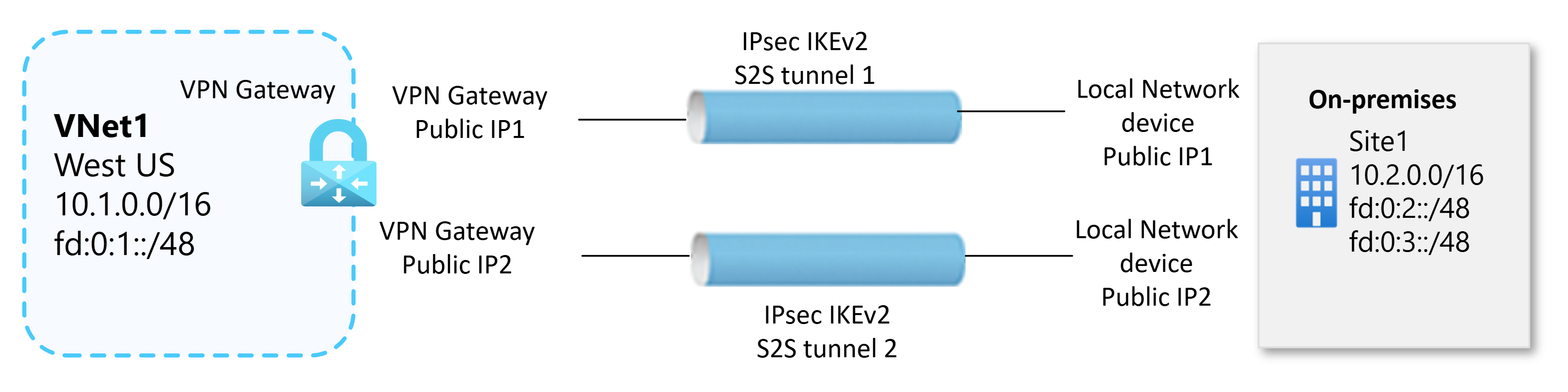
A site-to-site VPN gateway connection is used to connect your on-premises network to an Azure virtual network over an IPsec/IKE VPN tunnel. This type of connection requires a VPN device located on-premises that has an externally facing public IP addresses assigned to it. The current site-to-site VPN configuration with dual-stack support allows only IPv6 traffic in the inner tunnel. IPv6 inner traffic is supported exclusively with IKEv2.
The steps in this article create two connections between the VPN gateway and the on-premises VPN device using a shared key. You can also use CLI for this configuration. If you aren't configuring IPv4 addresses along with IPv6 addresses, you can optionally use the Azure portal. For more information about VPN gateways, see About VPN gateway.
Important
IPv6 in dual stack configuration is currently in PREVIEW. See the Supplemental Terms of Use for Microsoft Azure Previews for legal terms that apply to Azure features that are in beta, preview, or otherwise not yet released into general availability.
Before you begin
Note
During Preview, you can opt in to configure IPv6 in dual stack. To opt in, send your subscription ID to vpngwipv6preview@microsoft.com and request your subscription to be enabled for IPv6.
Verify that your environment meets the following criteria before beginning configuration:
Verify that you have a functioning route-based VPN gateway. To create a VPN gateway, see Create a VPN gateway.
If you're unfamiliar with the IP address ranges located in your on-premises network configuration, you need to coordinate with someone who can provide those details for you. When you create this configuration, you must specify the IP address range prefixes that Azure routes to your on-premises ___location. None of the subnets of your on-premises network can overlap with the virtual network subnets that you want to connect to.
VPN devices:
Make sure you have a compatible VPN device and someone who can configure it. For more information about compatible VPN devices and device configuration, see About VPN devices.
Determine if your VPN device supports active-active mode gateways. This article creates an active-active mode VPN gateway, which is recommended for highly available connectivity. Active-active mode specifies that both gateway VM instances are active. This mode requires two public IP addresses, one for each gateway VM instance. You configure your VPN device to connect to the IP address for each gateway VM instance.
If your VPN device doesn't support this mode, don't enable this mode for your gateway. For more information, see Design highly available connectivity for cross-premises and VNet-to-VNet connections and About active-active mode VPN gateways.
If your virtual network gateway and local network gateway reside in different subscriptions and different tenants, you'll need to use slightly different steps. Review the Connections with different tenants and different subscriptions.
Azure PowerShell
This article uses PowerShell cmdlets. To run the cmdlets, you can use Azure Cloud Shell or PowerShell installed locally on your computer. If you use PowerShell locally, make sure you have the latest Azure PowerShell module installed. For installation instructions, see Install Azure PowerShell.
Assign the variables used in the configuration.
$ResourceGroup = 'resource-group-name'
$Location = 'name-of-the-azure-region'
$vnetName = 'VNet1'
$VNetAddressPrefix = "10.1.0.0/16", "fd:0:1::/48"
$WorkloadSubnetName = 'subnet1'
$GatewaySubnet = @('10.1.0.0/24', 'fd:0:1:e::/64')
$WorkloadSubnet = @('10.1.1.0/24', 'fd:0:1:1::/64')
$GatewayName = 'gw1'

# name of the first and second public IP of the VPN Gateway
$PublicIP1 = "$GatewayName-pip1"
$PublicIP2 = "$GatewayName-pip2"

# name of the configurations of the VPN Gateway
$GatewayIPConfig1 = "$GatewayName-ipconfig1"
$GatewayIPConfig2 = "$GatewayName-ipconfig2"

# VPN type Route based
$VPNType = 'RouteBased'
Create an Azure virtual network
# Create the configuration for the GatewaySubnet
$subnet1 = New-AzVirtualNetworkSubnetConfig -Name 'GatewaySubnet' -AddressPrefix $GatewaySubnet

# Create the configuration for the workload subnet
$subnet2 = New-AzVirtualNetworkSubnetConfig -Name $SubnetName -AddressPrefix $Subnet

# create the VNet with name specified in the variable $vnetName
New-AzVirtualNetwork -Name $vnetName -ResourceGroupName $ResourceGroup `
  -Location $Location `
  -AddressPrefix $VNetAddressPrefix `
  -Subnet $subnet1, $subnet2
Create the VPN gateway
The Azure VPN Gateway is deployed with a zonal SKU in the GatewaySubnet. In active-active mode, it requires two public IP addresses with Standard SKU. Create the public IP addresses, then create the VPN gateway.
# create the first public IP for the VPN Gateway
$gwpip1 = New-AzPublicIpAddress -Name $PublicIP1 -ResourceGroupName $ResourceGroup -Location $Location -AllocationMethod Static -Sku Standard -Tier Regional -Zone 1,2,3

# create the second public IP for the VPN Gateway
$gwpip2 = New-AzPublicIpAddress -Name $PublicIP2 -ResourceGroupName $ResourceGroup -Location $Location -AllocationMethod Static -Sku Standard -Tier Regional -Zone 1,2,3

# Create the VPN Gateway with VpnGw2AZ SKU in active-active mode
New-AzVirtualNetworkGateway -Name $GatewayName -ResourceGroupName $ResourceGroup `
  -Location $Location -IpConfigurations $gwipconfig1, $gwipconfig2 `
  -GatewayType $GatewayType `
  -VpnType Vpn -GatewaySku VpnGw2AZ -EnableActiveActiveFeature
View the VPN gateway
You can view the VPN gateway using the Get-AzVirtualNetworkGateway cmdlet.
Get-AzVirtualNetworkGateway -Name $GatewayName -ResourceGroup $ResourceGroup
Create a local network gateway
The local network gateway (LNG) refers to your on-premises ___location. It isn't the same as a virtual network gateway. VPN Gateway supports static routing and dynamic routing through BGP. In this article, static routing is configured in IPsec tunnels. You give the site a name by which Azure can refer to it, then specify the IP address of the on-premises VPN device to which you'll create a connection. You also specify the IP address prefixes that are routed through the VPN gateway to the VPN device. The address prefixes you specify are the prefixes located on your on-premises network. If your on-premises network changes, you can easily update the prefixes.
Use the following values:
- The public-IP1-onpremises-device is the IP address 1 of your on-premises VPN device, not your Azure VPN gateway.
- The public-IP2-onpremises-device is the IP address 2 of your on-premises VPN device, not your Azure VPN gateway.
# Collect the first public IP assigned to the on-premises VPN device
# replace public-IP1-onpremises-device with the IP1 of your on-premises device
$OnpremIpAddress1 = 'public-IP1-onpremises-device'

# Collect the second public IP assigned to the on-premises VPN device
# replace public-IP2-onpremises-device with the IP2 of your on-premises device
$OnpremIpAddress2 = 'public-IP2-onpremises-device'

# Define the name of local network gateway to use to create the IPsec tunnel1
$LocalNetworkGatewayName1 = 'lngSite11'

# Define the name of local network gateway to use to create the IPsec tunnel2
$LocalNetworkGatewayName2 = 'lngSite12'

# Specify the list of IPv4 and IPv6 on-premises networks
$LocalAddressPrefixes = @("10.0.0.0/16", "fd:0:2::/48", "fd:0:3::/48")

New-AzLocalNetworkGateway -Name $LocalNetworkGatewayName1 `
  -ResourceGroupName $ResourceGroup `
  -Location $Location `
  -GatewayIpAddress $OnpremIpAddress1 `
  -AddressPrefix $LocalAddressPrefixes

New-AzLocalNetworkGateway -Name $LocalNetworkGatewayName2 `
  -ResourceGroupName $ResourceGroup `
  -Location $Location `
  -GatewayIpAddress $OnpremIpAddress2 `
  -AddressPrefix $LocalAddressPrefixes
Configure your VPN device
Site-to-site connections to an on-premises network require a VPN device. For information to help you configure your device, see Configure your VPN device. When configuring your VPN device, you need the following items:
Shared key: This shared key is the same one that you specify when you create your site-to-site VPN connection. In our examples, we use a simple shared key. We recommend that you generate a more complex key to use.
Public IP addresses of your virtual network gateway instances: Obtain the IP address for each VM instance. If your gateway is in active-active mode, you'll have an IP address for each gateway VM instance. Be sure to configure your device with both IP addresses, one for each active gateway VM.
Make sure to configure your VPN device to connect to both gateway IP addresses of the active-active mode VPN gateway. If your VPN device doesn't support active-active mode, you can still connect to both gateway IP addresses, but only one connection will be active at a time. For more information, see Design highly available connectivity for cross-premises and VNet-to-VNet connections and About active-active mode VPN gateways.
Create the VPN connections
Create site-to-site VPN connections between your virtual network gateway and your on-premises VPN device. You're using an active-active mode gateway, so each gateway VM instance has a separate IP address. To properly configure highly available connectivity, you must establish a tunnel between each VM instance and your VPN device. Both tunnels are part of the same connection. If your local network gateway and virtual network gateway reside in different subscriptions and different tenants, see the Connections with different tenants and different subscriptions section.
The shared key must match the value you used for your VPN device configuration. Notice that the '-ConnectionType' for site-to-site is IPsec.
Set the variables.
$ConnectionName1 = 'conn11'
$ConnectionName2 = 'conn12'
$LocalNetworkGatewayName1 = 'lngSite11'
$LocalNetworkGatewayName2 = 'lngSite12'
$SharedKey = 'abc123'

# collect the VPN Gateway and store the object in the variable $gateway
$gateway = Get-AzVirtualNetworkGateway -Name $Gateway1Name -ResourceGroupName $ResourceGroup

# Collect the local network gateway for the S2S tunnel1
$localNetw1 = Get-AzLocalNetworkGateway -Name $LocalNetworkGatewayName1 -ResourceGroupName $ResourceGroup

# Collect the local network gateway for the S2S tunnel2
$localNetw2 = Get-AzLocalNetworkGateway -Name $LocalNetworkGatewayName2 -ResourceGroupName $ResourceGroup
Create the connections.
# Create the VPN connection for the S2S tunnel1
New-AzVirtualNetworkGatewayConnection -Name $ConnectionName1 `
  -ResourceGroupName $ResourceGroup `
  -Location $Location `
  -VirtualNetworkGateway1 $gateway `
  -LocalNetworkGateway2 $localNetw1 `
  -ConnectionType IPsec -SharedKey $SharedKey

# Create the VPN connection for the S2S tunnel2
New-AzVirtualNetworkGatewayConnection -Name $ConnectionName2 `
  -ResourceGroupName $ResourceGroup `
  -Location $Location `
  -VirtualNetworkGateway1 $gateway1 `
  -LocalNetworkGateway2 $localNetw2 `
  -ConnectionType IPsec -SharedKey $SharedKey
Verify the VPN connection
You can verify that your connection succeeded by using the Get-AzVirtualNetworkGatewayConnection cmdlet, with or without -Debug.
Use the following cmdlet example, configuring the values to match your own. If prompted, select A in order to run All. In the example,
-Namerefers to the name of the connection that you want to test.Get-AzVirtualNetworkGatewayConnection -Name $ConnectionName1 -ResourceGroupName $ResourceGroupAfter the cmdlet finishes, view the values. In the following example, the connection status shows as Connected and you can see ingress and egress bytes.
"connectionStatus": "Connected",
"ingressBytesTransferred": 33509044,
"egressBytesTransferred": 4142431
Modify IP address prefixes for a local network gateway
If the IP address prefixes that you want routed to your on-premises ___location change, you can modify the local network gateway. When using these examples, modify the values to match your environment.
To add more address prefixes
Set the variable for the LocalNetworkGateway.
$local1 = Get-AzLocalNetworkGateway -Name $LocalNetworkGatewayName1 -ResourceGroupName $ResourceGroup
Modify the prefixes. The values you specify overwrite the previous values.
Set-AzLocalNetworkGateway -LocalNetworkGateway $local1 `
  -AddressPrefix @('10.0.0.0/16','10.5.0.0/16', 'fd:0:2::/48', 'fd:0:3::/48','fd:0:5::/48')
To remove address prefixes
Leave out the prefixes that you no longer need. In this example, we no longer need prefix 'fd:0:5::/48' (from the previous example), so we update the local network gateway and exclude that prefix.
Set the variable for the LocalNetworkGateway.
$local1 = Get-AzLocalNetworkGateway -Name $LocalNetworkGatewayName1 `
  -ResourceGroupName $ResourceGroup
Set the gateway with the updated prefixes
Set-AzLocalNetworkGateway -LocalNetworkGateway $local1 `
  -AddressPrefix @("10.0.0.0/16", "fd:0:2::/48")
Modify the gateway IP address for a local network gateway
If you change the public IP address for your VPN device, you need to modify the local network gateway with the updated IP address. When modifying this value, you can also modify the address prefixes at the same time. When modifying, be sure to use the existing name of your local network gateway.
# retrieve the local network gateway
$local1 = Get-AzLocalNetworkGateway -Name $LocalNetworkGatewayName1 `
  -ResourceGroupName $ResourceGroup

# assign the new value to the public IP of the Local Network Gateway
$local1.GatewayIpAddress = "5.4.3.2"

# commit the change
Set-AzLocalNetworkGateway -LocalNetworkGateway $local1
Delete a gateway connection
If you don't know the name of your connection, you can find it by using the Get-AzVirtualNetworkGatewayConnection cmdlet.
Remove-AzVirtualNetworkGatewayConnection -Name $ConnectionName1 `
  -ResourceGroupName $ResourceGroup
Next steps
Once your connection is complete, you can add virtual machines to your virtual networks. For more information, see Virtual Machines.
For information about BGP, see the BGP Overview and How to configure BGP.