Note
Access to this page requires authorization. You can try signing in or changing directories.
Access to this page requires authorization. You can try changing directories.
This article provides troubleshooting guidance for the macOS Global Secure Access client using the Health check tab in the Advanced diagnostics utility.
Introduction
The Advanced diagnostics Health check runs tests to verify that the macOS Global Secure Access client works correctly and that its components are running.
Run the health check
To run a health check for the macOS Global Secure Access client:
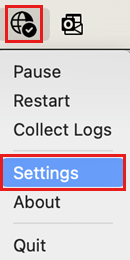
- Select Global Secure Access in the menu bar and select Settings.
- Select the Troubleshooting tab.
- In the Advanced Diagnostics tool section, select Run tool.
- In the Advanced Diagnostics window, select the Health Check tab. Switching tabs runs the health check.
Resolution process
Most of the Health check tests depend on one another. If tests fail:
- Resolve the first failed test in the list.
- Select Refresh to view the updated test status.
- Repeat until you resolve all failed tests.


Health check tests
The following checks verify the health of the Global Secure Access client.
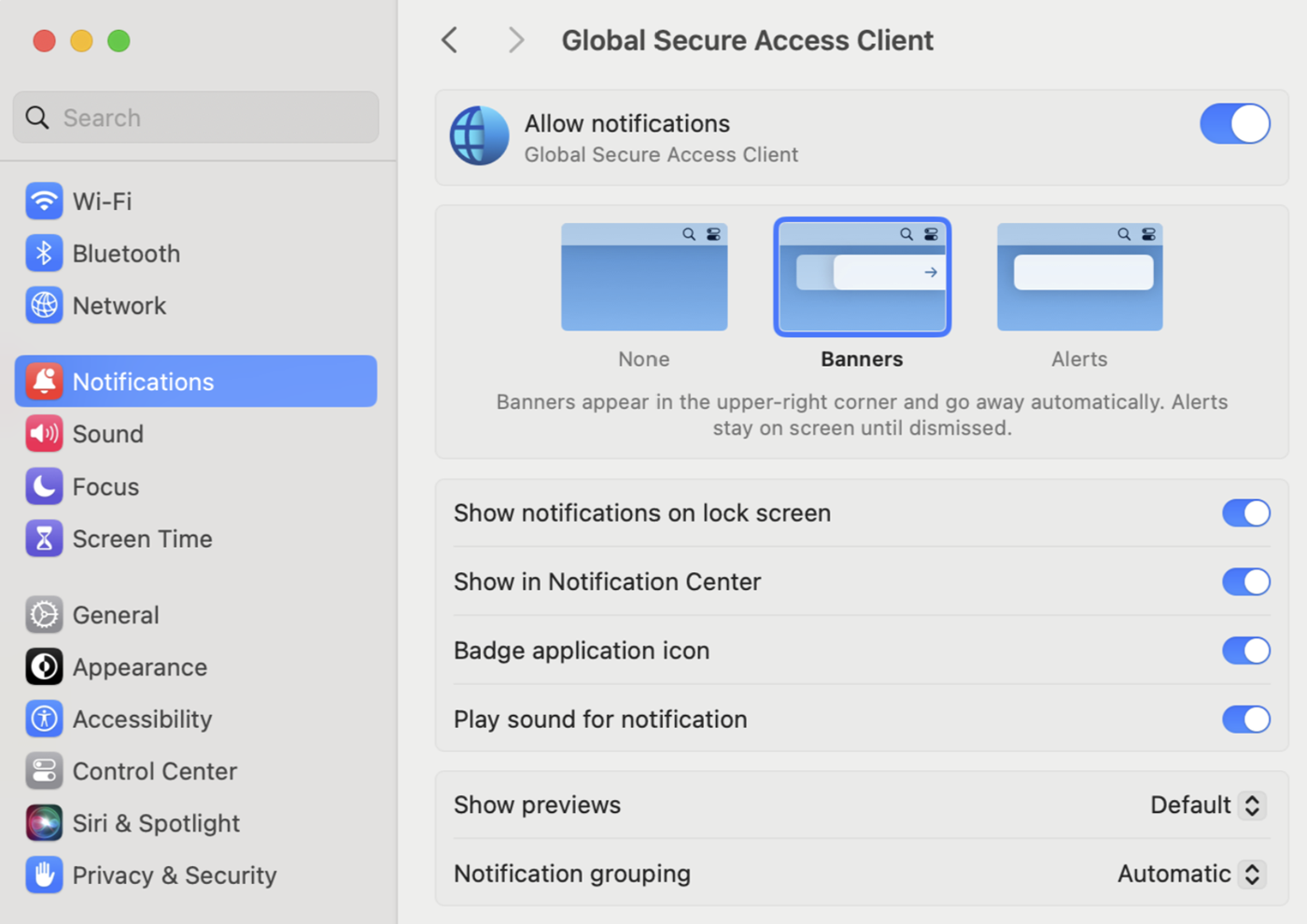
Notifications enabled
The Notifications enabled test checks if the macOS Global Secure Access client notifications are enabled. If the test isn't enabled, open System Settings and allow the notifications.
System extension
This test checks if the client's system extension is installed and active. If this test fails, try one of the following solutions:
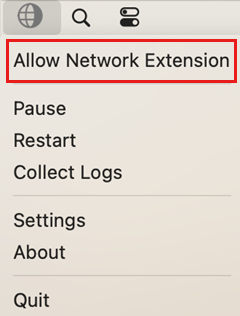
Check for the option to Allow Network Extension:
- Select Global Secure Access in the menu bar.
- If the option is available, select Allow Network Extension to enable the system extension.
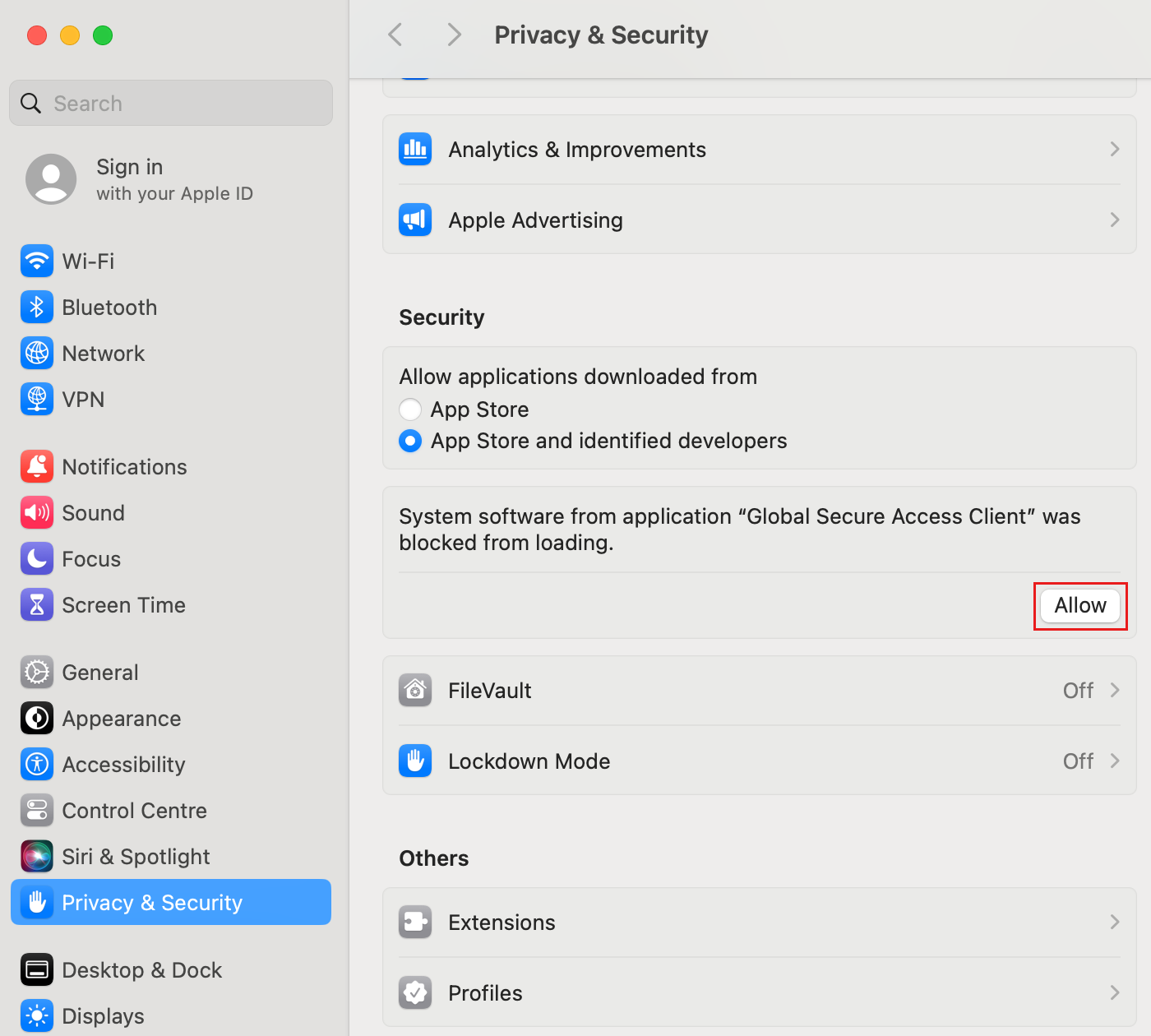
Allow the system extension in Privacy & Security settings:
- Open System Settings.
- Select Privacy & Security.
- Scroll down to the Security section.
- If there's a message about the Global Secure Access system extension being blocked, select Allow to enable the system extension.
Use a Terminal command to check if the system extension is running and enabled:
- Open Terminal.
- Run the following command:
systemextensionsctl list | grep -E '.*com.microsoft.naas.globalsecure.tunnel-df.*Global Secure Access' - The Terminal command enables the system extension, with the output:
Virtual-Machine ~ % systemextensionsctl list | grep -E '.*com.microsoft.naas.*Global.*Secure.*Access.*Network.*Extension.*activated.*enabled'
UBF8T346G9    com.microsoft.naas.globalsecure.tunnel-df (1.1.432/1.1.432)    Global Secure Access Network Extension    [activated enabled]
Transparent proxy service
This test checks if the Transparent Proxy service is running. If the test fails, enable the Transparent Proxy service:
- Open System Settings.
- Select Network.
- Select Filters & Proxies.
- Verify that the Global Secure Access Transparent Proxy Status is Enabled. If not, switch it to Enabled.

- If you can't enable the Transparent Proxy through System Settings, check the log file.

UI - System extension bridge (IPC)
This test checks if the System Extension Bridge is active. If the test fails, disable and re-enable the Global Secure Access client.
Connected active interface
This test shows the active interface used for traffic. To see all the active interfaces, enter the following command in Terminal: ifconfig.
This info comes from the path State:/Network/Global/IPv4.
scutil <<< "show State:/Network/Global/IPv4"
Tunnel interface (L3)
This test shows the name of the tunnel interface the client uses. A failed test indicates that the tunnel interface wasn't created successfully. To fix the issue:
- Disable and re-enable client from the system tray.
- Verify the following output in the tunnel log file:
"l3Interface" : {
"name" : "_interface-name",
"status" : "Yes"
},
DNS server IP
This test shows the IP of the preferred DNS server configured at the operating system level. You must configure a DNS server that can resolve internet hostnames. An empty value means that no DNS server is configured.
Is DNS encrypted
To allow the macOS Global Secure Access client to capture network traffic by fully qualified ___domain name (FQDN) instead of IP address, the client must read DNS requests sent to the DNS server.
Examples of secure DNS servers:
- Google DNS: 8.8.8.8, 8.8.4.4
- Cloudflare DNS: 1.1.1.1, 1.0.0.1
- OpenDNS: 208.67.222.222, 208.67.220.220
If the forwarding profile includes FQDN rules, disable DNS over HTTPS. To check whether secure DNS is enabled, run the following command:
scutil --dns | grep 'nameserver\[[0-9]*\]'
For example:
$ scutil --dns | grep 'nameserver\[[0-9]*\]'
  nameserver[0] : 10.50.50.50
  nameserver[1] : 10.50.10.50
  nameserver[0] : 10.50.50.50
  nameserver[1] : 10.50.10.50
To check if a specific port is closed, use the nc (netcat) command:
$ nc -zv 10.50.50.50 853
nc: connectx to 10.50.50.50 port 853 (tcp) failed: Connection refused
If the connection is closed, the DNS isn't encrypted. If any connection succeeds, the DNS server uses encryption.
Authentication succeeded
This test checks for a successful Global Secure Access authentication. A failed authentication results in an error or a prompt for an interactive sign-in. If the test fails:
- Sign in to the Microsoft Entra admin center as a Global Secure Access Administrator.
- Go to Entra ID > Devices > Overview.
- Verify that the device is registered and that you're signed in to the Microsoft Entra tenant. For more information, see Manage device identities using the Microsoft Entra admin center.
- Select Audit logs.
- Check the log file: com.microsoft.naas.globalsecure-df xx.xx.xx.xx.log
Forwarding profile cached in a file
This test checks that a forwarding profile exists in the file system. If the test fails, complete the following steps:
- Select the Global Secure Access system tray icon.
- Select Settings.
- On the Troubleshooting tab, select Clear cache.
- Sign in again. The client retrieves an updated forwarding profile from the Global Secure Access service.
- Run the test again. If the test fails:
- Check the tunnel log file for errors.
- Check the following path for the policy .plist file:
/private/var/root/Library/Preferences/com.microsoft.naas.globalsecure.tunnel-df.plist
Break-glass mode disabled
Break-glass mode prevents the Global Secure Access client from tunneling network traffic to the Global Secure Access cloud service. In break-glass mode, all traffic profiles in the Global Secure Access portal are unchecked and the Global Secure Access client isn't expected to tunnel any traffic.
If you want the client to acquire traffic and send it to the Global Secure Access service:
- Sign in to the Microsoft Entra admin center as a Global Secure Access Administrator.
- Navigate to Global Secure Access > Connect > Traffic forwarding.
- Enable at least one of the traffic profiles that match your organization's needs.
The Global Secure Access client typically receives the updated forwarding profile within one hour after making changes in the portal.
Proxy Configured
This test checks whether the proxy is configured on the device. If a device uses a proxy for outgoing traffic to the internet, you must exclude the destination IPs and FQDNs that the client acquires by using a Proxy Auto-Configuration (PAC) file or by using the Web Proxy Auto-Discovery (WPAD) protocol.
Change the PAC file
Add the IPs and FQDNs to tunnel to Global Secure Access edge as exclusions in the PAC file, so that HTTP requests for these destinations don't redirect to the proxy. These IPs and FQDNs are also set to tunnel to Global Secure Access in the forwarding profile.
To show the client's health status properly, add the FQDN used for health probing to the exclusions list: .edgediagnostic.globalsecureaccess.microsoft.com.
Example PAC file containing exclusions:
function FindProxyForURL(url, host) {
        if (isPlainHostName(host) ||
            dnsDomainIs(host, ".edgediagnostic.globalsecureaccess.microsoft.com") || //tunneled
            dnsDomainIs(host, ".contoso.com") || //tunneled
            dnsDomainIs(host, ".fabrikam.com")) // tunneled
           return "DIRECT";                    // For tunneled destinations, use "DIRECT" connection (and not the proxy)
        else                                   // for all other destinations
           return "PROXY 10.1.0.10:8080";  // route the traffic to the proxy.
}
Internet reachable
This test checks whether the internet is reachable when the client is running. Run one of the following commands in Terminal:
curl http://www.msftconnecttest.com/connecttest.txt
Important
Make sure the following URLs are accessible and not blocked by the firewall and VPN providers. http://www.msftconnecttest.com/connecttest.txt http://captive.apple.com/hotspot-detect.html http://connectivitycheck.gstatic.com/generate_204
Diagnostic URLs present
For each channel activated in the forwarding profile, this test checks that the configuration contains a URL to probe the service's health. To view the health status, select the system tray icon. On the Connections tab, view the Status.
If this test fails, it's usually because of an internal problem with Global Secure Access. Contact Microsoft Support.
Diagnostics URLs monitoring status
This test verifies whether the diagnostics URLs monitoring is working. If the test fails, disable and re-enable the client.
Magic-IP received for EDS
This test validates if magic IP is received for EDS URLs. If the test fails, complete the following steps:
- Verify that the DNS server is responsive. For example, try resolving "microsoft.com" using the
nslookuptool. - Make sure the DNS server set on the macOS device doesn't support Secure DNS.
Edges are reachable
This test verifies whether the device is connected to the internet:
nc -vz 9d39e890-4c9e-433b-9b7a-625f7e26d855.m365.client.globalsecureaccess.microsoft.com 443
Tunneling succeeded
This test validates if tunneling succeeded for all EDS URLs. If this test fails:
- Verify that all other health check tests passed.
- Verify that tunneling is working on other devices.
- Check the log file.
- Restart the client.
- If the test still fails, contact Microsoft Support.