Note
Access to this page requires authorization. You can try signing in or changing directories.
Access to this page requires authorization. You can try changing directories.
This article outlines how to use the copy activity in a pipeline to copy data from and to SharePoint Online File.
Supported format
SharePoint Online File supports the following file formats. Refer to each article for format‑based settings.
Source supported formats
Destination supported formats
Supported configuration
For the configuration of each tab under copy activity, go to the following sections respectively.
General
Refer to the General settings guidance to configure the General settings tab.
Source
The following properties are supported for SharePoint Online File under the Source tab of a copy activity.

The following properties are required:
Connection: Select a SharePoint Online File connection from the connection list. If no connection exists, then create a new SharePoint Online File connection.
Connection type: Select SharePoint Online File (Preview).
File path type: You can choose File path, Wildcard file path, or List of files as your file path type. The configuration for each setting is:
File path: Select Browse to choose the file that you want to copy, or fill in the path manually.
Wildcard file path: Specify the Wildcard paths.
Wildcard paths: Specify the folder or file path with wildcard characters to filter source folders or files.
Allowed wildcards are:
*(matches zero or more characters) and?(matches zero or single character). Use^to escape if your folder name has wildcards or this escape character inside.
Wildcard folder path: Specify the folder path with wildcard characters to filter source folders.
Wildcard file name: Specify the file name with wildcard characters under your specified folder path (or wildcard folder path) to filter source files.
List of files: Indicates you want to copy a given file set.

Folder path: Points to a folder that includes files you want to copy.
Path to file list: Points to a text file that includes a list of files you want to copy, one file per line, which is the relative path to the file path configured.
Recursively: Specify whether the data is read recursively from the subfolders or only from the specified folder. Note that when Recursively is selected and the destination is a file-based store, an empty folder or subfolder isn't copied or created at the destination. This property is selected by default and doesn't apply when you configure Path to file list.
File format: Select the file format applied from the drop-down list. Select Settings to configure the file format. For settings of different file formats, refer to articles in Supported format.
Under Advanced, you can specify the following fields:
Filter by last modified: Files are filtered based on the last modified dates. This property doesn't apply when you configure your file path type as List of files.
Start time (UTC): The files are selected if their last modified time is greater than or equal to the configured time.
End time (UTC): The files are selected if their last modified time is less than the configured time.
When Start time (UTC) has a datetime value but End time (UTC) is NULL, it means the files whose last modified attribute is greater than or equal to the datetime value will be selected. When End time (UTC) has a datetime value but Start time (UTC) is NULL, it means the files whose last modified attribute is less than the datetime value will be selected. The properties can be NULL, which means no file attribute filter will be applied to the data.
Enable partition discovery: Specify whether to parse the partitions from the file path and add them as additional source columns. It is unselected by default and not supported when you use binary file format.
Partition root path: When partition discovery is enabled, specify the absolute root path in order to read partitioned folders as data columns.
If it is not specified, by default,
- When you use file path or list of files on source, partition root path is the path that you configured.
- When you use wildcard folder filter, partition root path is the sub-path before the first wildcard.
- When you use prefix, partition root path is sub-path before the last "/".
For example, assuming you configure the path as
root/folder/year=2020/month=08/day=27:- If you specify partition root path as
root/folder/year=2020, copy activity will generate two more columns month and day with value "08" and "27" respectively, in addition to the columns inside the files. - If partition root path is not specified, no extra column will be generated.

Max concurrent connections: This property indicates the upper limit of concurrent connections established to the data store during the activity run. Specify a value only when you want to limit concurrent connections.
Additional columns: Add additional data columns to store source files' relative path or static value. Expression is supported for the latter.
Destination
The following properties are supported for SharePoint Online File under the Destination tab of a copy activity.
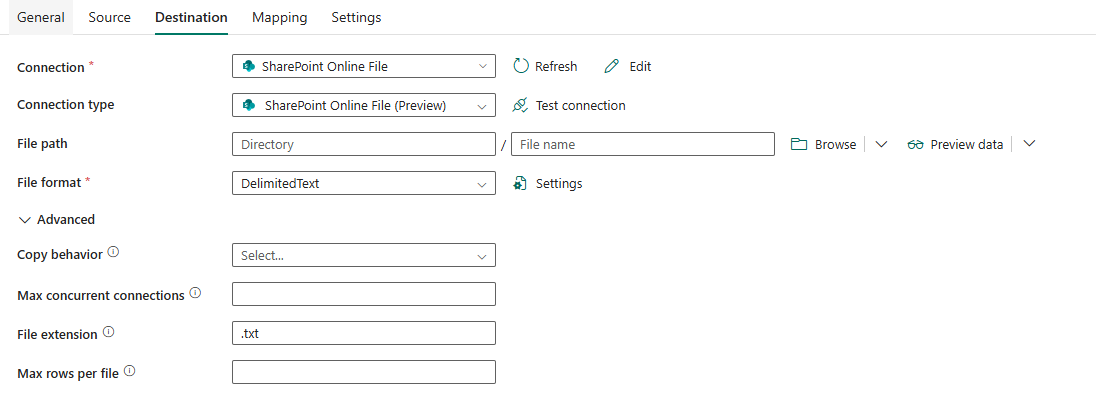
The following properties are required:
Connection: Select a SharePoint Online File connection from the connection list. If no connection exists, then create a new SharePoint Online File connection.
Connection type: Select SharePoint Online File (Preview).
File path: Select Browse to choose the file that you want to copy or fill in the path manually.
File format: Select the file format applied from the drop-down list. Select Settings to configure the file format. For settings of different file formats, refer to articles in Supported format.
Under Advanced, you can specify the following fields:
Copy behavior: Defines the copy behavior when the source is files from a file-based data store. You can choose a behavior from the drop-down list.
- Flatten hierarchy: All files from the source folder are in the first level of the destination folder. The destination files have autogenerated names.
- Merge files: Merges all files from the source folder to one file. If the file name is specified, the merged file name is the specified name. Otherwise, it's an auto-generated file name.
- Preserve hierarchy: Preserves the file hierarchy in the target folder. The relative path of source file to source folder is identical to the relative path of target file to target folder.
Max concurrent connections: The upper limit of concurrent connections established to the data store during the activity run. Specify a value only when you want to limit concurrent connections.
Mapping
For Mapping tab configuration, go to Configure your mappings under mapping tab.
Settings
For Settings tab configuration, go to Configure your other settings under settings tab.
Table summary
The following tables contain more information about the copy activity in SharePoint Online File.
Source information
| Name | Description | Value | Required | JSON script property |
|---|---|---|---|---|
| Connection | Your connection to the source data store. | <your SharePoint Online File connection> | Yes | connection |
| Connection type | Select a type for your connection. | SharePoint Online File (Preview) | Yes | / |
| File path type | The file path type used to get source data. | / | Yes | / |
| For File path | ||||
| Directory | The folder name in the document library where files are read from. | <your folder name> | No | folderPath |
| File name | The file name in the specified folder. | <your file name> | No | fileName |
| For Wildcard file path | ||||
| Wildcard folder path | Wildcard folder path used to filter source folders. | <your folder path with wildcard characters> | No | wildcardFolderPath |
| Wildcard file name | Wildcard file name pattern used to filter source files. | <your file name with wildcard characters> | No | wildcardFileName |
| For List of files | ||||
| Folder path | Path to a folder that includes files you want to copy. | <your folder name> | No | folderPath |
| Path to file list | Path to a text file listing files to copy (relative to the configured path). | <file list path> | No | fileListPath |
| File format | The file format for your source data. For information about different file formats, refer to articles in Supported format. | / | Yes | / |
| Recursively | Indicates whether the data is read recursively from the subfolders or only from the specified folder. Note that when Recursively is selected and the destination is a file-based store, an empty folder or subfolder isn't copied or created at the destination. This property doesn't apply when you configure Path to file list. | true/false | No | recursive |
| Filter by last modified | The files with last modified time in the range [Start time, End time) will be filtered for further processing. The time will be applied to UTC time zone in the format of yyyy-mm-ddThh:mm:ss.fffZ. These properties can be skipped which means no file attribute filter will be applied. This property doesn't apply when you configure your file path type as List of files. |
<datetime> | No | modifiedDatetimeStart modifiedDatetimeEnd |
| Enable partition discovery | Indicates whether to parse the partitions from the file path and add them as additional source columns. | true/false | No | enablePartitionDiscovery |
| Partition root path | When partition discovery is enabled, specify the absolute root path in order to read partitioned folders as data columns. | <your partition root path> | No | partitionRootPath |
| Max concurrent connections | The upper limit of concurrent connections established to the data store during the activity run. Specify a value only when you want to limit concurrent connections. | <integer> | No | maxConcurrentConnections |
| Additional columns | Add additional data columns to store source files' relative path or static value. Expression is supported for the latter. | • Name • Value |
No | additionalColumns: • name • value |
Destination information
| Name | Description | Value | Required | JSON script property |
|---|---|---|---|---|
| Connection | Your connection to the destination data store. | <your SharePoint Online File connection> | Yes | connection |
| Connection type | Select a type for your connection. | SharePoint Online File (Preview) | Yes | / |
| Directory | The folder path in the document library where files are written to. | <your folder path> | Yes | folderPath |
| File name | The file name in the specified folder. | <your file name> | No | fileName |
| File format | The file format for your source data. For the information of different file formats, refer to articles in Supported format. | / | Yes | / |
| Copy behavior | Defines how files are written to the destination. | FlattenHierarchy MergeFiles PreserveHierarchy |
No | copyBehavior |
| Max concurrent connections | Maximum number of concurrent connections to the data store. | <integer> | No | maxConcurrentConnections |