Note
Access to this page requires authorization. You can try signing in or changing directories.
Access to this page requires authorization. You can try changing directories.
This article shows you how to use parameters in your Data Factory pipelines in Fabric so you can build flexible, reusable workflows.
Use parameters, expressions, and functions in Data Factory pipelines
This section walks you through the basics of creating parameterized pipelines in Data Factory for Fabric, using clear examples along the way. Parameters and dynamic expressions save time and let you build flexible Extract, Transform, Load (ETL) or Extract, Load, Transform (ELT) solutions. They reduce hard coding and let you reuse objects and processes, which makes pipelines easier to maintain and lets you ship new features faster.
Parameter and expression concepts
You can use parameters to pass external values into your pipelines. After you set a parameter, its value stays the same throughout the run. Parameters let you reuse the same pipeline with different values each time. You can use parameters on their own or inside expressions, with values that are either fixed or calculated when the pipeline runs.
Expressions can go anywhere in a string value and always return another string value. For example, if you use @password, the pipeline treats password as a parameter. If the value is an expression, remove the @ to get the actual content. To use a string that starts with @, escape it by typing @@. The following examples show how this works in practice.
| Parameter value | Result |
|---|---|
| "parameters" | The characters 'parameters' are returned. |
| "parameters[1]" | The characters 'parameters[1]' are returned. |
| "@@" | A 1 character string that contains '@' is returned. |
| " @" | A 2 character string that contains ' @' is returned. |
Expressions can also appear inside strings through string interpolation, where you wrap expressions in @{ ... }. For example, the following string includes parameter values and literal string values:
"First Name: @{pipeline().parameters.firstName} Last Name: @{pipeline().parameters.lastName}"
String interpolation always returns a string. For example, if you define myNumber as 42 and myString as foo:
| Parameter value | Result |
|---|---|
| "@pipeline().parameters.myString" | Returns foo as a string. |
| "@{pipeline().parameters.myString}" | Returns foo as a string. |
| "@pipeline().parameters.myNumber" | Returns 42 as a number. |
| "@{pipeline().parameters.myNumber}" | Returns 42 as a string. |
| "Answer is: @{pipeline().parameters.myNumber}" | Returns the string Answer is: 42. |
| "@concat('Answer is: ', string(pipeline().parameters.myNumber))" | Returns the string Answer is: 42 |
| "Answer is: @@{pipeline().parameters.myNumber}" | Returns the string Answer is: @{pipeline().parameters.myNumber}. |
Parameter expression examples
Create and use parameters
To create parameters, select the background of the pipeline editor canvas, and then select the Parameters tab of the properties window at the bottom. Select + New to add a parameter to the pipeline, and give it a name, a data type, and a default value:
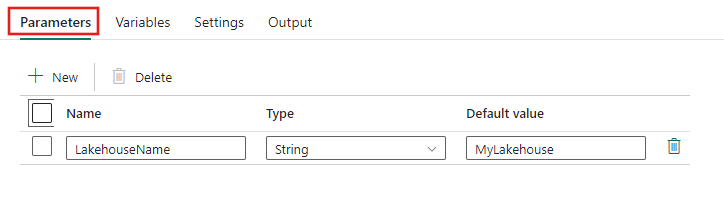
You can then use the parameter anywhere your pipeline supports dynamic content. In this example, the parameter dynamically provides the name of a lakehouse data store on the Source tab of a Copy activity's property pages.
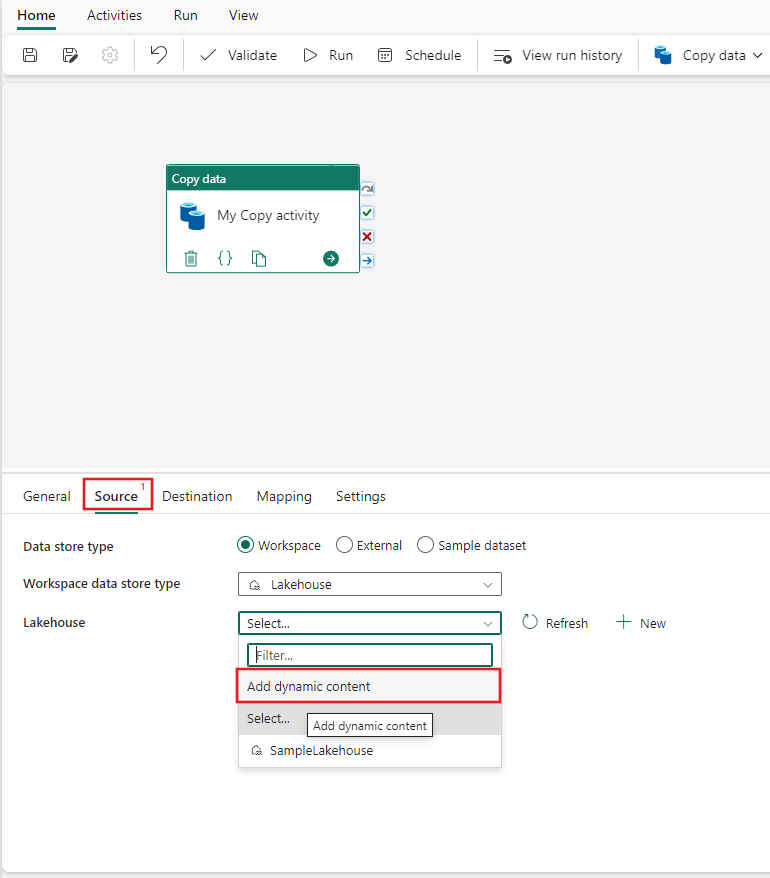
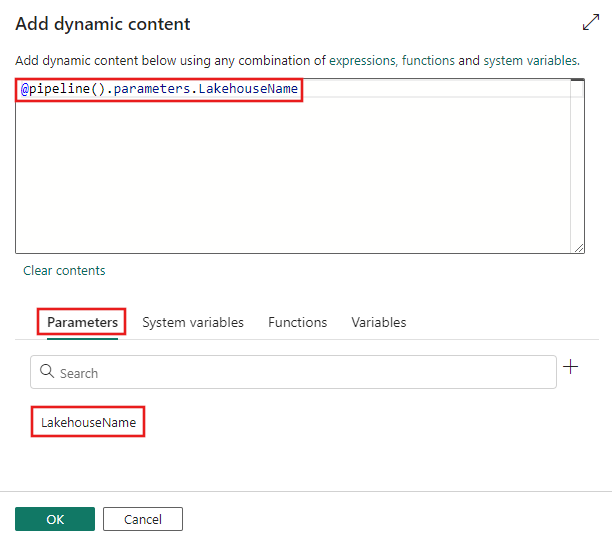
The Add dynamic content window opens. Use it to specify any kind of dynamic content, including parameters, system variables, functions, or pipeline variables. In this example, you select the parameter you defined earlier, and the dynamic content window automatically populates with the correct expression to reference it.
Parameterize connections
To parameterize connections in pipelines, use the globally unique identifier (GUID) of the connection you want to replace dynamically.
- Before you dynamically modify the connection in your pipeline, get the GUID of the connection you want to set.
- Go to Settings > Manage connections and gateways.
- Find the connection name and select the ellipsis (...) next to it.
- Select Settings and copy the Connection ID.
- Paste the GUID into a string parameter, and reference that parameter in your dynamic expression.
Complex expression example
The following expression references a deep subfield of activity output. To reference a pipeline parameter that evaluates to a subfield, use [] syntax instead of the dot (.) operator, as with subfield1 and subfield2.
@activity('*activityName*').output.*subfield1*.*subfield2*[pipeline().parameters.*subfield3*].*subfield4*
Dynamic content editor
The dynamic content editor automatically escapes characters in your content when you finish editing. For example, the following content in the content editor is a string interpolation with an expression function:
@{toUpper('myData')}
The dynamic content editor converts the previous content to the following expression:
MYDATA
Use functions and variables in expressions
You can call functions and use variables within expressions. The following sections provide information about the functions that can be used in an expression.
Pipeline scope variables
You can reference these system variables anywhere in the pipeline JSON.
| Variable Name | Description |
|---|---|
| @pipeline().DataFactory | Name of the workspace where the pipeline run is running |
| @pipeline().Pipeline | Name of the pipeline |
| @pipeline().RunId | ID of the specific pipeline run |
| @pipeline().TriggerId | ID of the trigger that invoked the pipeline |
| @pipeline().TriggerName | Name of the trigger that invoked the pipeline |
| @pipeline().TriggerTime | Time of the trigger run that invoked the pipeline. This value is the time the trigger actually fired to invoke the pipeline run, and it might differ slightly from the trigger's scheduled time. |
| @pipeline().GroupId | ID of the group to which the pipeline run belongs. In Microsoft Fabric, a group is a collection of related resources that you manage together. Groups organize and control access to resources, which makes it easier to manage permissions and monitor activities across multiple pipelines. |
| @pipeline()?.TriggeredByPipelineName | Name of the pipeline that triggers the pipeline run. Applies when an Execute Pipeline activity triggers the pipeline run. Evaluates to Null in other cases. Note the question mark after @pipeline(). |
| @pipeline()?.TriggeredByPipelineRunId | Run ID of the pipeline that triggers the pipeline run. Applies when an Execute Pipeline activity triggers the pipeline run. Evaluates to Null in other cases. Note the question mark after @pipeline(). |
Note
Trigger-related date/time system variables (in both pipeline and trigger scopes) return Coordinated Universal Time (UTC) dates in ISO 8601 format, for example, 2017-06-01T22:20:00.4061448Z.
String functions
To work with strings, use these string functions and also some collection functions. String functions work only on strings.
| String function | Task |
|---|---|
| concat | Combine two or more strings, and return the combined string. |
| endsWith | Check whether a string ends with the specified substring. |
| guid | Generate a globally unique identifier (GUID) as a string. |
| indexOf | Return the starting position for a substring. |
| lastIndexOf | Return the starting position for the last occurrence of a substring. |
| replace | Replace a substring with the specified string, and return the updated string. |
| split | Return an array that contains substrings, separated by commas, from a larger string based on a specified delimiter character in the original string. |
| startsWith | Check whether a string starts with a specific substring. |
| substring | Return characters from a string, starting from the specified position. |
| toLower | Return a string in lowercase format. |
| toUpper | Return a string in uppercase format. |
| trim | Remove leading and trailing whitespace from a string, and return the updated string. |
Collection functions
To work with collections such as arrays, strings, and dictionaries, use these collection functions.
| Collection function | Task |
|---|---|
| contains | Check whether a collection has a specific item. |
| empty | Check whether a collection is empty. |
| first | Return the first item from a collection. |
| intersection | Return a collection that has only the common items across the specified collections. |
| join | Return a string that has all the items from an array, separated by the specified character. |
| last | Return the last item from a collection. |
| length | Return the number of items in a string or array. |
| skip | Remove items from the front of a collection, and return all the other items. |
| take | Return items from the front of a collection. |
| union | Return a collection that has all the items from the specified collections. |
Logical functions
Use these functions inside conditions to evaluate any type of logic.
| Logical comparison function | Task |
|---|---|
| and | Check whether all expressions are true. |
| equals | Check whether both values are equivalent. |
| greater | Check whether the first value is greater than the second value. |
| greaterOrEquals | Check whether the first value is greater than or equal to the second value. |
| if | Check whether an expression is true or false. Based on the result, return a specified value. |
| less | Check whether the first value is less than the second value. |
| lessOrEquals | Check whether the first value is less than or equal to the second value. |
| not | Check whether an expression is false. |
| or | Check whether at least one expression is true. |
Conversion functions
Use these functions to convert between each of the native types in the language:
- string
- integer
- float
- boolean
- arrays
- dictionaries
| Conversion function | Task |
|---|---|
| array | Return an array from a single specified input. For multiple inputs, see createArray. |
| base64 | Return the base64-encoded version for a string. |
| base64ToBinary | Return the binary version for a base64-encoded string. |
| base64ToString | Return the string version for a base64-encoded string. |
| binary | Return the binary version for an input value. |
| bool | Return the Boolean version for an input value. |
| coalesce | Return the first non-null value from one or more parameters. |
| createArray | Return an array from multiple inputs. |
| dataUri | Return the data URI for an input value. |
| dataUriToBinary | Return the binary version for a data URI. |
| dataUriToString | Return the string version for a data URI. |
| decodeBase64 | Return the string version for a base64-encoded string. |
| decodeDataUri | Return the binary version for a data URI. |
| decodeUriComponent | Return a string that replaces escape characters with decoded versions. |
| encodeUriComponent | Return a string that replaces URL-unsafe characters with escape characters. |
| float | Return a floating point number for an input value. |
| int | Return the integer version for a string. |
| json | Return the JavaScript Object Notation (JSON) type value or object for a string or XML. |
| string | Return the string version for an input value. |
| uriComponent | Return the URI-encoded version for an input value by replacing URL-unsafe characters with escape characters. |
| uriComponentToBinary | Return the binary version for a URI-encoded string. |
| uriComponentToString | Return the string version for a URI-encoded string. |
| xml | Return the XML version for a string. |
| xpath | Check XML for nodes or values that match an XPath (XML Path Language) expression, and return the matching nodes or values. |
Math functions
Use these functions with both types of numbers: integers and floats.
| Math function | Task |
|---|---|
| add | Return the result from adding two numbers. |
| div | Return the result from dividing two numbers. |
| max | Return the highest value from a set of numbers or an array. |
| min | Return the lowest value from a set of numbers or an array. |
| mod | Return the remainder from dividing two numbers. |
| mul | Return the product from multiplying two numbers. |
| rand | Return a random integer from a specified range. |
| range | Return an integer array that starts from a specified integer. |
| sub | Return the result from subtracting the second number from the first number. |
Date functions
| Date or time function | Task |
|---|---|
| addDays | Add a number of days to a timestamp. |
| addHours | Add a number of hours to a timestamp. |
| addMinutes | Add a number of minutes to a timestamp. |
| addSeconds | Add a number of seconds to a timestamp. |
| addToTime | Add a number of time units to a timestamp. See also getFutureTime. |
| convertFromUtc | Convert a timestamp from Coordinated Universal Time (UTC) to the target time zone. |
| convertTimeZone | Convert a timestamp from the source time zone to the target time zone. |
| convertToUtc | Convert a timestamp from the source time zone to Coordinated Universal Time (UTC). |
| dayOfMonth | Return the day of the month component from a timestamp. |
| dayOfWeek | Return the day of the week component from a timestamp. |
| dayOfYear | Return the day of the year component from a timestamp. |
| formatDateTime | Return the timestamp as a string in optional format. |
| getFutureTime | Return the current timestamp plus the specified time units. See also addToTime. |
| getPastTime | Return the current timestamp minus the specified time units. See also subtractFromTime. |
| startOfDay | Return the start of the day for a timestamp. |
| startOfHour | Return the start of the hour for a timestamp. |
| startOfMonth | Return the start of the month for a timestamp. |
| subtractFromTime | Subtract a number of time units from a timestamp. See also getPastTime. |
| ticks | Return the ticks property value for a specified timestamp. |
| utcNow | Return the current timestamp as a string. |