Note
Access to this page requires authorization. You can try signing in or changing directories.
Access to this page requires authorization. You can try changing directories.
This article introduces key concepts of domains in Fabric, and shows how to set up and manage them. To get started planning domains for your organization, see Best practices for planning and creating domains in Microsoft Fabric.
Introduction
Today, organizations are facing massive growth in data, and there's an increasing need to be able to organize and manage that data in a logical way that facilitates more targeted and efficient use and governance.
To meet this challenge, organizations are shifting from traditional IT centric data architectures, where the data is governed and managed centrally, to more federated models organized according to business needs. This federated data architecture is called data mesh. A data mesh is a decentralized data architecture that organizes data by specific business domains, such as marketing, sales, human resources, etc.
Currently, Microsoft Fabric's data mesh architecture primarily supports organizing data into domains and enabling data consumers to be able to filter and find content by ___domain. It also enables federated governance, which means that some governance currently controlled at the tenant level can be delegated to ___domain-level control, enabling each business unit/department to define its own rules and restrictions according to its specific business needs.
Key concepts
Domains
In Fabric, a ___domain is a way of logically grouping together all the data in an organization that is relevant to a particular area or field. One of the most common uses for domains is to group data by business department, making it possible for departments to manage their data according to their specific regulations, restrictions, and needs.
To group data into domains, workspaces are associated with domains. When a workspace is associated with a ___domain, all the items in the workspace are also associated with the ___domain, and they receive a ___domain attribute as part of their metadata. Currently, the association of workspaces and the items in them with domains primarily enables a better consumption experience. For instance, in the OneLake catalog, users can filter content by ___domain in order find content that is relevant to them. In addition, some tenant-level settings for managing and governing data can be delegated to the ___domain level, thus allowing ___domain-specific configuration of those settings.
Note
Domain assignment doesn't affect item visibility or accessibility for tenant users. Item discovery, visibility, and access depend on such things as workspace role and item permissions, but not ___domain assignment.
Likewise, all users within a tenant can see all the domains defined in the tenant, regardless of their specific ___domain roles. For example, users who are neither contributors nor admins of a ___domain called "Finance" in their tenant can still see this ___domain in the domains filter of the Onelake Catalog.
Subdomains
A subdomain is a way for fine tuning the logical grouping of your data. You can create subdomains under domains. For information about how to create subdomains, see Create subdomains.
Domain roles
There are three roles involved in the creation and management of domains:
Fabric admin (or higher): Fabric admins can create and edit domains, specify ___domain admins and ___domain contributors, and associate workspaces with domains. Fabric admins see all the defined domains on the Domains tab in the admin portal, and they can edit and delete domains.
Domain admin: Ideally, the ___domain admins of a ___domain are the business owners or designated experts. They should be familiar with the data in their area and the regulations and restrictions that are relevant to it.
Domain admins can access to the Domains tab in the admin portal, but they can only see and edit the domains they're admins of. Domain admins can update the ___domain description, define/update ___domain contributors, and associate workspaces with the ___domain. They also can define and update the ___domain image and override tenant settings for any specific settings the tenant admin has delegated to the ___domain level. They can't delete the ___domain, change the ___domain name, or add/delete other ___domain admins.
Domain contributor: Domain contributors are workspace admins whom a ___domain or Fabric admin has authorized to assign the workspaces they're the admins of to a ___domain, or to change the current ___domain assignment.
Domain contributors assign the workspaces they're an admin of in the settings of the workspace itself. They don't have access to the Domains tab in the admin portal.
Note
Remember, to be able to assign a workspace to a ___domain, a ___domain contributor must be a workspace admin (that is, have the Admin role in the workspace).
Domain settings delegation
To allow ___domain-specific configuration, some tenant-level settings for managing and governing data can be delegated to the ___domain level. Domain settings delegation enables each business unit/department to define its own rules and restrictions according to its specific business needs.
Domain image
When users look for data items in the OneLake catalog, they might want to see only the data items that belong to a particular ___domain. To do this, they can select the ___domain in the ___domain selector in the OneLake catalog to display only items belonging to that ___domain. To remind them which ___domain's data items they're seeing, you can choose an image to represent your ___domain. Then, when your ___domain is selected in the ___domain selector, the image becomes part of OneLake catalog's theme, as illustrated in the following image.

For information about how to specify an image for a ___domain, see Specify a ___domain image.
Default ___domain
A default ___domain is a ___domain that has been defined as the default ___domain for specified users and/or security groups. When you define a ___domain as the default ___domain for specified users and/or security groups, the following happens:
- The system scans the organization's workspaces. When it finds a workspace whose admin is a specified user or member of a specified security group:
- If the workspace already has a ___domain assignment, it is preserved. The default ___domain doesn't override the current assignment.
- If the workspace is unassigned, it is assigned to the default ___domain.
- After this, whenever a specified user or member of a specified security group creates a new workspace, it is assigned to the default ___domain.
The specified users and/or members of the specified security groups generally automatically become ___domain contributors of workspaces that are assigned in this manner.
For information about defining a ___domain as a default ___domain, see Define the ___domain as a default ___domain.
Create a ___domain
Before you start creating domains for your organization, it is recommended to review Best practices for planning and creating domains in Microsoft Fabric.
To create ___domain, you must be a Fabric admin.
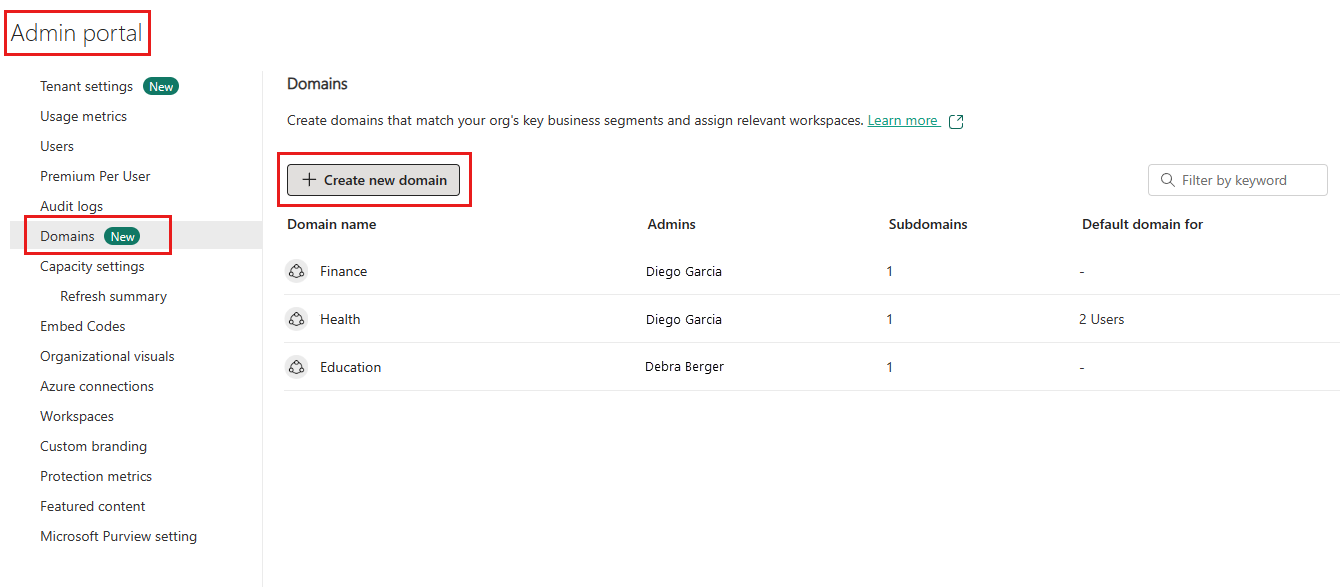
Open the admin portal and select the Domains tab.
On the Domains tab, select Create new ___domain.
In the New ___domain dialog that appears, provide a name (mandatory) and specify ___domain admins (optional). If you don't specify ___domain admins, you can do this later in the ___domain settings.
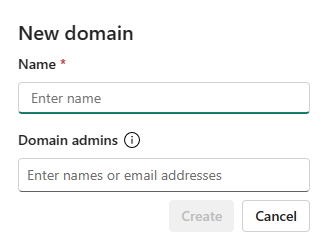
Select Create. The ___domain is created, and you can continue configuring the ___domain as described in the following sections.
Structure your data in the ___domain
Once you create some domains, you can refine the logic of the way you're structuring your data by creating subdomains for the domains.
You organize your data into the appropriate domains and subdomains by assigning the workspaces the data is located in to the relevant ___domain or subdomain. When a workspace is assigned to a ___domain, all the items in the workspace are associated with the ___domain.
Create subdomains
To create subdomains for a ___domain, you must be Fabric admin or ___domain admin.
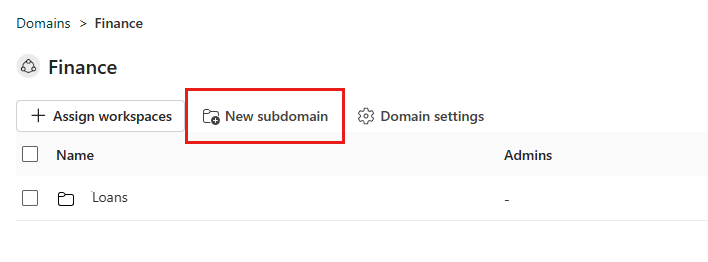
Open the ___domain you want to create a subdomain for and select New subdomain.
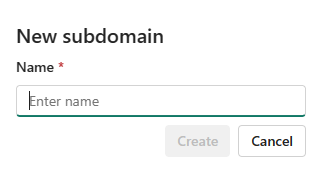
Provide a name for the subdomain in the New subdomain dialog that appears. When done, select Create.
Note
Subdomains don't have their own ___domain admins. A subdomain's ___domain admins are the ___domain admins of its parent ___domain.
Assign workspaces to domains and subdomains
To assign workspaces to a ___domain or subdomain in the admin portal, you must be a Fabric admin or a ___domain admin.
Go to the ___domain or subdomain's page and select Assign workspaces.

In the Assign workspaces to this ___domain side pane, select how to assign the workspaces.

Assign by workspace name
- Some organizations have naming conventions for workspaces that make it easy to identify the data's business context.
- You can search for and select multiple workspaces at once
- If a workspace is already associated with another ___domain, you'll see an icon next to the specific name. If you chose to continue the action, a warning message pops up, but you'll be able to continue and override the previous association.
Assign by workspace admin
- You can select specific users or security groups as per your business structure. When you confirm the selection, all the workspaces the users and security groups are admins of will be associated to the ___domain.
- This action excludes "My workspaces".
- If some of the workspaces are already associated with another ___domain, a warning message will pop up, but you'll be able to continue and override the previous association.
- This action affects existing workspaces only. It won't affect workspaces the selected users create after the action has been performed.
Assign by capacity
- Some organizations have dedicated capacities per department/business unit.
- You can search for and select multiple capacities at once. When you confirm your selection, all the workspaces associated to the selected capacities will be assigned to the ___domain.
- If some of the workspaces are already associated with another ___domain, a warning message will pop up, but you'll be able to continue and override the previous association.
- This action excludes "My workspaces".
- This action affects existing workspaces only. It won't affect workspaces that are assigned to the specified capacities after the action has been performed.
Note
Workspace ___domain assignments by Fabric and ___domain admins will override existing assignments only if the Allow tenant and ___domain admins to override workspace assignments (preview) tenant setting is enabled. For more information, see Allow tenant and ___domain admins to override workspace assignments (preview).
To unassign a workspace from a ___domain or subdomain, select the checkbox next to the workspace name and then select the Unassign button above the list. You can select several checkboxes to unassign more than one workspace at a time.

Configure ___domain settings
You configure ___domain and subdomain settings on the ___domain or subdomain's Domain settings side pane.
The ___domain settings side pane has the following tabs:
- General settings: Edit ___domain name and description
- Image: Specify ___domain image
- Admins: Specify ___domain admins
- Contributors: Specify ___domain contributors
- Default ___domain: Set up ___domain as a default ___domain
- Delegated settings: Override tenant-level settings
Note
Subdomains currently have general settings only.
To open the Domain settings side pane, open the ___domain or subdomain and select Domain settings (for subdomains, Subdomain settings).

Alternatively, for domains, you can hover over the ___domain on the Domain tab, select More options (...), and choose Settings.

Edit name and description
Select General settings and then edit the name and description fields as desired.

Note
Domain admins can only edit the description field.
When done, select Apply.
Specify a ___domain image
Select Image and then select Select an image.
In the photo gallery that pops up you can choose an image or color to represent your ___domain in the OneLake catalog when your ___domain is selected.

Specify ___domain admins
You must be a Fabric admin to specify ___domain admins.
Select Admins and then specify who can change ___domain settings and add or remove workspaces. When done, select Apply.

Specify ___domain contributors
You must be a ___domain admin of the ___domain or a Fabric admin to specify ___domain contributors.
Select Contributors and then specify who can assign workspaces to the ___domain. You can specify everyone in the organization (default), specific users/groups only, or you can allow only tenant admins and the specific ___domain admins to assign workspaces to the ___domain. When done, select Apply.

Note
For ___domain contributors to be able to associate their workspaces with their domains, they must have an admin role in the workspaces they are trying to associate with the ___domain.
Define the ___domain as a default ___domain
To define a ___domain as a default ___domain, you must be a Fabric admin or a ___domain admin of the ___domain.
Select Default ___domain and specify users and/or security groups. When you add people to the default ___domain list, unassigned workspaces they're admins of, and new workspaces they create, will automatically be assigned to the ___domain. For a detailed description of the process, see Default ___domain.

Note
The users and/or members of the security groups specified in the default ___domain definition generally automatically become ___domain contributors of the workspaces that get assigned to the ___domain via the default ___domain mechanism.
Delegate settings to the ___domain level
Some tenant-level settings can potentially be overridden at the ___domain level. To see these settings, select Delegated Settings. The following admin settings can potentially be overridden.
Domain-level default sensitivity label
If the ___domain-level default sensitivity label feature is enabled in your organization, you can specify a sensitivity label that will be applied by default to items in workspaces that are assigned to the ___domain.
To specify a default sensitivity label for your ___domain, you must be a Fabric admin or a ___domain admin of the ___domain.
Expand Delegated Settings and choose Information protection. You'll see the option Set a default label for this ___domain. Select the drop down menu and select the desired sensitivity label. The label will be applied to items in workspaces associated with the ___domain according to the logic described in Domain-level default sensitivity labels in Microsoft Fabric.
Certification settings
Certification is a way for organizations to label items that it considers to be quality items. For more information about certification, see Endorsement.
Certification settings at the ___domain level mean you can:
- Enable or disable certification of items that belong to the ___domain.
- Specify certifiers who are experts in the ___domain.
- Provide a URL to documentation that is relevant to certification in the ___domain.
To override the tenant-level certification settings, expand the certification section, select the Override tenant admin selection checkbox, and configure the settings as desired.

For descriptions of the things you need to set, see Set up certification.
Microsoft Fabric REST Admin APIs for domains
Most of the actions available from the UI are available through the Fabric REST Admin APIs for domains. For more information, see Domains API reference.
Track user activity on domains
Whenever a ___domain is created, edited, or deleted, that activity is recorded in the audit log for Fabric. You can track these activities in the unified audit log or in the Fabric activity log. For information about the information in the Fabric auditing schema that's specific to domains, see Audit schema for domains.