Note
Access to this page requires authorization. You can try signing in or changing directories.
Access to this page requires authorization. You can try changing directories.
Microsoft Foundry agents can answer natural-language questions. Enhance their ability to give trustworthy, business-aware answers by grounding them in your organization's data. Foundry IQ provides that grounding through reusable knowledge sources and knowledge bases that an agent can query at runtime.
Fabric IQ Ontology is a semantic layer that lives in OneLake. It describes your business entities, their relationships, business rules and the underlying tables that back them. By exposing an ontology as a Foundry IQ knowledge source, you give the agent a semantically rich, governed view of your Fabric data.
Important
This feature is in preview.
In this article, you:
- Create a knowledge source in Foundry IQ that points to an existing Fabric IQ Ontology item in OneLake.
- Wrap that source in a knowledge base and validate it by running test queries through the Foundry APIs.
- Build a Foundry agent that uses the knowledge base, and chat with it from the built-in Chat pane.
After completing the steps in this article, you have a custom agent that answers business questions using your ontology as the single source of truth.
Prerequisites
Before you begin, make sure you have:
- An active Azure subscription with permission to create Foundry resources.
- A Microsoft Fabric workspace that contains at least one ontology (preview) item. For more information, see Create ontology (preview) item.
- Complete the Foundry quickstart to provision a Foundry project and a sample agent. The steps in this article assume that project already exists.
- An Edge or Chrome browser, signed in with the same identity that has access to both the Foundry project and the Fabric workspace.
Step 1: Create the knowledge source and knowledge base
Open the Foundry portal.
Start a new knowledge base. In the left navigation pane of your Foundry project, go to Knowledge > Knowledge bases, then choose + New knowledge base.
When you're prompted to pick a knowledge type, select Fabric IQ.
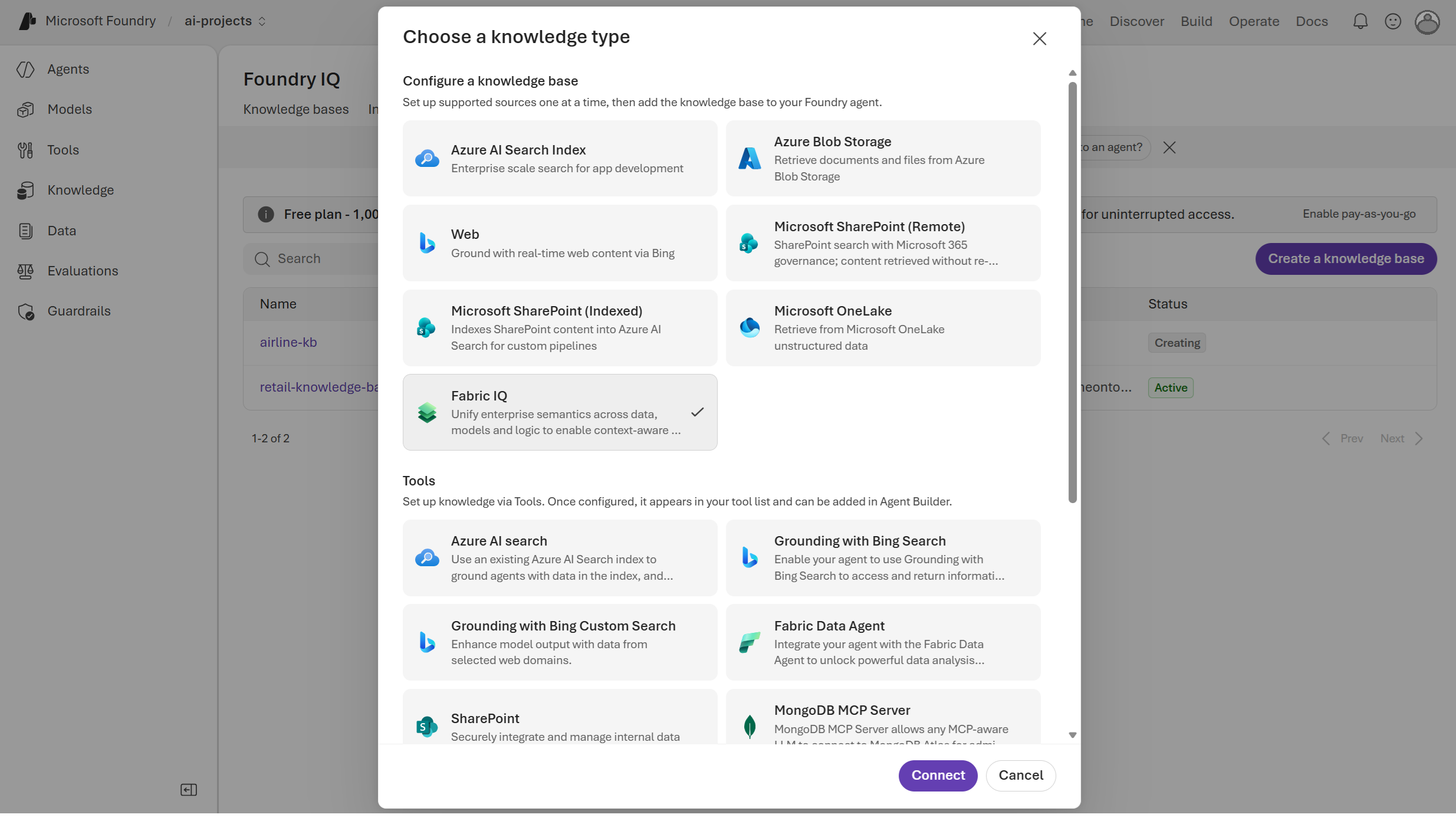
This choice launches the embedded OneLake catalog picker.
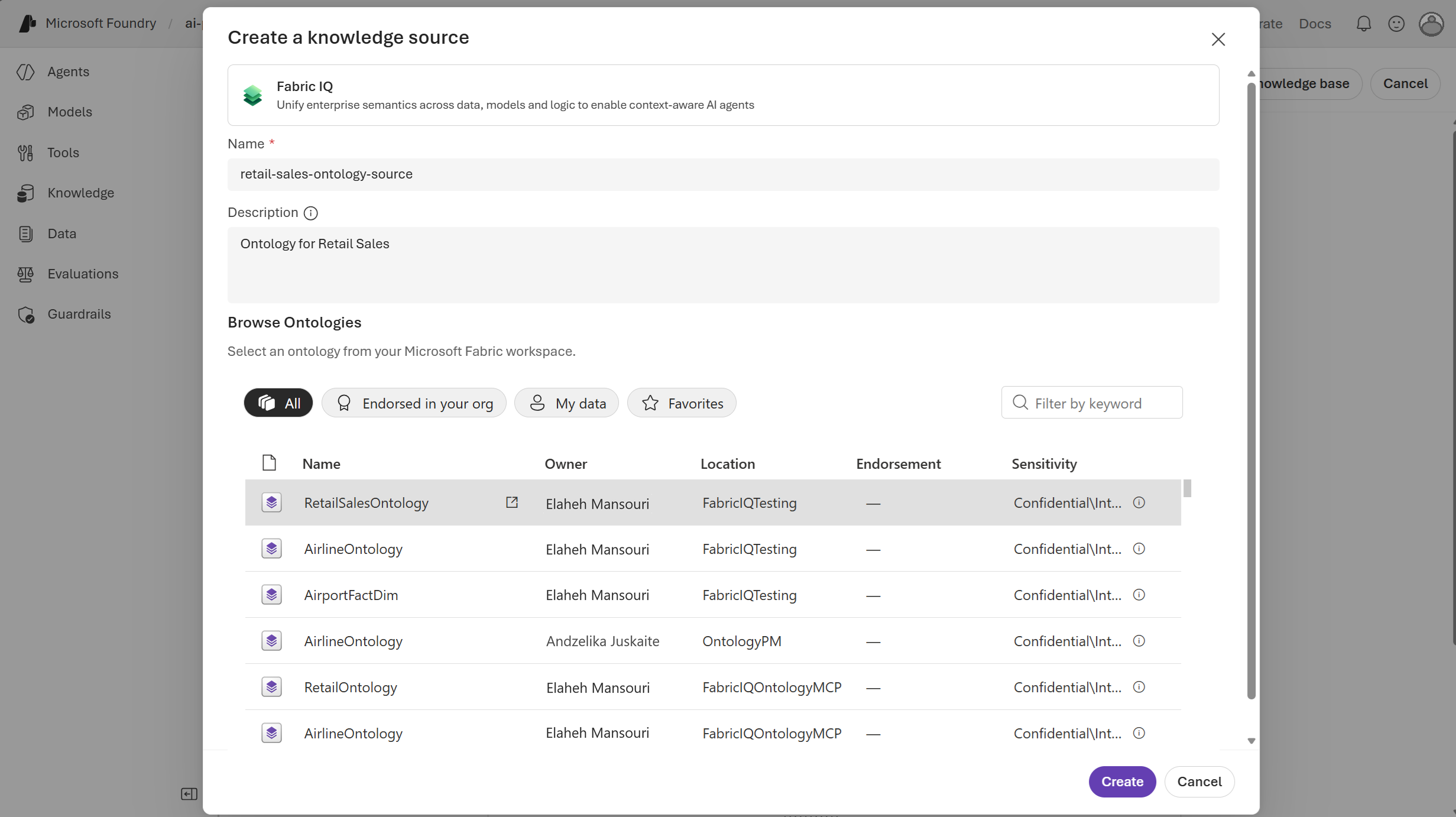
In the OneLake catalog, browse to your Fabric workspace and select the ontology item you want the agent to use. Only items that your identity can read are visible. Confirm your selection to return to the knowledge source form.
Provide a clear Name and an optional Description that explains what business ___domain the ontology covers. Create the source.
Give the knowledge base a Name, Description and other model and retrieval configurations. The description is used by the agent at runtime to decide when to consult this knowledge base, so write it from the agent's point of view.
Example Answer instructions:
Format the answers in a human readable format with opening and closing statements. And in the closing also add some recommendation or suggestions. No need to add tables for list, just show them in bullet points with other data as sub bulletsExample Retrieval instructions:
Retrieve the most relevant retail operations content from connected sources. Combine information across sources when needed, but only return answers that are supported by retrieved evidence.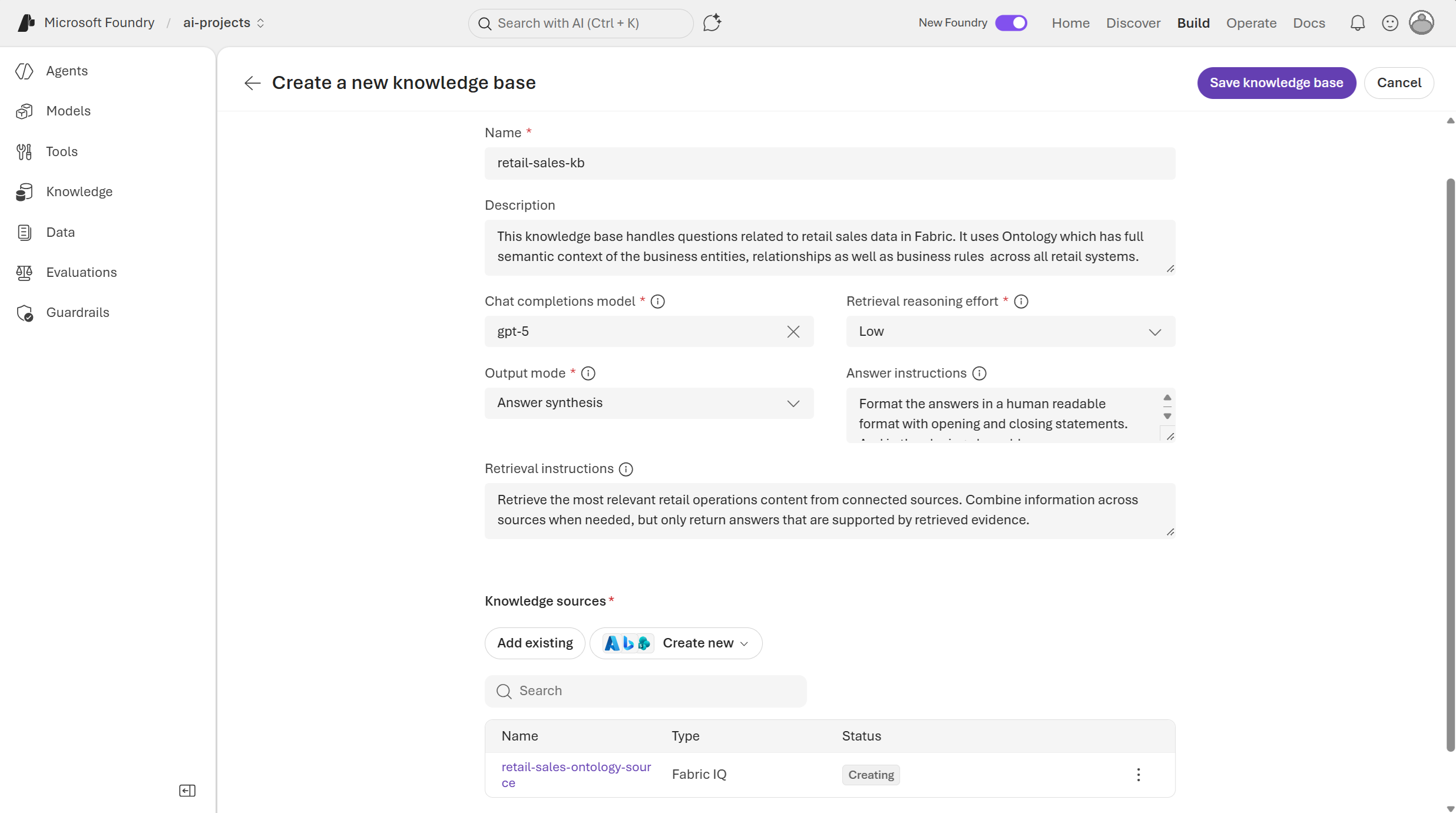
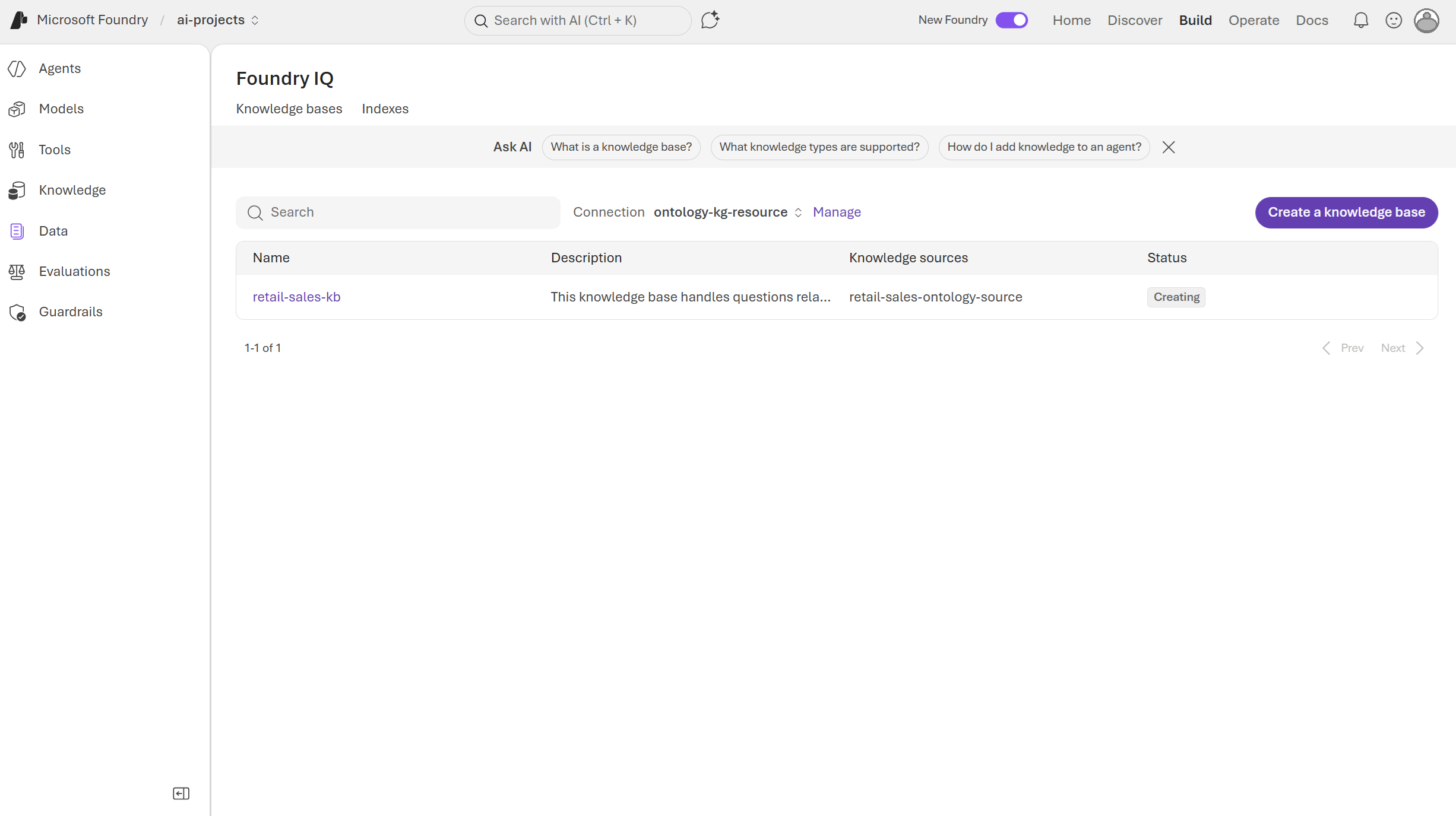
Save the knowledge base.
Step 2: Create the agent and connect the knowledge base
Create a new agent. In the Foundry portal, go to Agents > + New agent.
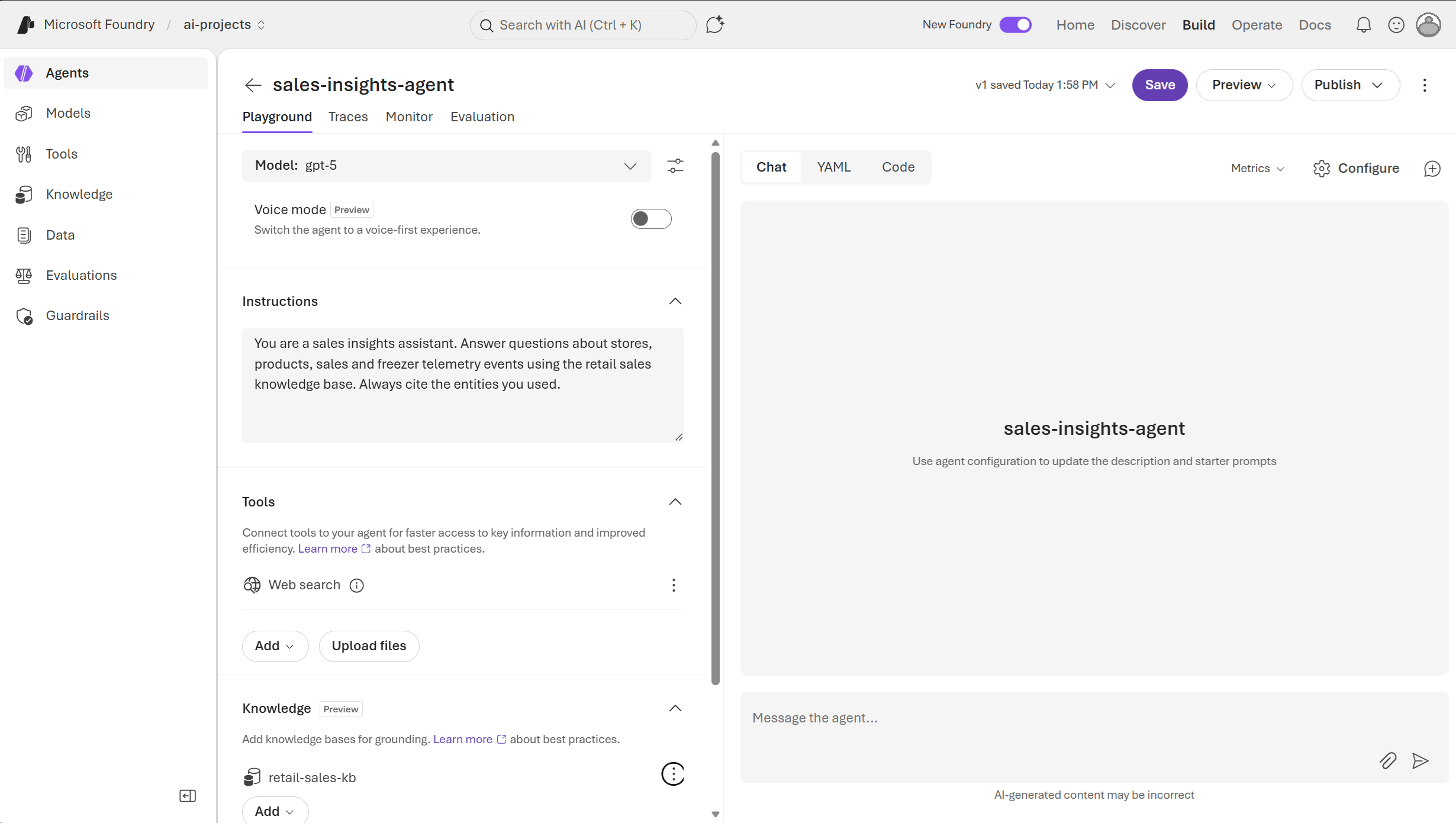
Give the agent a name (like sales-insights-agent), pick a model deployment, and provide a short system prompt describing its role. Here's an example role description:
You are a sales insights assistant. Answer questions about stores, products, sales and freezer telemetry events using the retail sales knowledge base. Always cite the entities you used.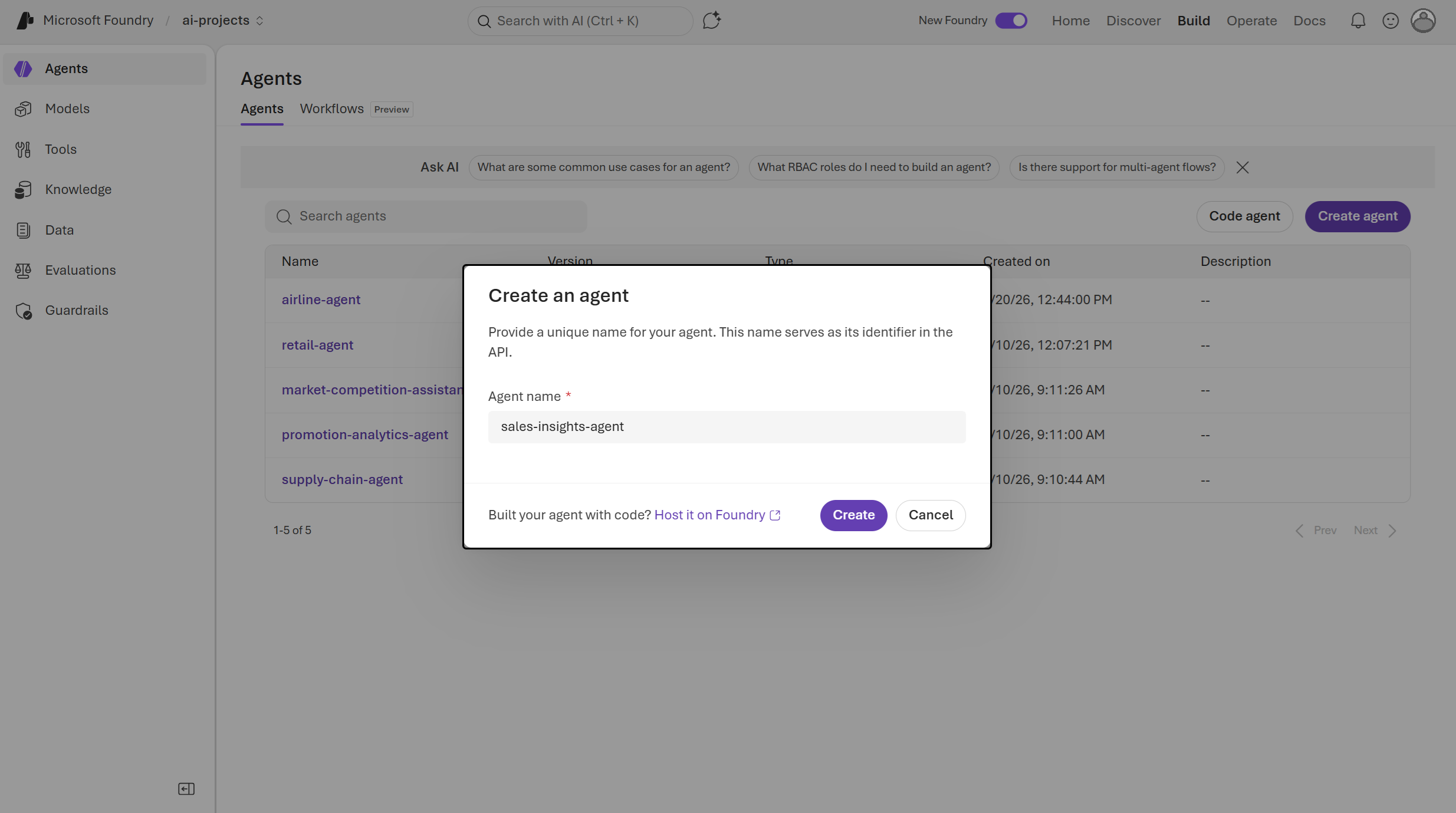
Next, attach the knowledge base. In the agent's Knowledge section, choose + Add knowledge and select the knowledge base you created earlier during step 1. The agent now routes relevant questions to the Fabric IQ ontology automatically.
Review the configuration and save the agent. Foundry provisions the agent and make it available for testing and API calls.
Query the agent. Open the agent's Chat pane and enter an end-to-end question. Here's an example query:
For each store, show any freezers operated by that store that ever had a humidity lower than 46 percent.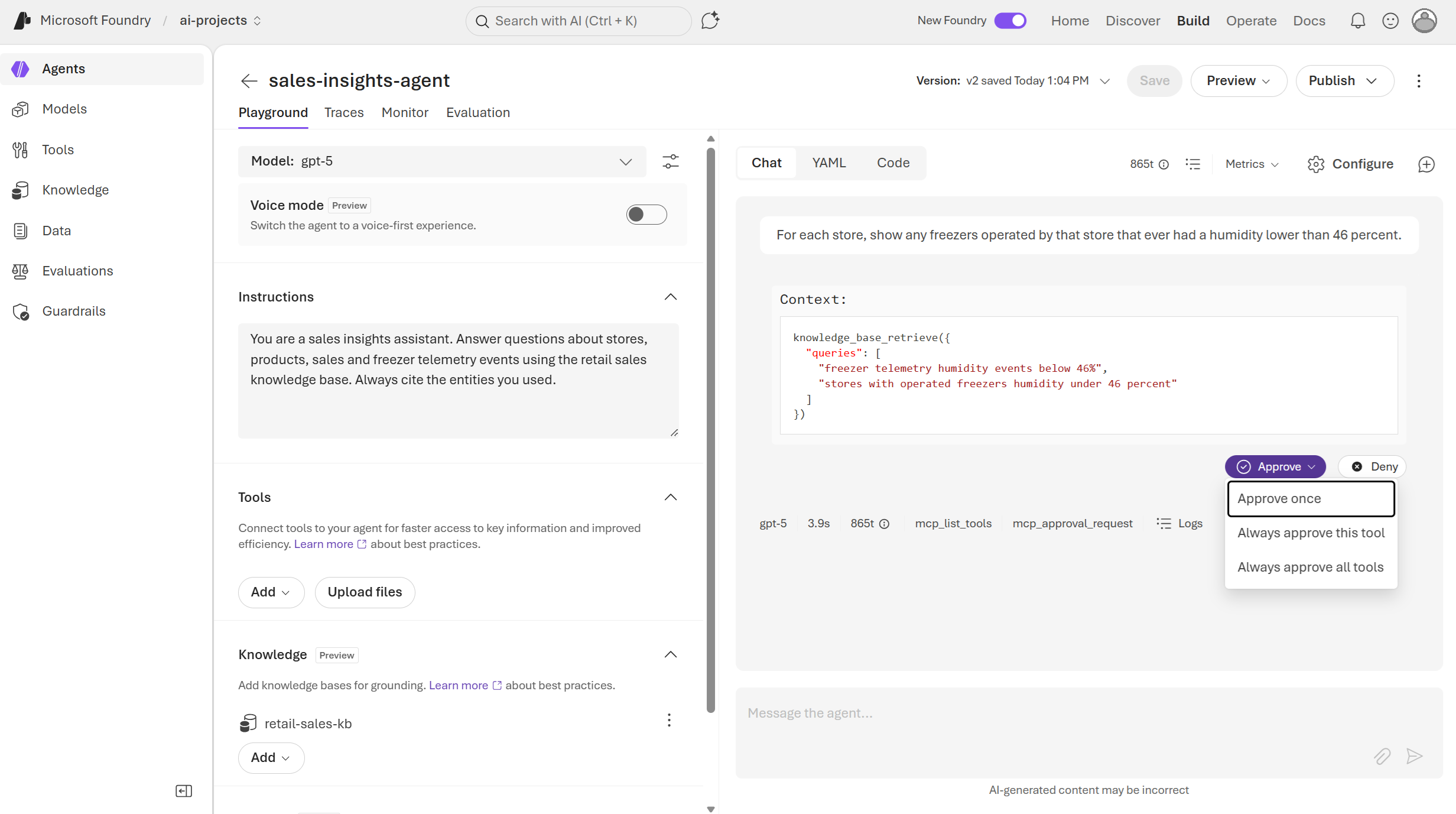
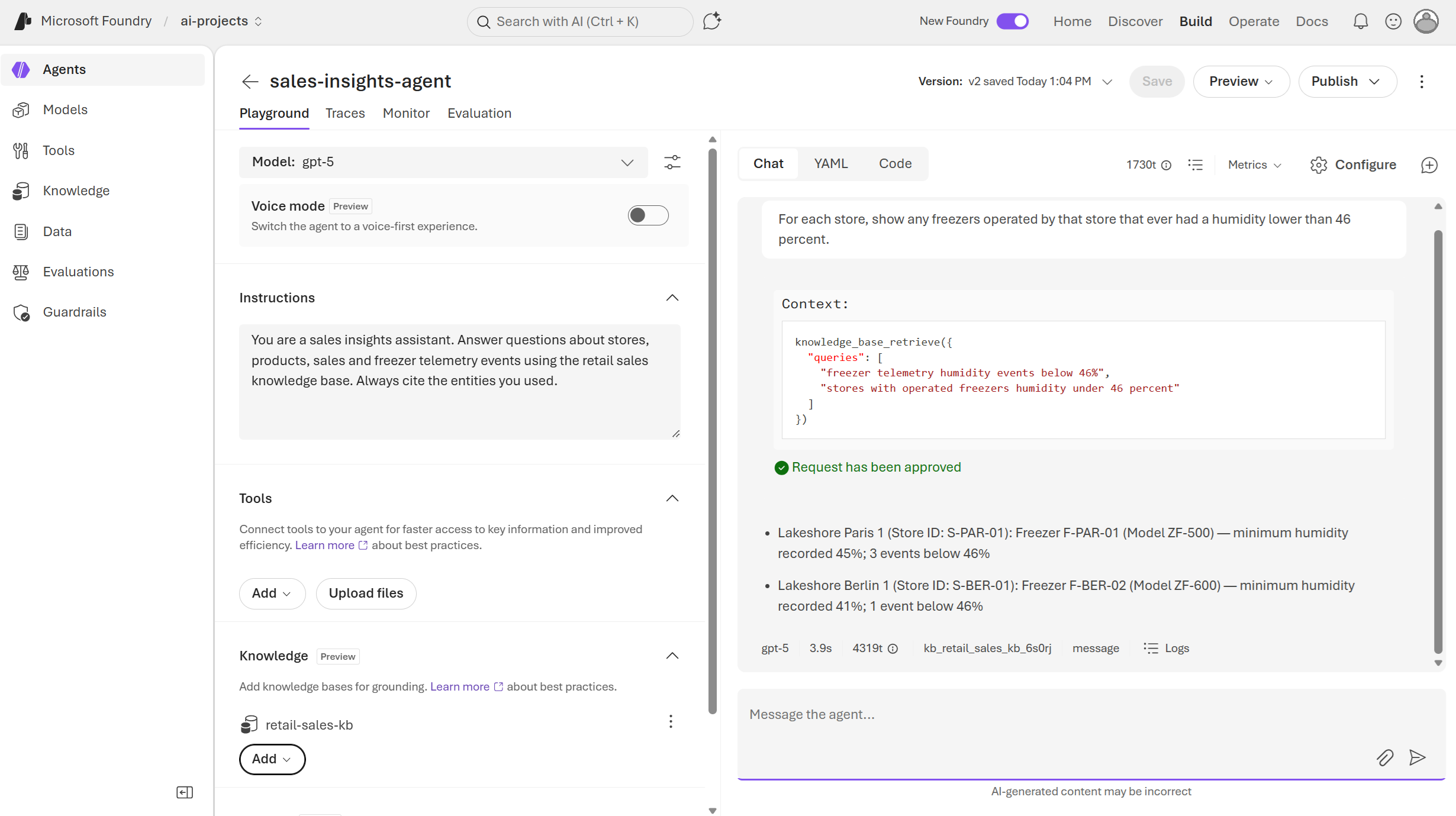
Verify that the agent's answers are grounded in the ontology. Iterate on the system prompt and the knowledge base description if the agent skips the knowledge base or produces ungrounded answers.
Next steps
- Add additional knowledge sources (documents, web, other ontologies) to the same knowledge base to broaden the agent's coverage.
- Call the agent from your own application using the Foundry agents SDK or REST API.
- Set up evaluations to monitor answer quality as the ontology evolves.
- Use the Ontology MCP directly to build other agentic experiences.