Note
Access to this page requires authorization. You can try signing in or changing directories.
Access to this page requires authorization. You can try changing directories.
Applies to: Partner Center
This article summarizes how to set up a user account to generate user and app tokens to access Referrals APIs. For an in-depth understanding, see Partner API authentication.
Prerequisites
- A valid Partner Center account having at least one of these partner roles: Referrals Admin or Referrals User. See Create a Partner Center account with Referrals roles
- Microsoft Entra ID (App registration) from Azure portal with Microsoft Partner delegation added. See Set up client app (Microsoft Entra ID)
Note
Microsoft is strengthening security for CSP partners and control panel vendors (CPVs) by introducing Microsoft Entra MFA-based authentication for Partner Center API integrations. For more information, see Enable Secure Application Model - Partner App Developer.
This scenario supports authentication with App+User credentials. For an overview and details of the new authentication framework, see the Secure Application Model framework, which covers principles and best practices to make Marketplace applications sustainable and robust from security compromises.
Generate a new username/password or client ID
To generate new username/password or client ID (Microsoft Entra ID), use the following steps.
Step 1: Create a Partner Center account with Referrals roles
Sign in to Partner Center with an admin account and select Settings (gear).
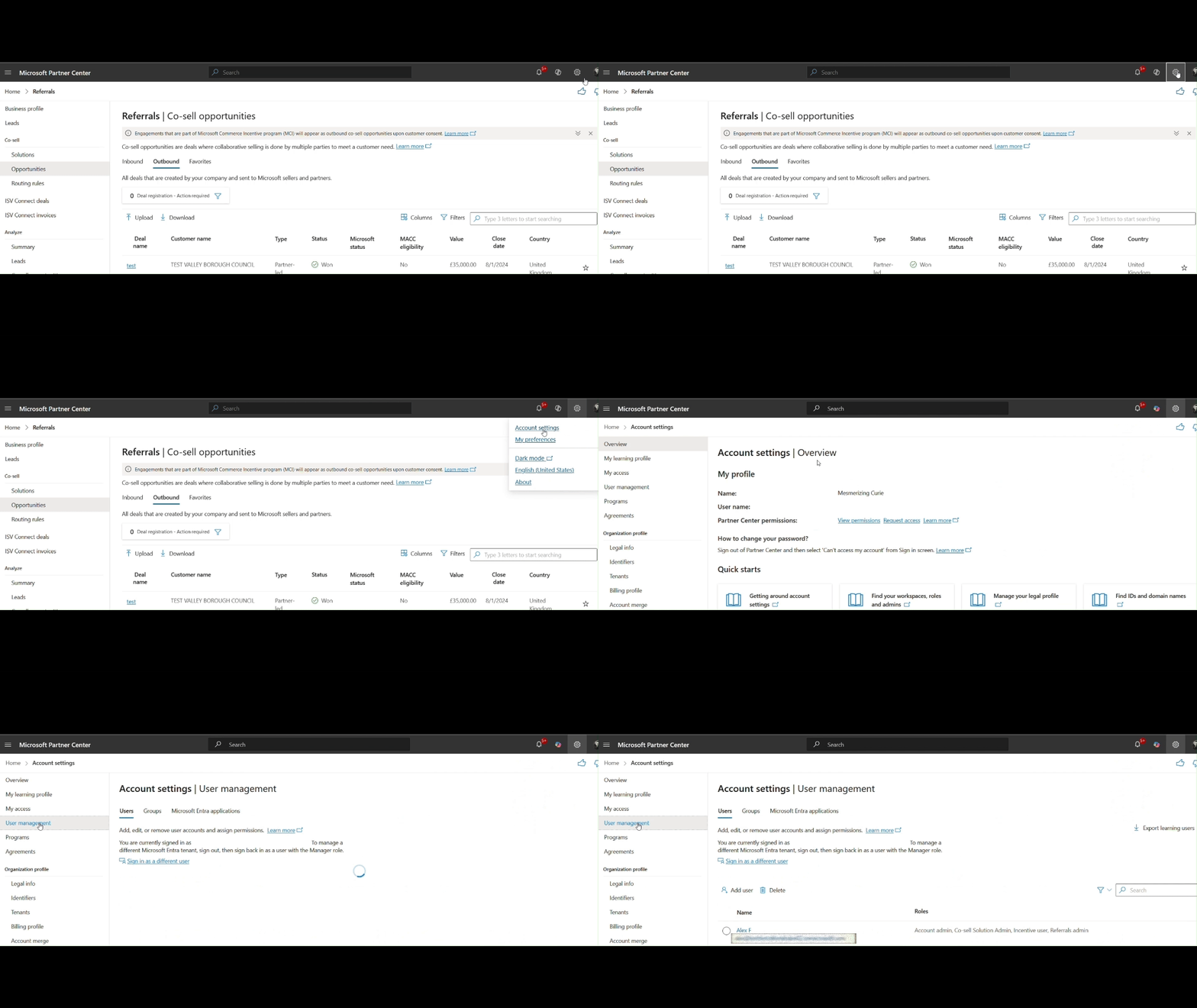
Select User management, and then select the Add user button. Select Create new users from the pop-up modal and continue.
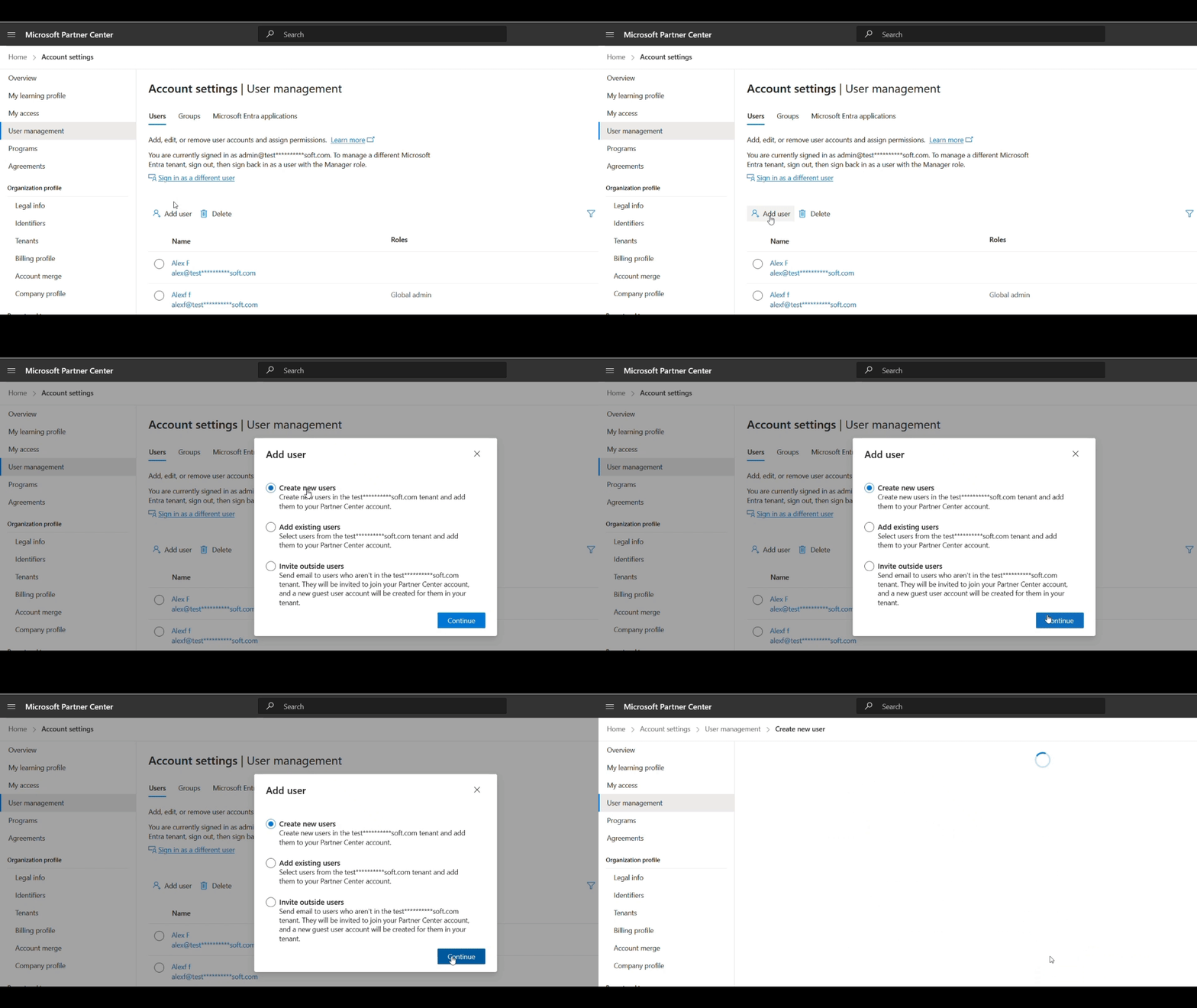
Enter the user's FirstName, LastName, UserName, and optionally password recovery email.
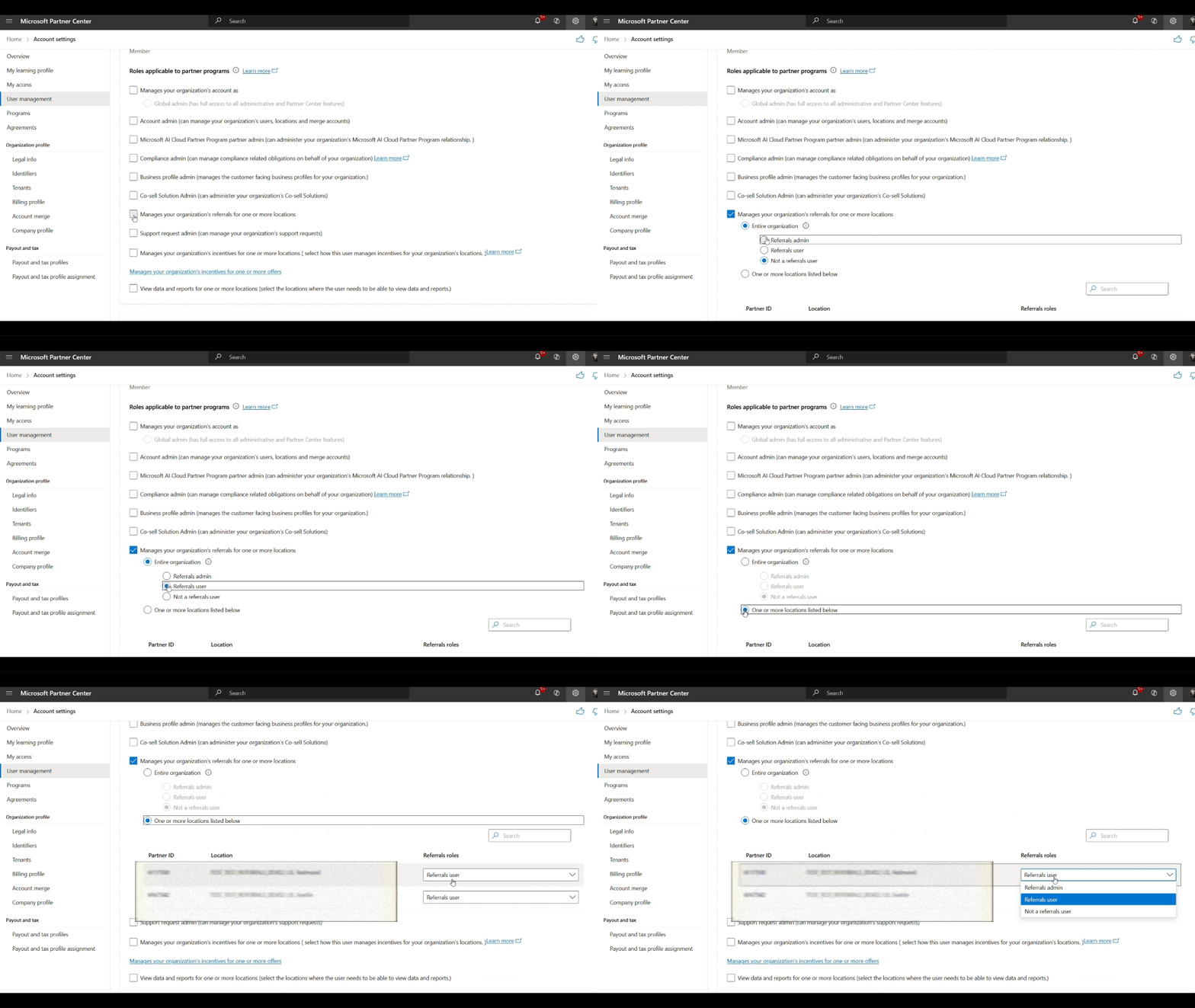
Referrals Roles: On the same page, navigate down and assign appropriate referrals specific partner roles - Referrals Admin, Referrals User.
- Referrals Admin can create, update, and read referrals for all associated partner locations.
- Referrals User can only read those referrals where they're present in the referral's team.
After completing all user details and roles assignment, select the Save button. On success, you see a new username (user email or upn) and a temporary password generated.
To reset your password and activate account, copy these credentials and sign in to Partner Center.
Step 2: Set up client app (Microsoft Entra ID)
Sign in to Azure portal with admin account.
Search for "App registrations" and select the + New registration button.
Enter app name (such as Partner Center Access App), and Supported account type as "Single Tenant" (or opt as per your requirement).
Select the Register button and wait while it creates new App registration.
Once the app is registered, find the client ID and create a client-secret as highlighted in this demo:
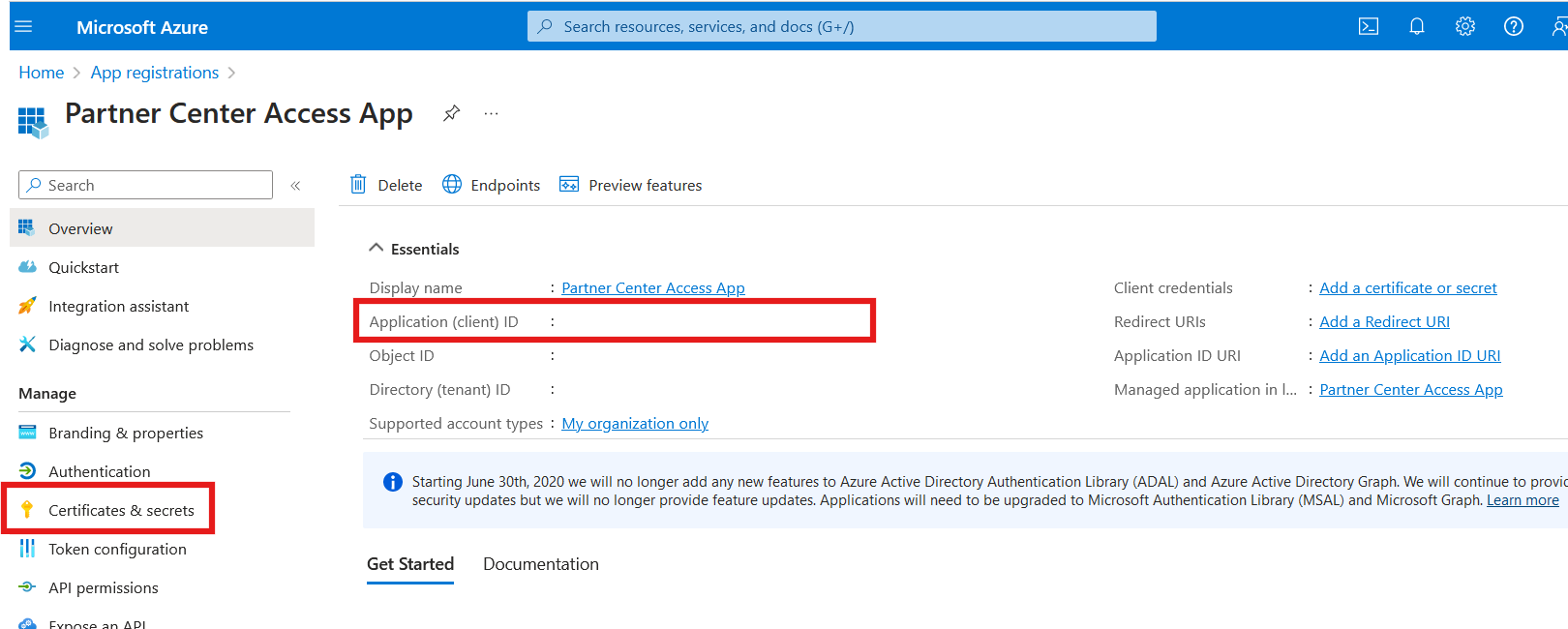
Next, you need to add an API permission or delegation (Microsoft Partner) to this client app in order to enable it to generate Partner Center API tokens.
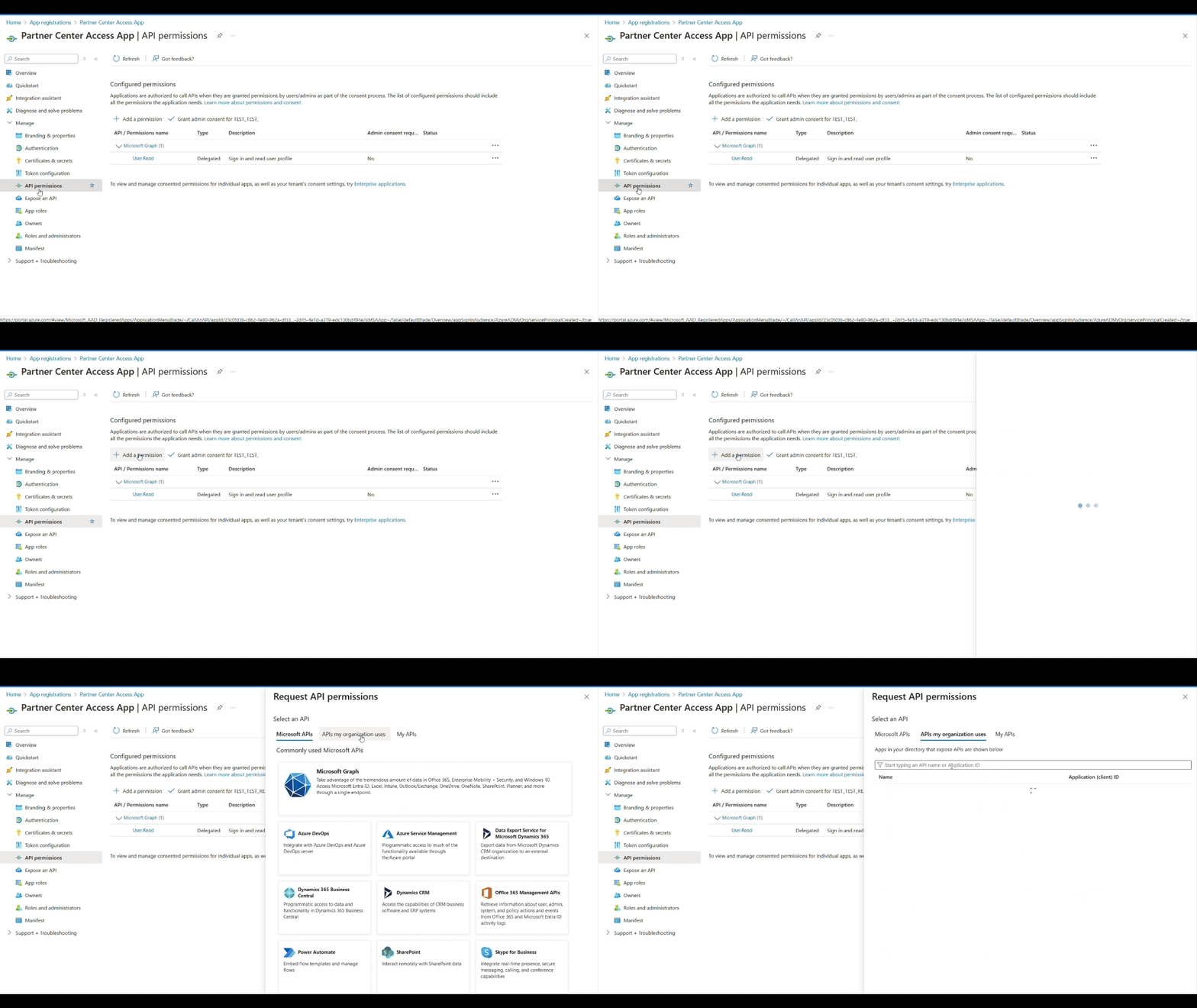
Select Manage > API permissions, and then select the +Add a permission button. From the side panel, select the APIs my organization uses tab.
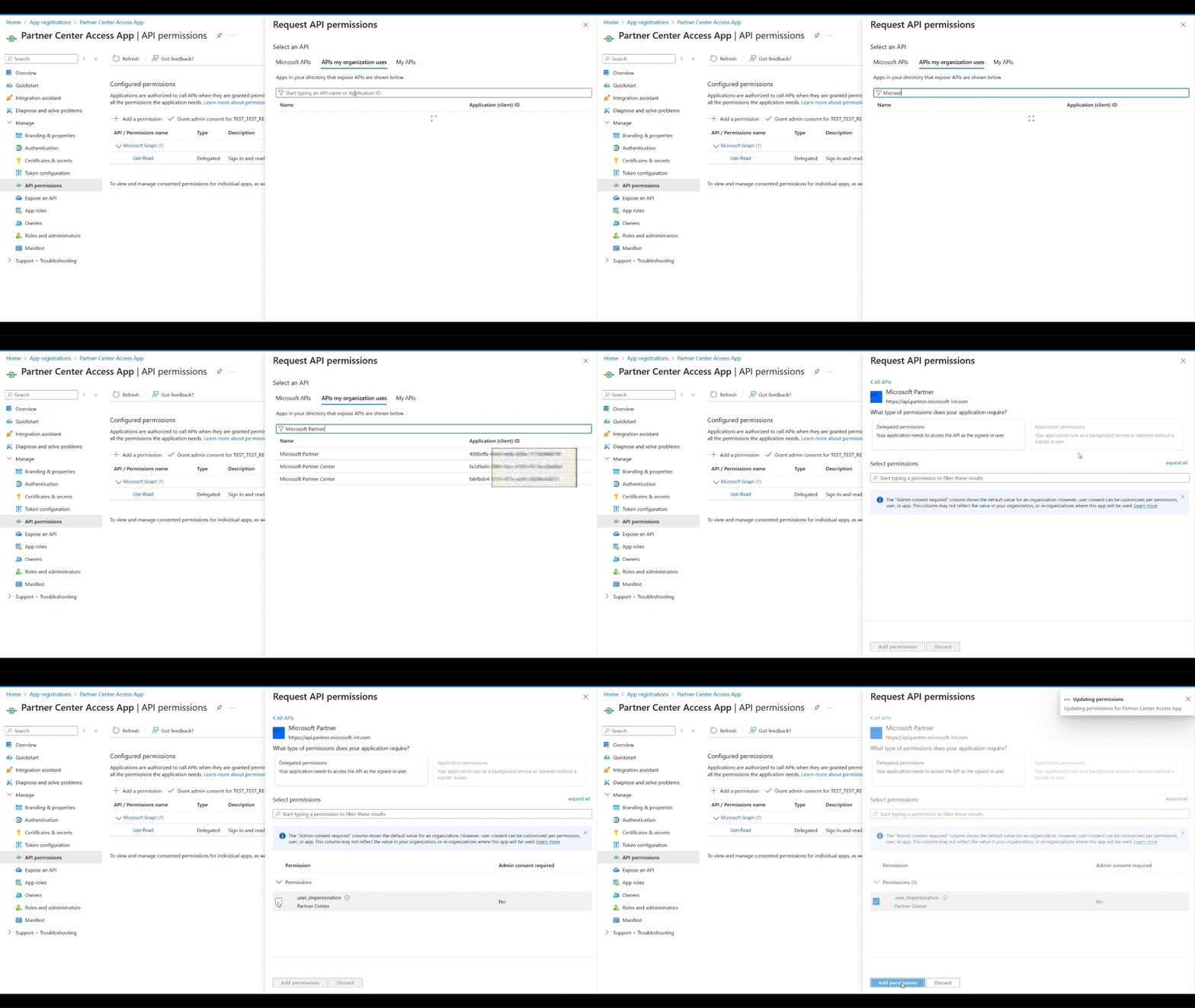
Search for the API "Microsoft Partner" and select one with application (client) ID starting with 4990c*. Check the box for user_impersonation, and select Add permissions button.
Tip
If searching with "Microsoft Partner" doesn't find the 4990c* app, try searching with "Microsoft Dev Center" or search directly with the complete App ID.
Lastly, user must get the admin consent for the permission added. To grant the consent, admin needs to log in with their own account and navigate to the app.

