Note
Access to this page requires authorization. You can try signing in or changing directories.
Access to this page requires authorization. You can try changing directories.
This scenario shows how to configure Endpoint DLP to prevent synchronization of Highly Confidential files to cloud sync apps like OneDrive while avoiding repeated notifications. By using auto‑quarantine and restricted app controls, sensitive files are automatically moved to a secure ___location and replaced with a placeholder, enabling effective protection without creating a poor user experience from repeated sync attempts.
This scenario is for an unrestricted admin creating a full directory policy.
Prerequisites and assumptions
This article uses the process you learned in Design a data loss prevention policy to show you how to create a Microsoft Purview Data Loss Prevention (DLP) policy. Work through these scenarios in your test environment to familiarize yourself with the policy creation UI.
Important
This article presents a hypothetical scenario with hypothetical values. It's only for illustrative purposes. Substitute your own sensitive information types, sensitivity labels, distribution groups, and users.
How you deploy a policy is as important policy design. This article shows you how to use the deployment options so that the policy achieves your intent while avoiding costly business disruptions.
This scenario uses the Confidential sensitivity label, so it requires you to create and publish sensitivity labels. To learn more, see:
- Learn about sensitivity labels
- Get started with sensitivity labels
- Create and configure sensitivity labels and their policies
This procedure uses a hypothetical distribution group Human Resources and a distribution group for the security team at Contoso.com.
This procedure uses alerts, see: Get started with the data loss prevention alerts
Policy intent statement and mapping
We, Contoso, want to prevent users from synchronizing highly sensitive files to cloud synchronization applications such as OneDrive from endpoint devices. In this scenario, files labeled Highly Confidential must not be synchronized to cloud storage through restricted sync apps.
At the same time, we want to avoid repeated DLP notifications and poor user experience caused by failed sync retries. To do that, we will use Endpoint DLP auto-quarantine so that when a restricted sync app attempts to process a protected file, the original file is automatically moved to a quarantine ___location and replaced with a placeholder text file. This both prevents exfiltration and stops the sync client from repeatedly retrying the same blocked file.
We also want users to be informed when the action is blocked, and we want administrators to be able to validate and investigate the resulting events through Activity explorer.
| Statement | Configuration question answered and configuration mapping |
|---|---|
| “We want to prevent users from synchronizing files labeled Highly Confidential to cloud sync apps such as OneDrive…” | - Administrative scope: Full directory - Where to monitor: Devices - Policy scope: Devices only, with optional targeting to specific test users - Condition: Content contains the sensitivity label Highly Confidential |
| “We want to treat cloud synchronization apps as restricted applications for these sensitive files…” | - Endpoint settings: Create a restricted app group named Cloud Sync apps - Restricted apps include OneDrive executables for Windows and macOS - Restricted app group is referenced by the DLP rule |
| “We want to block restricted apps from performing file activities on these sensitive items…” | - Rule action: Audit or restrict activities on devices - Activity type: File activities for apps in restricted app groups - Restriction: Apply a restriction to all activity > Block |
| “We want to avoid looping DLP notifications and repeated cloud sync retries for blocked sensitive files…” | - Endpoint DLP setting: Enable Auto-quarantine for unallowed apps - Quarantine behavior: Move the original file to a configured quarantine folder - File handling: Append date/time stamp to quarantined file name |
| “We want the user to understand what happened to the blocked file…” | - Auto-quarantine response: Replace the original file with a .txt placeholder file containing a custom message - Placeholder message includes tokens such as %%FileName%%, %%PolicyName%%, and %%QuarantinePath%% |
| “We want users to be notified in real time when the sync action is blocked…” | - User notifications: Turn User notifications On - Endpoint behavior: Show users a policy tip notification when the blocked activity occurs |
| “We want this protection to apply immediately once the rule is active…” | - Policy creation: Custom policy with advanced DLP rules - Deployment mode: Turn it on right away |
| “We want to validate that blocking, quarantine, and user messaging all work together correctly…” | - Test procedure: Create a Word document, apply the Highly Confidential label, and copy it into the local OneDrive sync folder - Expected outcome: User sees a notification toast, the source file is replaced by a placeholder text file, and the original file appears in the quarantine folder |
| “We want administrators to be able to review the enforcement event after testing…” | - Monitoring and investigation: Use Activity explorer - Filters: Set ___location to Devices and filter by the policy name to review the policy match and action outcome |
Steps to create policy
Before you begin
In this scenario, synchronizing files with the Highly Confidential sensitivity label to OneDrive is blocked. This is a complex scenario with multiple components and procedures. You need:
- A Microsoft Entra user account to target and an onboarded Windows 10/11 or macOS computer that is already synchronizing a local OneDrive folder with OneDrive cloud storage.
- Sensitivity labels configured and published—see Get started with sensitivity labels and Create and configure sensitivity labels and their policies.
There are three procedures.
- Configure the Endpoint DLP Autoquarantine settings.
- Create a policy that blocks sensitive items that have the Highly Confidential sensitivity label.
- Create a Word document on the Windows 10/11 or macOS device that the policy is targeted to, apply the label, and copy it to the user accounts local OneDrive folder that is being synchronized.
Configure Endpoint DLP unallowed app and Autoquarantine settings
Sign in to the Microsoft Purview portal > Data loss prevention > Settings (gear in the upper left hand corner) > Data loss prevention > Endpoint settings.
Expand Restricted apps and app groups.
Under Restricted app groups, choose Add restricted app group. Enter Cloud Sync apps as the group name.
Select the Auto-quarantine box.
For the App name, enter OneDrive. For the Windows Executable name, enter onedrive.exe, then choose the + button. For the macOS Executable name, enter /Applications/OneDrive.app/Contents/MacOS/OneDrive, then choose the + button. This disallows onedrive application on devices from accessing items with the Highly Confidential label.
Note
To restrict other common cloud sync app on macOS devices, add the below path
- Box:
/Applications/Box Sync.app/Contents/MacOS/Box Sync - Dropbox:
/Applications/Dropbox.app/Contents/MacOS/Dropbox - Google Drive:
/Applications/Google Drive.app/Contents/MacOS/Google Drive - iCloud:
System/Library/PrivateFrameworks/CloudDocsDaemon.framework/Versions/A/Support/bird
- Box:
Choose Save.
Under Auto-quarantine settings choose Edit auto-quarantine settings.
Enable Auto-quarantine for unallowed apps.
Enter the path to the folder on local machines where you want the original sensitive files to be moved to. For example:
%homedrive%%homepath%\Microsoft DLP\Quarantinefor the username Isaiah Langer will place the moved items in a folder named:C:\Users\IsaiahLanger\Microsoft DLP\Quarantine\OneDrive
A separate path for the macOS device is required, such as
/System/Applications/Microsoft DLP/Quarantine
Append a date and time stamp to the original file name.
Note
DLP auto-quarantine will create sub-folders for the files for each unallowed app. So if you have both Notepad and OneDrive in your unallowed apps list, a sub-folder will be created for \OneDrive and another sub-folder for \Notepad.
Choose Replace the files with a .txt file that contains the following text and enter the text you want in the placeholder file. For example for a file named auto quar 1.docx, you could enter:
%%FileName%% contains sensitive info that your organization is protecting with the data loss prevention (DLP) policy %%PolicyName%%. It was moved to the quarantine folder: %%QuarantinePath%%
will leave a text file that contains this message:
auto quar 1.docx contains sensitive info that your organization is protecting with the data loss prevention (DLP) policy. It was moved to the quarantine folder: C:\Users\IsaiahLanger\Microsoft DLP\Quarantine\OneDrive\auto quar 1.docx.
Choose Save.
Configure a policy to block OneDrive synchronization of files with the sensitivity label "Highly Confidential"
Sign in to the Microsoft Purview portal > Data loss prevention > Policies.
Select Create policy.
Data stored in connected sources.
For this scenario, choose Custom, then Custom policy. Choose Next.
Fill in the Name and Description fields, choose Next.
Select Full directory under Admin units.
Toggle the Status field to off for all locations except Devices. If you have a specific end user account that you want to test this from, be sure to select it in the scope. Choose Next.
Accept the default Create or customize advanced DLP rules selection and choose Next.
Create a rule with these values:
- Name > Scenario 4 Autoquarantine.
- Under Conditions choose Add condition and then Content Contains.
- Enter a group name, for example Highly Confidential Sensitivity Labels and then choose Add.
- Select Sensitivity labels then Highly Confidential and choose Add.
- Under Actions choose Add an action.
- Select Audit or restrict activities on devices > File activities for apps in restricted app groups.
- Choose Add restricted app group then choose the Cloud Sync Apps group you created previously.
- Choose Apply a restriction to all activity > Block. For the purposes of this scenario, clear all the other activities.
- Under User notifications, toggle User notifications to On and under Endpoint devices choose Show users a policy tip notification when an activity if not already enabled.
Choose Save and Next.
Choose Turn it on right away. Choose Next.
Review your settings and choose Submit.
Note
Allow at least an hour for the new policy to be replicated and applied to the target Windows 10 computer.
The new DLP policy appears in the policy list.
Test Autoquarantine on the Windows 10/11 device
Sign in to the Windows 10/11 computer with the user account you specified in Configure a policy to block OneDrive synchronization of files with the sensitivity label Highly Confidential, step 5.
Create a folder whose contents won't be synchronized to OneDrive. For example:
C:\auto-quarantine source folder
Open Microsoft Word and create a file in the autoquarantine source folder. Apply the Highly confidential sensitivity label; see Apply sensitivity labels to your files and email in Office.
Copy the file you created to your OneDrive synchronization folder. A user notification toast should appear telling you that the action isn't allowed and that the file will be quarantined. For example, for user name Isaiah Langer, and a document titled autoquarantine doc 1.docx you would see this message:
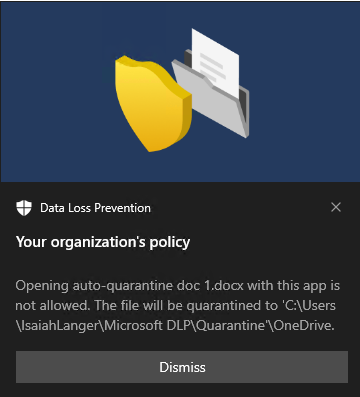
The message reads:
Opening auto-quarantine doc 1.docx with this app is not allowed. The file will be quarantined to C:\Users\IsaiahLanger\Microsoft DLP\OneDrive
Choose Dismiss.
Open the place holder text file. It is named auto-quarantine doc 1.docx_date_time.txt.
Open the quarantine folder and confirm that the original file is there.
Check Activity explorer for data from the monitored endpoints. Set the ___location filter for devices and add the policy, then filter by policy name to see the effect of this policy. For information on using activity explorer, see Get started with activity explorer.
Check Activity explorer for the event.