Note
Access to this page requires authorization. You can try signing in or changing directories.
Access to this page requires authorization. You can try changing directories.
This article provides step-by-step guidance to register, scan, and configure data quality for Google BigQuery sources in Microsoft Purview Unified Catalog.
Supported capabilities
When scanning a Google BigQuery source, Microsoft Purview supports:
- Extracting technical metadata including:
- Projects and datasets.
- Tables including the columns.
- Views including the columns.
- Fetching static lineage on assets relationships among tables and views.
When setting up a scan, you can choose to scan an entire Google BigQuery project. You can also scope the scan to a subset of datasets matching the given names or name patterns.
Known limitations
Be aware of the following limitations when scanning Google BigQuery sources:
Microsoft Purview only supports scanning Google BigQuery datasets in a US multiregional ___location. If a dataset is in another ___location (for example, "us-east1" or "EU"), the scan completes but no assets appear in Microsoft Purview.
When you delete an object from the data source, the subsequent scan doesn't automatically remove the corresponding asset in Microsoft Purview.
Configure Data Map scan to catalog Google BigQuery data in Microsoft Purview
Register a Google BigQuery project
To register a Google BigQuery project in Microsoft Purview, complete the following steps:
- In the Microsoft Purview portal, select Data Map, then select Register.
- At Register sources, select Google BigQuery, then select Continue.
- Enter a Name for the data source that appears in the catalog.
- Enter the ProjectID. The ProjectID should be a fully qualified project ID. For example,
mydomain.com: myProject. - Select a collection from the list.
- Select Register.
Set up a Data Map scan for Google BigQuery project
To configure a Data Map scan for the registered Google BigQuery project, follow these steps:
Make sure a self-hosted integration runtime is set up. If the runtime isn't set up, use the steps in Google BigQuery connection prerequisites.
Navigate to Sources.
Select the registered BigQuery project.
Select New scan.
Enter these details:
- Name: The name of the scan.
- Connect via integration runtime: Select the configured self-hosted integration runtime.
- Credential: While configuring BigQuery credential, make sure to:
- Select Basic Authentication as the authentication method.
- Provide the email ID of the service account in the User name field. For example,
xyz\@developer.gserviceaccount.com. - Store the service account private key as a Key Vault secret (see the following steps).
- JDBC driver ___location: Specify the path to the JDBC (Java Database Connectivity) driver on the machine where the self-hosted integration runtime is running. For example:
D:\Drivers\GoogleBigQuery. - Datasets to import: Specify a list of BigQuery datasets to import. For example,
dataset1;dataset2. When the list is empty, all available datasets are imported. - Maximum memory (in GB): The required memory value depends on the size of the Google BigQuery project being scanned.
Create a service account private key:
- In the Google Cloud console navigation menu, select IAM & Admin > Service Accounts, then select a project.
- Select the email address of the service account that you want to create a key for.
- Select the Keys tab.
- Select Add key > Create new key.
- Choose JSON format.
- Copy the entire JSON key file and store it as the value of a Key Vault secret.
Select Test connection.
Select Continue.
Choose your scan trigger. You can set up a schedule or run the scan once.
Review your scan and select Save and Run.
Once scanned, the data assets in Google BigQuery project are available in the Unified Catalog search. For more information, see how to connect and manage Google BigQuery in Microsoft Purview.
Important
Deleting your scan doesn't delete catalog assets created from previous scans.
Set up connection to Google BigQuery project for data quality scan
The scanned assets are now ready for cataloging and governance. Associate the scanned assets to the data products in a governance ___domain to set up a data quality scan.
Important
Data quality stewards need read only access to Google BigQuery to set up a data quality connection. Virtual network and private endpoint aren't supported for Google BigQuery data source yet for data quality scanning service.
In Unified Catalog, go to Health management > Data quality. Select a governance ___domain to open its details page, then select Manage to create a connection.
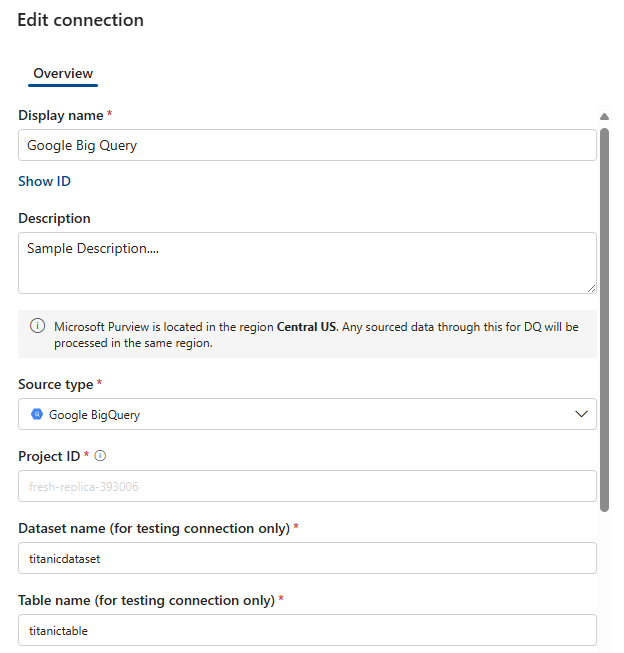
Set up the connection:
- Add connection name and description.
- Select source type Google BigQuery.
- Add Project ID, Dataset name, and Table name.
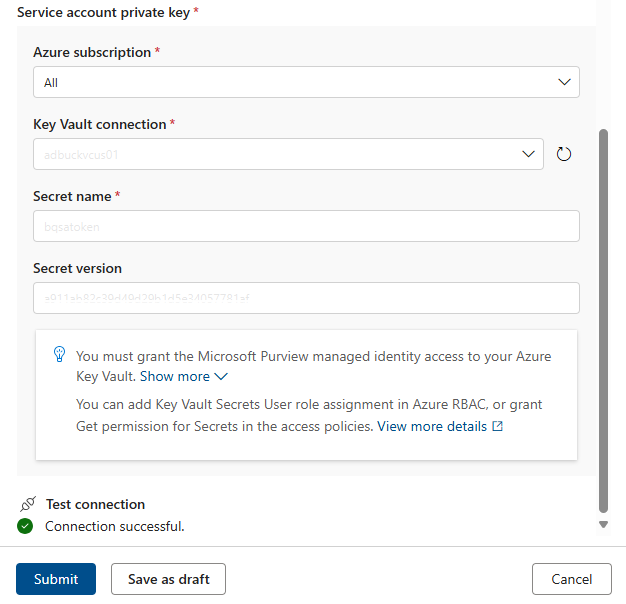
- Enter details at Service account private key:
- Add the Microsoft Azure subscription.
- Add the Microsoft Azure Key Vault connection.
- Enter the Secret name.
- Enter the Secret version.
Test the connection to make sure the data source connection is successfully configured.
Profiling and data quality scanning for data in Google BigQuery
After you set up the connection, you can profile your data, create and apply rules, and run a data quality scan for your data in Google BigQuery. Follow the step-by-step guidelines in the following articles: