Note
Access to this page requires authorization. You can try signing in or changing directories.
Access to this page requires authorization. You can try changing directories.
This article outlines the steps to create protected data source connections for data profiling and data quality scans in Microsoft Purview.
Virtual networks and private endpoints enhance the security and isolation of Azure resources. Virtual network protected endpoints let you access Azure services while keeping traffic on the Azure backbone network. Private endpoints go further by assigning a private IP address in your virtual network, so all traffic stays within the network and doesn't use the public internet. Virtual network protected endpoints and private endpoints are essential when security and network isolation are critical, because they minimize exposure to threats from the public internet.
Review user permission requirements
You need the following permissions to set up managed virtual networks for data quality:
- Compute provision – Governance Domain Owner
- Managed private endpoint creation - Governance Domain Owner
- Private endpoint approval – Owner of the Azure storage source
Caution
Compute and managed private endpoint connections are shared across all governance domains in the same Purview account. These connections are shared per region and data source.
Manage virtual network provisioning
Data Governance Administrators can provision a virtual network compute ___location in supported Azure regions. To provision a compute ___location, go to Settings > Unified Catalog > Virtual network in the Unified Catalog Admin page. Select a region from the Region dropdown. Regions that are already set up are greyed out.
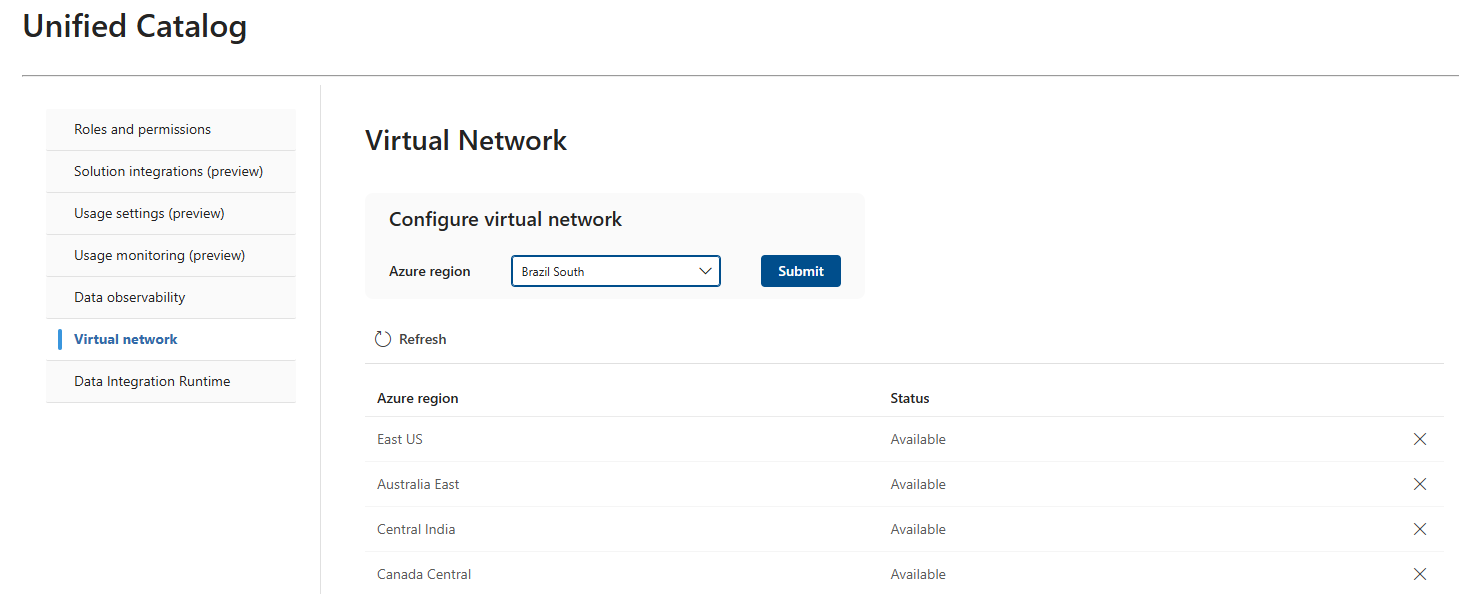
Deleting a configured region removes all associated data quality connections linked to that region's virtual network across business domains. To delete a region, select X on the region's row. You can't delete a region while it's being provisioned. Provisioning has three stages: Provisioning, Completed, and Available.
Configure a data quality managed virtual network
Configure a data quality managed virtual network by creating a connection to a protected data source.
In the Microsoft Purview Unified Catalog, select Health Management, and then select Data quality.
Select a governance ___domain from the list.
From the Manage dropdown list, select Connections to open the connections page.
Select the New tab to create a new connection for the data products and data assets in your governance ___domain.
In the connection page, add a display name and description, and select the data source type.
Add other data source details like Subscription and Storage Account name or Server Name and database name, depending on the source.
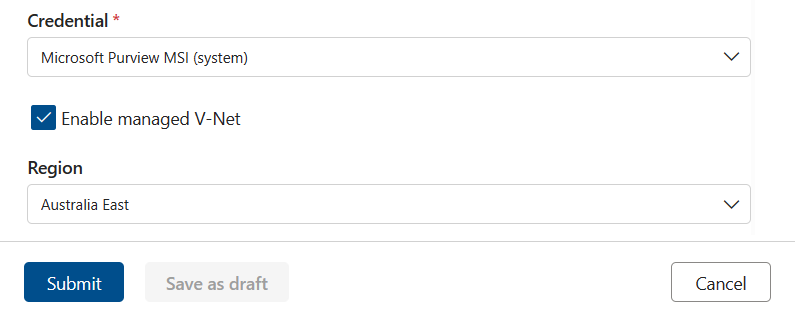
Select the Enable managed V-Net checkbox.
Select the region where the data source is housed.
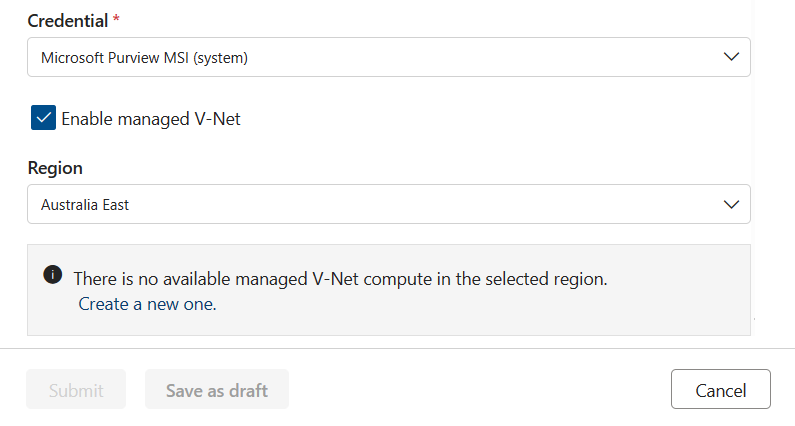
Purview Data Quality checks if a compute infrastructure already exists for the account in that region. If not, you're prompted to create a new virtual network dedicated compute.
Tip
Provisioning compute can take up to 10 minutes. After requesting compute provisioning, you can save the connection creation request in draft mode and edit it later.
After the compute is provisioned, data quality checks if a private endpoint connection to the asset already exists. If not, you're prompted to create a private endpoint connection.
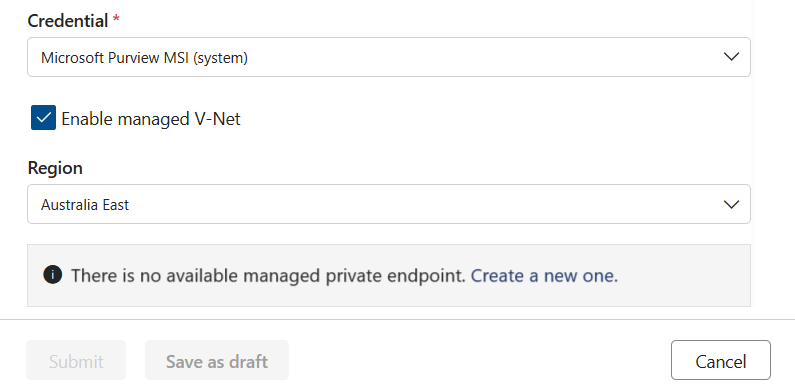
After the private endpoint is created, or if a private endpoint already exists but wasn't approved, you're prompted to approve the private endpoint connection request.
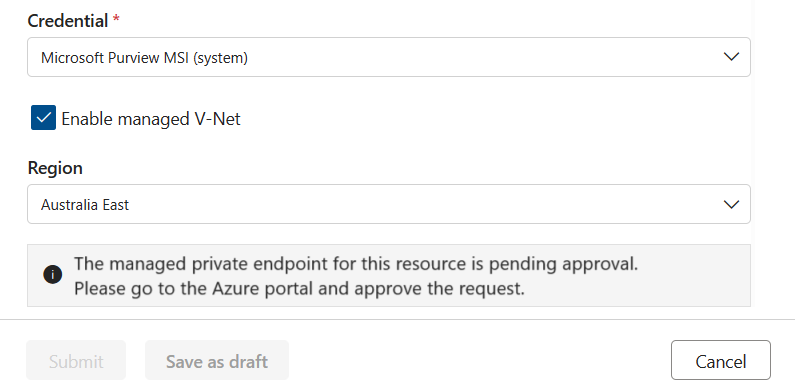
To approve this request, go to the Networking tab in Storage Account or SQL Server. Select the Private access tab, select a pending connection, and select Approve.
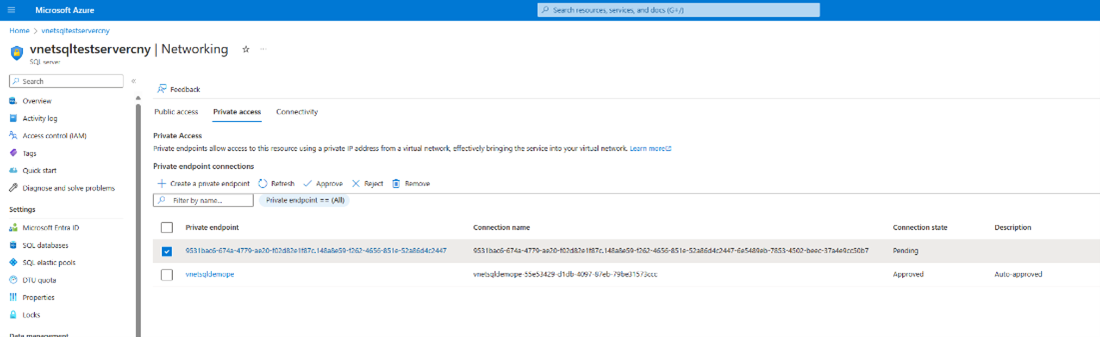
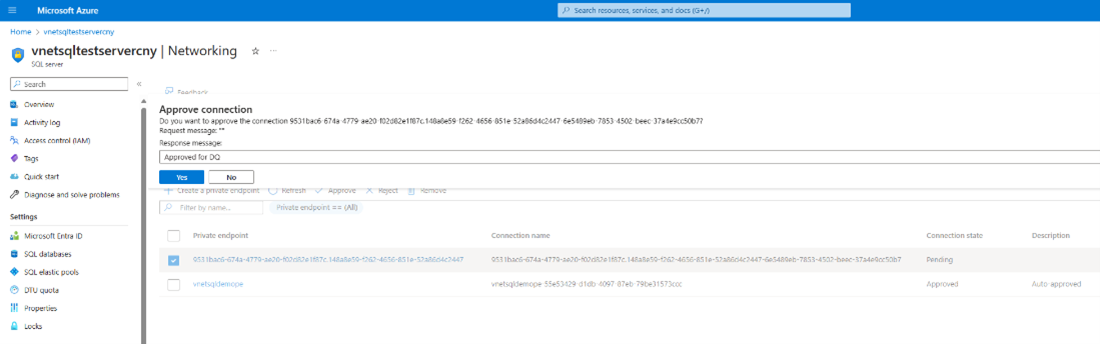
Select Yes to approve the connection.
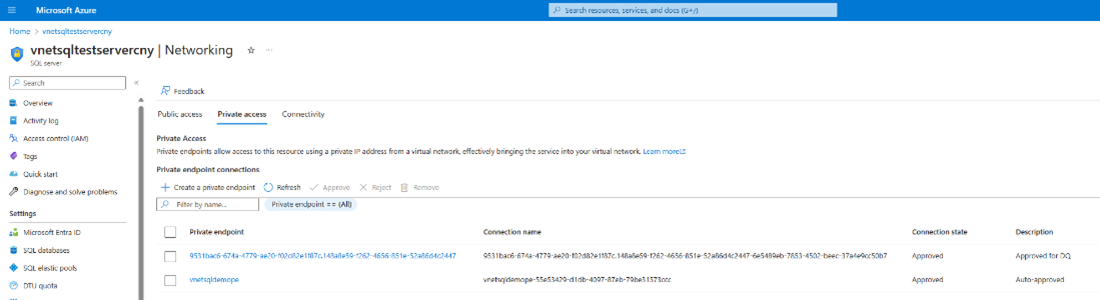
The request now shows as Approved.
Tip
After you request the private endpoint connection, you can save the connection as a draft and resume after the request is approved.
After the private endpoint connection is created and approved, submit the connection.
Caution
Test connection isn't currently supported for virtual network protected assets.
After the connection is completed, you can run data quality jobs as usual against the virtual network protected assets.
Note
Virtual Network currently supports only these data sources:
- Azure Data Lake storage
- Azure SQL
- Synapse serverless and Synapse Data Warehouse
- Azure Databricks
- Snowflake
- Microsoft Fabric OneLake (in tenant level)
- Azure SQL Managed Instance (SQL MI)
Set up data source-specific connections
To set up virtual network connections for specific data sources, see the following resources:
- Data quality for Azure Databricks UC
- Data quality for Azure Synapse serverless and data warehouse
- Data quality for Snowflake data
- Data quality for Fabric Lakehouse
For Azure SQL and Data Lake storage, follow the steps in Configure a data quality managed virtual network.
Import a schema for data quality
If the data type in a schema is undefined, incorrectly defined, or changed in the source, your data quality job might fail. If the job fails, re-import the schema by using the schema import capability. You can import schemas for data sources on both public networks and those behind private endpoints. For supported data sources, see Configure a data quality managed virtual network. To import a schema from your data sources, follow these steps:
- In Unified Catalog, under Health Management, select Data quality.
- Select a business ___domain, then select a data product, then select a data asset from that data product. You arrive at the data quality overview page.
- Select Schema, then select the Schema management toggle.
- Select Import schema to import the schema.