Note
Access to this page requires authorization. You can try signing in or changing directories.
Access to this page requires authorization. You can try changing directories.
Summary
This article helps you troubleshoot common issues when configuring HTTP header and URL rewrite rules in Azure Application Gateway v2.
Prerequisites
- Rewrite rules are only available for Application Gateway v2 SKU (Standard_v2 and WAF_v2). If you're still using the v1 SKU, you need to migrate to v2 first.
- Familiarize yourself with the concepts in Rewrite HTTP headers and URL with Application Gateway.
- Diagnostic logging should be enabled for your Application Gateway so you can verify rewrite behavior using access logs.
Symptom 1: Rewrite rule doesn't take effect
You configured a rewrite rule, but requests and responses pass through Application Gateway without any modification.
Cause 1: Rewrite rule set is attached to the wrong scope
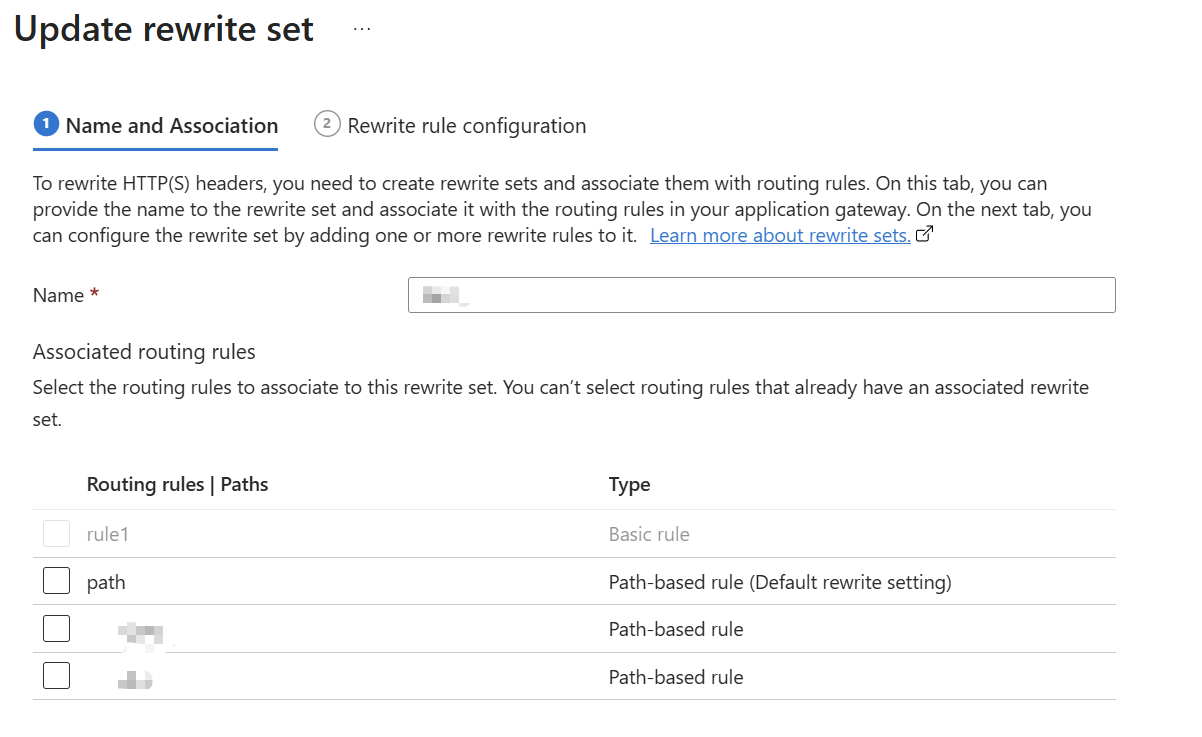
When you use a path-based routing rule, you can attach rewrite rule sets at two levels:
- The URL path map default backend: applies only when no path rule matches.
- Individual path rules (for example,
/api/*,/images/*): applies when the specific path matches.
A common mistake is attaching the rewrite rule set only to the default backend while a catch-all path rule like /* exists. Because /* matches all incoming requests, traffic never falls through to the default backend, and the rewrite rule never executes.
Solution
- In the Azure portal, go to your Application Gateway and select Rewrites.
- Verify which routing rule or path rule the rewrite rule set is associated with.
- If you use a path-based routing rule with a catch-all path like
/*, attach the rewrite rule set directly to that path rule instead of (or in addition to) the default backend.
Cause 2: Rewrite rules aren't supported on redirect configurations
Rewrite rules don't execute when the routing rule or path rule is configured to use a redirect action instead of a backend pool. This is a known limitation.
Solution
If you need both rewrite and redirect behavior, consider using the rewrite rule itself to set a Location response header and return a redirect status code from the backend instead of using the Application Gateway's built-in redirect feature.
Symptom 2: Regex condition doesn't match expected requests
The rewrite rule is correctly attached, but the condition you configured doesn't match incoming requests, so the rewrite action is skipped.
Cause 1: Leading or trailing spaces in the regex pattern
A common but hard-to-spot mistake is having extra spaces in the regex pattern. For example, consider a condition to match the Origin header for Cross-Origin Resource Sharing (CORS):
- ❌
( ^https://mysite\.com$)— leading space before^causes the pattern to never match. - ✅
(^https://mysite\.com$)— correct pattern without leading space.
The Azure portal input fields might not visually highlight leading or trailing spaces, making this issue difficult to detect.
Solution
- Copy the regex pattern from your rewrite rule configuration.
- Paste it into a regex testing tool like regex101.com to validate the pattern.
- Remove any leading or trailing spaces from the pattern.
- If you configure rewrite rules through Azure Resource Manager templates, Azure CLI, or Azure PowerShell, inspect the raw JSON for extra spaces.
Cause 2: Using literal characters instead of regex metacharacters
When matching dynamic values such as port numbers or IP addresses, make sure you use regex metacharacters instead of literal characters.
For example, to match a port number in a URL like https://contoso.com:8443/path:
- ❌
(https://contoso\.com):dddd(.*)—ddddmatches the literal string "dddd", not four digits. - ✅
(https://contoso\.com):\d{4}(.*)—\d{4}correctly matches any four-digit number.
Note
If you configure rewrite rules through Azure Resource Manager templates or REST API, remember that backslashes in regex must be escaped for JSON. For example, \d{4} becomes \\d{4} in a JSON string.
Solution
Use proper regex syntax for character classes:
| Intent | Correct regex | Common mistake |
|---|---|---|
| Match any digit | \d or [0-9] |
d (literal) |
| Match any word character | \w or [a-zA-Z0-9_] |
w (literal) |
| Match any character | . |
(none) |
| Match a literal dot | \. |
. (matches anything) |
Cause 3: Missing capture groups in the condition
If your rewrite action references a captured value (for example, {http_resp_Set-Cookie_1}), but your condition regex doesn't contain capture groups (parentheses), the referenced variable is empty.
For example, to append SameSite=Strict to a Set-Cookie response header:
- ❌ Condition pattern:
.*— no capture group, so{http_resp_Set-Cookie_1}is empty. - ✅ Condition pattern:
(.*)— captures the full cookie value into group 1.
Solution
- Ensure your condition regex includes parentheses
()around the portion you want to capture. - Reference the captured value using
{variable_name_N}whereNis the capture group number (starting from 1). - Test the regex with your expected input at regex101.com to confirm the capture groups work.
Tip
A quick way to verify: if your action value contains _1}, _2}, and so on, check that your condition regex has at least that many pairs of parentheses.
Symptom 3: Server variable returns empty or unexpected value
Your rewrite action uses a server variable, but the resulting header or URL contains an empty string or an unexpected value.
Cause 1: Using the wrong server variable name
Application Gateway provides multiple server variables that look similar but serve different purposes:
| Variable | Value | Example for https://contoso.com/app/hello?id=1 |
|---|---|---|
{var_uri_path} |
URL path only | /app/hello |
{var_request_uri} |
Full URI with query string | /app/hello?id=1 |
{var_host} |
Host header value | contoso.com |
A common mistake is using {var_request_uri} when you only need the path (which includes the query string unexpectedly), or vice versa.
Solution
- Review the full list of supported server variables.
- Verify that the variable you chose returns the expected component of the request.
- Use the Application Gateway to confirm the actual values. For more information, see How to verify rewrite behavior by using access logs.
Cause 2: Double slash from variable concatenation
When you build a URL path by using server variables, remember that {var_uri_path} already includes a leading forward slash /. If you concatenate it with a prefix that ends with /, you get a double slash //.
For example, to prepend /apim to the original path:
- ❌ Action value:
/apim/{var_uri_path}— produces/apim//original-pathbecause{var_uri_path}is/original-path. - ✅ Action value:
/apim{var_uri_path}— produces/apim/original-path.
Solution
When you concatenate server variables into a URL path, don't add a trailing slash before a variable that already starts with one.
Symptom 4: URL is rewritten correctly but traffic routes to the wrong backend pool
The URL path is modified as expected, but the request is still sent to the original backend pool instead of the backend pool associated with the rewritten path.
Cause: Re-evaluate path map isn't enabled
By default, URL rewrite modifies the path but doesn't re-evaluate the path map. The request continues to route to the backend pool determined by the original URL. To route based on the rewritten URL, you must enable the Re-evaluate path map option on the rewrite rule.
Solution
- In the Azure portal, go to Rewrites > select your rewrite rule set > select the rule.
- In the Action section, select the Re-evaluate path map checkbox.
- Select Save and wait for the configuration update to complete.
Caution
Infinite loop risk: If the rewritten URL matches the same path rule that triggers the rewrite, and Re-evaluate path map is enabled, an infinite evaluation loop occurs. Application Gateway detects this condition and returns a 500 error to the client. To prevent this condition:
- Use a conditional rewrite to avoid matching already-rewritten URLs.
- Ensure the rewritten path maps to a different path rule than the one that triggered the rewrite.
Symptom 5: Response header rewrite doesn't appear in the response
You configured a rewrite rule to add or modify a response header, but the header is missing or unchanged when the client receives the response.
Cause 1: Header name contains unsupported characters
Application Gateway v2 allows only alphanumeric characters and hyphens in request header names. It silently drops headers with other characters, like periods . or underscores _.
For example, Application Gateway strips a custom header named X-Custom.Header or X_Custom_Header in the request before it reaches the backend.
Note
This behavior applies to request headers that Application Gateway forwards to the backend. For more information, see the Application Gateway FAQ.
Solution
Rename custom headers to use only alphanumeric characters and hyphens. For example, use X-Custom-Header instead of X-Custom.Header.
Cause 2: Backend server overrides the header
If both Application Gateway and the backend application set the same response header, the backend's value might override the value set by the rewrite rule, depending on the order of processing.
Solution
- Confirm whether Application Gateway applied the rewrite. For more information, see How to verify rewrite behavior by using access logs.
- Check whether the backend application also sets the same header.
- If both set the header, consider using a different header name or coordinating with the backend team to remove the duplicate.
Cause 3: Response is generated by Application Gateway itself
Rewrite rules don't apply to 4xx and 5xx error responses that Application Gateway generates internally. For example, these errors include 502 Bad Gateway when the backend is unreachable or 403 Forbidden from Azure Web Application Firewall (WAF). These responses bypass the rewrite pipeline.
This behavior is a known limitation.
Solution
For error responses generated by Application Gateway, consider using the custom error pages feature instead of rewrite rules.
How to verify rewrite behavior by using access logs
Application Gateway access logs provide two key fields for verifying URL rewrites:
| Field | Description |
|---|---|
originalRequestUriWithArgs |
The original URL as received from the client. |
requestUri |
The URL after rewrite rules are applied. |
If both fields show the same value, the rewrite rule didn't execute or didn't match.
Step 1: Enable diagnostic logging
If you didn't already enable diagnostic settings, configure them to send ApplicationGatewayAccessLog to a Log Analytics workspace. For more information, see Application Gateway diagnostics.
Step 2: Query access logs
Run the following Kusto query in your Log Analytics workspace to compare original and rewritten URLs:
AzureDiagnostics
| where ResourceType == "APPLICATIONGATEWAYS"
| where Category == "ApplicationGatewayAccessLog"
| where TimeGenerated > ago(1h)
| project TimeGenerated,
          originalRequestUriWithArgs_s,
          requestUri_s,
          httpMethod_s,
          host_s,
          clientIP_s,
          httpStatus_d
| where originalRequestUriWithArgs_s != requestUri_s
| order by TimeGenerated desc
If the query returns no results, it confirms that no rewrite rule was applied during the time range.
Step 3: Verify response headers
To verify response header rewrites, use curl with verbose output.
Run the following command, replacing your-appgw-url and path with your Application Gateway's URL and the relevant path:
curl -v https://your-appgw-url/path
Examine the response headers in the output to confirm the expected header is present and has the correct value.