Note
Access to this page requires authorization. You can try signing in or changing directories.
Access to this page requires authorization. You can try changing directories.
Transformations in Azure Monitor filter or modify incoming data before storing it in a Log Analytics workspace. Implement transformations as a Kusto Query Language (KQL) statement in a data collection rule (DCR). This article provides guidance on creating and testing a transformation query and adding it to a DCR.
Basic query structure
All transformation queries start with source, which is a virtual table that represents the input stream. You can then use any supported KQL operators to filter, modify, or add columns to the data as you would with any other table. The query is applied individually to each entry sent by the data source.
The output of the query must match the schema of the target table with the following considerations:
- Omit columns that you don't want to save costs. When you omit a column, that column is empty for each record in the target table.
- Exclude any columns that aren't in the output table. Extra columns are accepted without error, but you pay for ingesting data that isn't stored.
- Include a valid timestamp in a column called
TimeGeneratedof typedatetime. If your data source doesn't include this property, add it by usingextendorproject.
The following transformation is an example that performs three functions:
- Filters the incoming data by using a
wherestatement. - Adds a new column
Propertiesby using theextendoperator with theparse_jsonfunction to parse JSON values from the incomingpropertiescolumn. - Formats the transformation output to exactly match the columns of the target table by using the
projectoperator.
source
| where severity == "Critical"
| extend Properties = parse_json(properties)
| project
    TimeGenerated = todatetime(["time"]),
    Category = category,
    StatusDescription = StatusDescription,
    EventName = name,
    EventId = tostring(Properties.EventId)
For various samples of different scenarios, see Data collection rule (DCR) samples and scenarios in Azure Monitor.
Create the transformation query
Before you add a transformation to a DCR, create and test the query in Log Analytics. When your query returns the expected results, replace the table name with source and add it to your DCR as described in Add transformation to DCR.
Important
Transformations don't support all KQL features. See Supported KQL features in Azure Monitor transformations for supported features and limitations.
| Transformation test strategy | Description |
|---|---|
| Query existing data. | If you're already collecting the data you want to transform, write a query against that table in Log Analytics. Verify that the output shows the expected filtering or modifications, then copy the query text. |
Use sample data with datatable. |
Write a query using the datatable operator to create a sample dataset that represents your incoming data. Verify the query output, then copy the query text without the datatable operator. |
| Create a test table in the portal. | Create a new table in the Azure portal and provide sample data. Use the built-in transformation editor to write and test your query. Copy the query text when you're satisfied with the results. |
For example, to filter Syslog events, start with this query in Log Analytics:
Syslog | where SeverityLevel != 'info'
Then replace the table name with source in your DCR:
source | where SeverityLevel != 'info'
Add transformation to DCR
After you create your transformation query, add it to a DCR by following these steps:
Get the current DCR definition. Either open your DCR definition in the UI and select the JSON view, or export the JSON by using the Azure CLI:
az monitor data-collection rule show --name {dcrName} --resource-group {resourceGroupName} > dcr.jsonFor more information, see Create and edit data collection rules (DCRs) in Azure Monitor.
Locate the
dataFlowssection of the DCR. This section pairs a data source with a destination.Add the
transformKqlJSON property to the data flow you want to transform. Set its value to your transformation query on a single line. The transformation is applied to the incoming stream before it's sent to the destination. It only applies to that data flow, even if the same stream or destination is used in other data flows.Save and deploy the updated DCR:
az monitor data-collection rule update --name {dcrName} --resource-group {resourceGroupName} --body @dcr.jsonFor other methods, see Create and edit data collection rules (DCRs) in Azure Monitor.
Note
Some data sources provide a method that uses the Azure portal to add a transformation to a DCR. For example, collecting a text from a virtual machine allows you to specify a transformation query in the Azure portal. Most data collection scenarios though currently require you to work directly with the DCR definition.
If you omit the transformKql property, or if you set its value to source, no transformation is applied. The incoming data is sent to the destination without modification.
Important
The transformation query must be on a single line in the DCR. If you're creating the transformation in the Azure portal, use multiple lines for readability. The portal includes the newline character \n in the query for you. If you're editing the JSON directly, make sure to remove any newline characters and extra spaces before saving.
In the following example, there's no transformKql property, so the incoming data is sent to the destination without modification.
"dataFlows": [
    {
        "streams": [
        "Microsoft-Syslog"
        ],
        "destinations": [
        "centralWorkspace"
        ]
    }
]
In the following example, transformKql has a simple query of source, so the incoming data is sent to the destination without modification. Its functionality is identical to the previous example.
"dataFlows": [
    {
        "streams": [
        "Microsoft-Syslog"
        ],
        "transformKql": "source",
        "destinations": [
        "centralWorkspace"
        ]
    }
]
In the following example, transformKql has a query that filters data, so only error messages are sent to the destination.
"dataFlows": [
    {
        "streams": [
        "Microsoft-Syslog"
        ],
        "transformKql": "source | where message has 'error'",
        "destinations": [
        "centralWorkspace"
        ]
    }
]
Create a multi-stage transformation (preview)
Important
Multi-stage transformations are currently in public preview. See the Supplemental Terms of Use for Microsoft Azure Previews for legal terms that apply to Azure features that are in beta, preview, or otherwise not yet released into general availability.
Multi-stage transformations use the transformations section in a DCR to define processor-based pipelines that data sources and data flows reference by using the transform property. Unlike single-stage transformations that use transformKql, multi-stage transformations run on the client side (before data leaves the agent) or the ingestion side (before data reaches the workspace), or both.
- Client-side transformations - run on the agent before data is sent. These transformations reduce data volume at the source and can filter, parse, or enrich data before transmission.
- Ingestion-side transformations - run on the service after data arrives but before storage. These transformations can apply KQL expressions and further enrich data.
In a multi-stage pipeline, a processor is a named processing step that runs in sequence, such as filtering, parsing, enriching, or applying KQL. The header processor declares the input format for the pipeline (for example, header.Syslog for syslog data).
For conceptual details, see Multi-stage transformations. For the complete schema reference, see DCR structure - Transformations.
Create a multi-stage transformation
Create a multi-stage transformation by using the Azure portal or programmatically.
The following example creates a DCR with a client-side transformation that filters syslog data to keep only auth events, and an ingestion-side transformation that applies KQL to the stream before it's stored.
The DCR definition includes these key sections:
streamDeclarations- defines the schema for custom streams used between processing stagesdataSources- configures the data source with atransformproperty referencing the client-side transformation by namedestinations- where data is sentdataFlows- maps streams to destinations with an optionaltransformproperty for ingestion-side processingtransformations- defines the named processor pipelines referenced by data sources and data flows
Verify DCRs by checking them in the Azure portal under Monitor > Data Collection Rules.
Go to Monitor > Data Collection Rules and select Create.
On the Basics tab, provide the rule name, subscription, resource group, and region. Select the appropriate Platform Type (Windows, Linux, or Custom).
On the Resources tab, select Add resources and choose the virtual machines or other resources to associate with this DCR.
On the Collect and deliver tab, select Add data source. Choose the data source type and configure collection settings on the Data source tab.
Select the Destination tab. Select Log Analytics Workspaces as the destination type and choose your Log Analytics workspace. You must configure the destination before authoring a transformation.
Select the Transform (optional) tab. The tab displays a pipeline visualization showing the flow from Data source to Transform to Destination, along with a Schema preview at the bottom.

Select + Add in the Transform section to start adding processors. Each processor runs in the order defined.
Note
Not all processors have a dedicated UI form during the preview. For processors without UI support, use the Unknown processor option to paste the processor JSON configuration directly. See DCR structure - Processor types for the JSON structure of each processor.
Select Add data source to save the data source with its transformation and destination.
Select Review + create to validate and deploy the DCR.
Create workspace transformation DCR
The workspace transformation data collection rule (DCR) is a special DCR that you apply directly to a Log Analytics workspace. Each workspace can have only one workspace transformation DCR, but it can include transformations for any number of tables.
Use one of the following methods to create a workspace transformation DCR for your workspace and add one or more transformations to it.
Note
It might take up to 60 minutes for a new transformation query to activate.
You can create a workspace transformation DCR in the Azure portal by adding a transformation to a supported table.
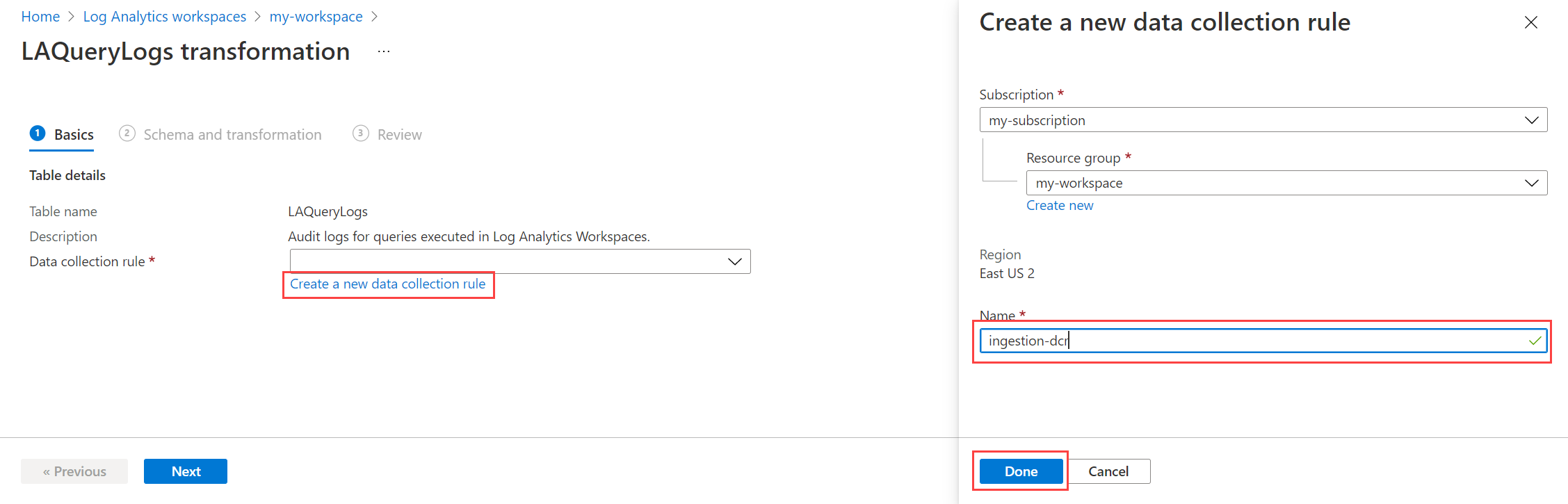
On the Log Analytics workspaces menu in the Azure portal, select Tables. Select the ellipsis (...) to the right of the table you want to transform, and then select Create transformation.

If the workspace transformation DCR doesn't already exist for this workspace, select the option to create one. If it already exists, the portal selects that DCR. Each workspace can only have one workspace transformation DCR.
Select Next to view sample data from the table. Select Transformation editor to define the transformation query.
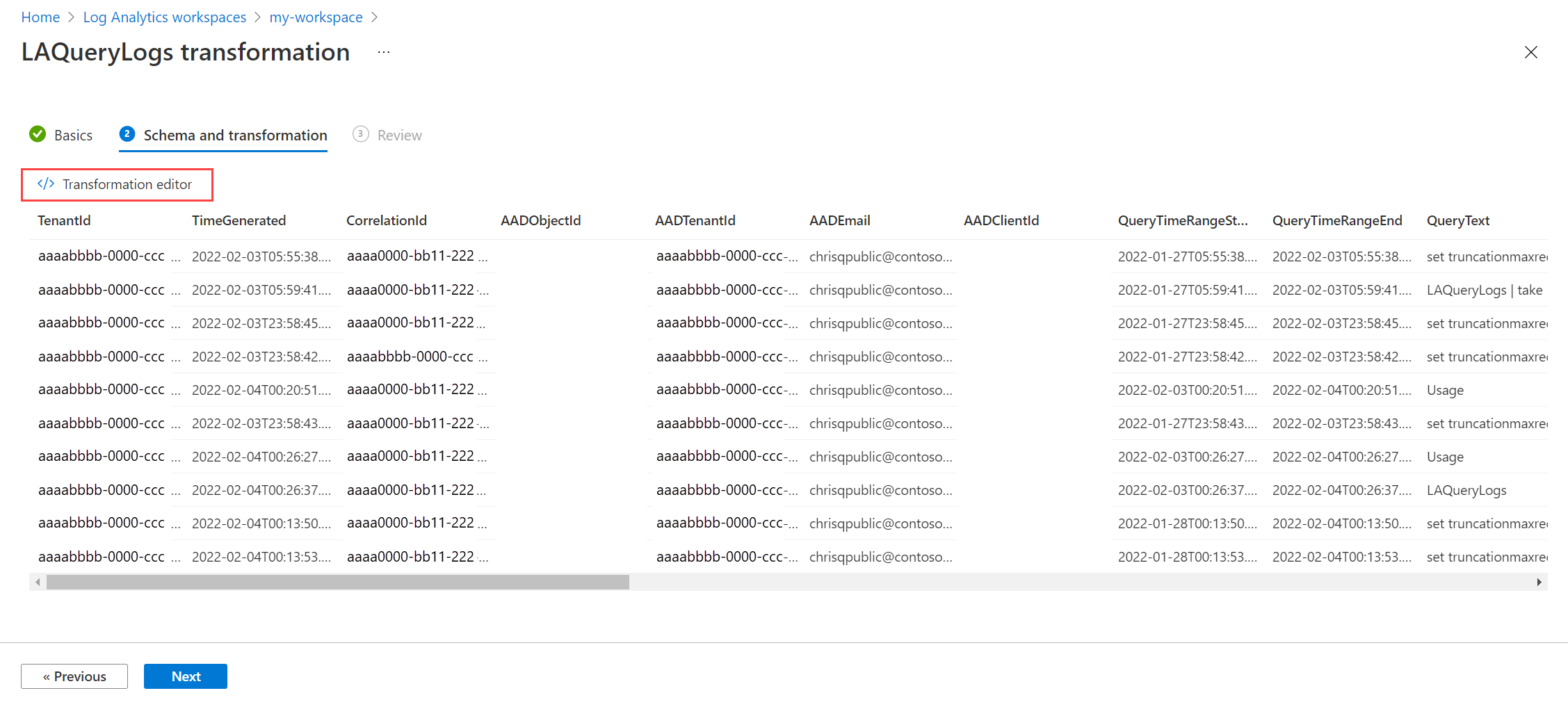
Edit and run the transformation query to see the results against actual data from the table. Keep modifying and testing the query until you get the results you want.
When you're satisfied with the query, select Apply and then Next and Create to save the DCR with your new transformation.
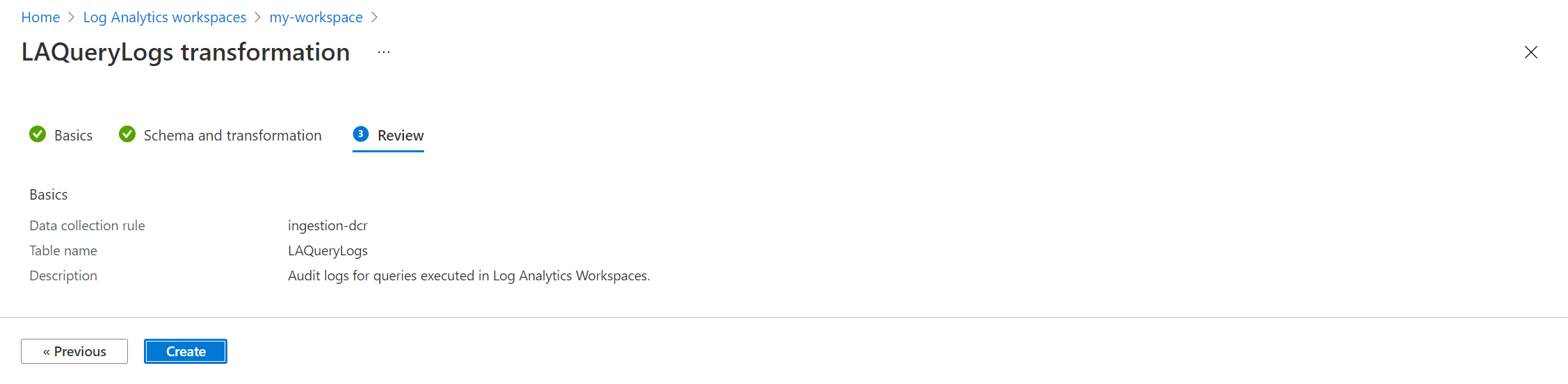
To verify the transformation is active, go to Monitor > Data Collection Rules and confirm the workspace transformation DCR appears with status Succeeded. Then query the target table after the next ingestion cycle to confirm transformations are applied.

Optimize and monitor transformations
Transformations run a KQL query against every record collected with the DCR, so it's important that they run efficiently. Transformation execution time contributes to overall data ingestion latency, and transformations that take excessive time to run can impact the performance of data collection and result in data loss. Optimal transformations should take no more than 1 second to run. See Optimize log queries in Azure Monitor for guidance on testing your query before you implement it as a transformation and for recommendations on optimizing queries that don't run efficiently.
Important
You might experience data loss if a transformation takes more than 20 seconds.
Because transformations don't run interactively, it's important to continuously monitor them to ensure that they're running properly and not taking excessive time to process data. See Monitor and troubleshoot DCR data collection in Azure Monitor for details on logs and metrics that monitor the health and performance of transformations. This includes identifying any errors that occur in the KQL and metrics to track their running duration.
The following metrics are automatically collected for transformations and should be reviewed regularly to verify that your transformations are still running as expected. Create metric alert rules to be automatically notified when one of these metrics exceeds a threshold.
- Logs Transformation Duration per Min
- Logs Transformation Errors per Min
Enable DCR error logs to track any errors that occur in your transformations or other queries. Create a log alert rule to be automatically notified when an entry is written to this table.
Troubleshoot transformations
The following tables list common transformation errors and their resolutions.
| Error | Cause | Resolution |
|---|---|---|
| Schema mismatch | Transformation output doesn't match the target table columns. | Verify that the project or extend output matches the destination table schema. See the data reference for column names and types. |
| Unsupported KQL operator | Using an operator not available in transformations (for example, join). |
See Supported KQL features for the list of supported operators. |
| Query works in Log Analytics but fails in transformation | Some KQL operators supported in Log Analytics aren't supported in transformations. | See Supported KQL features for the subset of operators available in transformations. Test queries with only supported operators before adding to the DCR. |
| Data loss after transformation | Transformation takes more than 20 seconds to run. | Simplify the KQL query. See Optimize log queries for recommendations. |
| Transformation not applied | Both transformKql and transform specified on the same data flow. |
These properties are mutually exclusive. Use one or the other per data flow. |
| Errors in DCR error logs | Invalid KQL syntax or runtime errors. | Enable DCR error logs and review the DCRLogErrors table. |
| Permission denied | Insufficient permissions to create or edit the DCR. | Verify that you have Monitoring Contributor role on the resource group or subscription. |
| Processor not recognized | Invalid processor type name (for example, filter.basic instead of filter.Basic). |
Processor names are case-sensitive. See Processor types for valid names. |
| Named transformation not found | The transform property references a name that doesn't exist in the transformations section. |
Verify the transform value on the data source or data flow matches a name in the transformations array exactly. |
| Client-side transformation not applied | Agent version doesn't support multi-stage transformations. | Update Azure Monitor Agent to the latest version. Multi-stage transformations require API version 2025-05-11 or later. |
Transformation guides by data source
There are multiple methods to create transformations depending on the data collection method. The following table lists guidance for different methods for creating transformations.
| Data collection | Reference |
|---|---|
| Logs ingestion API | Send data to Azure Monitor Logs by using REST API (Azure portal) Send data to Azure Monitor Logs by using REST API (Azure Resource Manager templates) |
| Virtual machine with Azure Monitor agent | Add transformation to Azure Monitor Log |
| Kubernetes cluster with Container insights | Data transformations in Container insights |
| Azure Event Hubs | Tutorial: Ingest events from Azure Event Hubs into Azure Monitor Logs (Public Preview) |
Limitations and considerations
- Transformations run at ingestion time and contribute to data processing costs. However, filtering data by using transformations can reduce ingestion volume and storage costs. For more information, see Cost optimization and Azure Monitor.
- Not all tables in a Log Analytics workspace support transformations. For a list of supported tables, see Tables that support transformations in Azure Monitor Logs.
- Not all KQL operators are supported in transformation queries. For more information, see Supported KQL features in Azure Monitor transformations.
- While a transformation can send a single data source to multiple tables, it can't send data to multiple workspaces. To send data from a single data source to multiple workspaces, create multiple DCRs.
- The workspace transformation DCR can't send a single data source to multiple tables since the transformation is applied to the table itself.
- Transformations in the workspace transformation DCR are applied to all data sent to the table, regardless of the data source. If you need to apply different transformations to different data sources, use a
wherestatement in the transformation query to apply different logic to data from different sources. - For multi-stage transformations,
transformandtransformKqlare mutually exclusive per data flow. A DCR can mix old-style (transformKql) and new-style (transform) data flows across different streams. - Multi-stage transformations require API version
2025-05-11or later. - Performance counter data requires separate DCRs for Windows and Linux machines when using multi-stage transformations. A DCR of kind
Allcan't use bothheader.WindowsPerformanceCountersandheader.LinuxPerformanceCountersin a single client-side transformation.
Related content
- Monitor and troubleshoot DCR data collection in Azure Monitor - Track transformation performance and diagnose errors.
- Supported KQL features in Azure Monitor transformations - Verify which KQL operators work in transformations.
- Structure of a data collection rule (DCR) in Azure Monitor - Full JSON schema reference for DCR definitions.
- Transformation samples for Azure Monitor - Example transformation queries for common scenarios.
- Create a data collection rule and an association to it from a virtual machine by using the Azure Monitor agent.
- Cost optimization and Azure Monitor - Understand how transformations affect ingestion costs.