Note
Access to this page requires authorization. You can try signing in or changing directories.
Access to this page requires authorization. You can try changing directories.
Onboard a Docker Hub organization to Microsoft Defender for Cloud to enable vulnerability assessment for container images.
Docker Hub is supported as an external registry. After onboarding, images are scanned and vulnerability findings are surfaced as recommendations.
Each Docker Hub connector represents a single Docker Hub organization. To onboard multiple organizations, create a separate connector for each one.
Prerequisites
An Azure subscription with Defender for Cloud onboarded. If you don't already have an Azure account, create one for free.
A Docker Hub organization with admin permissions and a read-only access token.
One of the following plans enabled:
- Defender for Containers
- Defender CSPM
Onboard Docker Hub to Defender for Cloud
Sign in to the Azure portal.
Go to Microsoft Defender for Cloud > Environment settings.
Select Add environment > Docker Hub.
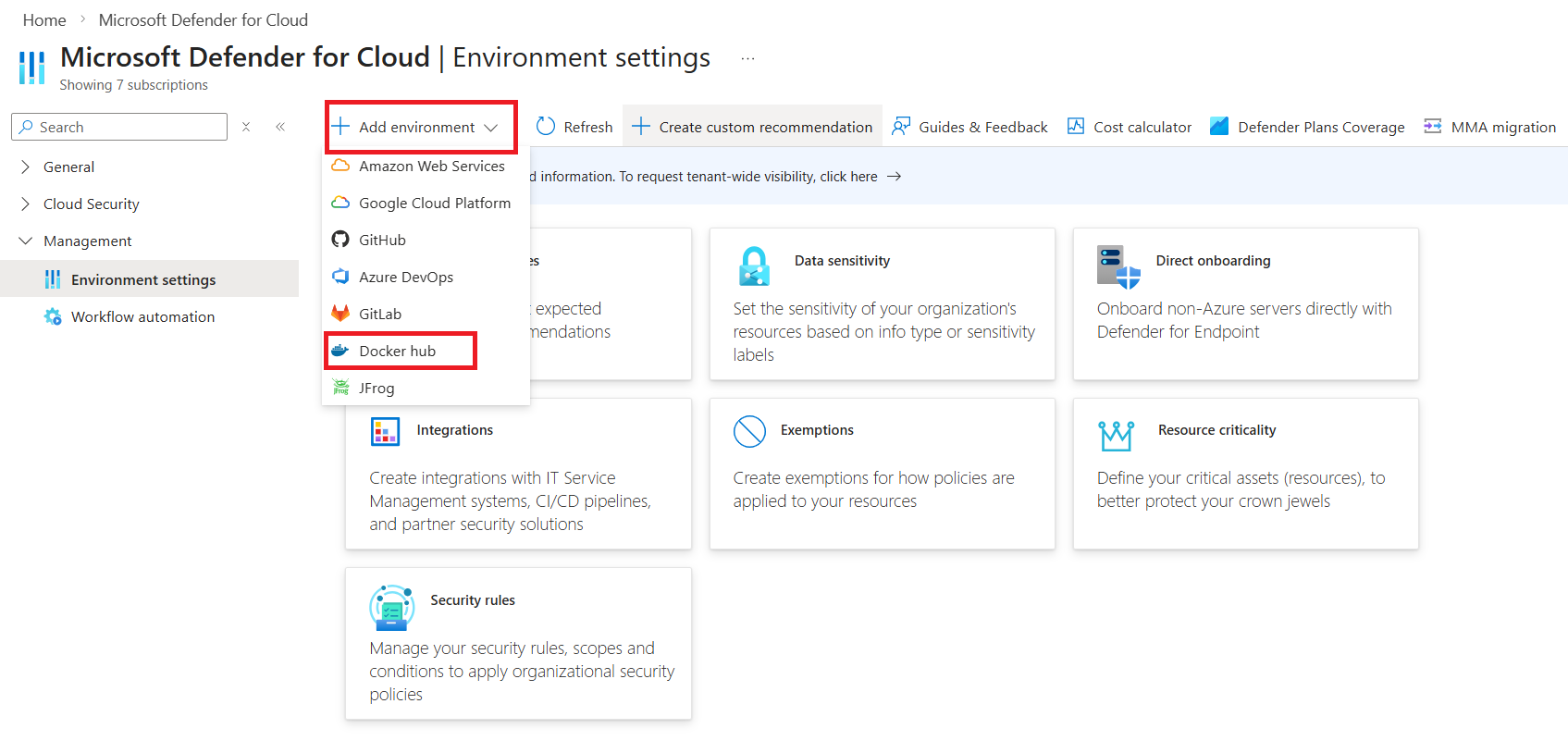
Enter a Connector name.
Select a Location.
Select a Subscription and a Resource group.
Select a Scanning interval.
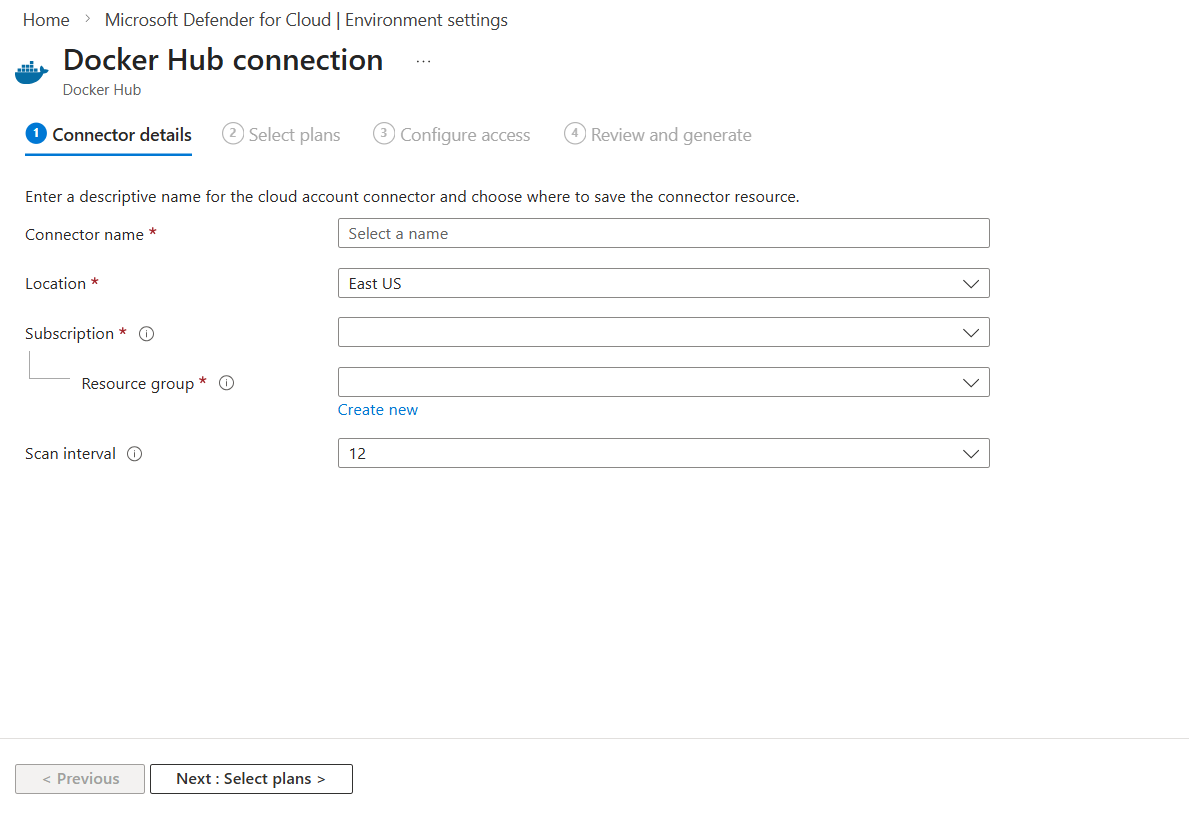
Select Next : Select plans >.
Under the Status column, toggle on the relevant plans:
- Foundational CSPM: Inventory only
- Defender for Containers: Inventory and vulnerability assessment
- Defender CSPM: Adds contextual risk signals
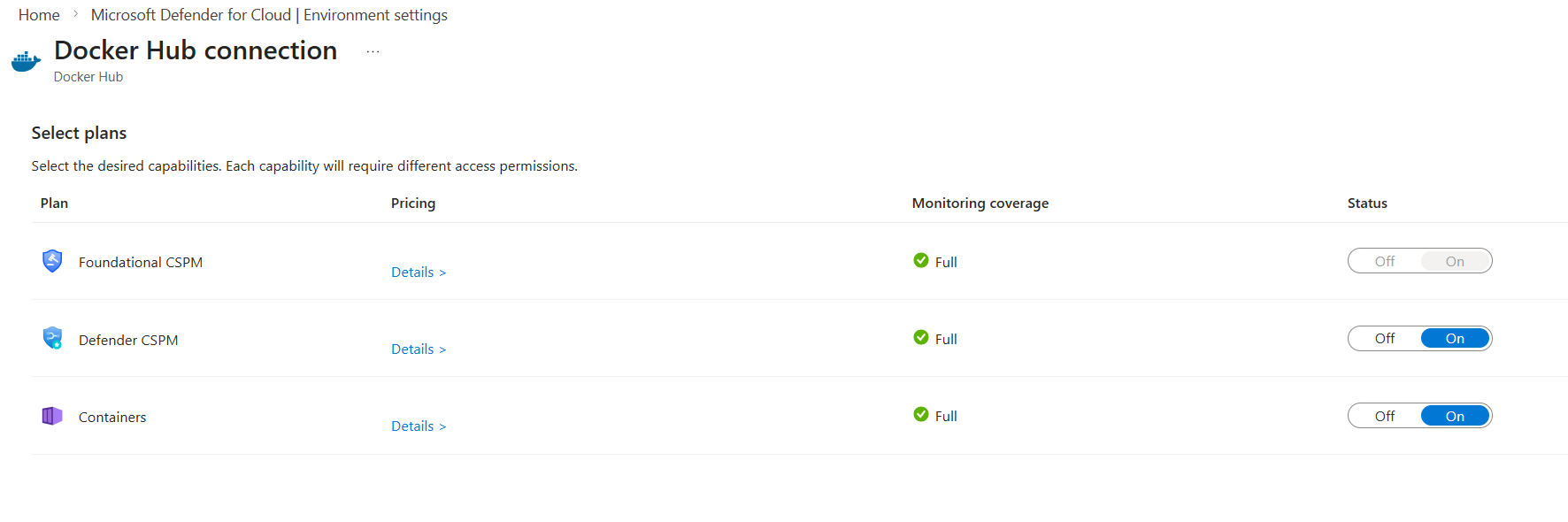
Select Next : Configure access >.
Enter the following Docker Hub connection details:
- Organization: Docker Hub organization name
- User: Docker Hub username
- Access token: Docker Hub read-only access token
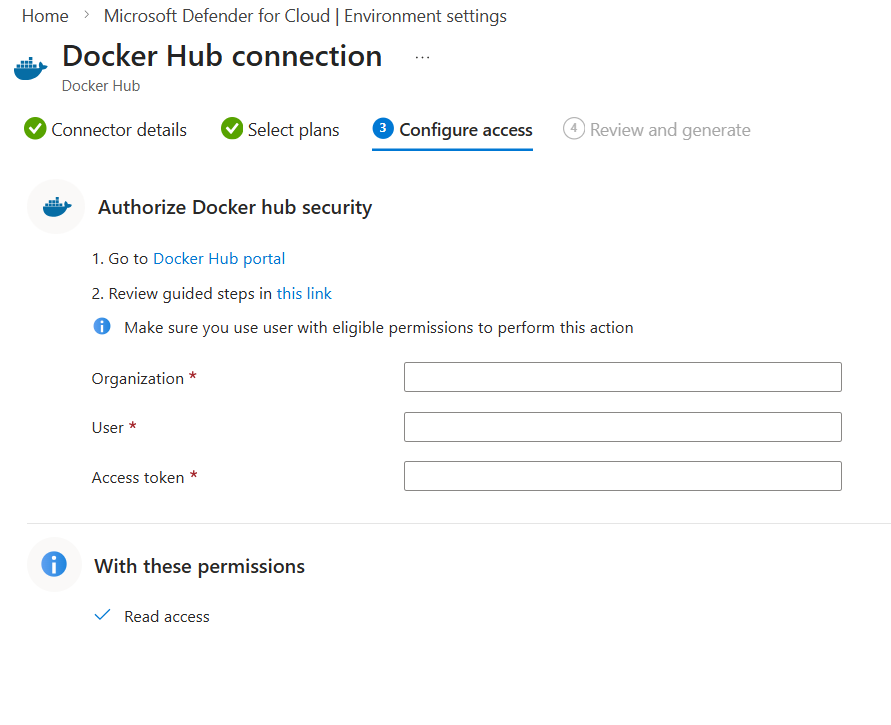
Select Next : Review and generate >.
Select Create.
Validate onboarding
After onboarding completes:
Verify the Connectivity status for your Docker Hub environment shows as Connected in Environment settings.
Verify images from the Docker Hub organization appear in Inventory.
Verify vulnerability recommendations are generated for scanned images.
Scanning typically begins within one hour after onboarding.