Note
Access to this page requires authorization. You can try signing in or changing directories.
Access to this page requires authorization. You can try changing directories.
This article shows how to configure the Azure Managed Grafana MCP endpoint in an Azure AI Foundry agent. After configuration, your agent can use MCP tools to query Azure resources, metrics, logs, and dashboards through your Azure Managed Grafana workspace.
Prerequisites
- An Azure subscription with permission to create and manage Azure resources.
- An Azure Managed Grafana workspace. If you need one, see Quickstart: Create an Azure Managed Grafana workspace.
- An Azure AI Foundry project where you can create an agent.
- Permission to assign Azure role-based access control (RBAC) roles on the Azure Managed Grafana resource.
- A configured Grafana data source for the workloads you want the agent to query (for example, Azure Monitor for Resource Graph, metrics, and logs). For setup guidance, see Configure data sources.
Get your Azure Managed Grafana endpoint
You use the endpoint hostname when you configure the tool in Foundry.
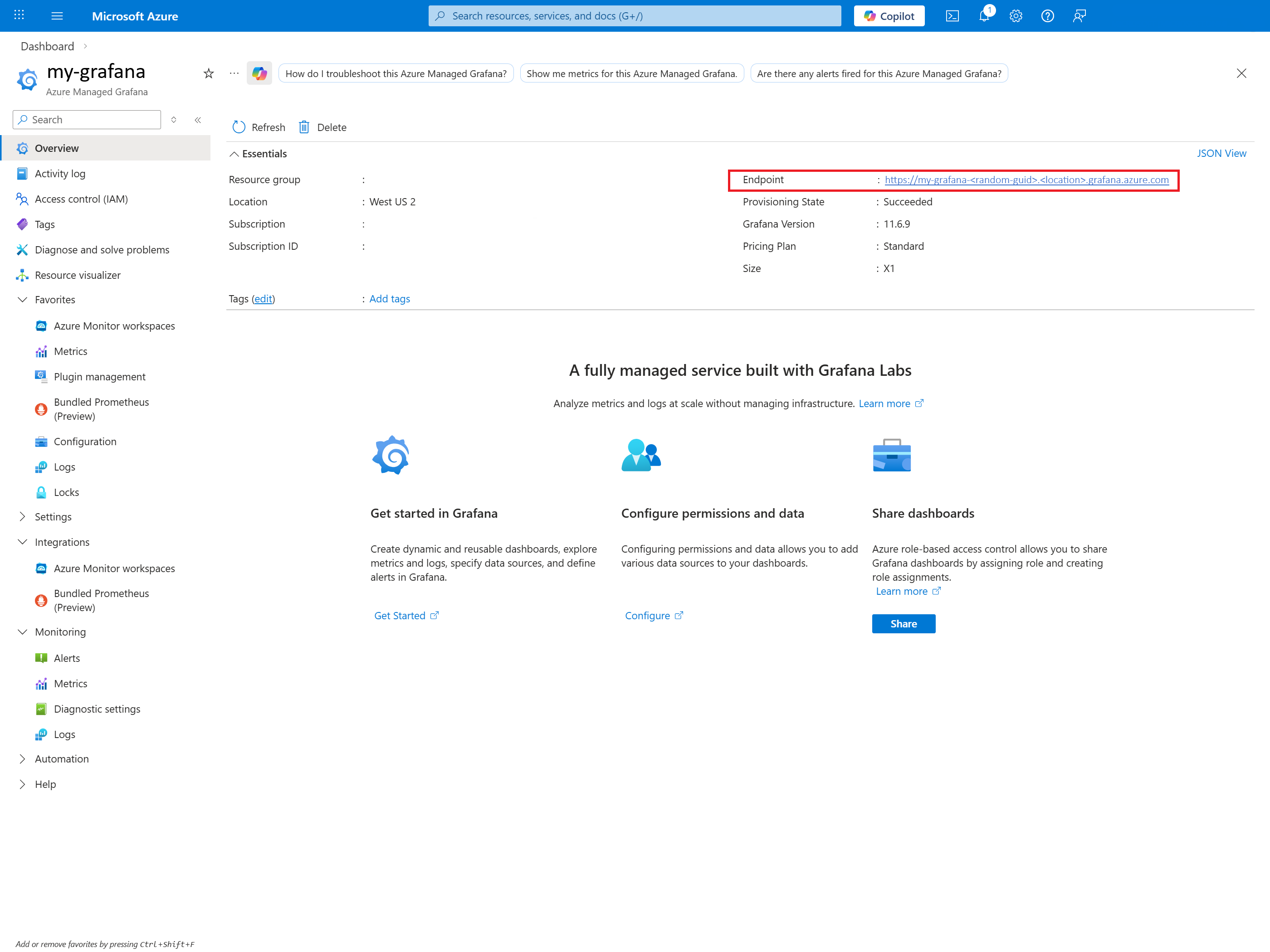
In the Azure portal, open your Azure Managed Grafana resource.
On the Overview page, copy the Endpoint value. For example:
my-grafana-<id>.<region>.grafana.azure.com.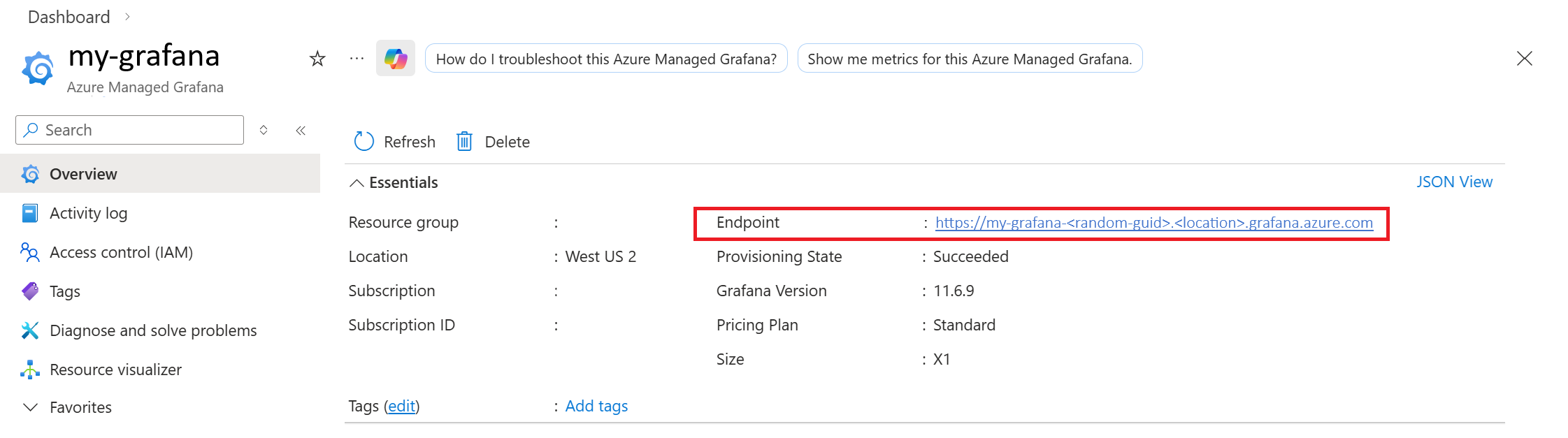
Grant your Foundry project identity access to Azure Managed Grafana
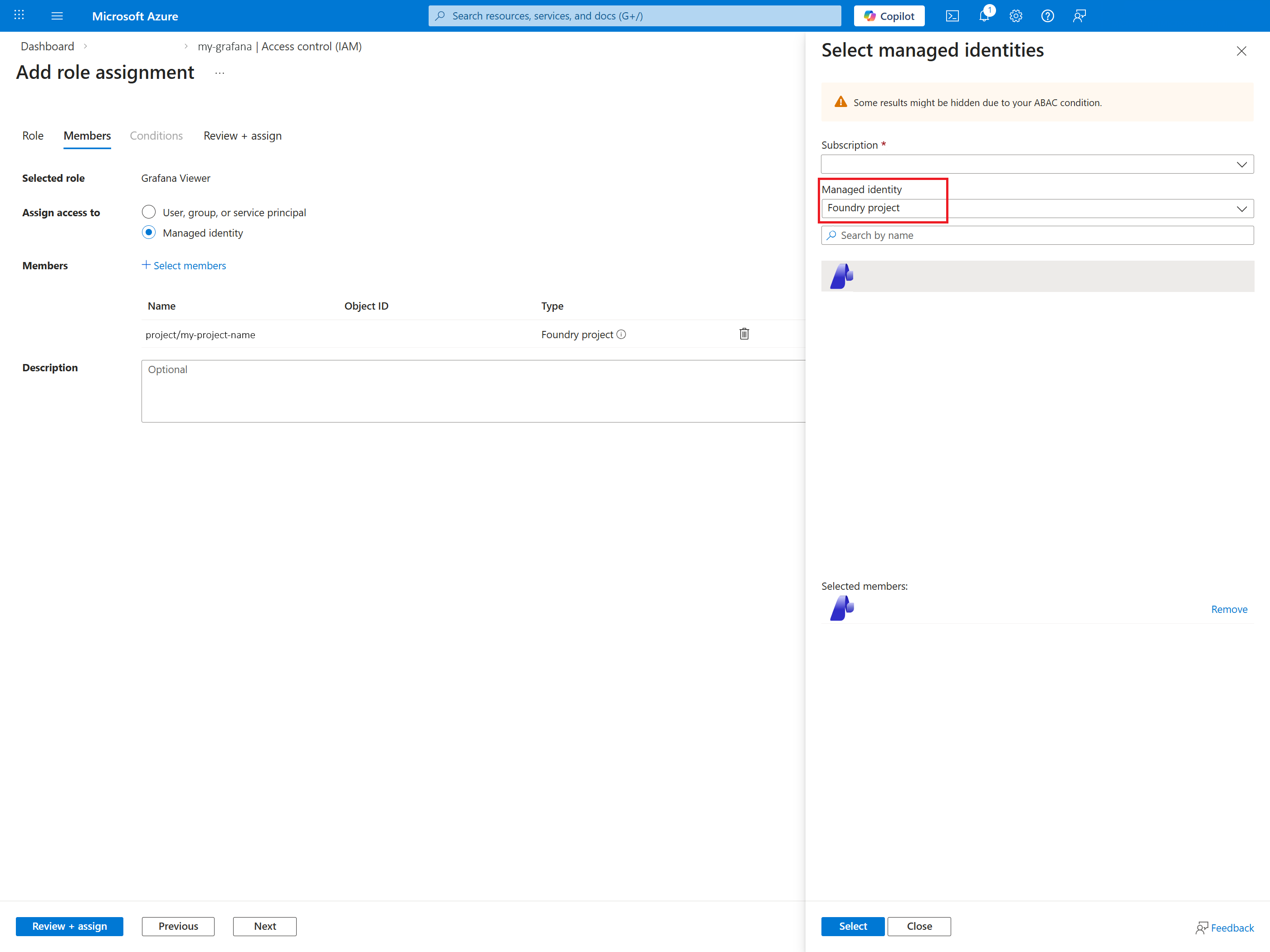
Your Azure AI Foundry project uses a managed identity to access tools and data sources.
In the Azure portal, open your Azure Managed Grafana resource.
Select Access control (IAM) > Add > Add role assignment.
Assign one of these roles to the Foundry project managed identity:
- Grafana Admin
- Grafana Editor
- Grafana Viewer
Choose the least privileged role that satisfies your scenario.
To find the correct principal:
- Open your Foundry project in Azure portal.
- Use the managed identity shown under Identity.
Note
Role assignments can take a few minutes to propagate. If the first validation attempt fails with authorization errors, wait and try again.
Create an agent in Azure AI Foundry
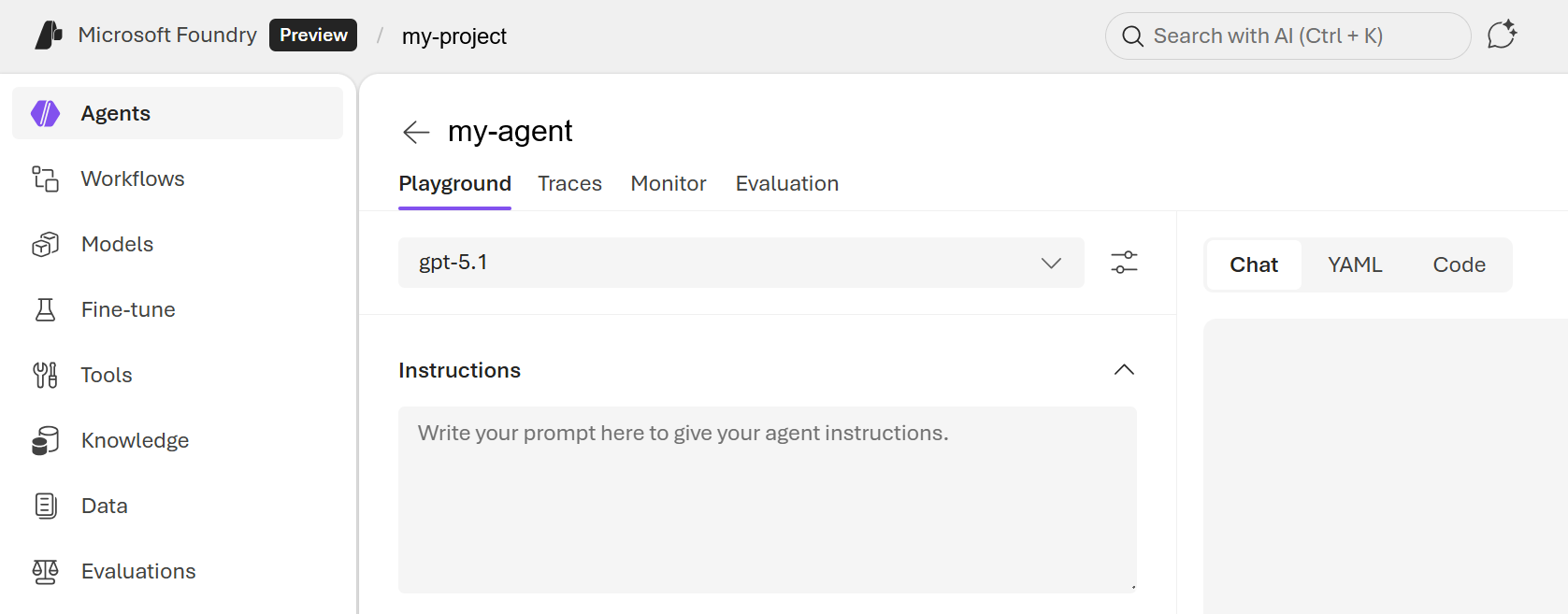
Open Azure AI Foundry and go to your project.
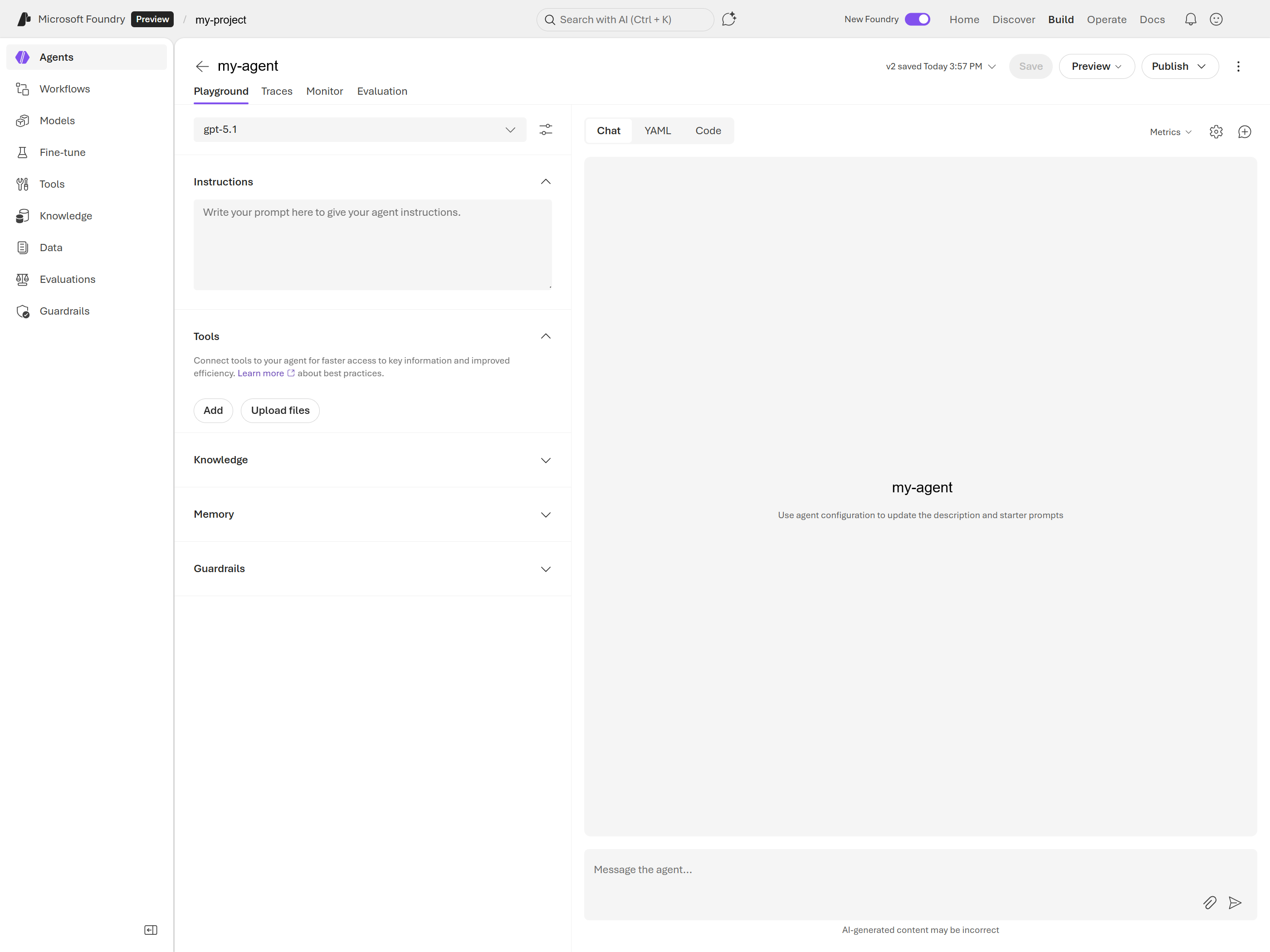
Select Agents > + New agent.
Select a model that supports tool calling. In this example, we use
gpt-5.1.Enter a name and description for the agent.
Add the Azure Managed Grafana MCP tool
In the agent configuration, go to Tools.
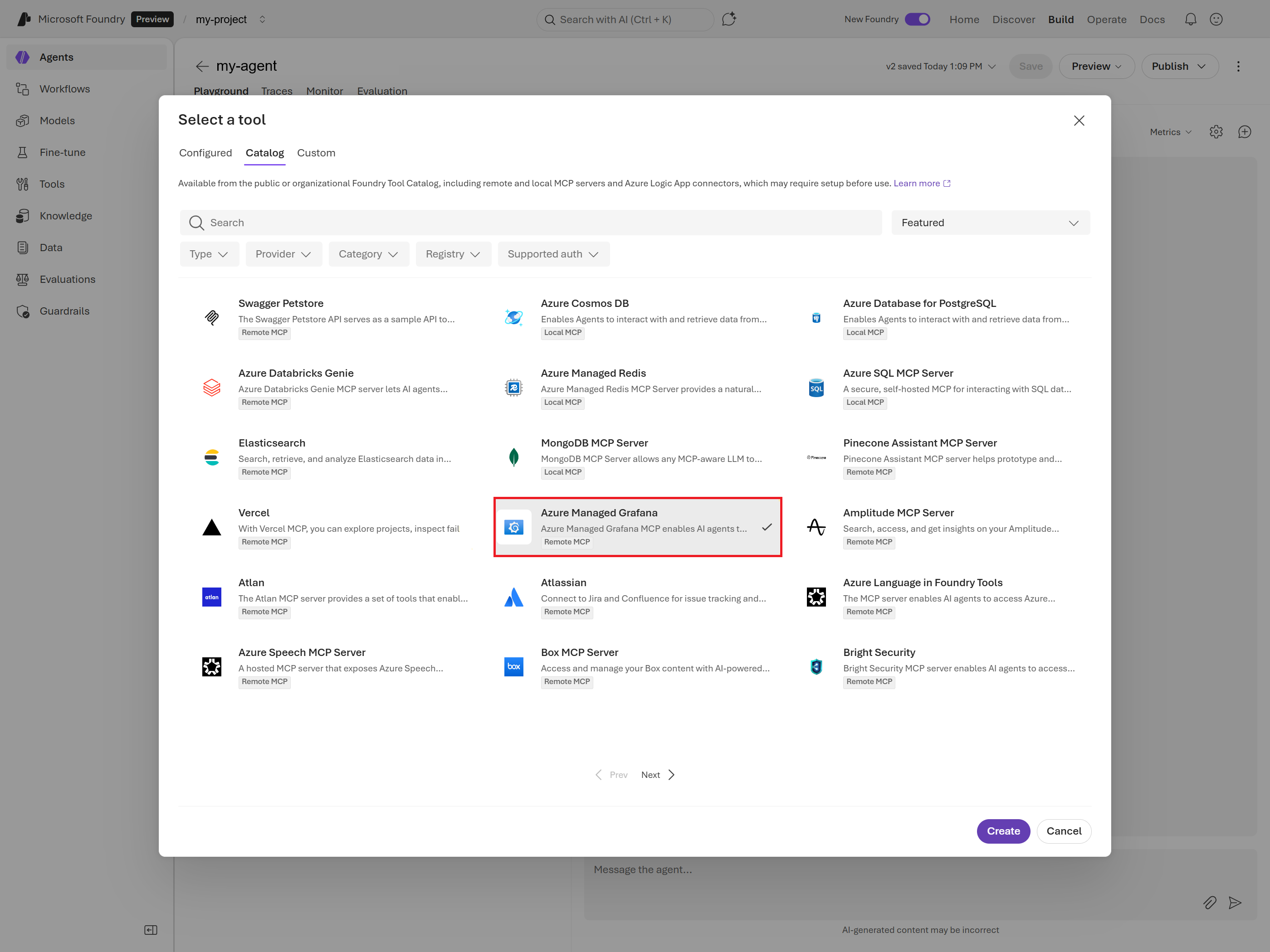
Select + Add tool.
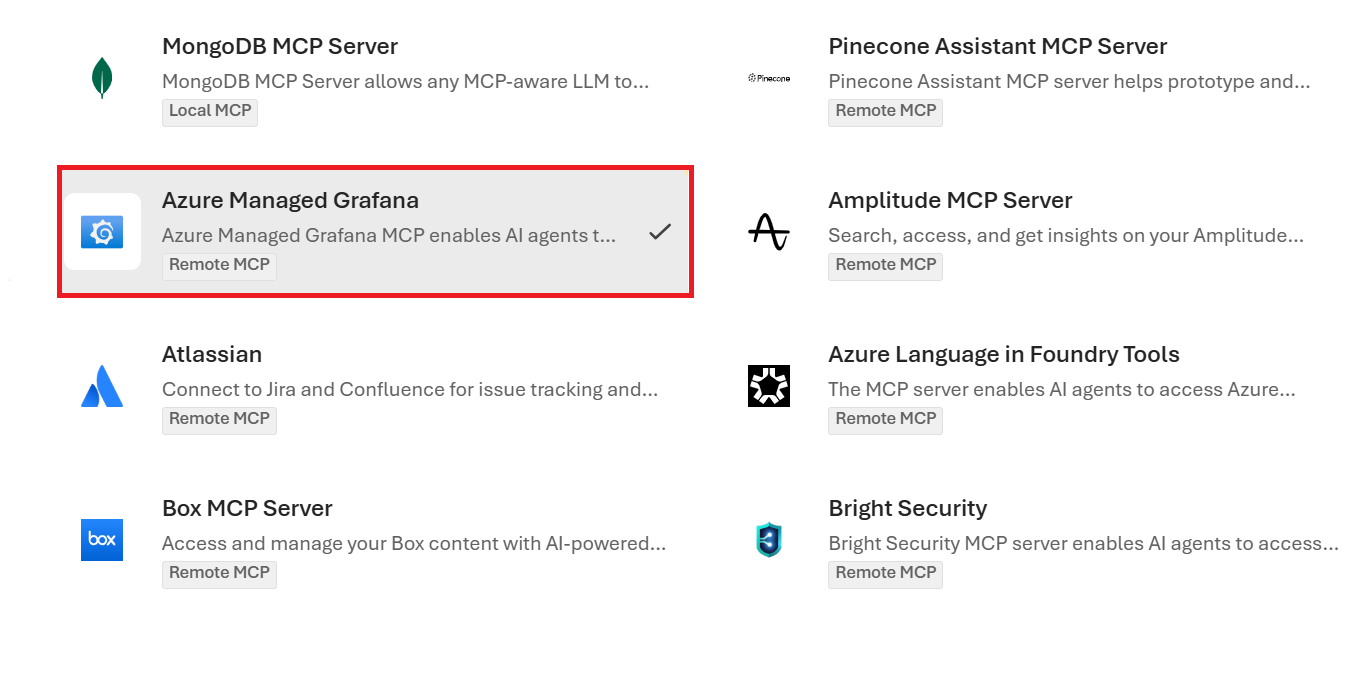
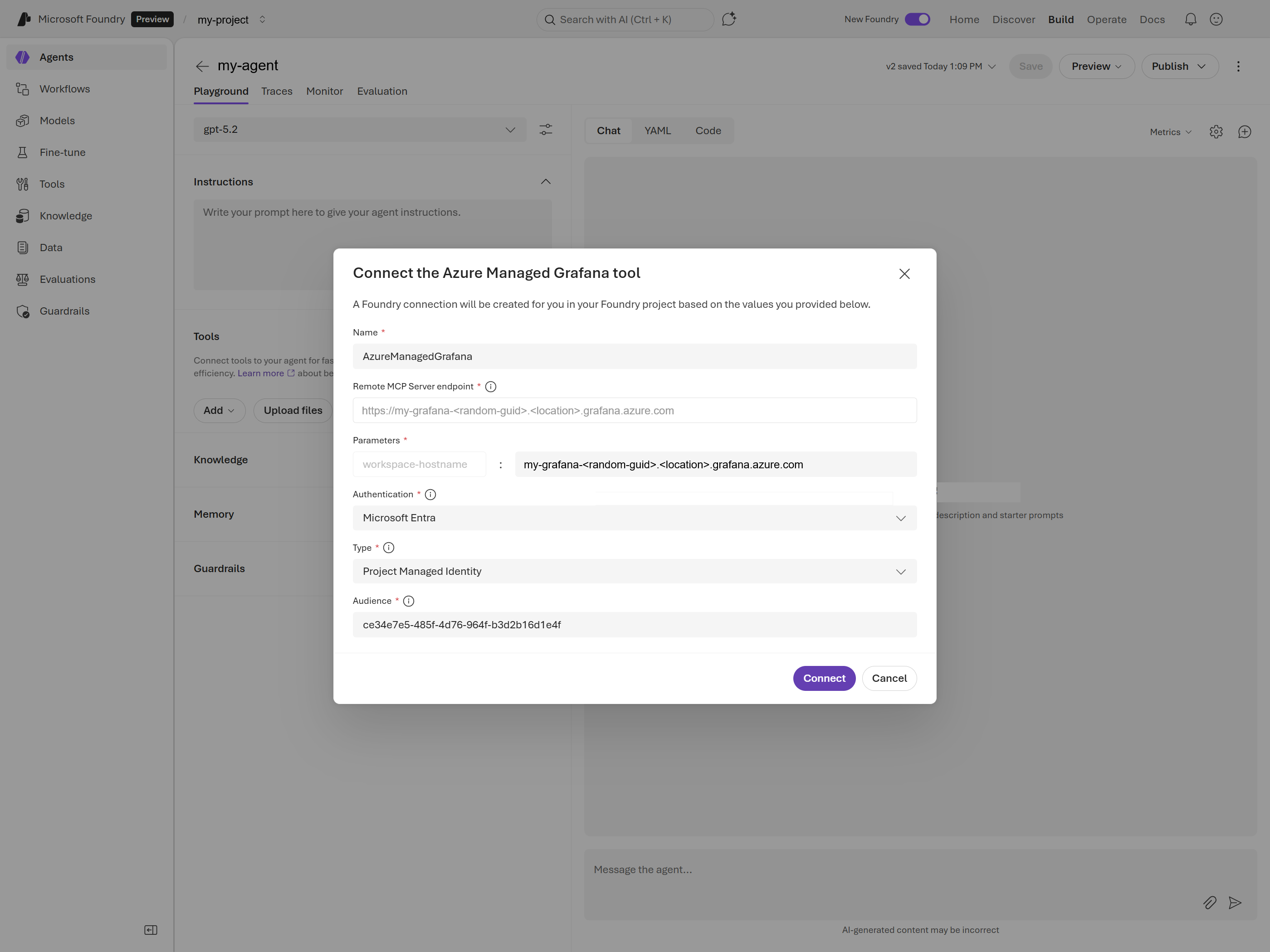
Select Catalog, then select Azure Managed Grafana.
Configure the tool settings:
Setting Value workspace-hostname Your Azure Managed Grafana endpoint hostname. Enter only the hostname. Don't include https://or/api/azure-mcp.Authentication Microsoft Entra Type Project Managed Identity Audience The Azure Managed Grafana audience: 6f2d169c-08f3-4a4c-a982-bcaf2d038c45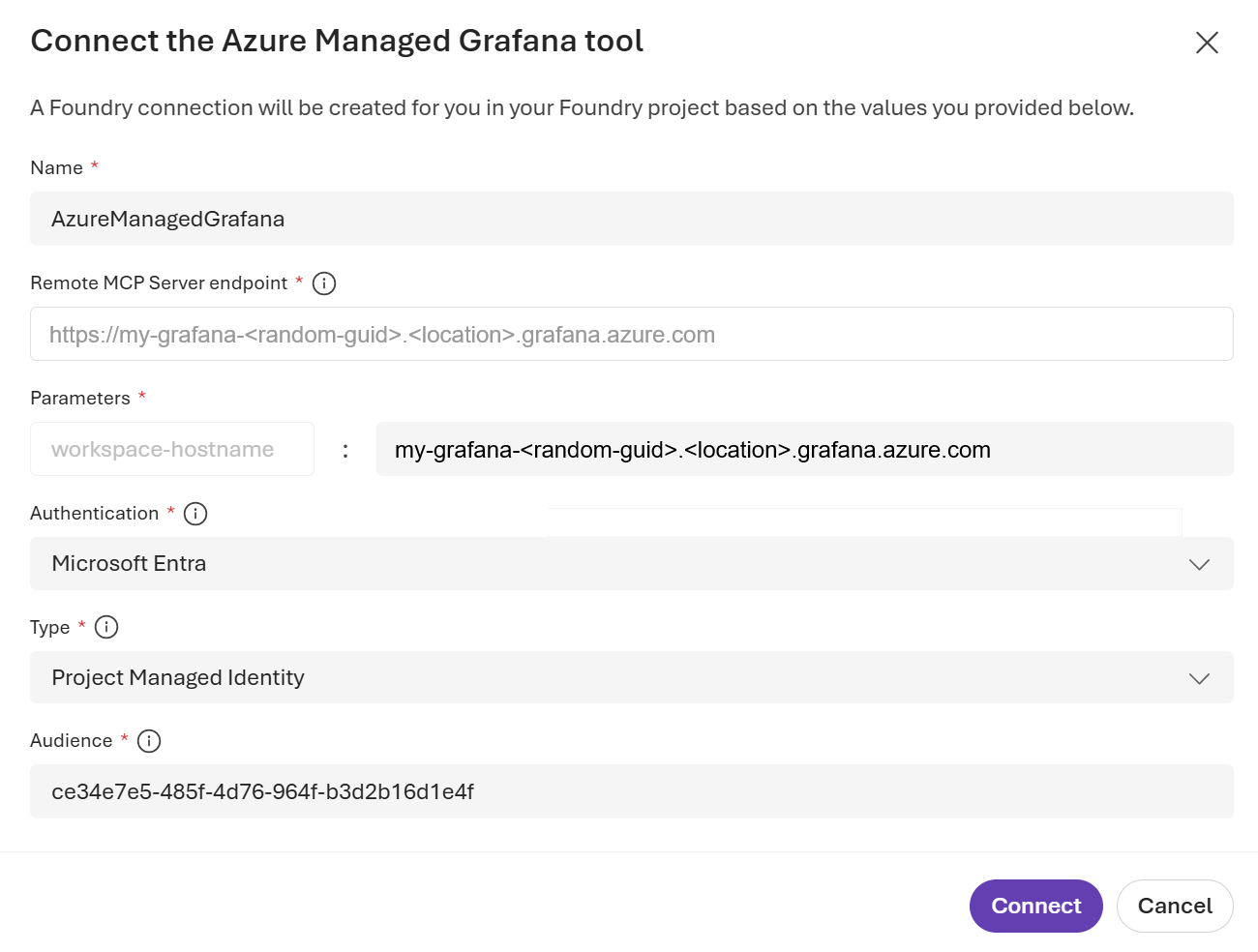
Validate the sample
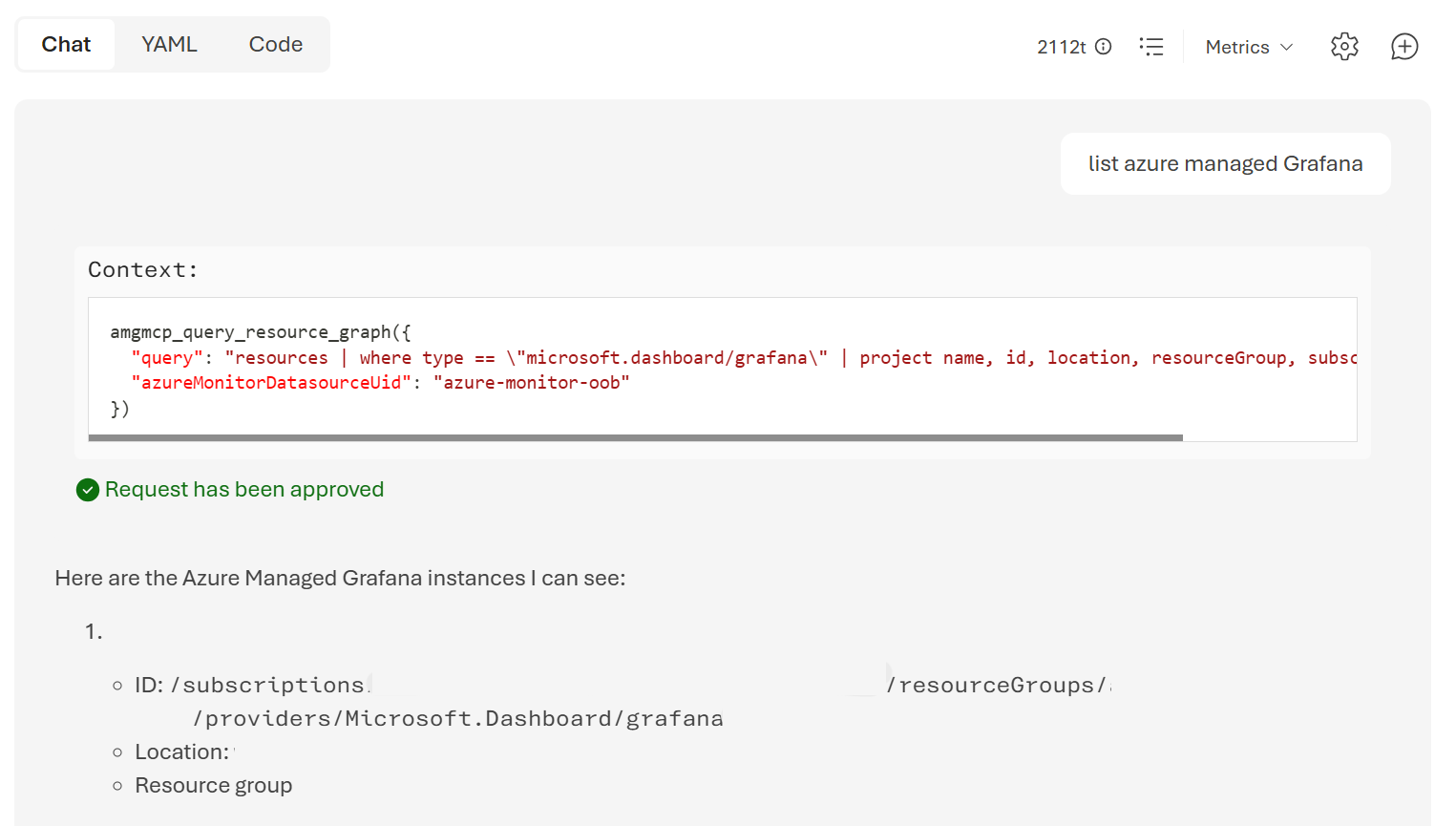
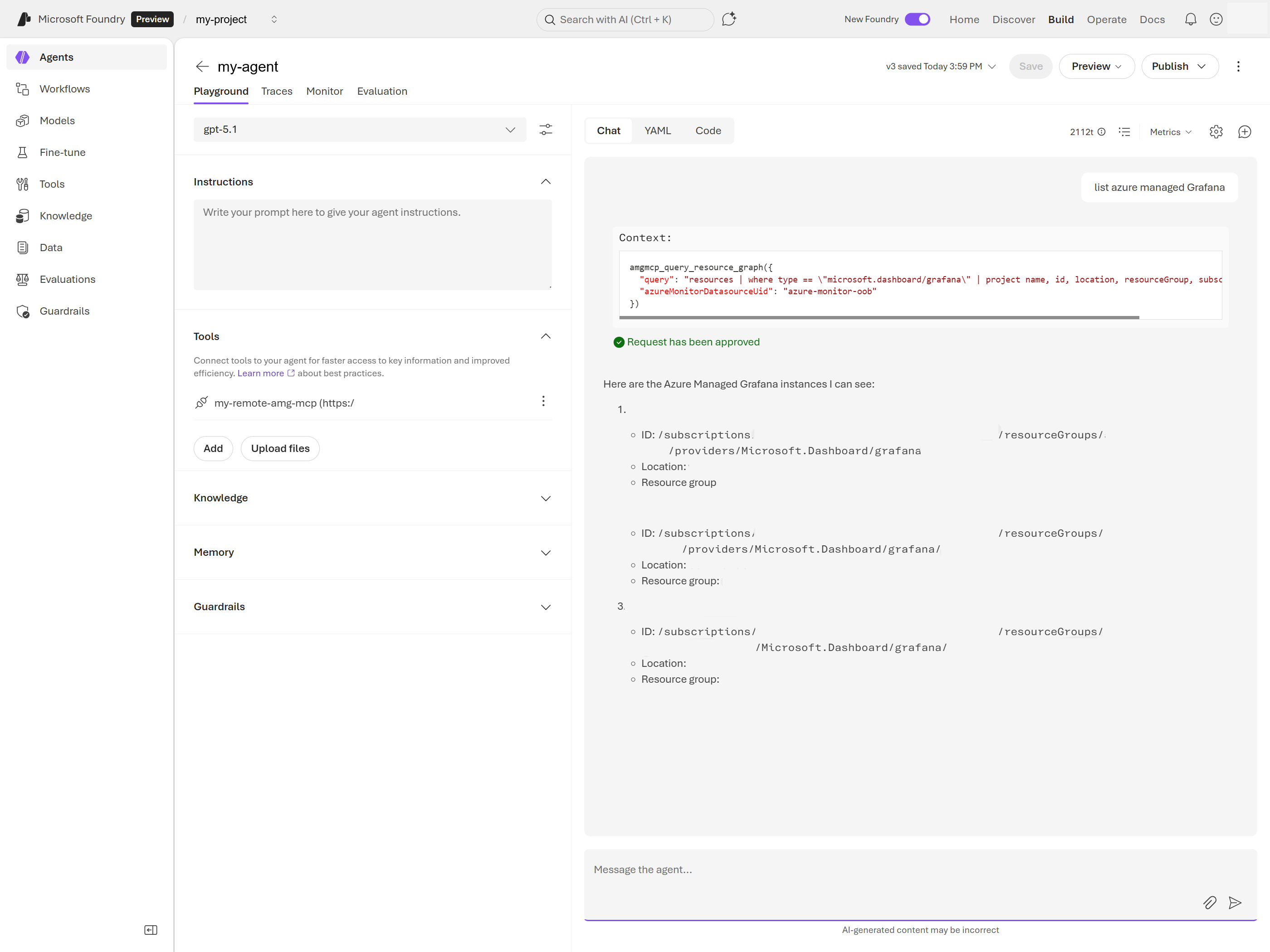
After you save the tool configuration, validate the setup from the agent chat.
Open the chat panel for your agent.
Submit a connectivity prompt, like List all Azure subscriptions available through Azure Managed Grafana MCP.
Confirm that the response includes grounded tool output rather than a generic model-only answer.
Sample prompts
You can use any of the following sample prompts:
List all Azure Managed Grafana instances in my subscriptions.Show me all virtual machines in resource group <resource-group-name>.Find all storage accounts with public access enabled.
Troubleshoot validation
If validation fails:
- Verify the managed identity has a Grafana role on the Azure Managed Grafana resource.
- Verify the workspace-hostname value is the Grafana hostname only.
- Verify the audience is
6f2d169c-08f3-4a4c-a982-bcaf2d038c45. - Verify the Grafana data source required by the prompt exists and can access the target Azure scope.
- Check for RBAC propagation delay and retry after a few minutes.
For general token guidance and an API example, see Authenticate to Azure Managed Grafana data plane APIs with Microsoft Entra ID.
Clean up resources
If you created resources only for this test, remove access and resources to avoid ongoing charges.
Remove the test role assignment from your Azure Managed Grafana resource:
- Open Access control (IAM) on the Azure Managed Grafana resource.
- Select Role assignments.
- Find the Foundry project managed identity assignment and remove it.
In Azure AI Foundry, remove the Azure Managed Grafana tool from the agent, or delete the test agent.
Optionally delete test resources such as the Foundry project and Azure Managed Grafana workspace if they were created only for this walkthrough.
Next steps
- Learn more about the remote MCP endpoint in Configure an Azure Managed Grafana remote MCP server.
- Explore dashboard examples in Create dashboards for GenAI applications.
- Review broader token guidance in Authenticate to Azure Managed Grafana data plane APIs with Microsoft Entra ID.